
Nothing kills the hype of a scheduled Premier match like seeing the "CS2 VAC Unable to Verify Game Session" error pop up just as you click 'Accept'. This frustrating technical glitch has haunted Counter-Strike players for years, transitioning from CS:GO into the Source 2 engine. Unlike a standard "connection timed out" message, this error isn't necessarily about your internet speed; it’s a breakdown in communication between your local game files and Valve’s Anti-Cheat (VAC) servers. If you are tired of being locked out of official matchmaking, this guide provides the definitive roadmap to resolving the issue and stabilizing your game performance.

- ✅ Reduce Lag and High Ping.
- ✅ Boost FPS at the Same Time.
- ✅ Add CSGO to Steam Library.
- ✅ Change Server Without Latency.
- ✅ End All Connection crash Issues.
- ✅ Multiplatform: PC, Mobile, Console.
Part 1: CS2 VAC Unable to Verify Game Session: An Overview
Part 2: How to Fix CS2 VAC Unable to Verify Game Session Error? - Quick Fix
Part 1: CS2 VAC Unable to Verify Game Session: An Overview
The CS2 VAC Unable to Verify Game Session error is essentially a "handshake" failure. To maintain competitive integrity, Steam’s VAC system must verify that your game client is "clean", meaning no modified files, suspicious background processes, or corrupted data are present.
This error typically triggers when you attempt to join a queue or right after a game update. The hallmark of this issue is that your internet might be working perfectly for browsing or other games, yet CS2 refuses to let you into official servers. It is a client-side authentication failure; the server can see you, but it doesn't trust your current session's security integrity.
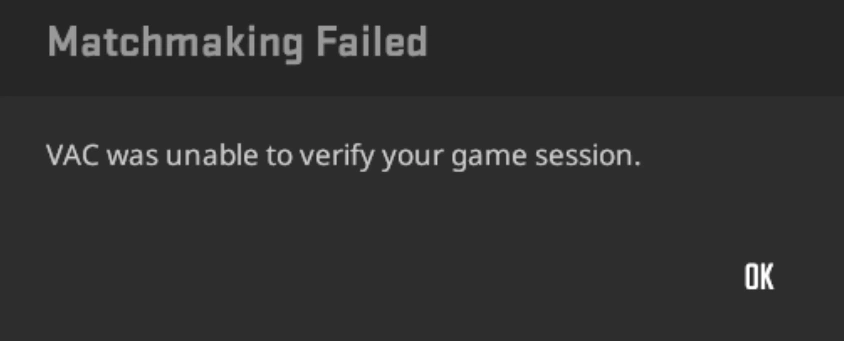 Common triggers include:
- Corrupted Steam Service: The underlying service that runs VAC has stalled.
- Conflicting Software: Background apps (like some overly aggressive antivirus programs) are blocking VAC from scanning your game directory.
- File Mismatch: A recent patch didn't install correctly, leading to a discrepancy between your files and the server’s requirements.
Part 2: How to Fix CS2 VAC Unable to Verify Game Session Error? - Quick Fix
While manual troubleshooting can feel like a game of trial and error, there is a more streamlined way to handle the technical hurdles of Counter-Strike 2.
The Pro Solution: Use LagoFast Game Booster
The most efficient way to bypass "CS2 VAC was unable to verify your game session" and other connectivity roadblocks is by using LagoFast. As a dedicated game-exclusive optimizer, LagoFast goes beyond what a standard VPN can do. It features a specialized one-click crash fix tool designed to repair the common registry and pathing errors that often trigger VAC flags. Furthermore, its FPS boost functionality cleans up background processes that might interfere with Steam’s authentication, ensuring your system is "VAC-ready" while maximizing your frame rates for a competitive edge.
Key Features of LagoFast:
- Smart Fix Tool: Automatically repairs game-related errors and stabilizes your connection to Valve’s servers.
- Multipath Optimization: Routes your traffic through the fastest, most secure nodes to prevent packet loss.
- One-Click FPS Boost: Optimizes CPU/GPU settings and clears system junk to prevent micro-stutters.
- Global Server Network: Easily switch regions to find the lowest ping without triggering security alerts.
How to Use LagoFast to Boost CS2 to Fix VAC Unable to Verify Game Session Error
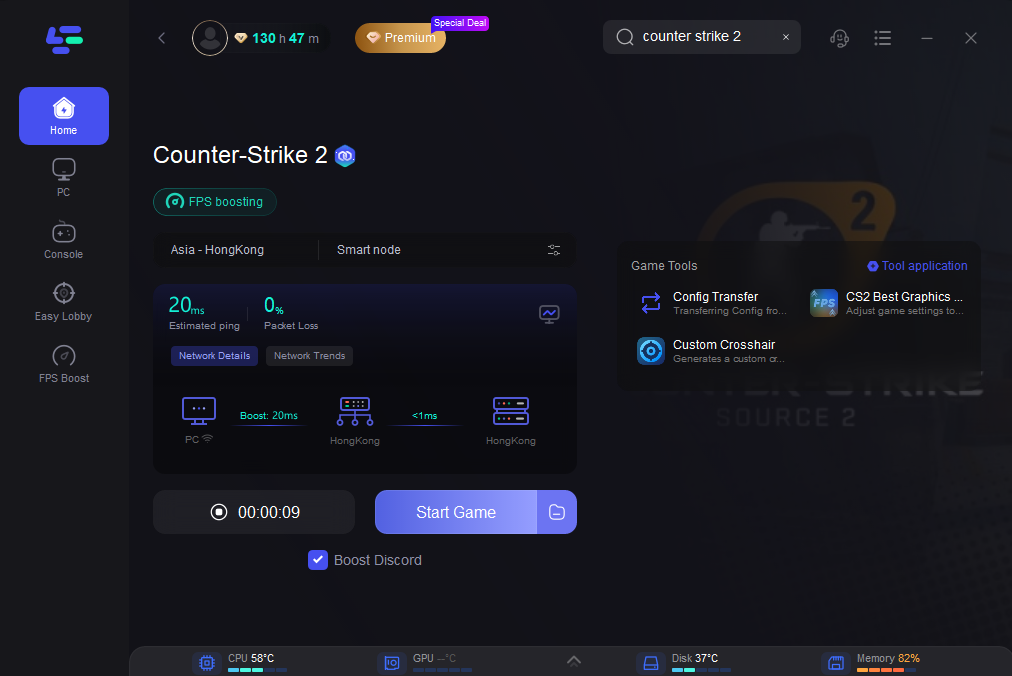
Click the "Free Trial" button below to download and install LagoFast for free.
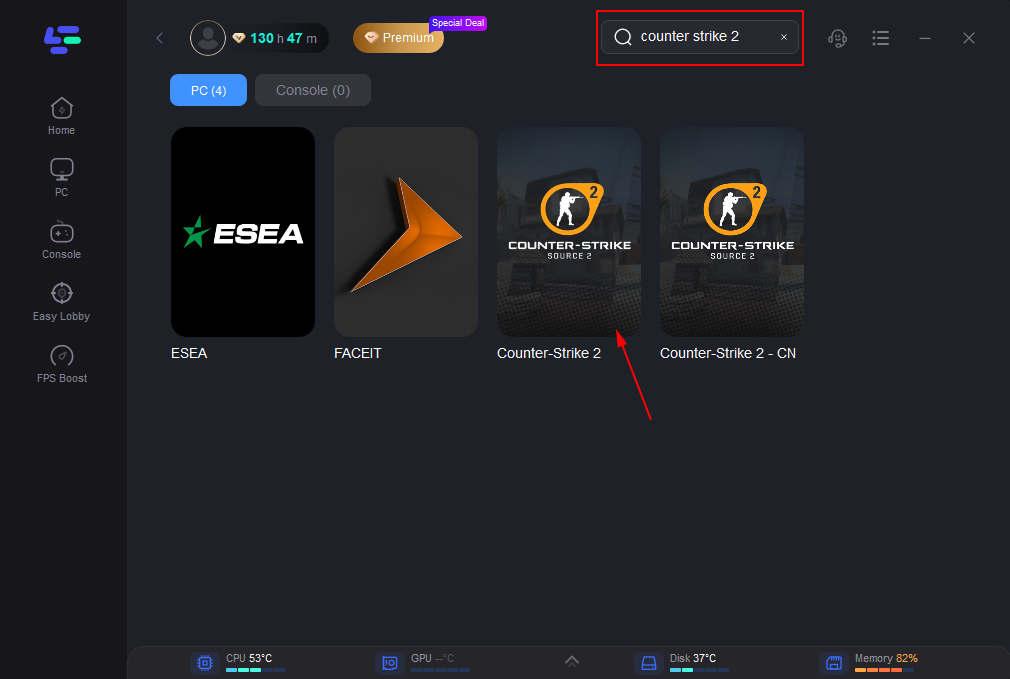
Use the search bar in LagoFast to find Counter-Strike 2.
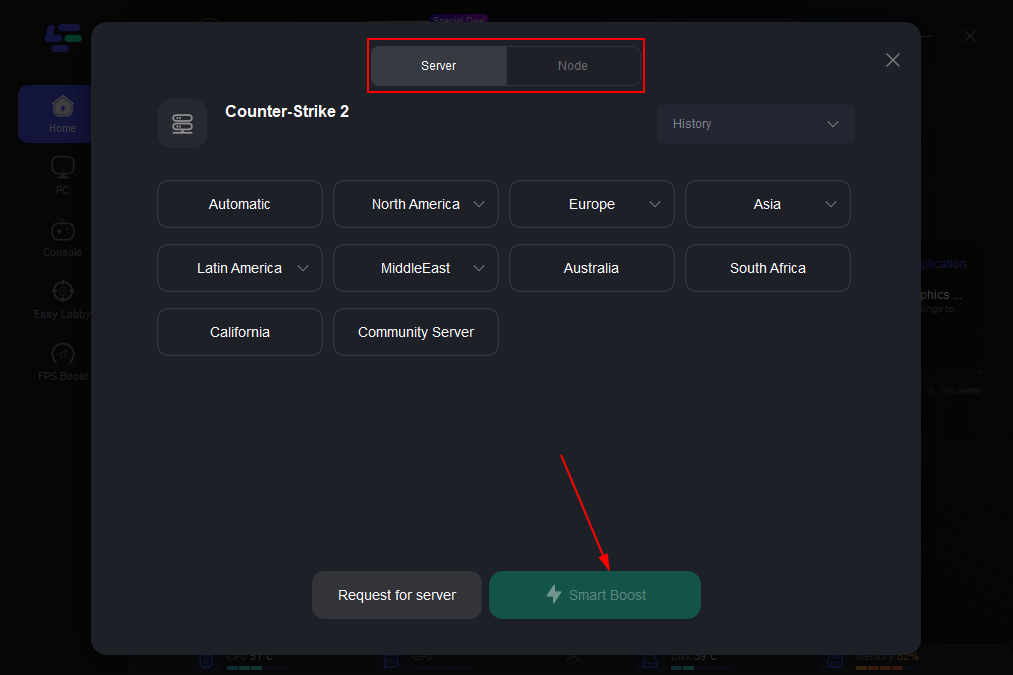
Click on “Server” to change to a better server that ensures smooth gameplay, then click on “Smart Boost”.
Check the specific game ping, packet loss, and multiple path connection on the right side. Finally, click the “Start Game” to play the game.
While the following methods are the "standard" advice found on forums, they are often hit-or-miss and time-consuming compared to the automated optimization offered by LagoFast. If you have the patience, you can try these steps:
Method A: Verify Integrity of Game Files
This is the most common manual fix, though it often requires a large download if Steam finds an error.
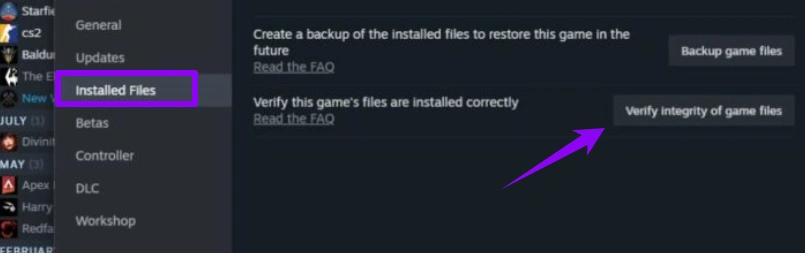
Step 1. Open your Steam Library.
Step 2. Right-click on Counter-Strike 2 and select Properties.
Step 3. Navigate to the Installed Files tab.
Step 4. Click Verify integrity of game files and wait for the process to hit 100%.
Method B: Repair the Steam Service
Sometimes the VAC system fails because the Steam Service itself has lost its administrative permissions.
Step 1. Close Steam completely.
Step 2. Press Win + R, type cmd, and press Ctrl + Shift + Enter to run as administrator.
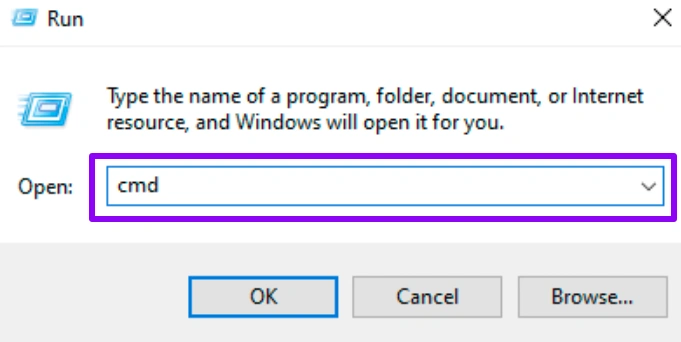
Step 3. Type the following command: "C:\Program Files (x86)\Steam\bin\SteamService.exe" /repair (adjust the path if Steam is installed elsewhere).
Step 4. Wait for the process to finish and restart your PC.
Method C: Clear Steam Download Cache
Old data in your cache can lead to "session" errors because the login tokens become stale.
Step 1. Go to Steam Settings.
Step 2. Select the Downloads tab.
Step 3. Click Clear Download Cache at the bottom.
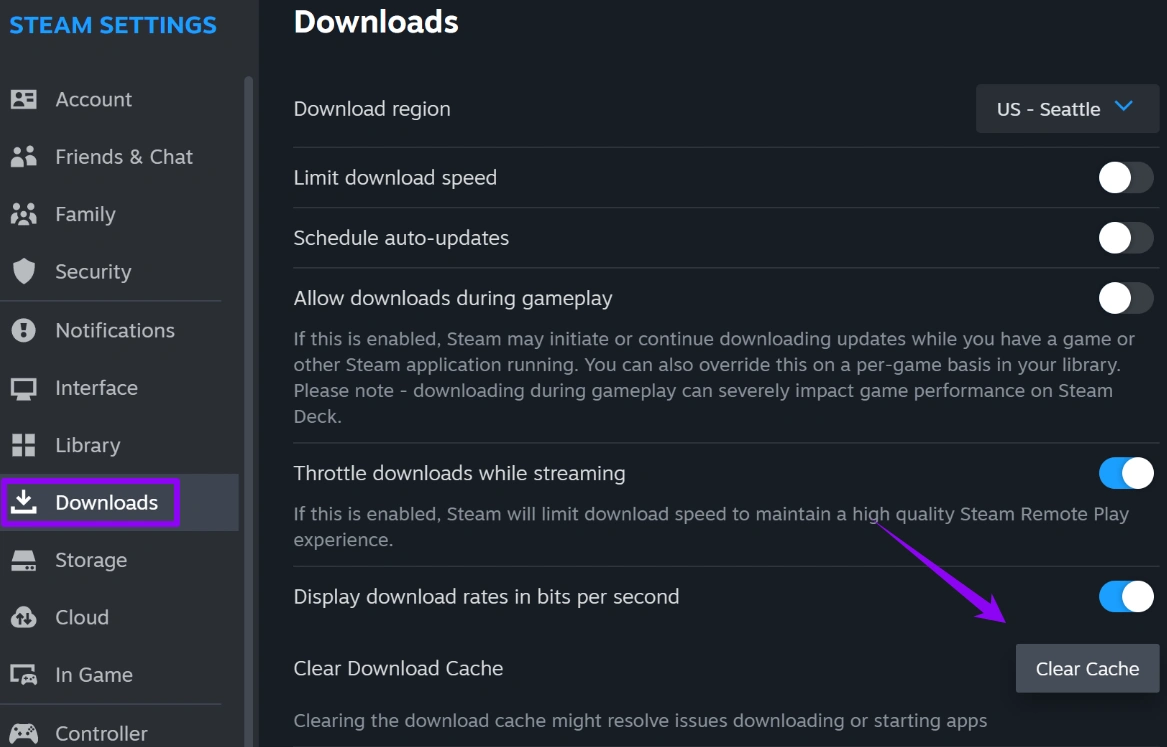
Step 4. Confirm the choice; Steam will restart and require you to log back in.
Method D: Restart Your PC & Power Cycle Router
The "classic" fix that rarely addresses the root cause but can occasionally clear a temporary IP conflict.
Step 1. Shut down your PC.
Step 2. Unplug your router for at least 30 seconds.
Step 3. Plug the router back in and wait for all lights to turn green.
Step 4. Boot up your PC and launch CS2 immediately.
Method E: Disable Conflicting Background Applications
Programs that hook into your game's memory (like certain RGB software or older overlays) can trigger a VAC verification failure.
Step 1. Open Task Manager (Ctrl + Shift + Esc).
Step 2. End tasks for apps like CCleaner, Powershell, or lighting software (e.g., iCUE or Razer Synapse).
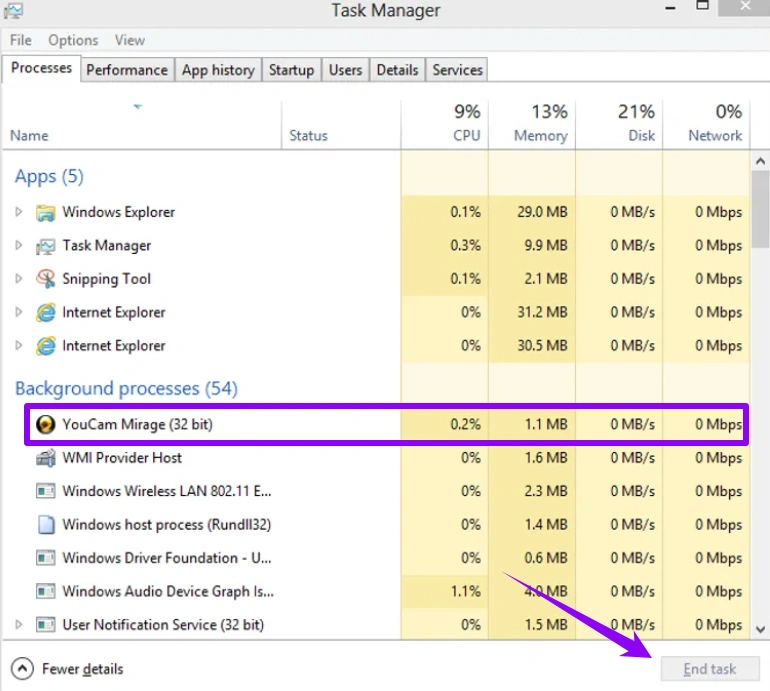
Step 3. Launch CS2 and see if the error persists.
Why Manual Fixes Often Fail
You might find that you fix the "CS2 VAC Unable to Verify Game Session" error today, only for it to return tomorrow. This is because manual fixes like "verifying files" only treat the symptoms. They don't optimize the network environment or prevent the system conflicts that caused the error in the first place. This is why a persistent tool like LagoFast is preferred by competitive players; it maintains a "clean" environment and a dedicated connection path, so you aren't constantly digging through Windows settings every time you want to play a game.
Conclusion
Dealing with the "CS2 VAC Was Unable to Verify Your Game Session" error is a rite of passage for many players, but it doesn't have to ruin your night. By understanding that this is a verification glitch rather than a hardware failure, you can approach the fix logically. While manual troubleshooting, like clearing your cache or repairing the Steam service, can work, they are often temporary band-aids. For a permanent, one-click solution that also improves your in-game smoothness, LagoFast remains the superior choice for serious CS2 enthusiasts.

Boost Your Game with LagoFast for Epic Speed
Play harder, faster. LagoFast game booster eliminates stutter and lags on PC, mobile, or Mac—win every match!
Quickly Reduce Game Lag and Ping!
Boost FPS for Smoother Gameplay!