
“CS2 just won’t start. Sometimes it’s Error 126, sometimes a DX11 crash, sometimes nothing at all. I click play and it just dies. No idea what’s broken.”
If CS2 won’t launch, shows errors like Error 126, DX11 crashes (crenderdevicemgrdx11), CPU errors, or just crashes without any message, you’re not alone. These issues usually come from missing system files, GPU/driver problems, or Steam conflicts.
This guide explains every major CS2 launch error and how to fix them step by step, so you can get back in-game quickly.

- ✅ Lower ping and fewer disconnects.
- ✅ More FPS and better PC performance.
- ✅ Support for 3000+ games.
- ✅ Stable connections and region switching.
Fastest CS2 launch fixes to try first
Before you jump into any error-specific path, do these in order:
Verify CS2 game files in Steam
Open Steam Library, right-click CS2, choose Properties, open Installed Files, then click Verify integrity of game files.Clear launch options
In CS2 Properties, remove everything in Launch Options first.Try
-autoconfig
If CS2 still will not open, enter-autoconfigin Launch Options and test again.Update your GPU driver
Old or broken graphics drivers are a common launch blocker, especially with DirectX errors.Update Windows
Missing system updates can cause compatibility problems.Run Steam as administrator
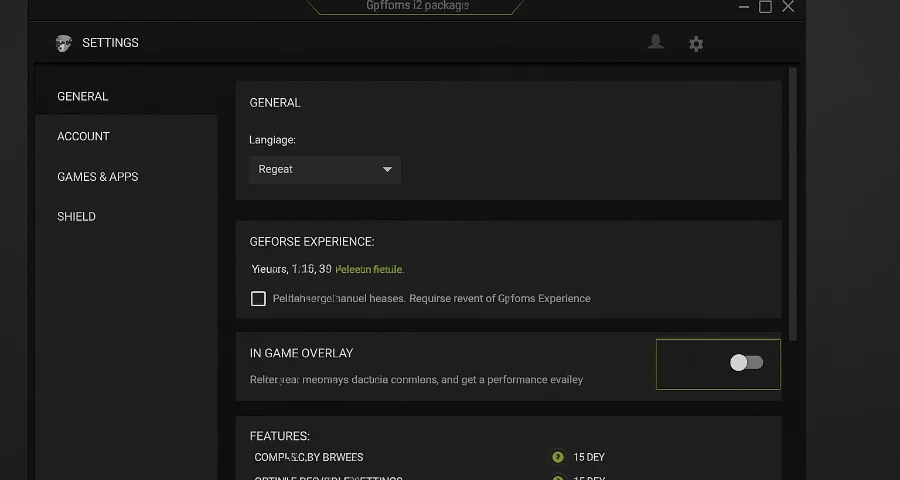
Right-click Steam and choose Run as administrator.Disable overlays and unnecessary background apps
Overlay tools and background software can interfere with startup.Reinstall CS2 only if nothing above works
Save this for last.
What the main CS2 launch errors usually mean
Error 126 / dependency of application
This usually points to a missing or broken dependency. Players often see messages like Unable to load module or Dependency of application, error 126. This usually means CS2 cannot load a needed DLL or related runtime component.
“This application requires DX11, no valid device found”
This means CS2 cannot detect a valid DirectX 11-capable device or cannot initialize it properly. Outdated GPU drivers, broken launch options, or OS compatibility issues are the usual causes.
FATAL ERROR / content file corrupt / .vpk corrupted
This points to damaged game content. Most of the time, verifying the game files fixes it. If the error names one specific corrupted .vpk, deleting that exact file can help force Steam to replace it.
Steam client or permission-related startup failures
If CS2 opens and immediately closes, fails through Steam, or throws a local Steam client/process error, the issue is often permissions, a stuck Steam process, or an outdated Steam client.
Step-by-step fixes for all players
1) Verify CS2 files in Steam
This is still the best first fix because it repairs missing or corrupted game files automatically.
Open Steam
Go to Library
Right-click Counter-Strike 2
Select Properties
Open Installed Files
Click Verify integrity of game files
If Steam finds files to reacquire, let it finish, then relaunch CS2.
2) Remove launch options, then test -autoconfig
Launch options can break startup, especially older commands carried over from previous setups.
Open CS2 Properties in Steam
Delete everything in Launch Options
Try launching the game
If it still fails, enter
-autoconfigand try again
That one switch has fixed startup for at least some players, and it is worth testing early.
3) Update your GPU driver
If your graphics driver is outdated or corrupted, CS2 may fail before it fully opens. This matters most for DX11-related errors, but it can also affect general launch failures.
Update from your GPU maker’s official software or driver page, then restart the PC before testing again.
4) Update Windows
CS2 needs a current Windows environment to load its dependencies correctly. If your system is behind on updates, install pending Windows updates and reboot.
5) Run Steam as administrator
If Steam cannot hand off the launch process correctly, elevated permissions can fix it.
Close Steam completely
Right-click the Steam shortcut
Select Run as administrator
Launch CS2 again
6) Disable overlays and background conflicts
If you have overlays or extra software hooking into the game, turn them off temporarily and test again. This is a useful cleanup step when the game starts to open and then closes.
Error 126 in CS2
If you see Error 126, Dependency of application, or a message about an unloaded module, focus on dependencies first.
What Error 126 means
Error 126 usually means CS2 cannot load a required DLL or runtime dependency. It is commonly tied to Microsoft Visual C++ Redistributables, damaged files, or sometimes driver-related conflicts.
Best fixes for Error 126
Verify game files in Steam
This can replace missing or corrupted game files tied to the error.Reinstall Microsoft Visual C++ Redistributables
This is one of the most repeated working fixes for Error 126.Uninstall existing Microsoft Visual C++ Redistributables from Windows Apps/Programs
Reinstall the supported Microsoft Visual C++ Redistributable 2015–2022 packages
Install both x86 and x64 versions
Restart your PC
Update Windows
Some players clear Error 126 after system updates.Update GPU drivers
Old drivers can still be part of the dependency problem.Run Steam as administrator
This can help if the error is mixed with permission issues.Reinstall CS2 only if the above fails
Use this as a late-stage fix, not the first move.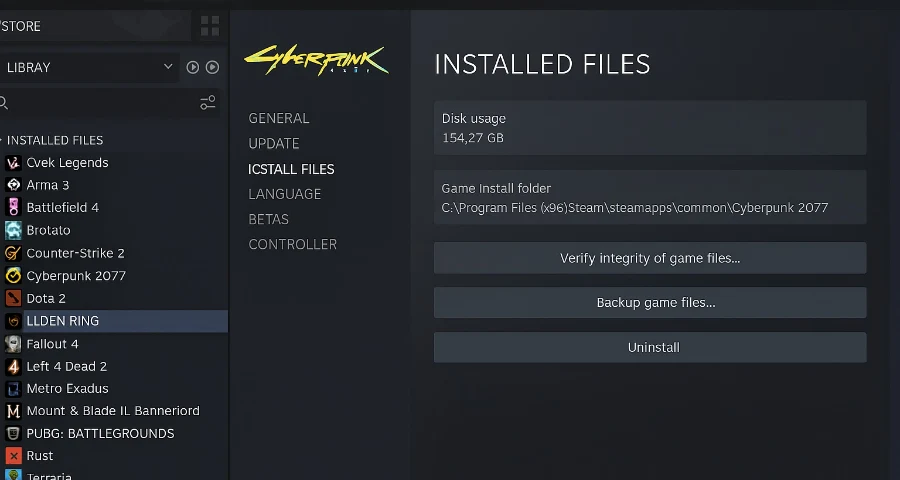
DX11 error: “This application requires DX11, no valid device found”
This is the error to follow if you see CRenderDeviceMgrDx11::CreateDevice(): This application requires DX11, no valid device found.
What the DX11 error means
CS2 cannot detect or use a valid DirectX 11 device. That can happen if your GPU driver is outdated, your launch options are broken, or your system does not meet the required Windows and DX11 support level.
Best fixes for the DX11 error
Verify game files in Steam
Update your GPU driver
Remove all launch options
Try
-dx11or-dx12in Launch OptionsMake sure you are on Windows 10 or 11
Restart the PC after updates
How to test launch options for DX11
Open Steam Library
Right-click CS2
Select Properties
In Launch Options, remove everything first
If the game still fails, enter
-dx11If that does not help, test
-dx12
Do not stack extra commands while testing. Try one clean change at a time.
Fatal error: content file corrupt or .vpk corrupted
If the message says content file is corrupt or specifically says a .vpk file is corrupted, start with file repair.
Best fixes for corrupt content errors
Verify game files in Steam
This is the first fix and often the only one needed.Delete the named corrupted
.vpkonly if the error points to that exact file
Close Steam first, go to the CS2 install location, delete the specific corrupted.vpk, then relaunch so Steam can replace it.Reinstall CS2 if corruption keeps coming back
Only do this after verification fails to solve it.
Be careful here: do not start deleting random files. Only remove the exact .vpk named in the error.
Steam client and permission-related startup failures
If the problem looks more like Steam failing to hand off the game than CS2 itself failing to load, use this path.
Try these fixes
Restart Steam completely
End Steam processes in Task Manager, then reopen Steam.Check for Steam client updates
In Steam, go to Steam > Check for Steam Client Updates.Run Steam as administrator
Verify CS2 files
Retry launch with clear launch options
Optimize Your CS2 Experience with LagoFast
While troubleshooting CS2 launch errors can be a detailed process, sometimes the underlying issue may be related to network performance. This is where a game booster like LagoFast can come in handy. By optimizing your connection, LagoFast can help reduce lag and improve stability, making your gaming experience smoother and more enjoyable.
To enhance your gaming experience, start with a free trial download of LagoFast.
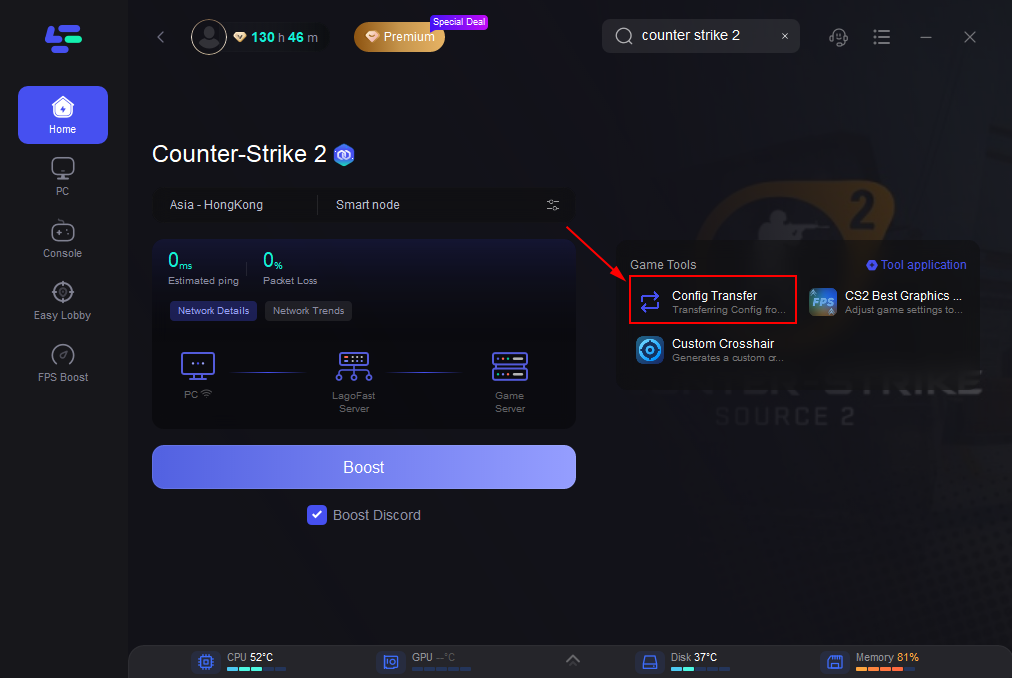
LagoFast's CS2 Config Transfer Tool helps you optimize your settings for better performance.
Last-resort checks
If nothing above works, move to these final checks.
Reinstall CS2
A clean reinstall can replace damaged files that verification missed. It is a valid step, but it should come after file verification, launch option cleanup, driver updates, Windows updates, and the Visual C++ fix for Error 126.
Check minimum compatibility
At minimum, CS2 needs:
Windows 10
8 GB RAM
A DirectX 11-compatible graphics card
If you are below that line, launch errors are expected.
When to contact Steam Support or Valve
If CS2 still will not launch after the matching fix path, contact support with useful details instead of a vague “game won’t open.” Include:
The exact error text
Your Windows version
Your GPU model
Your GPU driver version
The steps you already tried
Whether Steam file verification found and replaced files
You can start through Steam Support.
Conclusion
Most CS2 launch errors are fixable once you stop treating them as one big problem. Verify files first, clear launch options, and then follow the exact path for the message you see—Error 126, DX11 detection, corrupt content, or Steam permission trouble. Match the text to the right fix, and you avoid wasting time on random steps.
Boost Your Game with LagoFast for Epic Speed
Play harder, faster. LagoFast game booster eliminates stutter and lags on PC, mobile, or Mac—win every match!
Quickly Reduce Game Lag and Ping!
Boost FPS for Smoother Gameplay!