
The wait is finally over, and Pywel is calling. However, nothing kills the hype faster than finding Crimson Desert not working just as you’re ready to embark on Kliff’s journey. Whether you are dealing with a game that won’t start or annoying mid-game crashes, these technical hurdles are a common sight for modern open-world titles. In this guide, we will break down exactly why these errors happen and provide the most effective solutions to get you back into the action.

- ✅ Reduce Lag and High Ping.
✅ Boost FPS at the Same Time.
✅ Support 2000+ Popular Online Games.
✅ Change Server without Latency.
✅ Boost Game Loading Speed.
Part 1: Why is Crimson Desert not working?
Part 2: How to Fix Crimson Desert Not Working
Part 1: Why is Crimson Desert not working?
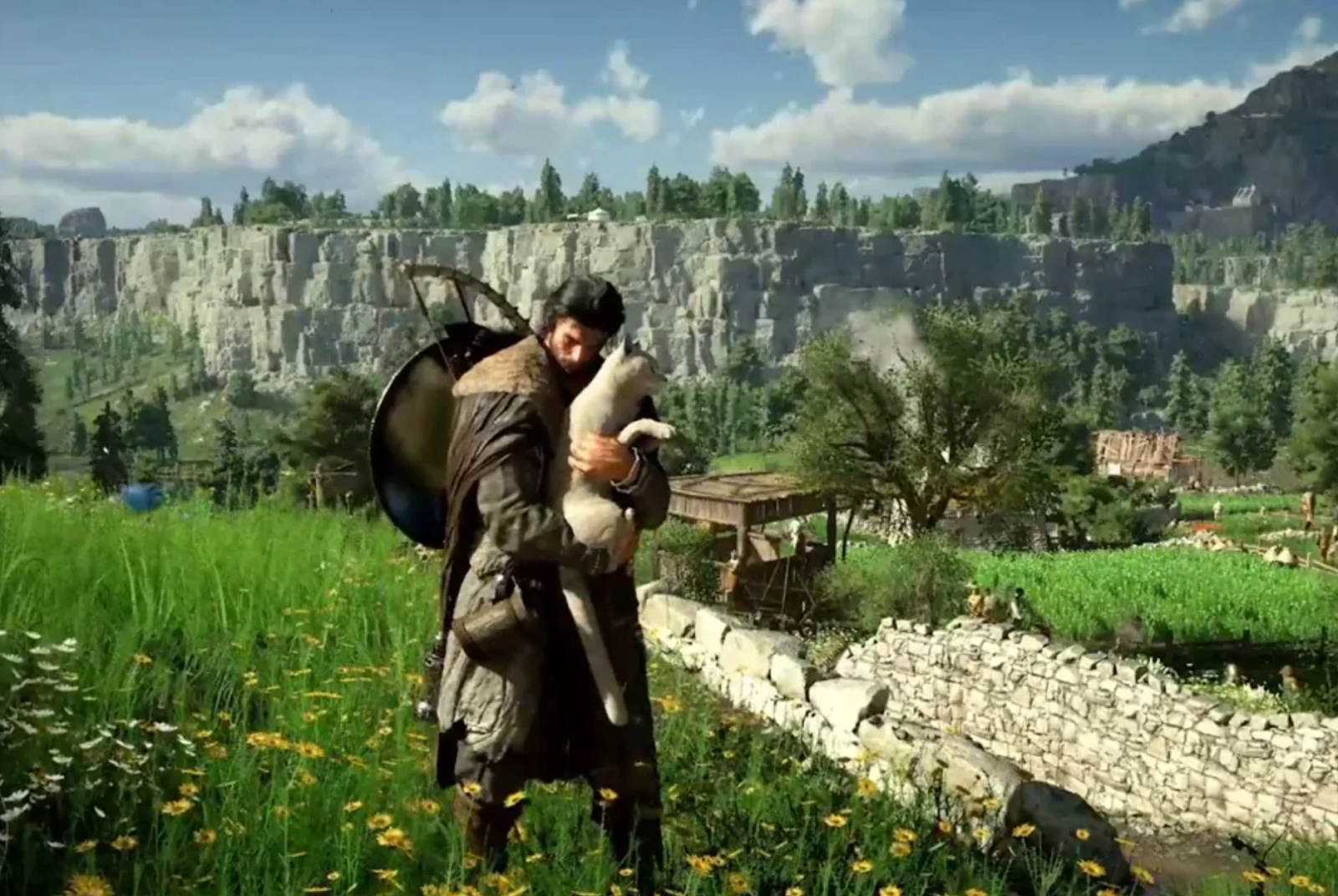
When Crimson Desert won’t launch, it is rarely due to a single "magic" bug. Instead, it is usually a conflict between the game’s high-fidelity BlackSpace Engine and your system environment. Since the game features complex particle effects and massive draw distances, any small hiccup in your hardware communication can cause a full shutdown.
Common causes include:
- Outdated Graphics Drivers: Your GPU needs the latest "Game Ready" firmware to interpret the game’s unique rendering.
- Missing DirectX 12 Files: Crimson Desert relies heavily on DX12; if your system files are corrupted, the game won’t start.
- Overlay Conflicts: Third-party software like Discord or Steam Overlays can sometimes prevent the executable from opening.
- Insufficient Permissions: Occasionally, Windows Security blocks the game from accessing the necessary 135 GB of SSD data.
- Unstable Network Packets: While a single-player game, the initial license check and asset streaming can fail if your connection is jittery.
Part 2: How to Fix Crimson Desert Not Working
Solution 1: Fix Crimson Desert Not Working with LagoFast
To resolve these issues without spending hours digging through forums, the most efficient method is using a dedicated optimization tool. We recommend LagoFast, which stands out as the best game booster on the market. Unlike basic tools, LagoFast is specifically engineered to handle the technical demands of next-gen titles. With its proprietary data transmission protocol and one-click optimization, it simplifies the entire troubleshooting process so you can focus on the gameplay rather than the settings menu.
Key Features of LagoFast:
- One-Click Crash Fix: Automatically identifies and repairs the common system errors that cause Crimson Desert not to work.
- Real-Time FPS Boost: Optimizes your CPU and GPU status to ensure maximum frame stability.
- Smart Network Routing: Minimizes jitter during initial verification and game updates.
- Global Server Nodes: Provides stable connections for downloading large 135 GB patches.
- Easy-to-Use Interface: No technical knowledge required; just search for your game and click "Boost."
Tutorial to Use LagoFast to Crimson Desert Not Working:
Step 1: Click the Free Trial button to download and install LagoFast.
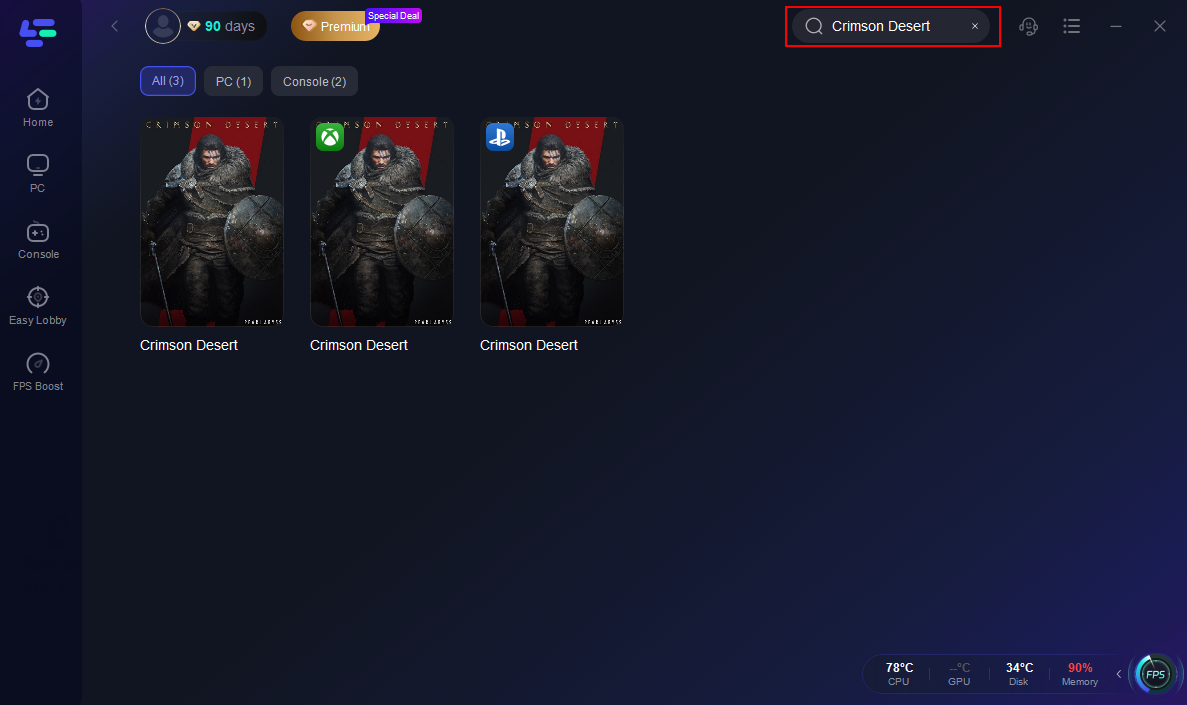
Step 2: Open LagoFast, then click the PC button on the left and search for Crimson Desert in the search bar and click it after it appears.
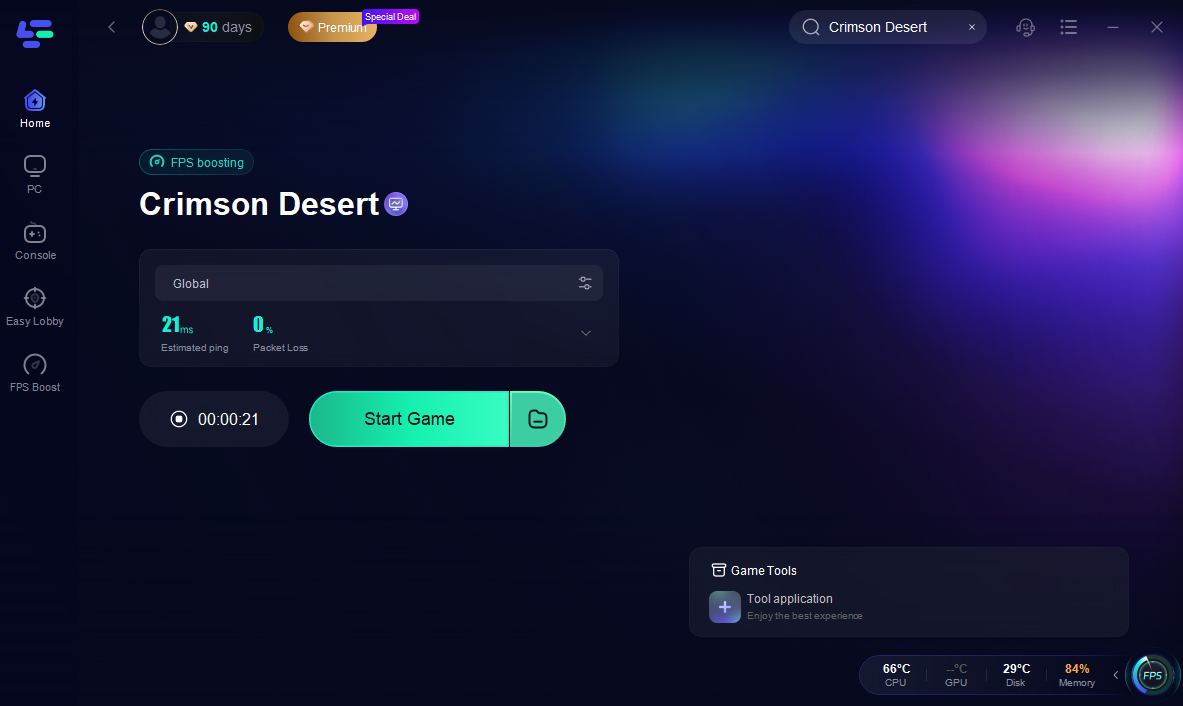
Step 3: Click on “Server” to change to a better server that ensures a better gaming experience, then click on “Smart Boost” to fix “Crimson Desert Not Working."

Step 4: Check the specific game ping, packet loss, and multiple path connections on the right side. Finally, click the “Start Game” to play the game.
If you prefer to try manual methods, here are five common fixes. However, please note that these are often time-consuming and may not provide a permanent solution compared to the automated, all-in-one efficiency of LagoFast.
Solution 2: Perform a Clean GPU Driver Reinstall
Generic updates often leave behind corrupted files that prevent the game from opening.
Step 1. Download the latest drivers from the NVIDIA or AMD website.
Step 2. Download a tool called DDU (Display Driver Uninstaller).
Step 3. Boot your PC into Safe Mode.
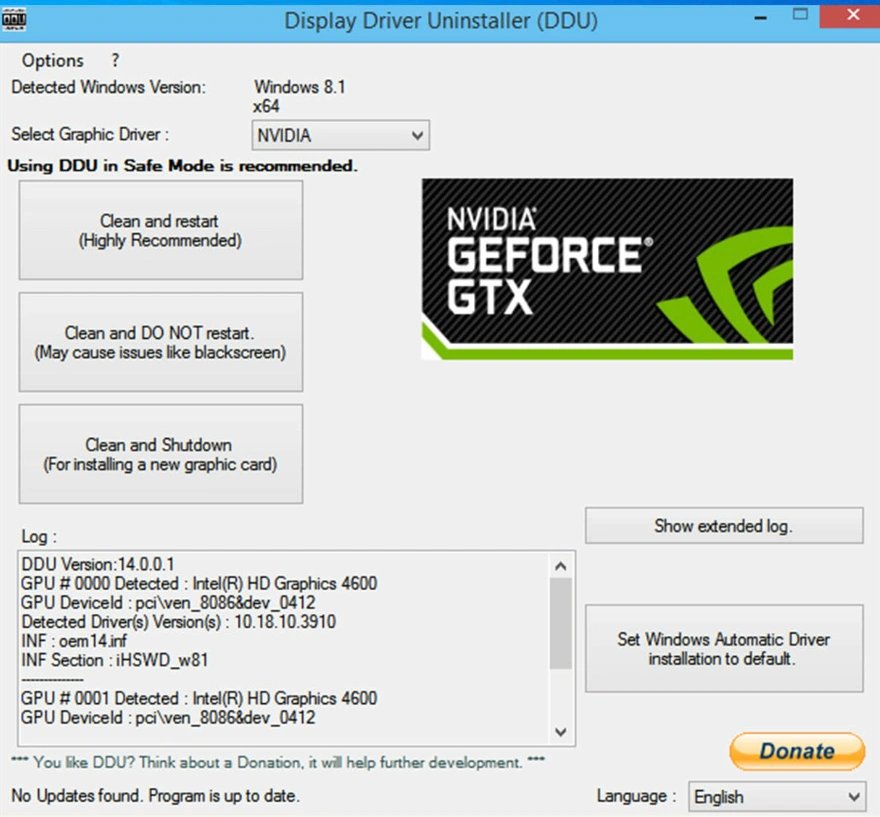
Step 4. Run DDU to completely wipe your old drivers, then restart.
Step 5. Install the new drivers and try launching the game.
Solution 3: Run the Game as Administrator
Sometimes the game "won't start" simply because it lacks permission to write to its own save folder.
Step 1. Right-click the Crimson Desert desktop shortcut.
Step 2. Select Properties and go to the Compatibility tab.
Step 3. Check "Run this program as an administrator."
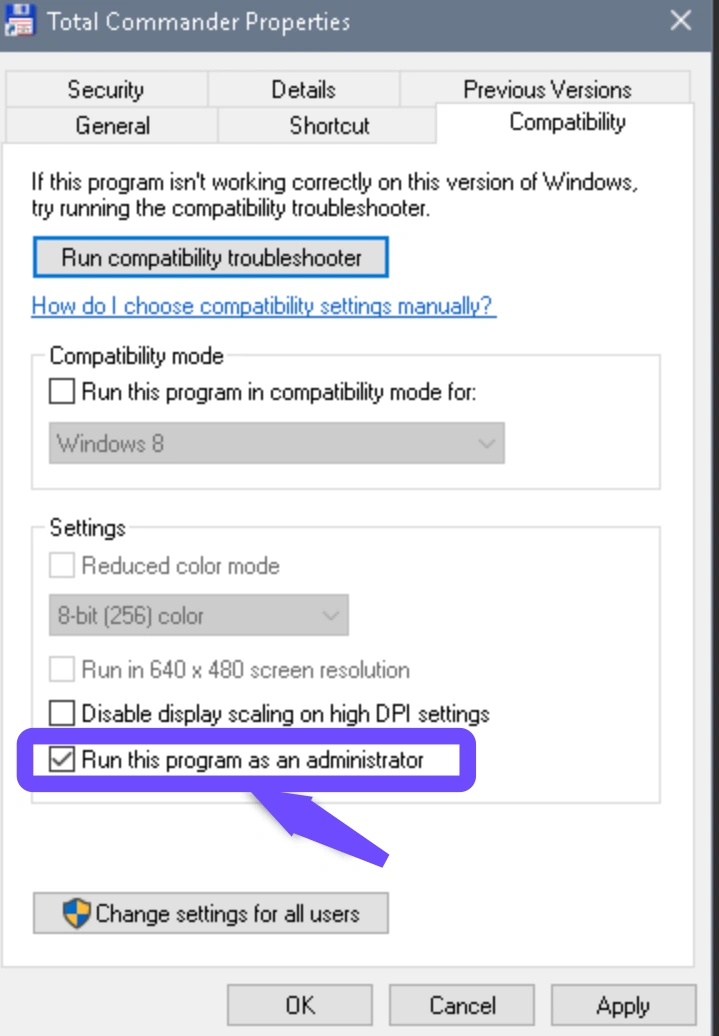
Step 4. Click Apply.
Step 5. Launch the game directly from the .exe file.
Solution 4: Clear Shaders and User Cache
Corrupted shader caches can lead to immediate crashes during the splash screen.
Step 1. Navigate to your Documents folder on your PC.
Step 2. Find the folder named "Crimson Desert".
Step 3. Delete the "Cache" or "ShaderCache" folders inside.
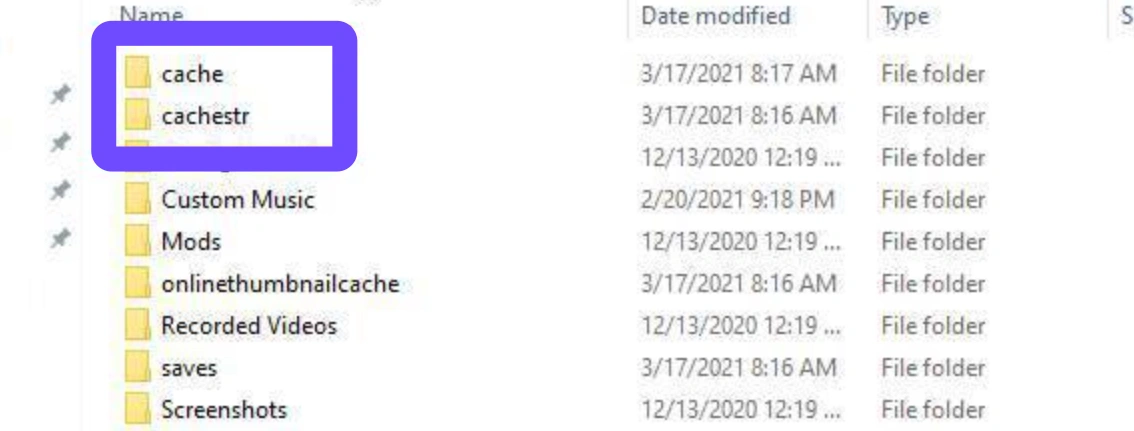
Step 4. Restart your computer.
Step 5. Launch the game to allow it to rebuild the files.
Solution 5: Check System Requirements and SSD Space
Crimson Desert requires an SSD. Running it on a traditional HDD will almost certainly lead to the game not working.
Step 1. Right-click your "C:" or "D:" drive and select "Properties" to check for 135 GB of free space.
Step 2. Ensure you have at least 16 GB of RAM.
Step 3. Check if your CPU meets the i5-8500 / Ryzen 5 2600X minimum.
Step 4. Confirm your Windows 10 is updated to the latest build (64-bit).
Step 5. Move the game to an SSD if it is currently on an HDD.
H3: Solution 6: Verify Game File Integrity
If a single file was corrupted during the massive 135 GB download, the game won’t launch.
Step 1. Open your Steam Library.
Step 2. Right-click on Crimson Desert and select "Properties."
Step 3. Navigate to the "Installed Files" tab.
Step 4. Click "Verify integrity of game files."
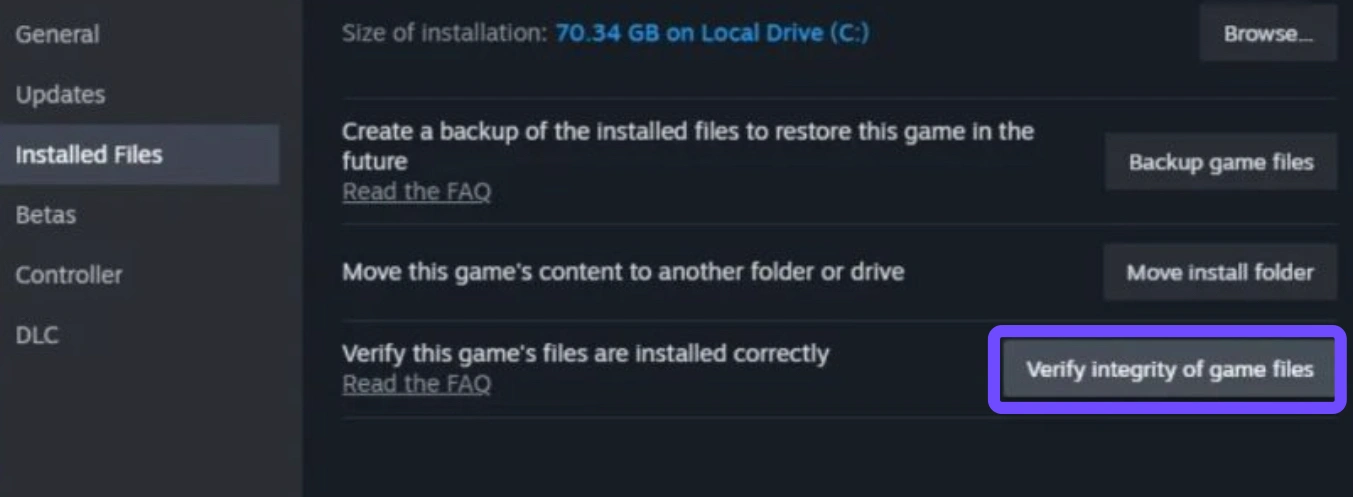
Step 5. Wait for the scan to finish and re-download missing data.
Conclusion
Dealing with Crimson Desert not working is a major roadblock, but it doesn't have to be the end of your adventure in Pywel. While manual fixes like verifying files or updating drivers can help, they are often tedious and only address one piece of the puzzle. For a comprehensive, one-click solution that targets everything from launch errors to in-game lag, LagoFast is the most reliable choice. By using its dedicated crash fix tools, you can spend less time troubleshooting and more time mastering the combat and exploring the vast world of Crimson Desert.
Boost Your Game with LagoFast for Epic Speed
Play harder, faster. LagoFast game booster eliminates stutter and lags on PC, mobile, or Mac—win every match!
Quickly Reduce Game Lag and Ping!
Boost FPS for Smoother Gameplay!