
Trying to launch Crimson Desert but getting a DirectX error instead of the game? You’re not alone. This problem usually appears when required graphics components are missing, GPU drivers are outdated, or the game fails to initialize DirectX during startup. Instead of loading normally, the game may show an error message, crash immediately, or close before reaching the main menu. The good news is that the Crimson Desert DirectX error is usually easy to fix, and a few simple troubleshooting steps can help you launch the game successfully.

- ✅ Reduce Lag and High Ping.
✅ Boost FPS at the Same Time.
✅ Support 2000+ Popular Online Games.
✅ Change Server without Latency.
✅ Boost Game Loading Speed.
Part 1: What the Crimson Desert DirectX Error Means
Part 2: Why the Crimson Desert DirectX Error Happens
Part 3: How to Fix the Crimson Desert DirectX Error
Part 1: What the Crimson Desert DirectX Error Means
The Crimson Desert DirectX error usually appears when the game cannot properly access the DirectX graphics framework on your system. DirectX is a collection of APIs used by Windows to handle graphics rendering, sound, and other game-related processes. Modern games rely heavily on these components to run correctly.
When something goes wrong during this process, the game may fail to launch or crash during startup.
Players commonly encounter situations such as:
- The game displays a DirectX error message during launch
- Crimson Desert crashes immediately after opening
- The game fails to start and returns to the desktop
- A message appears saying DirectX components are missing
In simple terms, the game is trying to use your system’s graphics interface, but something is preventing DirectX from functioning properly.
Part 2: Why the Crimson Desert DirectX Error Happens
Several different factors can trigger this error. Understanding the most common causes makes it easier to identify the right fix.
Missing or Corrupted DirectX Components
DirectX is made up of multiple system files. If some of these components are missing or corrupted, the game may fail to start correctly.
Typical symptoms include:
- DirectX initialization errors
- Missing DLL files
- Immediate crashes during launch
These problems often occur after incomplete installations or system changes.
Outdated GPU Drivers
Graphics drivers act as the bridge between your hardware and the game engine. If your drivers are outdated, they may not fully support the DirectX features required by modern games like Crimson Desert.
Common signs include:
- Startup crashes
- Rendering errors
- The game failing to load properly
Updating your GPU drivers often resolves these problems quickly.
Windows or System Component Issues
Some launch problems occur because the system environment isn’t fully prepared for newer games.
Examples include:
- Missing Visual C++ runtime libraries
- Incorrect DirectX installations
- Windows compatibility issues
When these components are not installed correctly, the game may fail during the startup process.
Unstable Network During Game Initialization
Although DirectX errors are usually system-related, unstable connections can sometimes interrupt the game’s initialization process, especially when the client attempts to load online services during launch.
Part 3: How to Fix the Crimson Desert DirectX Error
Fix 1: Use LagoFast to Stabilize the Game Environment
In some cases, the Crimson Desert DirectX error appears because the game client cannot initialize properly due to unstable connections or missing system components during startup. Improving connection stability and ensuring the required components are properly installed can help resolve the issue. LagoFast is a game performance platform designed to improve the gaming experience. It reduces ping, fixes packet loss, stabilizes network connections, and optimizes routing between players and game servers. With a more stable connection and optimized environment, the game client can run more reliably and avoid many launch-related errors.
LagoFast also provides several practical tools that help resolve common system issues:
- Fix C++ Issue Tool – Repairs missing or damaged Visual C++ components that may prevent games from launching.
- Win 11 Lag Fix Tool – Fixes issues where Windows 11 may cause game lag or system instability.
- DirectX 12 Component Installation Tool – Installs required DirectX components needed by modern games.
- Upcoming FPS Boost Tools and Game Crash Fix Tools – Additional utilities planned to help improve FPS and overall game stability.
These tools help address both network stability and system component problems, making it easier to start Crimson Desert without errors.
How to Use LagoFast for Crimson Desert
Step 1: Click the Free Trial button to download and install LagoFast.
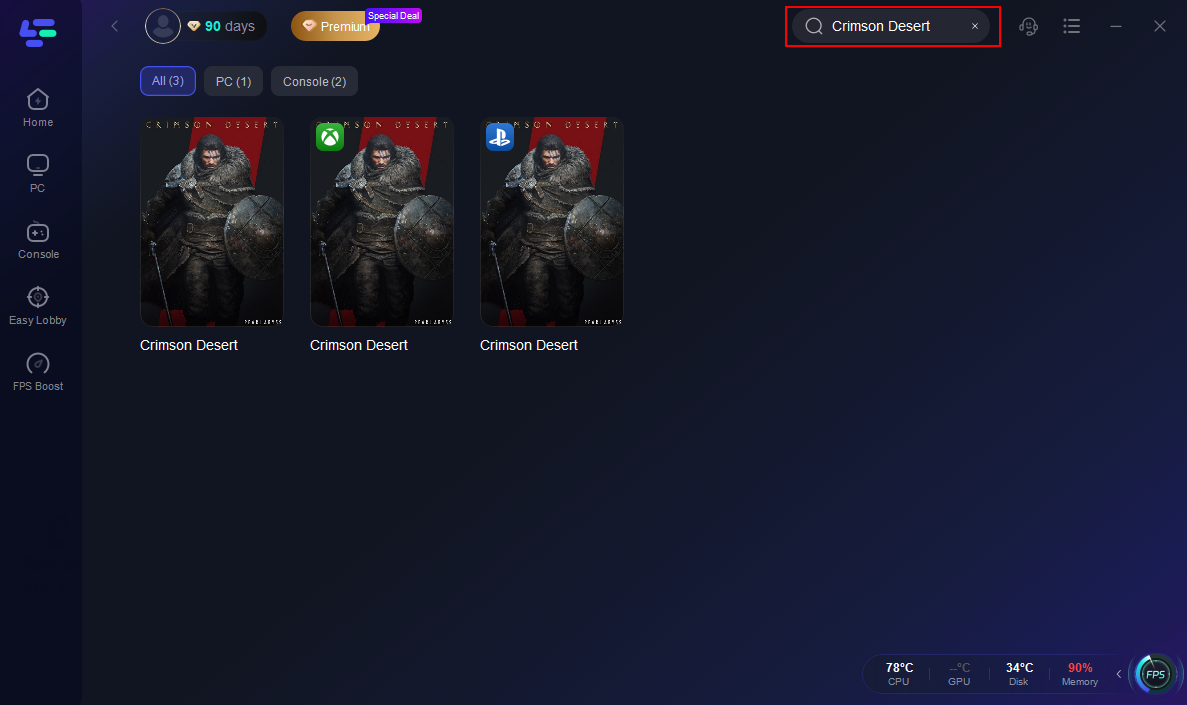
Step 2: After installation, search "Crimson Desert" in the search bar and select the game.
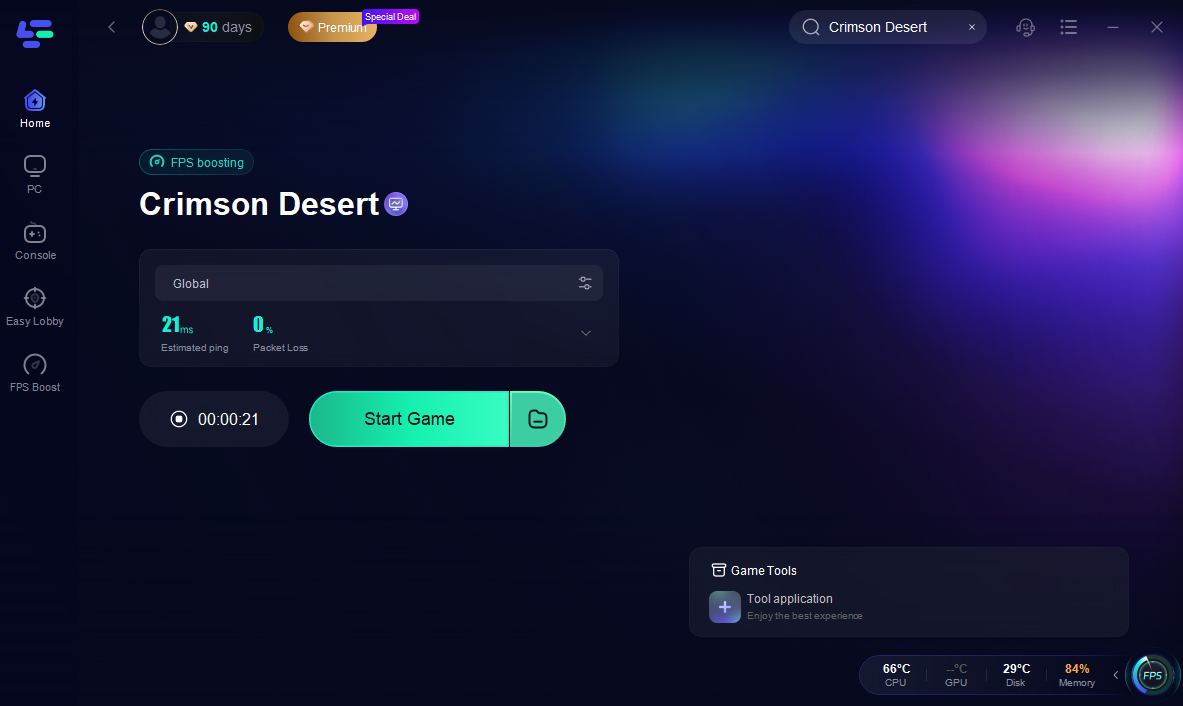
Step 3: Choose your preferred server node and click "Smart Boost" to start optimizing.

Step 4: Launch your game and enjoy smooth, optimized gameplay with lower ping and packet loss.
Fix 2: Update Your Graphics Drivers
Outdated drivers are one of the most common causes of DirectX errors.
To update your drivers:
- Visit the official website of your GPU manufacturer (NVIDIA, AMD, or Intel).
- Download the latest driver for your graphics card.
- Install the driver and restart your PC.
Keeping drivers updated ensures proper compatibility with DirectX features.
Fix 3: Reinstall or Repair DirectX
If DirectX files are missing or corrupted, reinstalling them can solve the issue.
Steps include:
- Download the official DirectX Runtime installer from Microsoft.
- Run the installer to repair or reinstall components.
- Restart your computer after installation.
This restores any missing system files required for game startup.
Fix 4: Verify Game Files
Corrupted or incomplete game files can also trigger DirectX errors.
To verify files:
- Open your game launcher (Steam or official launcher).
- Go to Game Properties.
- Select Verify Game Files.
The launcher will automatically repair missing or damaged files.
Fix 5: Update Windows
Running an outdated version of Windows can cause compatibility problems.
Make sure to install:
- The latest Windows updates
- System security patches
- Updated runtime libraries
Keeping your system up to date prevents many startup errors.
Conclusion
The Crimson Desert DirectX error can be frustrating, especially when it stops the game from launching or causes crashes during startup. In most cases, the issue is related to missing DirectX components, outdated graphics drivers, or system configuration problems. By updating drivers, repairing DirectX, verifying game files, and keeping your system updated, most players can resolve the problem quickly. Tools like LagoFast can also help stabilize connections and repair common system components that may affect game startup. Once everything is properly configured, you should be able to launch Crimson Desert smoothly and enjoy the game without those annoying DirectX errors.

Boost Your Game with LagoFast for Epic Speed
Play harder, faster. LagoFast game booster eliminates stutter and lags on PC, mobile, or Mac—win every match!
Quickly Reduce Game Lag and Ping!
Boost FPS for Smoother Gameplay!