
The wait is finally over. Crimson Desert has arrived, bringing the breathtaking, gritty world of Pywel to our screens. However, for many mercenaries, the journey has been cut short by frustrating technical hurdles. Whether you are dealing with a Crimson Desert crash on startup or a random crash in the heat of battle, these issues can ruin the immersion of Pearl Abyss’s latest masterpiece. In this guide, we’ll explore the root causes of these stability problems and provide the ultimate solutions to get you back into the action.

- ✅ Reduce Lag and High Ping.
✅ Boost FPS at the Same Time.
✅ Support 2000+ Popular Online Games.
✅ Change Server without Latency.
✅ Boost Game Loading Speed.
Part 1: Why Does Crimson Desert Crash?
Part 2: How to Fix Crimson Desert Crash?
Part 1: Why Does Crimson Desert Crash?
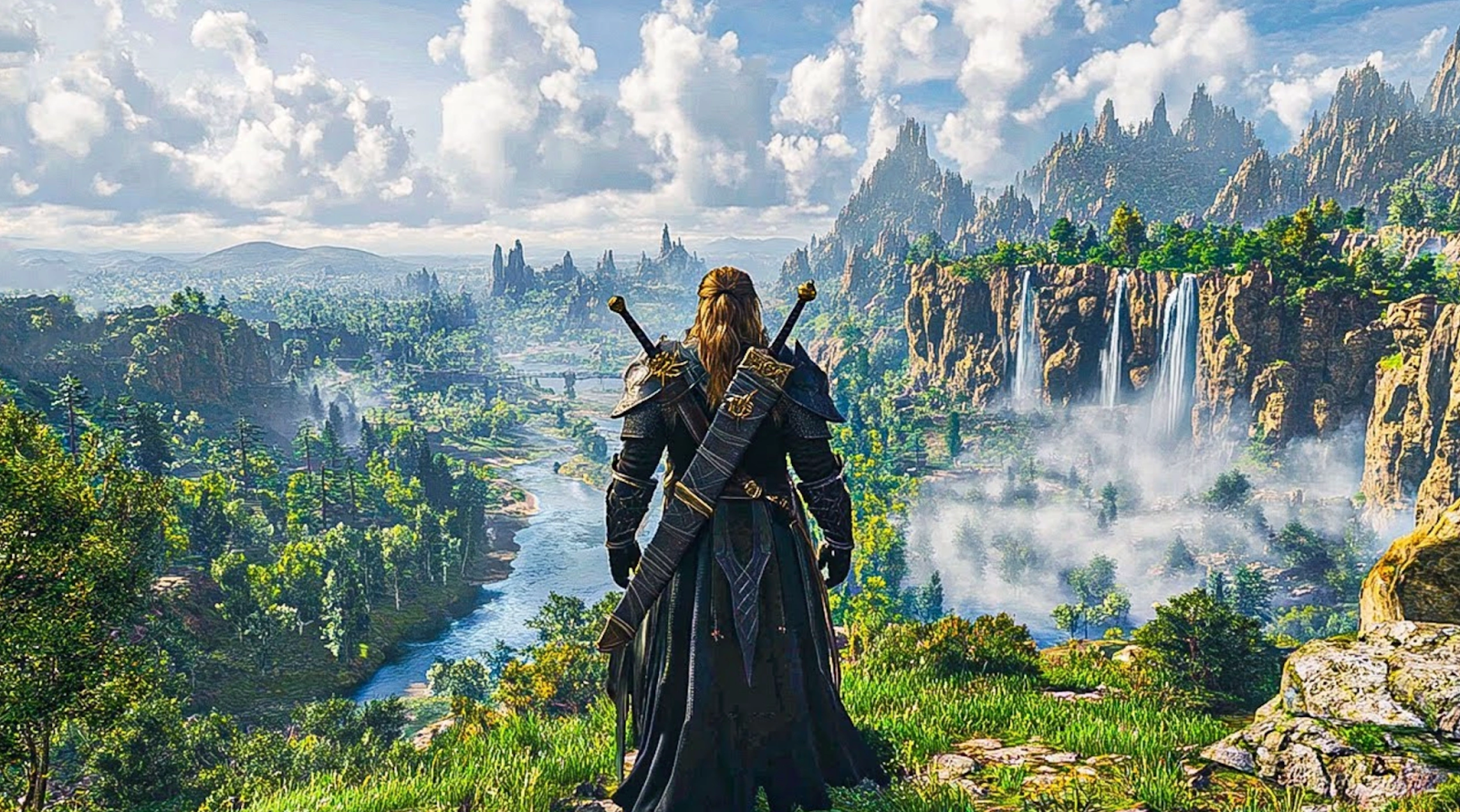
As a high-end, open-world title built on the advanced BlackSpace Engine, Crimson Desert pushes modern PC hardware to its absolute limit. When the game encounters a bottleneck, be it a sudden spike in CPU usage during a siege or a memory leak in a densely populated city, it often results in a Crimson Desert random crash. These disruptions aren't just annoying; they can lead to lost progress and corrupted save files. Identifying the culprit is the first step toward a stable experience.
Common causes for Crimson Desert crashing include:
- Outdated Graphics Drivers: Older NVIDIA or AMD drivers often lack the necessary "Game Ready" optimizations for Pywel’s complex lighting and physics.
- Insufficient System Resources: With a 135 GB SSD requirement and heavy RAM usage, background apps can easily trigger a Crimson Desert freezing episode.
- Corrupted Game Files: Missing data from a large download can prevent the game from launching correctly.
- DirectX 12 Incompatibility: Some hardware configurations struggle with the game's native DX12 implementation, leading to a Crimson Desert crash on startup.
- Network Instability: Even in single-player modes, background connectivity checks can cause the game to hang or stutter if the connection is unstable.
- Overheating Components: The intense graphical fidelity can cause GPUs to throttle or crash the system entirely due to thermal limits.
Part 2: How to Fix Crimson Desert Crash?
Solution 1: One-Click Crimson Desert Crash Fix – LagoFast
While there are many manual tweaks you can attempt, the most efficient way to ensure a seamless experience is by using a dedicated optimization tool. LagoFast stands out as the best game booster on the market, specifically engineered to tackle the unique demands of AAA titles like Crimson Desert. It doesn't just "boost" your speed; it actively stabilizes your environment.
Key Features of LagoFast for Crimson Desert:
- One-Click Crash Fix: Automatically identifies and repairs the common system errors that cause Crimson Desert not to work.
- Real-Time CPU/GPU Optimization: Prioritizes game resources to prevent the "100% usage" spikes that lead to Crimson Desert freezing.
- FPS Boost & Stutter Reduction: Smooths out frame pacing to ensure your combat transitions are fluid and crash-free.
- Driver & Component Repair: Instantly checks for missing or outdated runtimes (like DirectX or C++) required by the game.
Tutorial to Use LagoFast to Fix Crimson Desert Crash Quickly:
Step 1: Click the Free Trial button to download and install LagoFast.
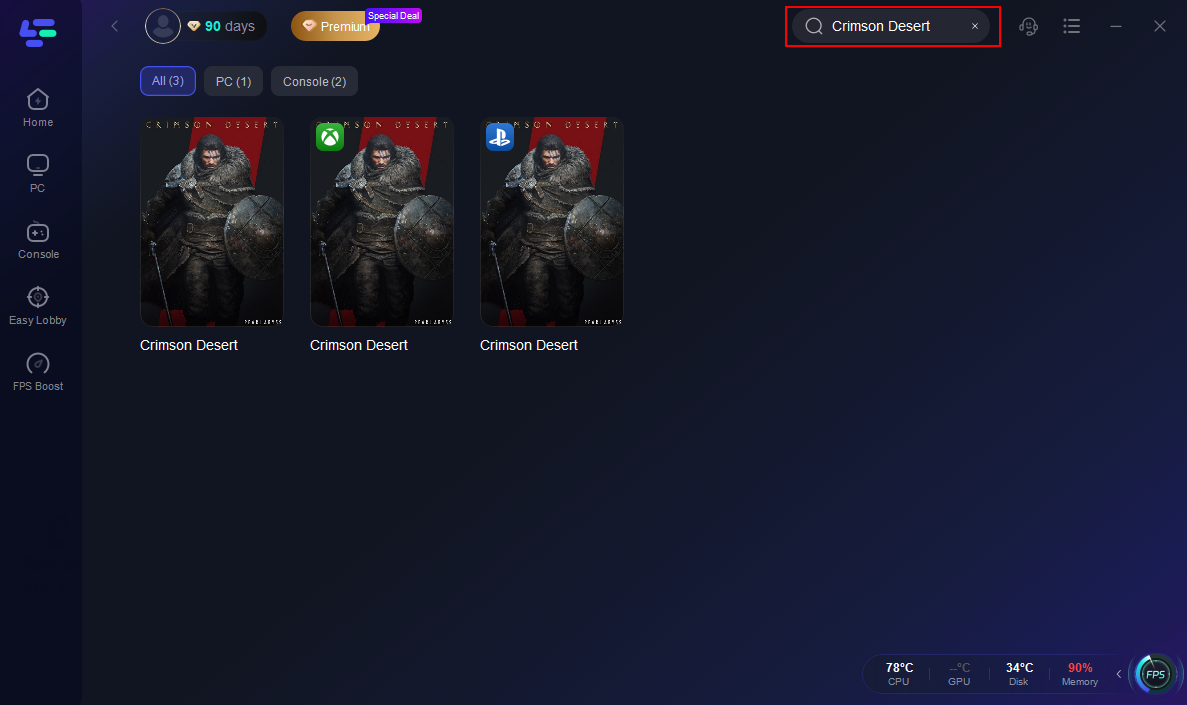
Step 2: Open LagoFast, then click the PC button on the left and search for Crimson Desert in the search bar and click it after it appears.
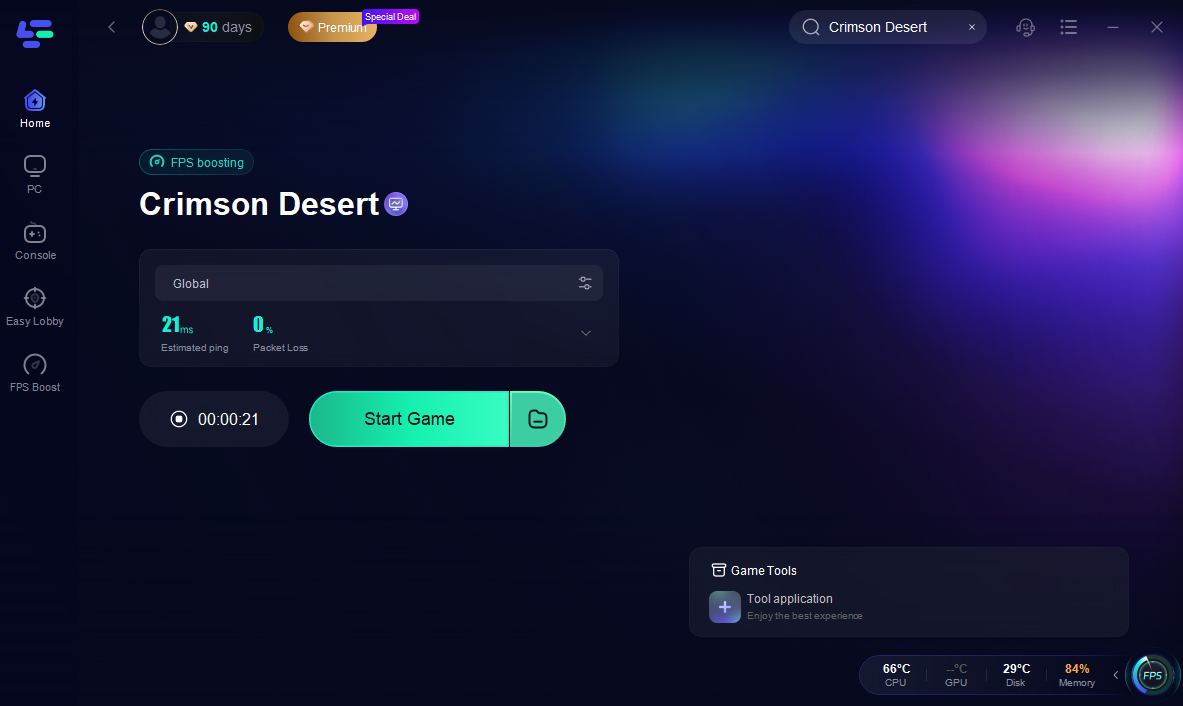
Step 3: Click on “Server” to change to a better server that ensures a better gaming experience, then click on “Smart Boost” to fix the common errors.

Step 4: Check the specific game ping, packet loss, and multiple path connections on the right side. Finally, click the “Start Game” to play the game.
If you aren't using LagoFast yet, you can try these manual methods. However, keep in mind that these are often tedious, require technical knowledge, and don't offer the comprehensive "all-in-one" protection that LagoFast provides.
Solution 2: Update Your Graphics Drivers
Manufacturers like NVIDIA and AMD release specific updates for major launches. Without these, your card might not know how to render the heavy particle effects in Crimson Desert.
Step 1: Open your GPU software (GeForce Experience or AMD Adrenaline).
Step 2: Navigate to the "Drivers" tab.
Step 3: Click "Check for Updates."
Step 4: Perform an "Express Installation" of the latest version.

Step 5: Restart your PC and try launching the game.
Solution 3: Verify Game File Integrity
A corrupted file is the #1 reason for a Crimson Desert crash on startup. If one small file is missing from the 135 GB download, the game won't load.
Step 1: Open your Steam Library.
Step 2: Right-click on Crimson Desert and select "Properties."
Step 3: Go to the "Installed Files" tab.
Step 4: Click "Verify integrity of game files."
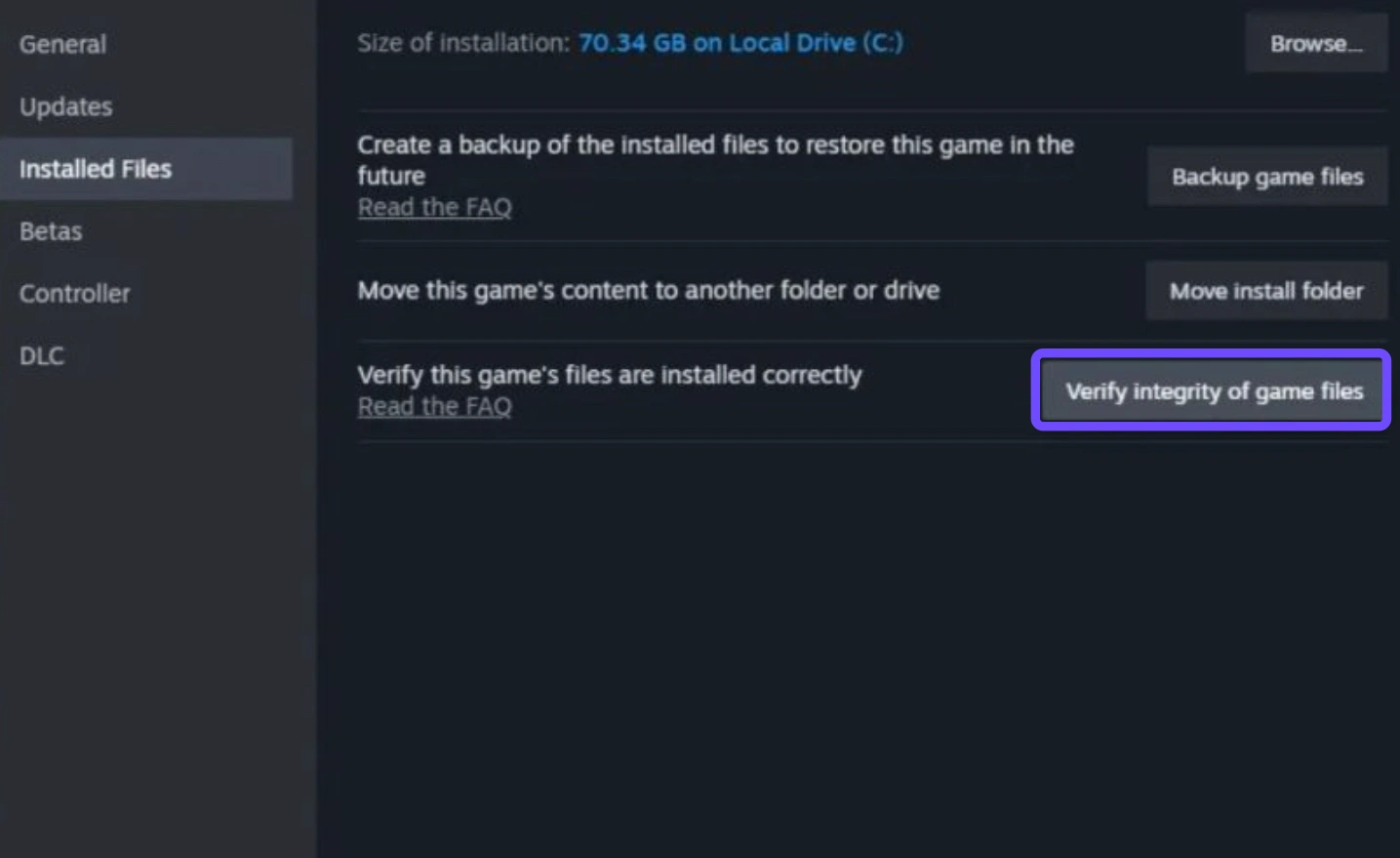
Step 5: Wait for the process to finish (this can take 20+ minutes) and download any missing data.
Solution 4: Adjust the Windows Paging File
If you have 16 GB of RAM, Crimson Desert may run out of memory during intense scenes, causing Crimson Desert keeps crashing. Expanding your virtual memory can help.
Step 1: Type "Appearance and Performance" in the Windows search bar.
Step 2: Go to the "Advanced" tab and click "Change" under Virtual Memory.
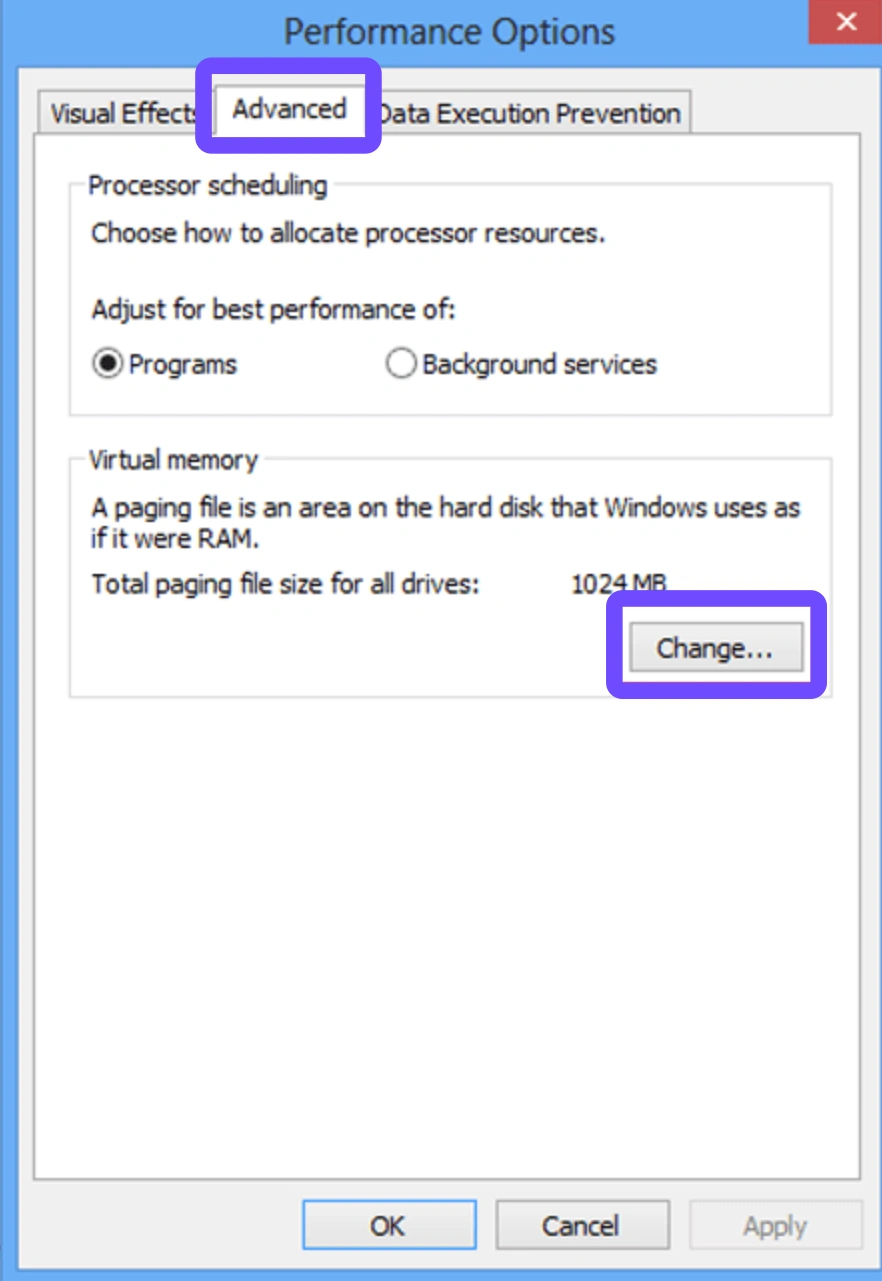
Step 3: Uncheck "Automatically manage paging file size."
Step 4: Select your SSD and set a custom size (e.g., 16000 MB Initial, 32000 MB Maximum).
Step 5: Click "Set," then "OK," and restart your computer.
Solution 5: Disable Conflicting Background Apps
Software with overlays (like Discord or MSI Afterburner) can frequently clash with the game's engine, leading to a Crimson Desert random crash.
Step 1: Press Ctrl + Shift + Esc to open Task Manager.
Step 2: Look for apps like Discord, Steam Overlay, or Razer Synapse.
Step 3: Right-click and select "End Task."
Step 4: Disable "Game Mode" in Windows settings.
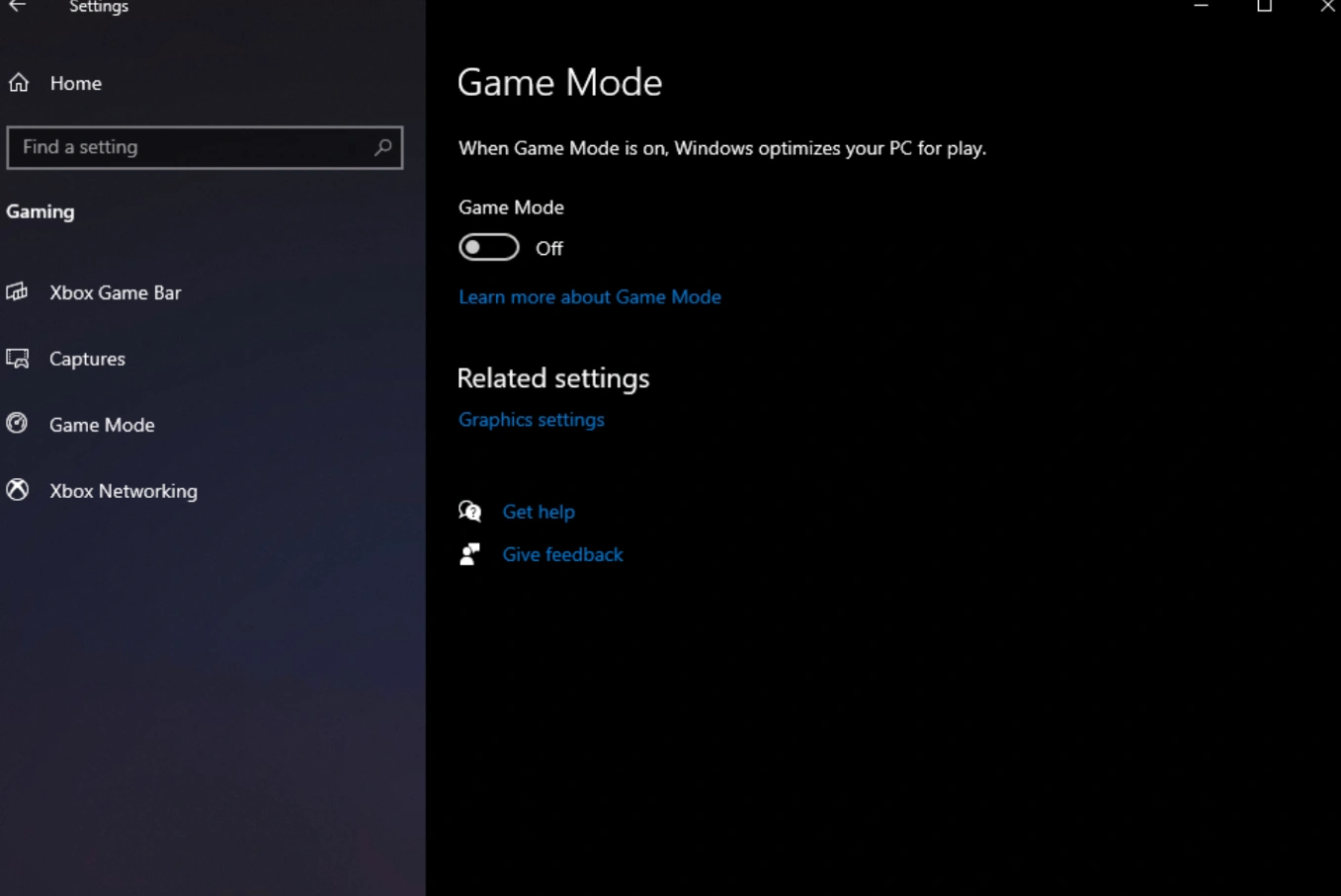
Step 5: Relaunch the game with a "clean" tray.
Solution 6: Switch to Windowed or Borderless Mode
Sometimes the game's "Full Screen" mode conflicts with your monitor's refresh rate, causing the screen to hang or freeze.
Step 1: Launch the game and head to the "Settings" menu.
Step 2: Navigate to the "Display" or "Graphics" tab.
Step 3: Find the "Screen Mode" option.
Step 4: Change it from "Full Screen" to "Borderless Windowed."
Step 5: Apply changes and restart the game client.
Conclusion
Stepping into the world of Kliff and the Greymanes should be an epic adventure, not a battle against your own PC. While manual troubleshooting like updating drivers or verifying files can help, these methods are often time-consuming and inconsistent. To truly eliminate the Crimson Desert crash and enjoy the game at its highest potential, LagoFast is the definitive solution. Its one-click optimization and dedicated crash-fix tool ensure that Crimson Desert keeps crashing becomes a thing of the past. Download LagoFast today and claim your place in Pywel without the fear of a sudden freeze!

Boost Your Game with LagoFast for Epic Speed
Play harder, faster. LagoFast game booster eliminates stutter and lags on PC, mobile, or Mac—win every match!
Quickly Reduce Game Lag and Ping!
Boost FPS for Smoother Gameplay!