

If you’re looking for a quick answer: yes, Crimson Desert allows key rebinding on PC when using keyboard and mouse, but there is currently no native controller remapping on PC, PS5, or Xbox. That’s the reality right now.
So if the default controller layout feels awkward, your options are mostly external workarounds like Steam Input on PC or system-level remapping through console accessibility settings.
This guide breaks down what you can actually change on each platform, what still needs improvement, and which input method feels best depending on how you play.

- ✅ Reduce Lag and High Ping.
- ✅ Boost FPS at the Same Time.
✅ Support 2000+ Popular Online Games.
✅ Popular Mods Supported.
✅ Boost Game Loading Speed.
Part 1: Why Control Settings Matter Right Now
Part 2: What “Crimson Desert Control Settings” Really Means
Part 3: Can You Change Controls in Crimson Desert?
Part 4: Recommended Control Setup by Platform
Part 5: Settings That Actually Improve Gameplay Feel
Part 6: Controller vs Keyboard and Mouse
Part 7: Diagnosing Input Lag and Sluggish Controls
Part 1: Why Control Settings Matter Right Now
Crimson Desert demands a lot from your hands. Multiple guides highlight a large number of actions tied to combat, movement, and traversal, many of which are context-sensitive.
Some outlets describe the system as overly complex, while others emphasize how commands change depending on the situation. This aligns closely with player feedback.
Community discussions often compare the control scheme to a fighting game layered into a 3D action environment. Others are more blunt, calling it clunky or frustrating and asking for deeper customization.
Importantly, there are indications that the developers are aware of these issues and have acknowledged problems, especially with keyboard and mouse. Improvements may come later, but for now, players need to work within current limitations.
Part 2: What “Crimson Desert Control Settings” Really Means
When players search for this topic, they are usually asking four practical questions:
- Can controls be remapped?
- Is a controller better than keyboard and mouse?
- Which settings improve gameplay feel?
- Are there workarounds if options are limited?
Here’s the practical breakdown:
- PC (keyboard and mouse): full rebinding available
- Controller (in-game): no full remapping support
- PS5 and Xbox: mostly locked to default layout
- Steam users: can use Steam Input as a workaround
Part 3: Can You Change Controls in Crimson Desert?
PC Keyboard and Mouse Rebinding
Yes, on PC you can adjust keybinds through the Input menu. Multiple sources confirm that keyboard and mouse customization is available.
This is currently the biggest advantage of KBM.
If your issues are related to:
- uncomfortable key placement
- excessive finger movement
- hard-to-reach combat inputs
then PC is the only platform offering a true built-in solution.
Even sources that recommend controller still acknowledge that keyboard rebinding is a major benefit.
Controller Limitations on PS5 and Xbox
This is where things become restrictive.
There is currently no native controller remapping in the game on consoles. If the default layout feels off, you cannot fully customize it in-game.
That’s why so many players search for control settings in the first place—they’re not chasing pro-level optimization, they just want basic customization.
Right now, controller users must mostly adapt rather than modify.
Steam Input and Workarounds
It’s important to distinguish between in-game settings and platform-level tools.
Crimson Desert does not provide full controller rebinding internally. However, Steam Input can be used to manually remap controls.
This is useful if:
- you want to swap specific buttons
- the default layout feels unintuitive
- you prefer controller but need minor adjustments
That said, this is a workaround, not a full solution.
Part 4: Recommended Control Setup by Platform
PC: The Best Overall Option
If your goal is simply to make the game feel better quickly, PC is the safest platform.
Many recommendations—including from major outlets—suggest using a controller on PC. Steam even prompts controller usage at launch.
Why controller works well:
- combat involves many inputs and combinations
- movement and dodging feel more natural
- input flow is smoother than keyboard navigation
Controller delivers better default feel, while KBM offers flexibility.
PC: When Keyboard and Mouse Makes Sense
Keyboard and mouse still has a valid use case:
- you prefer fully customized layouts
- you dislike fixed controller schemes
- you’re willing to fine-tune controls manually
However, feedback on KBM is mixed to negative. Some reports indicate developers have acknowledged issues with mouse and keyboard experience.
So the tradeoff is clear:
- better customization vs weaker default feel
PS5
On PS5, the recommendation is simple: learn the default layout and build muscle memory.
Because customization is limited, trying to fight the control scheme usually makes things worse. The game relies heavily on contextual actions, so familiarity matters more than tweaking.
Xbox
Xbox is nearly identical to PS5 in this regard.
Best approach:
- stick with the default layout
- slightly lower camera sensitivity if needed
- adjust deadzone for stick drift
- focus on timing and combo execution

Part 5: Settings That Actually Improve Gameplay Feel
There is no universal “best settings” preset, but a few adjustments consistently help.
Lower Camera Sensitivity
If movement or aiming feels too twitchy, slightly reduce sensitivity.
This small change can make the game feel more controlled, especially during combat-heavy sequences.
Adjust Deadzone
If you notice stick drift or unintended movement, tweaking deadzone can help.
This won’t fix layout issues, but it can reduce frustration from imprecise input.
Learn Contextual and Combo-Based Inputs
This is critical.
The control system is built around timing and combinations, not just button presses.
Examples:
- R1 for light attack, R2 for heavy
- double tap dodge
If you rely only on settings adjustments without learning the system, improvements will be limited.
Part 6: Controller vs Keyboard and Mouse
Why Controller Is Preferred
Most evidence points to controller as the better overall experience.
The game demands:
- constant movement
- combo execution
- rapid input transitions
These feel more natural on a controller.
Community discussions even describe the system as “fighting-game-like” due to its complexity.
Why Keyboard and Mouse Still Matters
The key advantage is simple: full customization.
If default layouts frustrate you, KBM gives you control over your setup.
The Downside of Keyboard and Mouse
The downside is also clear: the overall experience is less polished.
Many players describe it as clunky, and general sentiment around controls is already critical.
Part 7: Diagnosing Input Lag and Sluggish Controls
Not all “bad controls” come from keybinds.
Possible causes include:
- complex control design
- learning curve for combos
- hardware issues like stick drift
- Bluetooth latency
- frame pacing or performance drops
- network instability
Some players even report slight delay in input feedback.
If the Issue Is Network-Related
If you experience:
- high ping
- rubber-banding
- unstable matchmaking
- inconsistent responsiveness
then the issue may not be controls at all.
In that case, tools like LagoFast can help stabilize connection and reduce packet loss. However, this does not fix control layout limitations—it only addresses network-related delay.
Step 1: Click the Free Trial button to download and install LagoFast.
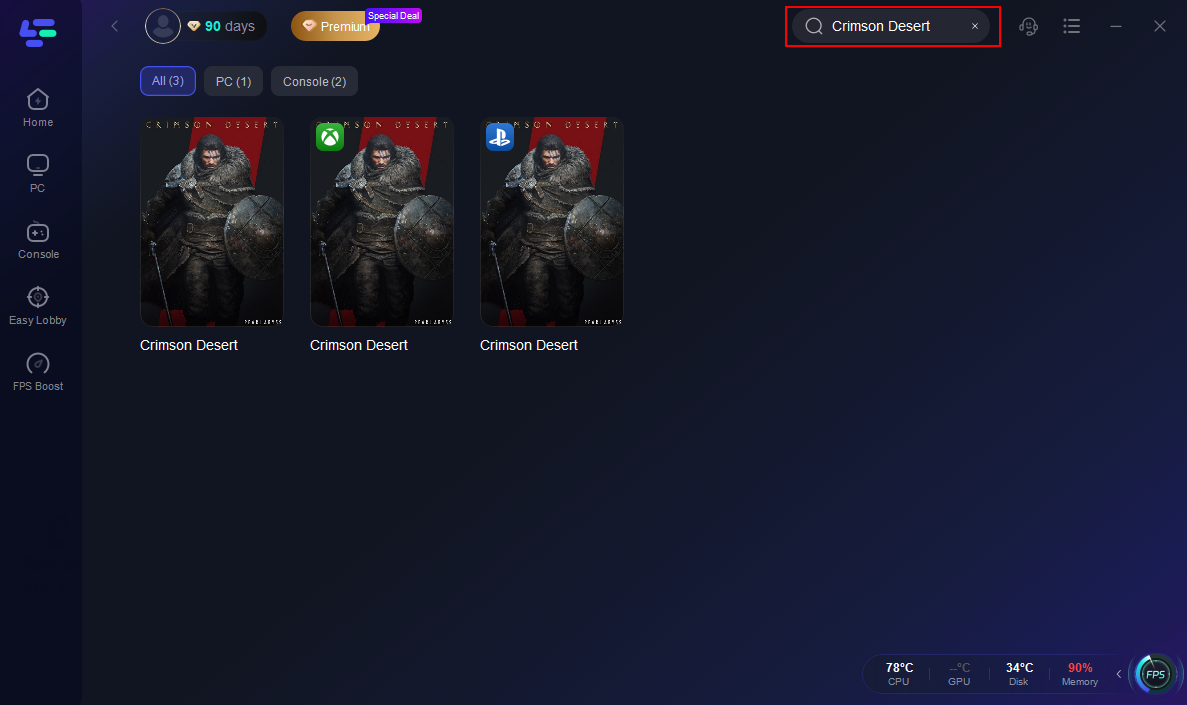
Step 2: After installation, search "Crimson Desert" in the search bar and select the game.

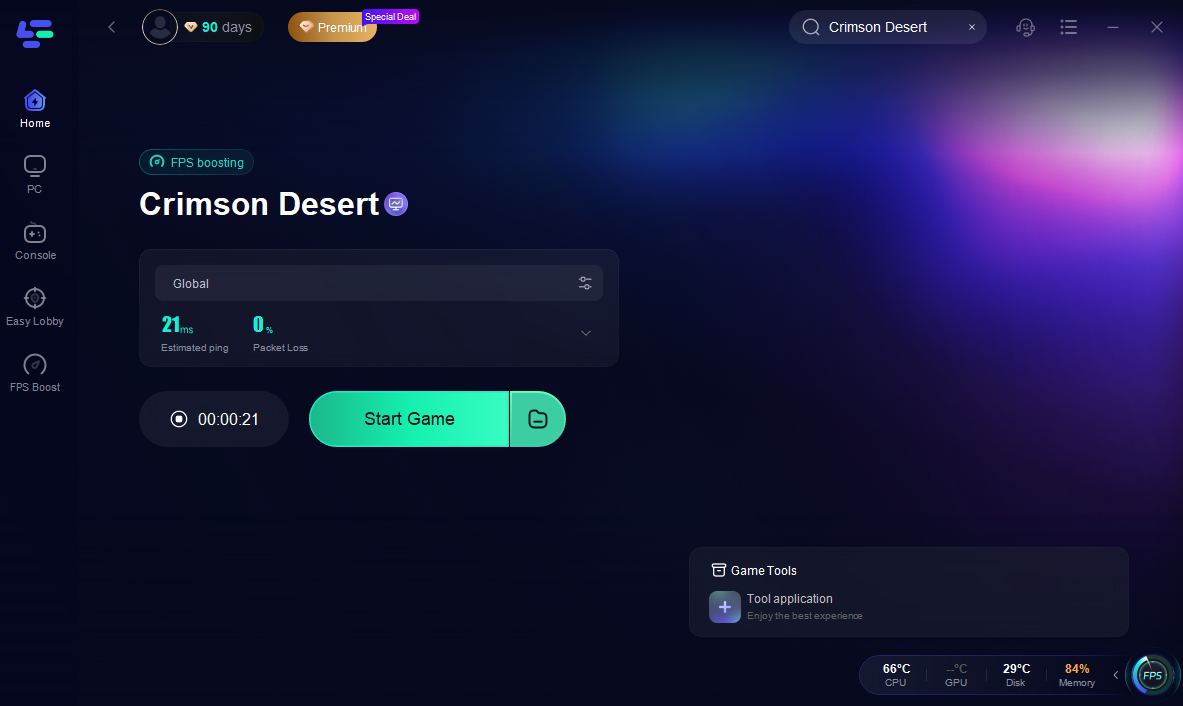
Step 4: Launch your game and enjoy smooth, optimized gameplay with lower ping and no stutter.
Part 8: FAQs
Can you remap controls on PS5 or Xbox?
No native remapping is currently available in-game.
How do you change keyboard controls on PC?
Use the Input menu. Keyboard rebinding is supported.
What settings improve control feel?
Lower camera sensitivity and adjust deadzone if needed.
Can Steam Input remap controller buttons?
Yes, but only as a platform-level workaround.
Final Verdict
The current situation is straightforward:
- PC supports keyboard and mouse rebinding
- controller remapping is not available natively
- consoles have the least flexibility
The most practical setup right now:
- Controller for best default gameplay feel
- Keyboard and mouse if customization is your priority
- Minor sensitivity and deadzone tweaks for smoother control
- Steam Input as a workaround on PC
In short: controller feels better, keyboard is more flexible, and console players currently have the fewest options.

Boost Your Game with LagoFast for Epic Speed
Play harder, faster. LagoFast game booster eliminates stutter and lags on PC, mobile, or Mac—win every match!
Quickly Reduce Game Lag and Ping!
Boost FPS for Smoother Gameplay!