
Online role-playing games often suffer from technical issues, especially during beta testing phases or peak hours. Chrono Odyssey, the highly anticipated time-bending MMORPG from Chrono Studio and Kakao Games, is no exception. One of the most frustrating issues currently facing players is Error Code 100150, a connection problem that blocks access to the game entirely. If you're one of the many users seeing this code and stuck at the login screen, you're not alone.
This guide will explore what Chrono Odyssey Error Code 100150 means, why it happens, and, most importantly, how to fix it. Whether the problem lies with your system, the game’s servers, or something else entirely, this article will walk you through real solutions that have helped players successfully reconnect and continue their adventure in Setera.

- ✅ Reduce Lag and High Ping.
- ✅ Boost FPS at the Same Time.
- ✅ Support 2000+ Popular Online Games.
- ✅ Stable Server Connections.
- ✅ Fix Chrono Odyssey Error 100150
Part 1: What is Chrono Odyssey Error Code 100150
Part 2: Why Chrono Odyssey Error Code 100150 Happens
Part 3: How to Fix Chrono Odyssey Error Code 100150
Part 1: What is Chrono Odyssey Error Code 100150
Chrono Odyssey Error Code 100150 is a server-related error that typically occurs when a player attempts to log into the game but fails to establish a connection with the Chrono Odyssey servers. It appears as a prompt with no detailed description, simply indicating that the user is “Unable to connect to the server”.
Unlike many other in-game errors that might relate to in-game bugs or corrupted files, this one is fundamentally a network communication failure. During the Closed Beta phase in June 2025, numerous players reported the issue when trying to access the game across North America, Europe, and Asia.
Part 2: Why Chrono Odyssey Error Code 100150 Happens
There are multiple reasons why this error might appear. While the game's beta servers have faced instability at times, it’s also possible that the issue stems from local network settings, blocked ports, or software conflicts. Here are the primary causes:
- Chrono Odyssey server downtime or overload
- Unstable internet connection or high latency
- Conflicts with firewall or antivirus software
- Incorrect DNS settings
- Outdated network drivers or system files
- Corrupted or incomplete game installation
- Platform-related issues with Steam or Xbox Live (depending on where you’re playing)
Part 3: How to Fix Chrono Odyssey Error Code 100150
When this error appears, you have several paths to resolution. Below is a collection of the most effective methods, starting with the easiest and most recommended.
LagoFast: The Most Reliable One-Click Solution
The fastest way to resolve Chrono Odyssey Error Code 100150 is to use LagoFast, a gaming optimization tool built to address exactly these types of issues. With its “One-Click Fix Error Code 100150” feature, LagoFast identifies the problem automatically and reroutes your connection to optimized game servers using their smart acceleration protocol.
Why LagoFast Stands Out:
- One-click fix for error code 100150
- One-click fix for the Black screen
- Advanced server routing and connection stabilization
- Reduces ping and prevents packet loss
- Smart allocation for bandwidth optimization
- Real-time connection monitoring
- Compatible with hundreds of popular titles beyond Chrono Odyssey
Using LagoFast is easy and effective for gamers who want a quick solution without delving into manual network tweaks.
Tutorial to use LagoFast to Fix Chrono Odyssey Error Code 100150 on PC:
Step 1: Click the Free Trial button to download and install LagoFast.
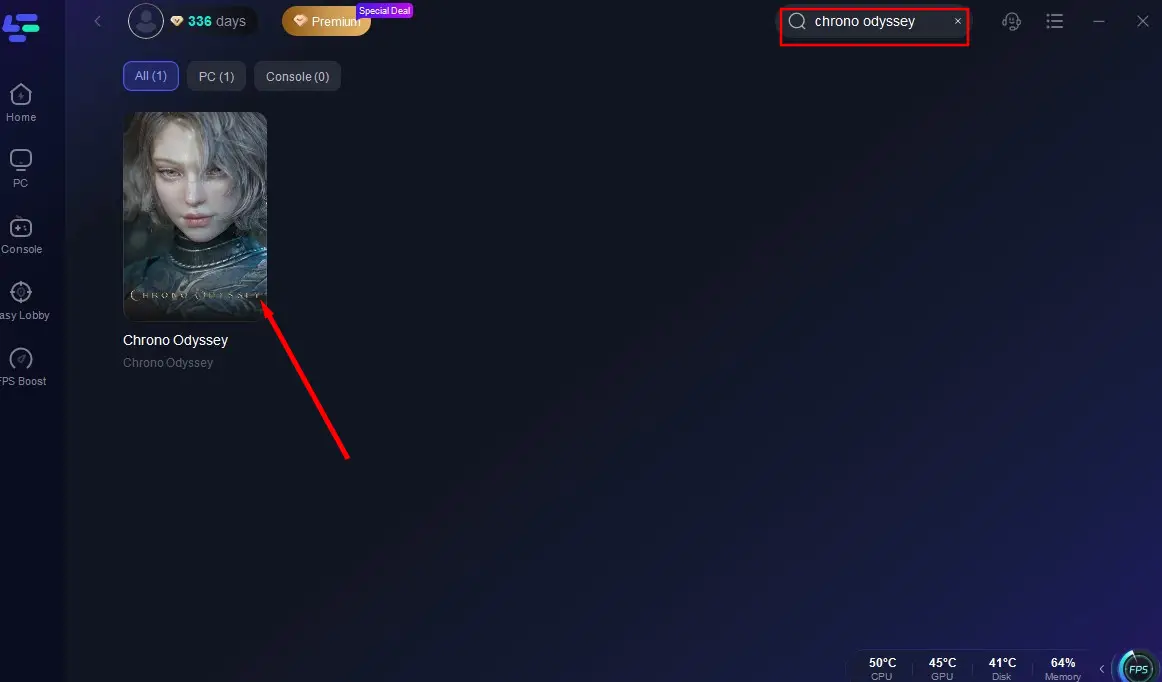
Step 2: Open LagoFast, then click the PC button on the left and search Chrono Odyssey in the search bar, click it after it appears.
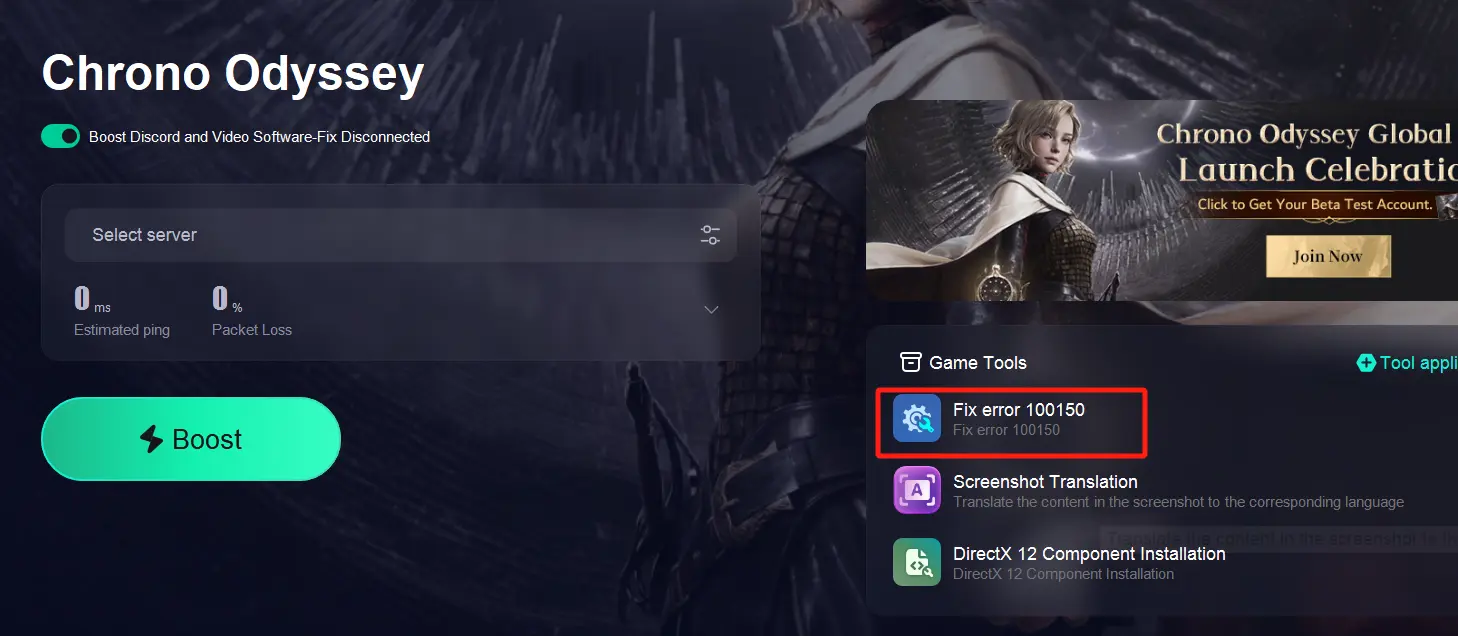
Step 3: Click on “Fix Error 100150” on the right side to fix it, then click on “Smart Boost” to ensure a smooth gaming experience.
Step 4: Check the specific game ping, packet loss, and multiple path connection on the right side. Finally, click the “Start Game” to play the game.
Check Server Status
Sometimes the problem is not on your end at all. Server outages are common during betas or maintenance windows.
Step-by-step:
Step 1: Visit Chrono Odyssey’s official website or social media for updates.
Step 2: Check the Steam community or Reddit for confirmation from other players.
Step 3: Refer to the Closed Beta schedule, servers may be intentionally offline.
Step 4: Wait for maintenance to finish before retrying.
Step 5: You can also visit Downdetector to check if server disruptions are reported.
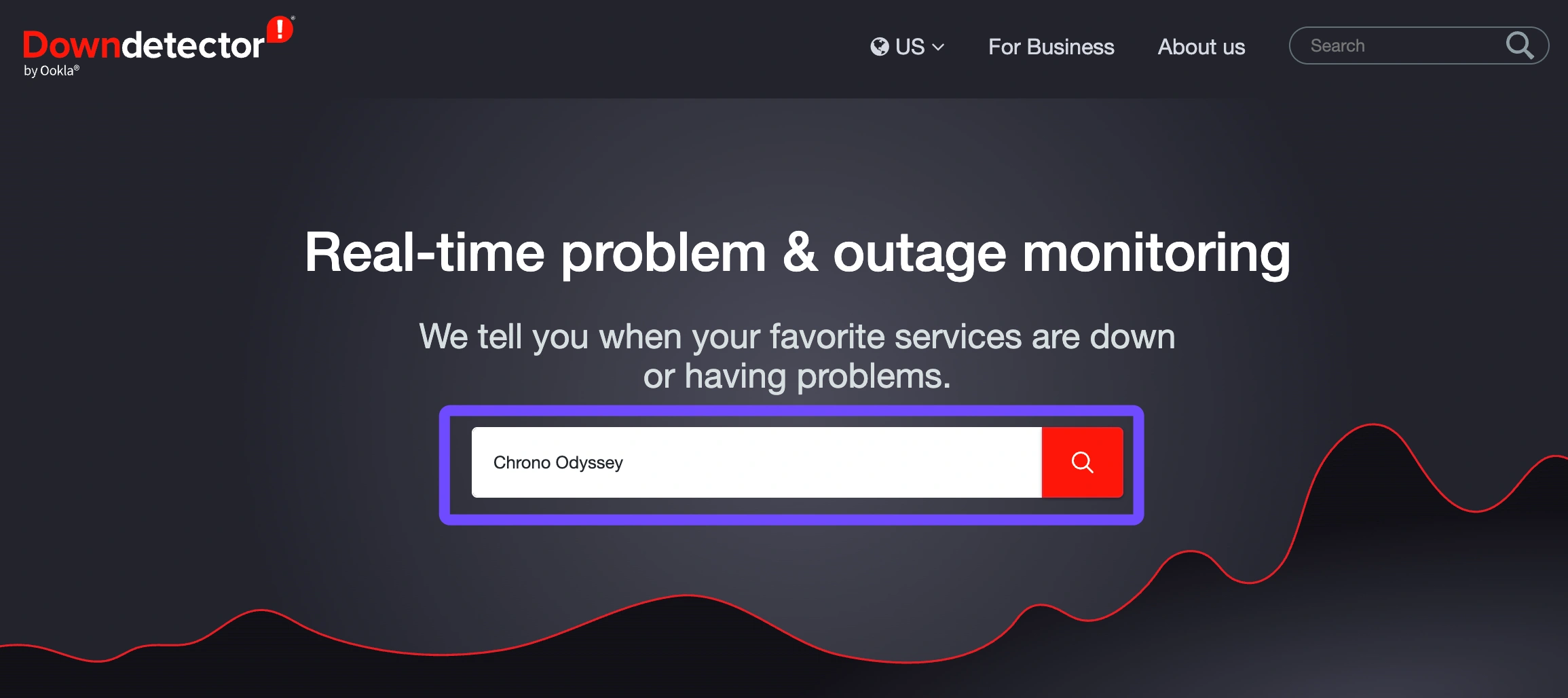
Step 6: Once confirmed online, restart the game and try reconnecting.
Temporarily Disable Antivirus & Firewall
Basic but often overlooked, this simple fix refreshes your IP and clears network errors.
Step-by-step:
Step 1: Turn off your PC or console.
Step 2: Unplug your router and modem from the power outlet.
Step 3: Wait for at least 60 seconds.
Step 4: Plug in your modem first, then your router.
Step 5: Wait until all lights are stable.
Step 6: Boot up your system and relaunch Chrono Odyssey.
H3: Flush DNS and Reset TCP/IP
Flushing DNS and resetting TCP/IP helps eliminate a corrupted network cache.
Step-by-step (Windows):
Step 1: Press Win + R and type cmd, then right-click and “Run as Administrator”.
Step 2: Type the command ipconfig /flushdns and press Enter.
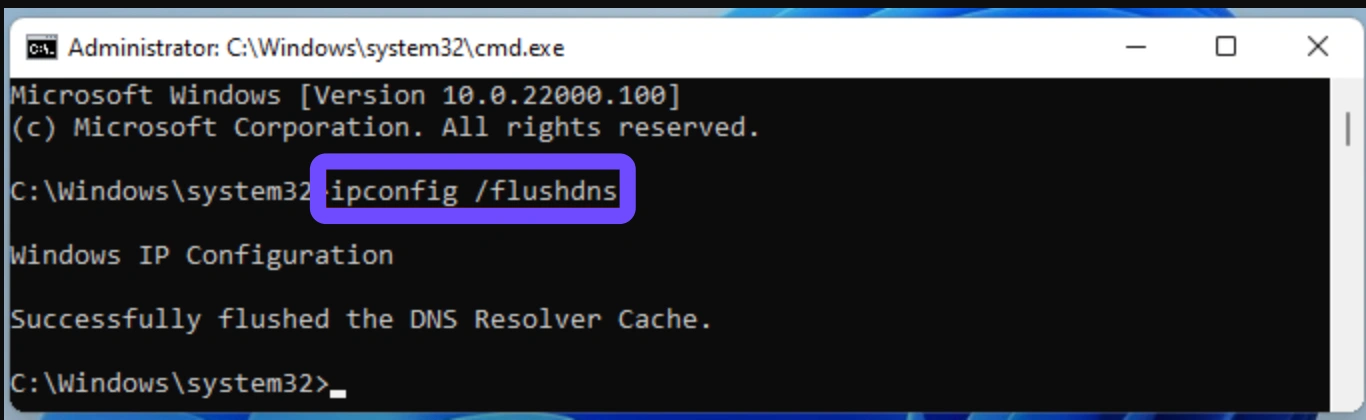
Step 3: Then type netsh int ip reset and hit Enter.
Step 4: Close the Command Prompt.
Step 5: Restart your PC.
Step 6: Launch the game again and check if the issue persists.
Change DNS Settings
Using Google or Cloudflare DNS can improve routing and avoid regional issues.
Step-by-step:
Step 1: Open Control Panel, go to Network and Internet, and select Network Connections.
Step 2: Right-click your active network and select “Properties”.
Step 3: Highlight “Internet Protocol Version 4 (TCP/IPv4)” and click “Properties”.
Step 4: Select “Use the following DNS server addresses”.
Step 5: Enter Google’s DNS:
Preferred: 8.8.8.8
Alternate: 8.8.4.4
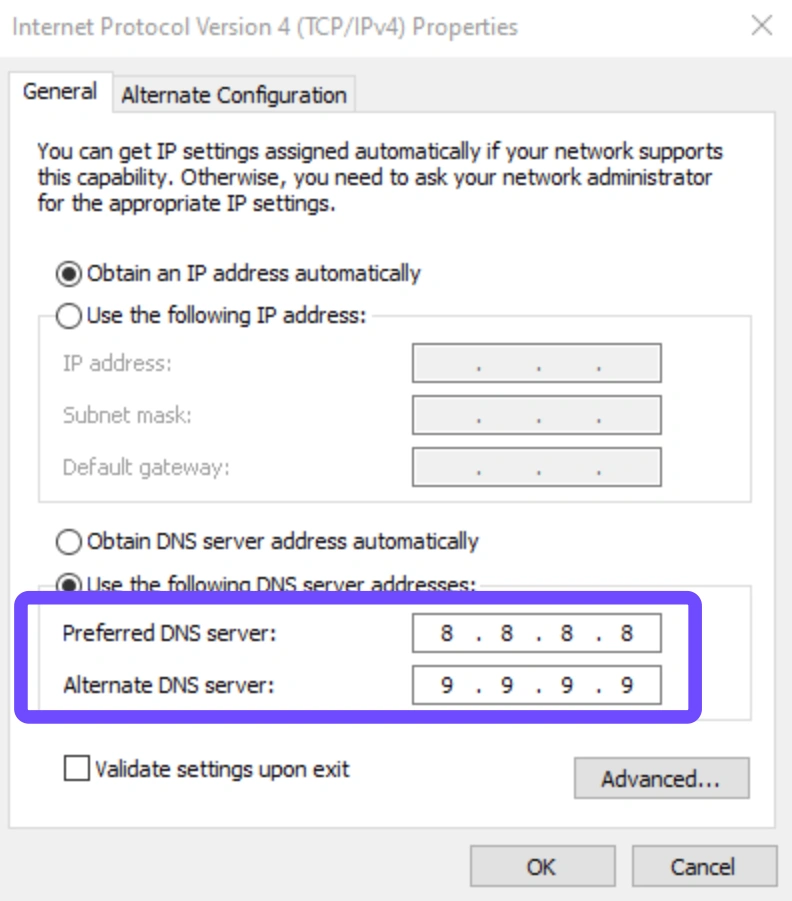
Step 6: Click OK, restart your PC, and try the game.
Temporarily Disable Antivirus & Firewall
Security software can sometimes block Chrono Odyssey from connecting to servers.
Step-by-step:
Step 1: Disable your firewall temporarily from Windows Security.
Step 2: Open your antivirus software and pause real-time protection.
Step 3: Launch the game and attempt to connect.
Step 4: If successful, add Chrono Odyssey and Steam as exceptions.
Step 5: Turn your security software back on.
Step 6: Retry launching the game to confirm the fix holds.
Verify Game Files on Steam
Missing or corrupted files could interfere with the network handshake process.
Step-by-step:
Step 1: Open your Steam Library.
Step 2: Right-click on Chrono Odyssey and select “Properties”.
Step 3: Click “Installed Files” tab.
Step 4: Select “Verify integrity of game files”.
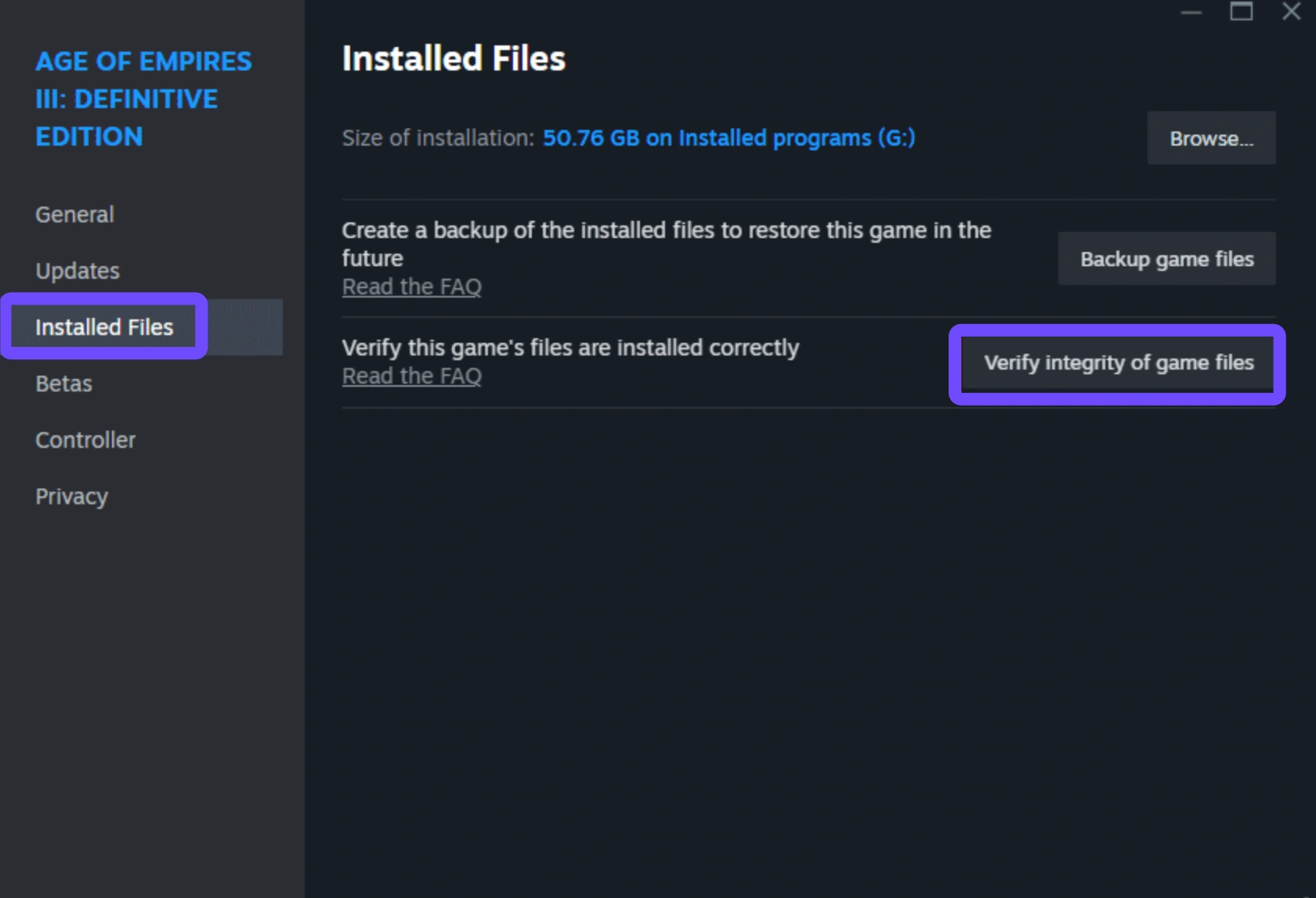
Step 5: Wait for the verification process to complete.
Step 6: Relaunch the game to see if the error is resolved.
Conclusion
Chrono Odyssey's Closed Beta has introduced players to frustrating issues like Error Code 100150, a major server connection problem disrupting gameplay. Among the various fixes, LagoFast stands out as the most effective solution, offering a one-click repair that not only resolves the error but also improves overall connection stability and game performance. With full release on the horizon, we hope these technical setbacks will soon be a thing of the past.

Boost Your Game with LagoFast for Epic Speed
Play harder, faster. LagoFast game booster eliminates stutter and lags on PC, mobile, or Mac—win every match!
Quickly Reduce Game Lag and Ping!
Boost FPS for Smoother Gameplay!