
You launch Battlefield 6, see the logo—and then nothing. You’re kicked back to the main menu while everyone else is already in combat. Thousands of players report the same: Battlefield 6 won’t enter matches, can’t join any server, or the match won’t start at all.
Even top-tier PCs like the 7800X3D + RTX 4090 can’t escape this problem. So, what’s really going on?

- ✅ Reduce Lag and High Ping.
- ✅ Boost FPS at the Same Time.
- ✅ Support 2000+ Popular Online Games.
- ✅ Stop Stuck & Black Screen Issues.
- ✅ Ensure Stable Connections.
Part 1: Why Battlefield 6 Won’t Enter a Match
Part 2: Best Way to Fix Battlefield 6 match won't start
Part 3: Other Fixes If Battlefield 6 Still Won’t Enter Matches
Part 1: Why Battlefield 6 Won’t Enter a Match
1. Anti-Cheat or Soft Ban
Many players find that Battlefield 6 won’t start matches due to EA’s Anti-Cheat system.
If the system suspects cheating or detects certain third-party tools (even harmless overlays), it can soft-ban you—preventing matches from loading without any visible error.
2. Secure Boot Disabled
Battlefield 6 anti-cheat requires Secure Boot to verify your PC’s integrity. If it’s off, the game often fails to enter matches.
To check:
- Press Win + R, type msinfo32, and hit Enter.
- Look for Secure Boot State; if it says "Off," enable it in BIOS.
3. Corrupted Files or Network Conflicts
Game data corruption or unstable routing can cause Battlefield 6 matches not to start. Steam or EA App file repair sometimes helps—but not always.
Part 2: Best Way to Fix Battlefield 6 match won't start
If your Battlefield 6 matches won’t start or you can’t enter any server no matter what you try, LagoFast is the quickest and most reliable way to get back in the game.
Unlike generic boosters, LagoFast directly targets the real causes behind Battlefield 6 won’t start errors—anti-cheat conflicts, secure boot issues, and unstable network routes—fixing them automatically so you can jump into matches again fast.
LagoFast’s built-in features automatically detect and resolve the problems that cause Battlefield 6 to get stuck before entering a match:
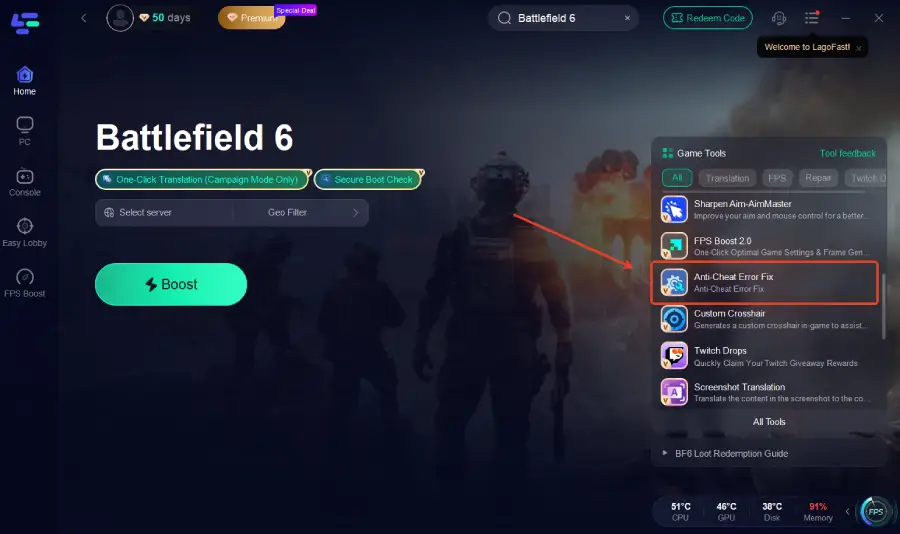
- Anti-Cheat Error Fix: Clears false anti-cheat flags and soft bans that stop matches from loading.
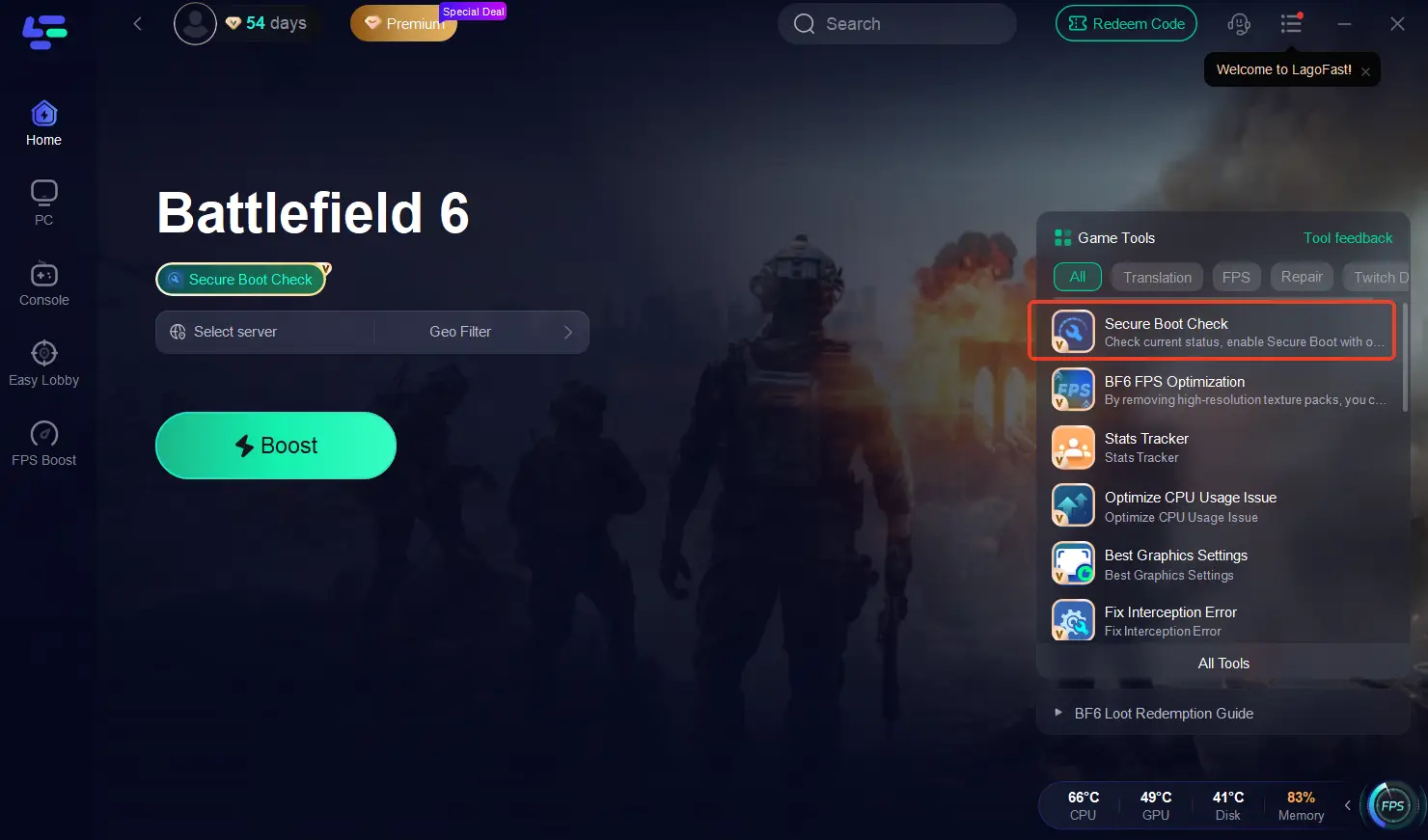
- Secure Boot Check: Scans your PC to ensure Secure Boot is enabled and properly configured—no need to open BIOS manually.
- Network Optimization: Reduces ping, packet loss, and server desync for smoother matchmaking and gameplay.
Steps to Use LagoFast to Solve Battlefield 6 Match Issues
Step 1: Begin by clicking the Free Trial button to download and install the LagoFast Free Trial.
Step 2: Open LagoFast and use the search bar to find “Battlefield 6.”

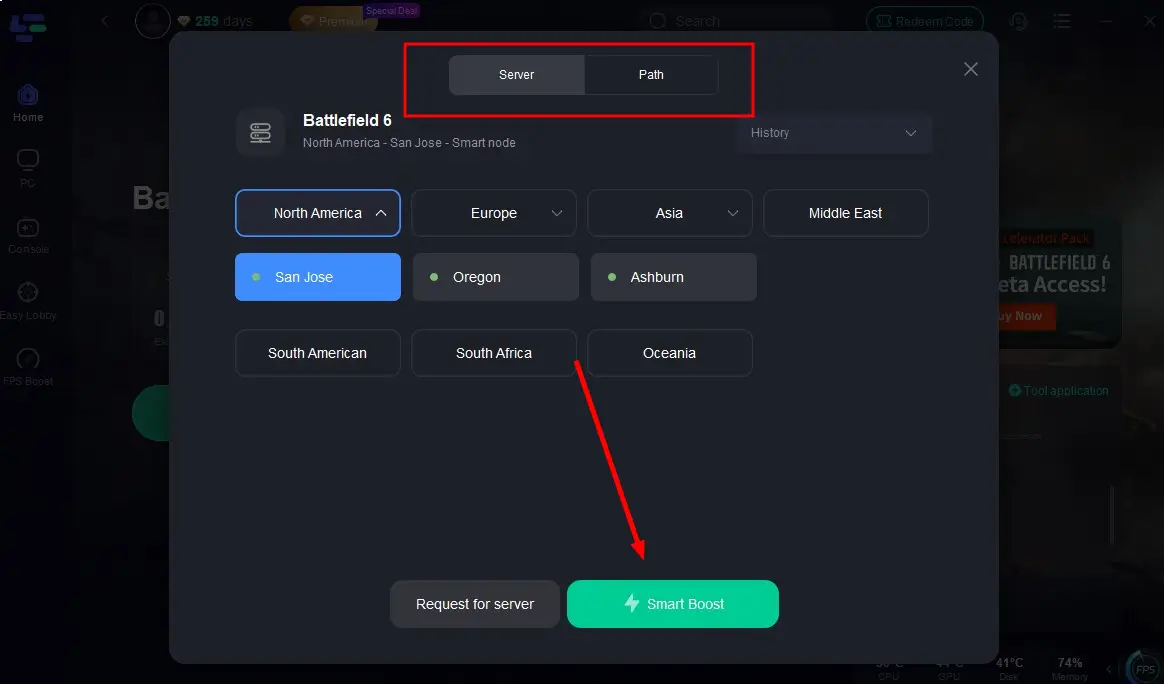
Step 3: Choose your preferred server and click "Smart Boost" to begin optimization.
Step 4: On the right panel, click Anti-Cheat Error Fix to automatically detect and fix any Anti-Cheat Error issues.
Step 5: On the right panel, click Secure Boot to automatically detect and fix any Secure Boot issues.
Step 6: Optimize network settings—LagoFast will automatically select the best connection path to minimize lag, packet loss, and high latency for smoother gameplay.

Most players report that after enabling these tools, they can enter Battlefield 6 matches successfully within minutes—without BIOS tweaks, reinstalls, or complicated settings.
Part 3: Other Fixes If Battlefield 6 Still Won’t Enter Matches
If you’d rather try manual methods, here are your options:
1. Verify or Repair Game Files
- Steam: Right-click Battlefield 6 → Properties → Installed Files → Verify Integrity.
- EA App: Click Manage → Repair.
2. Update GPU Drivers
Use the latest drivers from NVIDIA, AMD, or Intel to prevent compatibility issues.
3. Disable Overlays
Turn off Discord, NVIDIA GeForce Experience, and MSI Afterburner before launching Battlefield 6.
4. Clear Shader Cache
Go to Settings → Storage → Temporary Files → DirectX Shader Cache and clear it.
5. Run as Administrator
Right-click the Battlefield 6 shortcut → Run as Administrator.
Part 4: FAQs
Q1: Why does Battlefield 6 keep returning to the main menu?
Most often it’s due to anti-cheat conflicts, disabled Secure Boot, or corrupted game files.
Q2: Can I join a match if I’m soft-banned?
No—soft bans prevent matchmaking. Using tools like LagoFast’s Anti-Cheat Error Fix can help resolve false flags.
Q3: Is it a server issue or my PC?
Check EA server status first. If servers are online, your PC or network setup is usually the cause.
Q4: Why does a match take too long to load or freeze at the Battlefield 6 logo?
This is often caused by unstable network connections, background programs interfering, or system/file issues. LagoFast can optimize your network, check Secure Boot, and fix anti-cheat errors to speed up match loading.
Conclusion
If Battlefield 6 won’t start matches or join servers, the main causes are usually anti-cheat conflicts, Secure Boot issues, or network problems. The quickest way back into the game is LagoFast—its Anti-Cheat Error Fix, Secure Boot Check, and network optimization tools solve these issues automatically.
Combine with basic steps like verifying game files or updating drivers if needed, and you’ll be back in matches within minutes.
Boost Your Game with LagoFast for Epic Speed
Play harder, faster. LagoFast game booster eliminates stutter and lags on PC, mobile, or Mac—win every match!
Quickly Reduce Game Lag and Ping!
Boost FPS for Smoother Gameplay!