
Borderlands 4 is finally here, but many PC players are reporting a frustrating issue: the game gets stuck on a loading screen right after launch, sometimes with spinning icons, frozen visuals, or endless black screens. This is a common problem with new Unreal Engine titles and can be caused by corrupted game files, outdated drivers, or conflicts with overlays and antivirus software.
This guide explains why Borderlands 4 freezes on loading and provides a complete step-by-step fix to get you into the game quickly.

- ✅ Reduce Lag and High Ping.
- ✅ Boost FPS at the Same Time.
- ✅ Support 2000+ Popular Online Games.
- ✅ Change Server without Latency.
- ✅ Boost Game Loading Speed.
- ✅ Fix Game Crashing Freezing Issues
Part 1: Why Borderlands 4 Freezes on Loading
Part 2: Primary Solution to Fix Borderlands 4 Loading Screen Problems
Part 3: Essential Fixes for Borderlands 4 Loading Issues
Part 1: Why Borderlands 4 Freezes on Loading
DirectX or GPU Driver Conflicts
Borderlands 4 runs on Unreal Engine 5 and relies heavily on GPU driver optimizations. Old or corrupted drivers often trigger black screens or infinite loading loops.
Broken or Missing Game Files
Day-one patches and incomplete downloads may leave files corrupted, causing the game to hang on startup.
Corrupted Configurations or Save Data
Outdated .ini files or damaged save indexes can block the game before rendering begins.
Antivirus and Firewall Interference
Security software sometimes blocks executables or runtime files, stopping the game from loading assets properly.
Overlay and Hook Conflicts
Discord, Steam, Xbox Game Bar, GeForce Experience, MSI Afterburner, and other overlays often crash Unreal Engine titles during load.
Storage Bottlenecks
Installing Borderlands 4 on a slow HDD can cause extreme loading times or soft locks. Gearbox recommends installing on an SSD.
Hot Related: Borderlands 4 Is Not Working on PC? Complete Fix Guide for Errors and Crashes
Part 2: Primary Solution to Fix Borderlands 4 Loading Screen Problems
If you’re stuck on endless loading screens in Borderlands 4, the quickest and most reliable fix is LagoFast. More than just a ping booster, it streamlines traffic routes, minimizes network spikes, and frees PC resources to prevent Unreal Engine games from freezing during load.
Steps to Use LagoFast for Borderlands 4
Step 1: Click the "Free Trial" button below to download and install the LagoFast client on your PC.
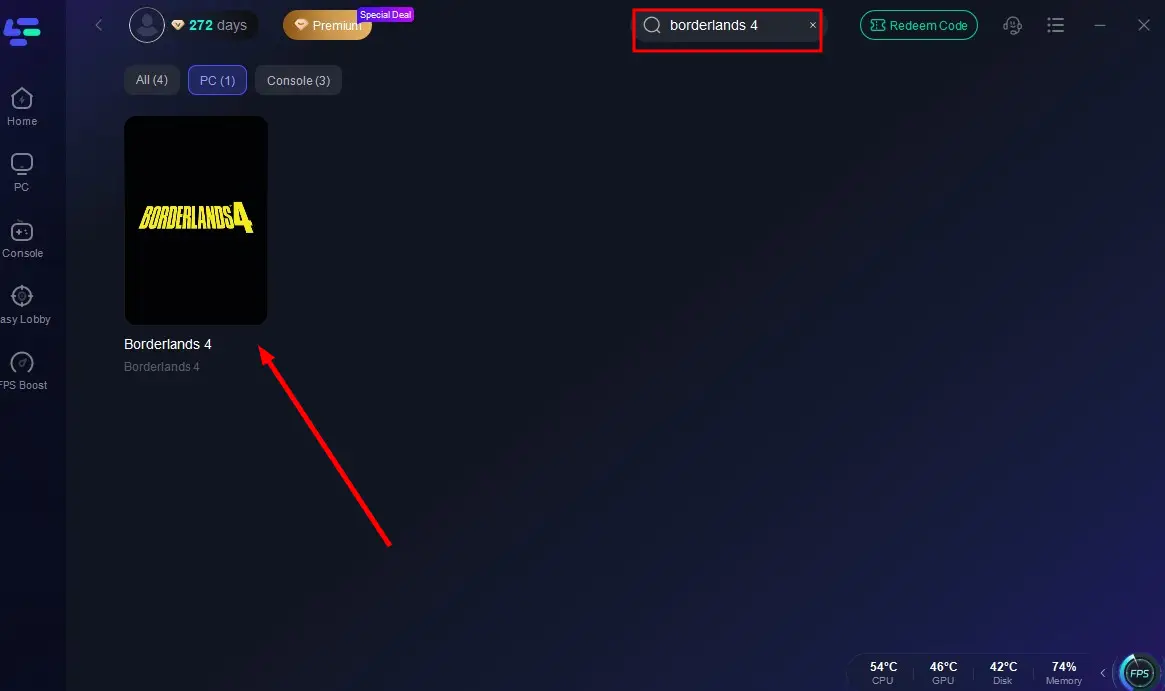
Step 2: Launch LagoFast, search for "Borderlands 4" in the client, and select the game.
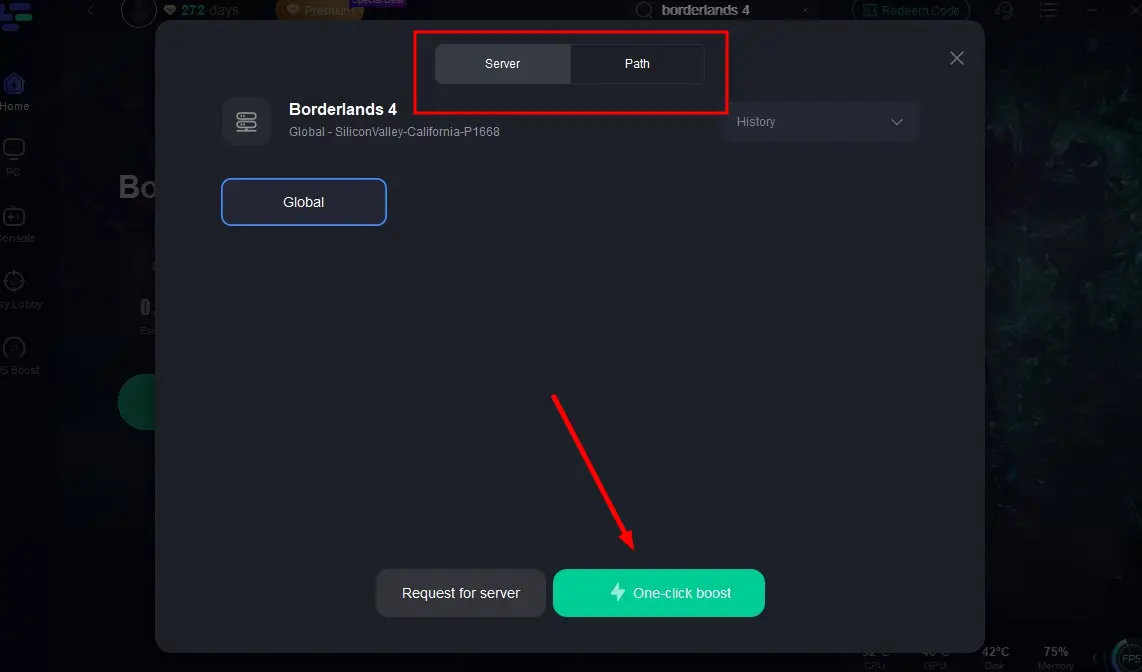
Step 3: Click the "Select Server" button to connect to an optimal server node based on your needs, then activate optimization via "Smart Boost".
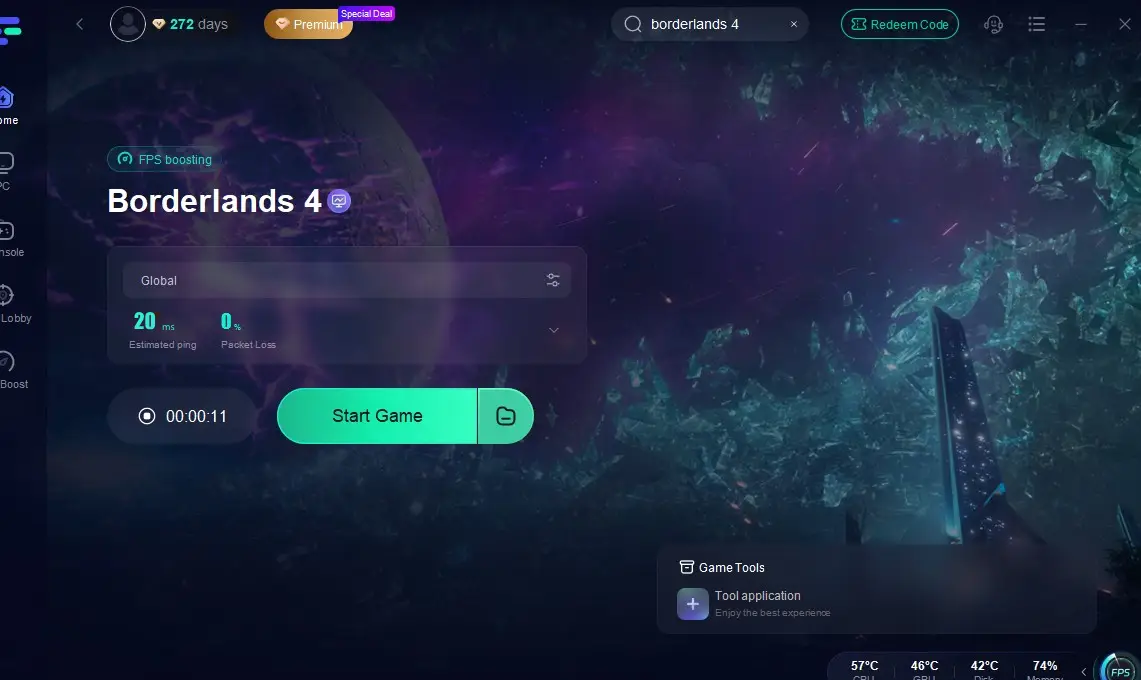
Step 4: After enabling real-time optimization, check the live ping and packet loss rates, then click "Start Game" to begin playing.
Why This Works
- Bypasses inefficient ISP routing and reduces packet drops.
- Prevents timeout loops that appear as infinite loading screens.
- Improves co-op stability where sync issues often trigger freezes.
Related Article: Is Borderlands 4 on Game Pass >
Part 3: Essential Fixes for Borderlands 4 Loading Issues
Step 1: Install the Latest Game Patch
- Restart your launcher (Steam, Epic, etc.) and let it fully update the game.
- Developers have already released hotfixes addressing instability and asset streaming.
Step 2: Update GPU Drivers
- NVIDIA: Install the latest Game Ready Driver (581.29 or newer).
- AMD: Update to the newest Adrenalin release.
Always use the Clean Install option to replace corrupted files.
Step 3: Verify Game Files
- Steam: Right-click Borderlands 4 → Properties → Installed Files → Verify Integrity.
- Epic Games: Click the three dots under BL4 → Manage → Verify.
Step 4: Force DX11 or Safe Mode
Add these launch options:
This bypasses unstable DX12/Vulkan paths and intro video crashes.
Step 5: Delete & Rebuild Config Files
Go to:
- Back up, then delete everything.
- Relaunch the game to generate fresh configs.
Step 6: Disable Overlays and Third-Party Hooks
Turn off:
- Steam Overlay
- Discord Overlay
- Xbox Game Bar
- GeForce Experience Overlay
- RivaTuner/Afterburner OSD
- Armoury Crate SE (ROG Ally)
- Temporarily remove ReShade or mod injectors.
Step 7: Whitelist Game in Antivirus/Firewall
- Add Borderlands4.exe and the full game folder to exceptions.
- Test by disabling antivirus/firewall entirely to confirm.
Step 8: Move the Game to an SSD
If the game is installed on a mechanical HDD, move it to an SSD for faster asset streaming and reduced load stalls.
Step 9: Perform a Clean Boot of Windows
- Press Win+R, type
msconfig. - Hide all Microsoft services, then disable the rest.
- In Task Manager, disable non-essential startup apps.
- Reboot and test the game.
- If it works, re-enable services in batches to find the conflict.
Step 10: Reinstall Dependencies
Go to the _CommonRedist folder inside your BL4 directory and reinstall:
- Visual C++ Redistributables (x64)
- DirectX End-User Runtime
Step 11: Repair or Reset Windows (Last Resort)
If none of the above works and other games are also unstable, your OS may have broken driver chains or registry issues.
- Perform a Windows repair install or factory reset.
- Back up Saved\SaveGames before proceeding.
Hot Related: Borderlands 4 Interactive Map – Best Map Tool with LagoFast
Conclusion
A loading screen freeze in Borderlands 4 is usually caused by a mix of engine instability, outdated drivers, and overlay conflicts. By following this structured workflow—starting with patches and driver updates, then moving to DX11 mode, config resets, overlay shutdown, and dependency reinstalls—you can almost always restore stable gameplay.
If you want the fastest solution, LagoFast Smart Boost provides an instant way to bypass network and system bottlenecks, helping you get into Borderlands 4 without endless waiting screens.
Boost Your Game with LagoFast for Epic Speed
Play harder, faster. LagoFast game booster eliminates stutter and lags on PC, mobile, or Mac—win every match!
Quickly Reduce Game Lag and Ping!
Boost FPS for Smoother Gameplay!