
Borderlands 4 launches September 12, 2025 on PC, PS5, and Xbox Series X|S, powered by Unreal Engine 5 with massive worlds and billions of loot options. On PC, Gearbox warns that systems below the minimum specs—Intel i7-9700 or Ryzen 7 2700X, 16GB RAM, RTX 2070 or equivalent GPU, and SSD storage—may face frequent crashes, freezes, or instability.
Russian version: Как исправить вылеты и зависания Borderlands 4

- ✅ Reduce Lag and High Ping.
- ✅ Boost FPS at the Same Time.
- ✅ Support 2000+ Popular Online Games.
- ✅ Change Server without Latency.
- ✅ Boost Game Loading Speed.
- ✅ Fix Game Crashing Freezing Issues
Part 1: Why Borderlands 4 Keeps Crashing
Part 2: How to Fix Freezing and Crashing Issues in Borderlands 4
Part 3: How to Enhance Game Experience With LagoFast Game Booster
Part 1: Why Borderlands 4 Keeps Crashing
Under-Spec Hardware
Running the game on a CPU with fewer cores or lower single-core performance than the minimum, or with a GPU that can’t keep up (insufficient VRAM) often leads to crashes. Gearbox warns that older or weaker PCs may find the game “unplayable” or encounter frequent crashes.
Storage Bottlenecks
Using a mechanical hard drive (HDD) rather than an SSD can lead to long loading times, stuttering, and even freezing if streaming assets lag behind. The devs emphasize SSD is required.
Graphics Driver or API Issues
Outdated or buggy GPU drivers, or issues with DirectX / Vulkan / Unreal Engine setup can crash the game. Sometimes switching between DX12 vs DX11 helps, as high-end features might not be stable on all hardware.
Overheating or Thermal Throttling
When CPU or GPU gets too hot, performance drops or the game may freeze/crash. Poor airflow or overclock misconfigurations can exacerbate this.
Background Software Conflicts
Overlays (Steam, NVIDIA ShadowPlay, Discord), antivirus or firewall settings, or software that hooks into graphics (mods, third-party tools) can interfere with the game engine’s stability.
Memory & RAM Issues
Less RAM than required, faulty or mismatched RAM sticks, or virtual memory (page file) being too small can cause crashes, especially when the game tries to load many assets simultaneously.
Day-One / Patch Bugs
Even with good hardware, there may be bugs in the launch version. Gearbox is shipping a day-one patch to address some of the more egregious issues.
Related Article: Is Borderlands 4 on Game Pass?
Part 2: How to Fix Freezing and Crashing Issues in Borderlands 4
Check Hardware Requirements & Upgrade if Needed
Ensure your system meets or exceeds the minimum specs. If your CPU has fewer than 8 cores, or VRAM is less than 8 GB, crashes/freezes are more likely. Consider upgrading CPU, GPU, or at least ensuring your GPU driver is up to date.
Install on SSD & Clear Storage Space
Make sure the game is installed on a fast SSD. Verify there's enough free storage for texture streaming and caching. Defragment or optimize storage if needed.
Update Drivers & OS
- Update GPU drivers (NVIDIA/AMD) to the latest stable version.
- Apply Windows updates to ensure compatibility.
- Install any patches for the game itself (launch patch + subsequent updates).
Lower Graphics Settings
If crashes occur during heavy scenes, reduce:
- Shadows, reflections, volumetric effects
- Texture quality, anti-aliasing
- Draw distance or resolution scaling (use DLSS/FSR/XeSS).
Disable Overlays and Non-Essential Background Apps
Turn off overlays (Steam/Discord/NVIDIA). Close programs that may interfere. Temporarily disable or whitelist the game in firewall/antivirus to test stability.
Check for Overheating & Tweak Cooling
Monitor temps with MSI Afterburner or HWMonitor. Ensure fans are clean, use proper cooling, reduce overclocking if unstable.
Adjust Virtual Memory / Page File
Set Windows page file to auto or 1.5–2× RAM. This prevents out-of-memory crashes when many assets load.
Repair Game Files / Clean Installation
Use Steam/Epic integrity check. If corruption is found, redownload missing assets. A full reinstall may help if issues persist.
Hot Related: Borderlands 4 Is Not Working on PC? Complete Fix Guide for Errors and Crashes
Part 3: How to Enhance Game Experience With LagoFast
Although many crashes are hardware/software related, some freezes/crashes happen due to network lag or asset streaming delays (especially in online co-op or open-world streaming). Here’s how LagoFast Game Booster can help:
- Reduced latency for smoother gameplay in co-op or PvP.
- Better network routing for stable connections to servers.
- Lower packet loss to avoid stutters and dropouts.
- Consistent frame delivery by minimizing network spikes.
How to Use LagoFast on PC
Step 1: Click the "Free Trial" button below to download and install the LagoFast client on your PC.
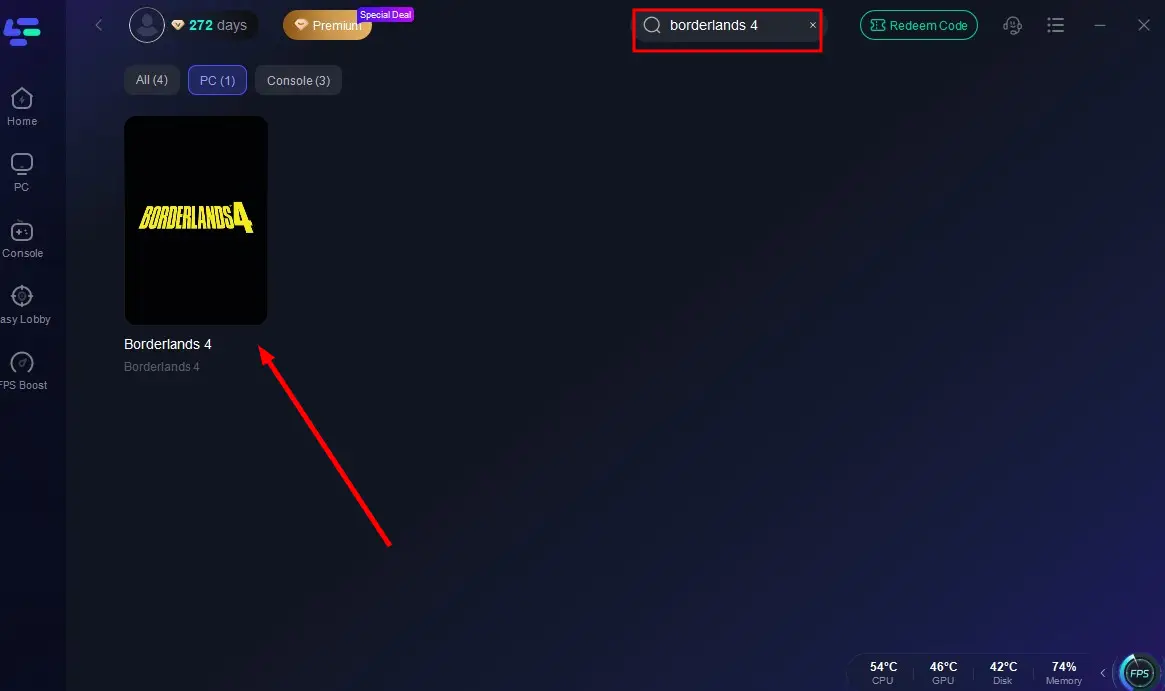
Step 2: Launch LagoFast, search for "Borderlands 4" in the client, and select the game.
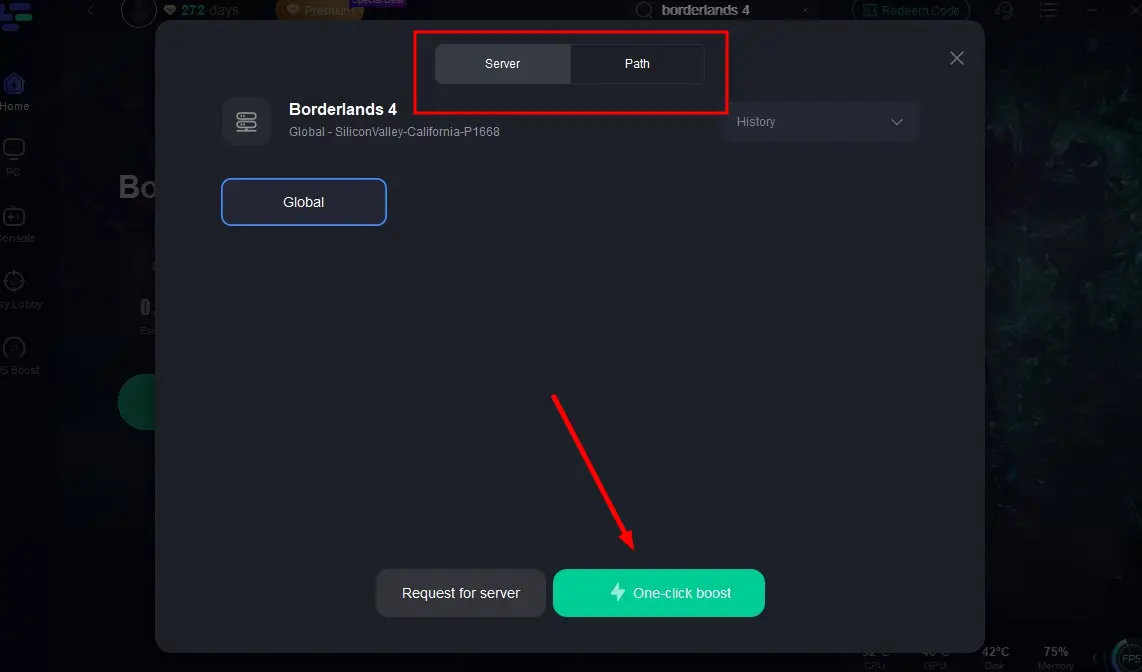
Step 3: Click the "Select Server" button to connect to an optimal server node based on your needs, then activate optimization via "Smart Boost".
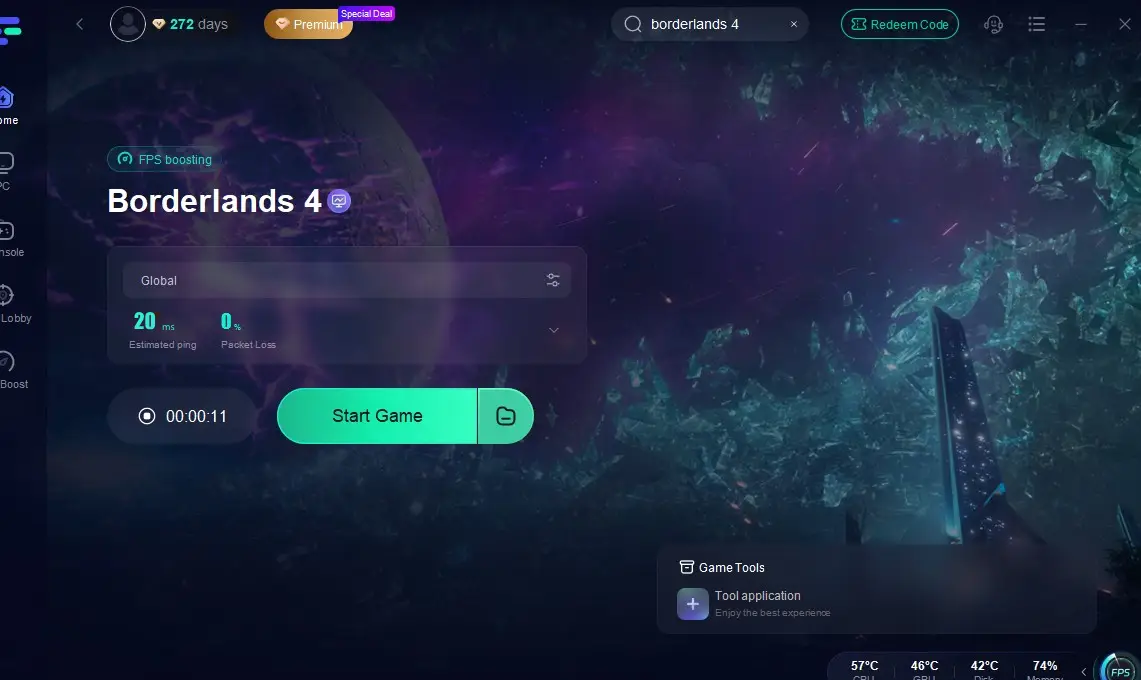
Step 4: After enabling real-time optimization, check the live ping and packet loss rates, then click "Start Game" to begin playing.
While LagoFast won’t fix weak hardware, it can reduce network-related stutters or freezes during multiplayer or streaming-heavy gameplay.
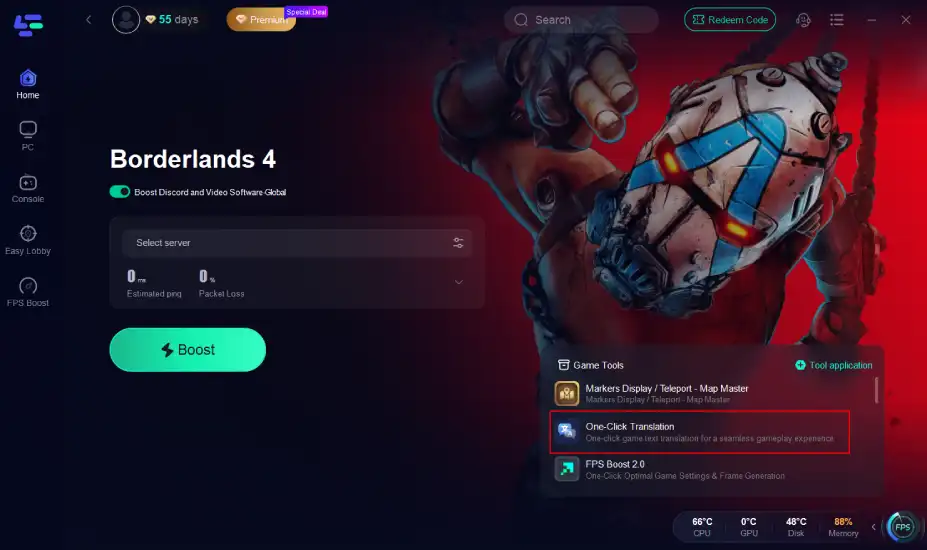
Borderlands 4 Translation Tool
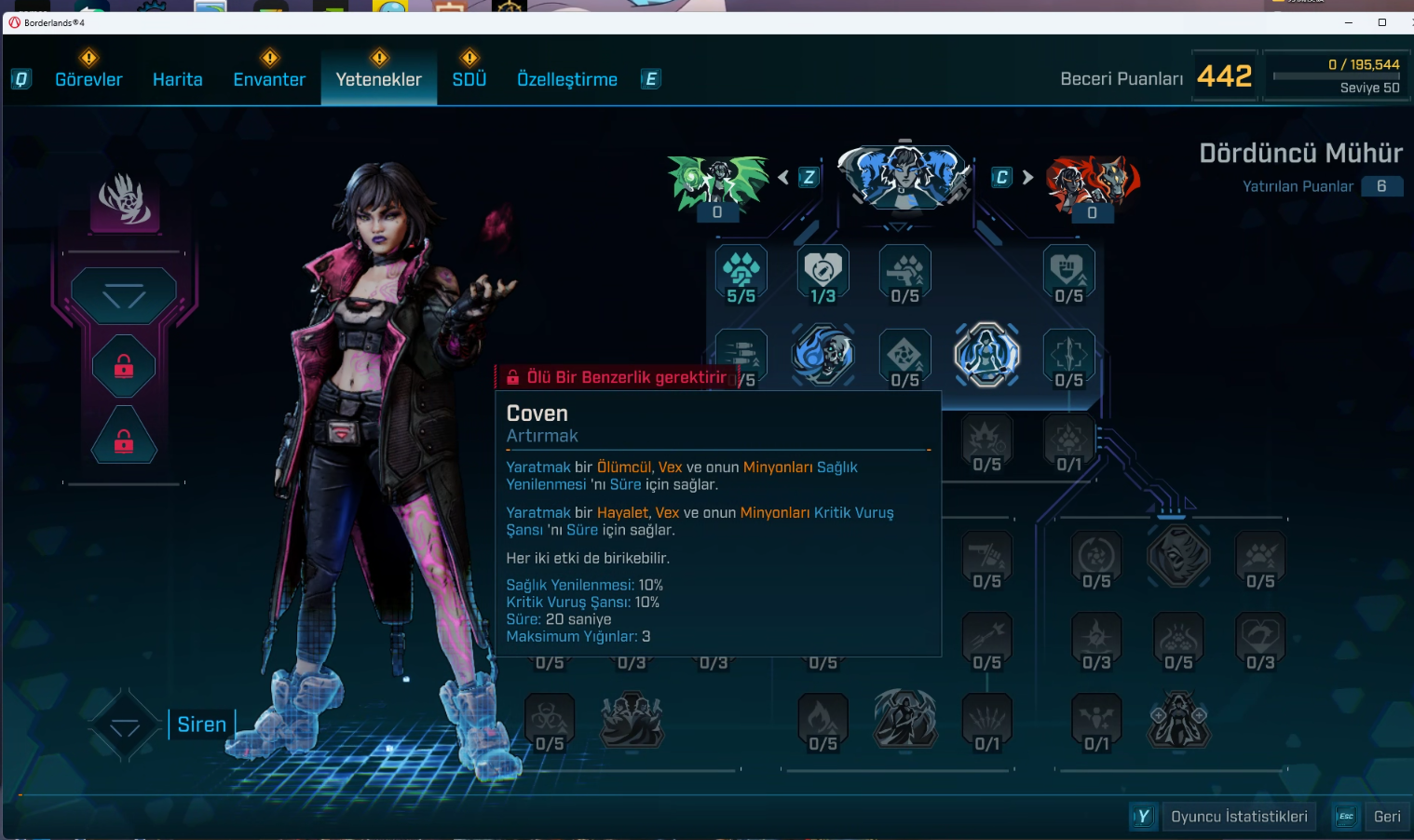
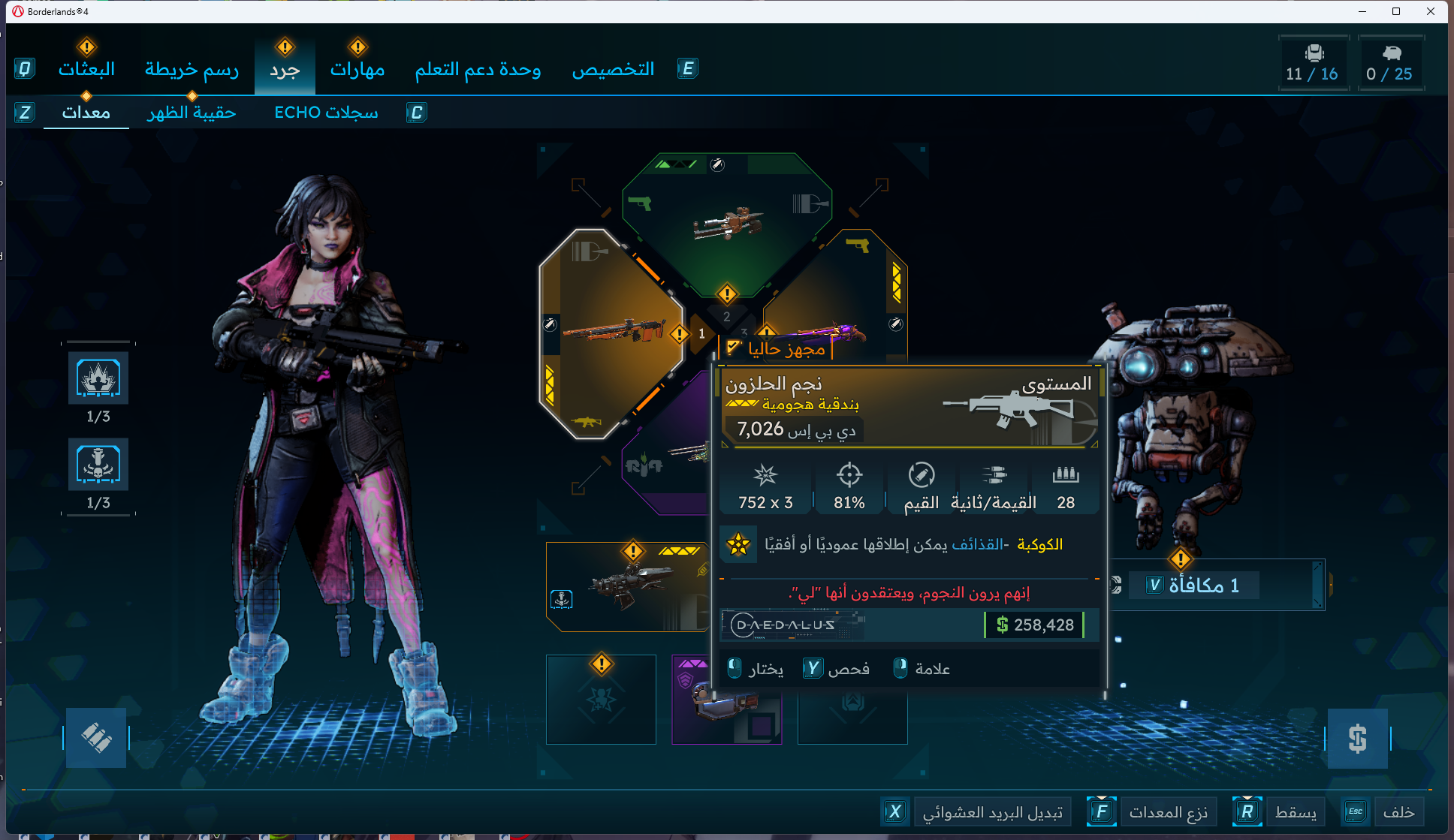
LagoFast’s Translation Tool supports multiple languages, including Turkish and Arabic. It helps players easily understand dialogues, menus, and quest details, ensuring smoother progression and better immersion for gamers worldwide without language barriers.
Step 1: Click the translation tool on the right.
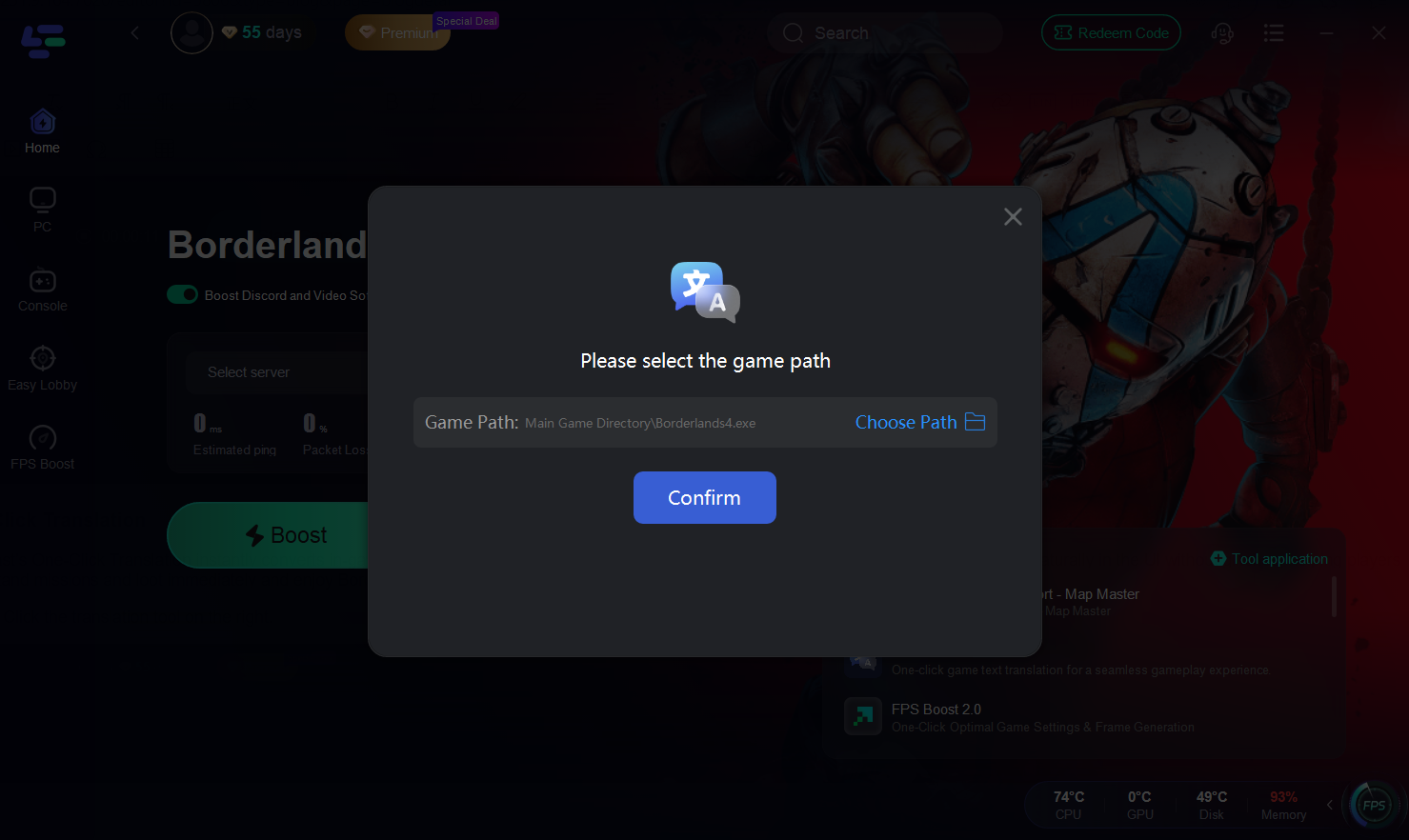
Step 2: Select the installation path and click Confirm
Translation Effect Showcase
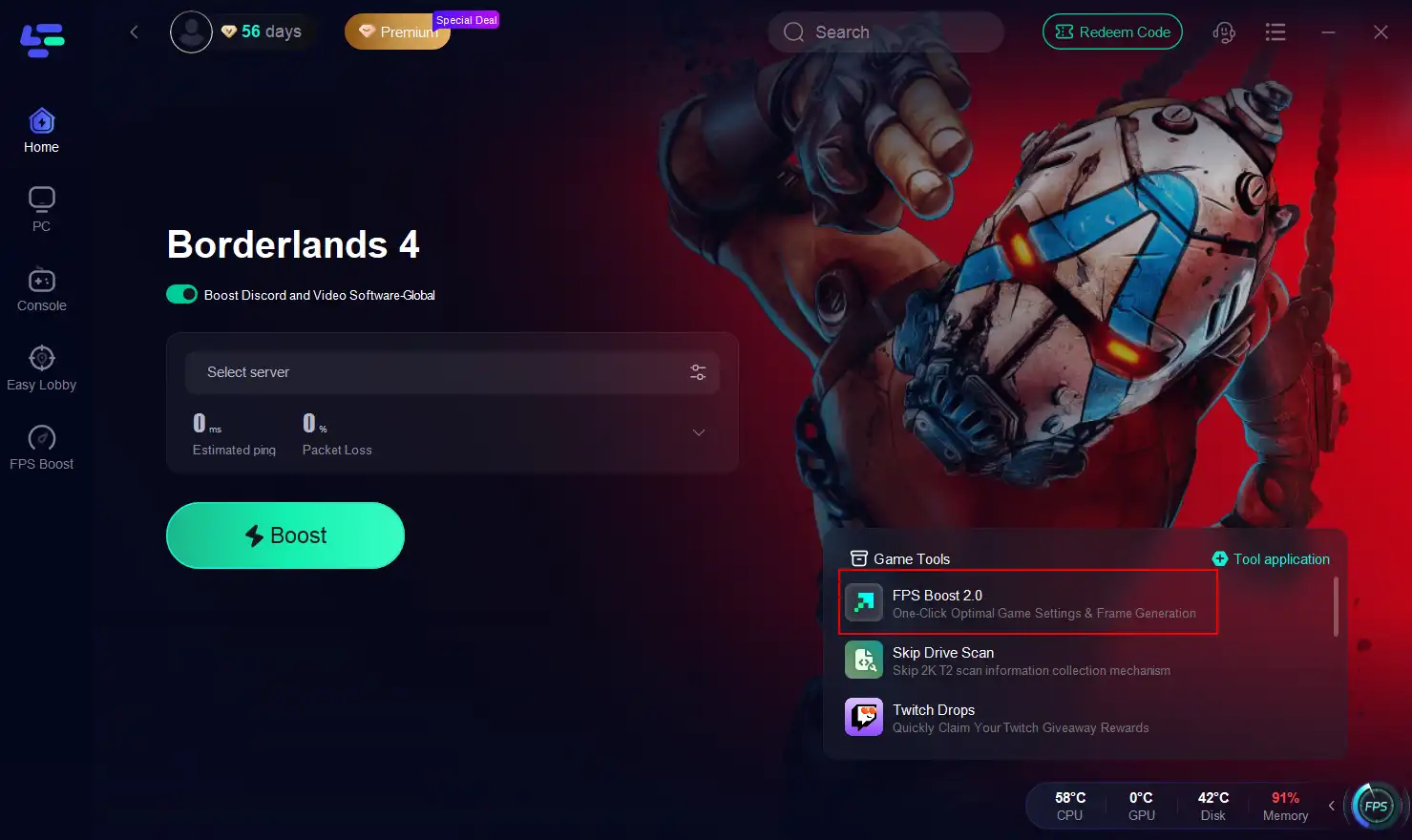
Borderlands 4 FPS Boost 2.0
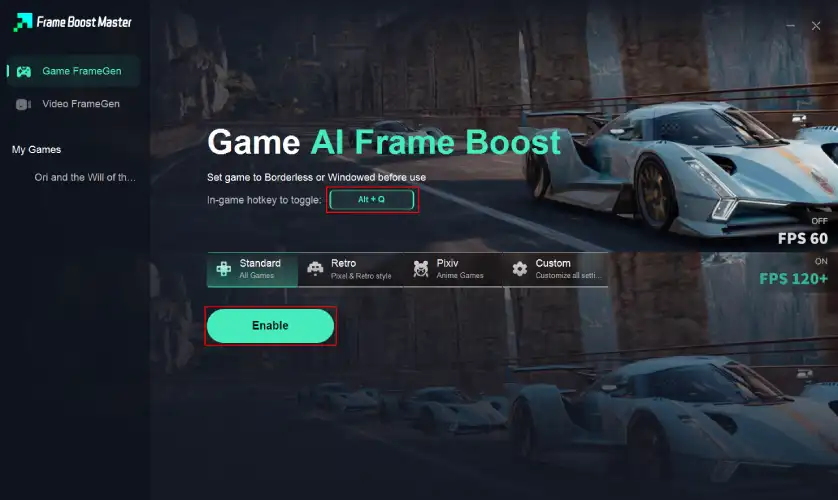
With FPS Boost 2.0, LagoFast delivers One-Click Optimal Settings & Frame Generation for Borderlands 4. It enhances frame rates, minimizes input lag, and ensures consistent, fluid gameplay for both single-player exploration and fast-paced multiplayer combat.
Step 1: Click the “FPS Boost 2.0” tool on the right.
Step 2: You can customize the hotkeys. Click Enable to turn on FPS boost.
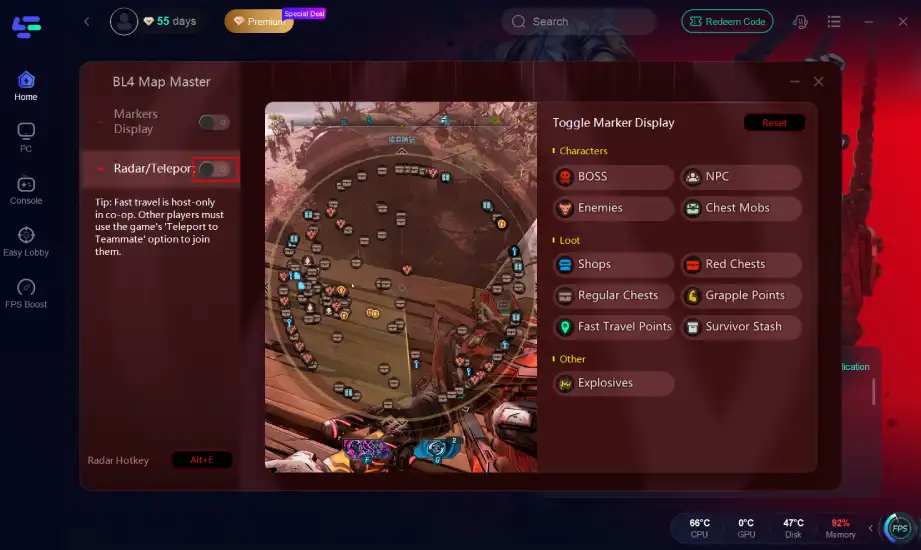
Borderlands 4 Interactive Map Tool
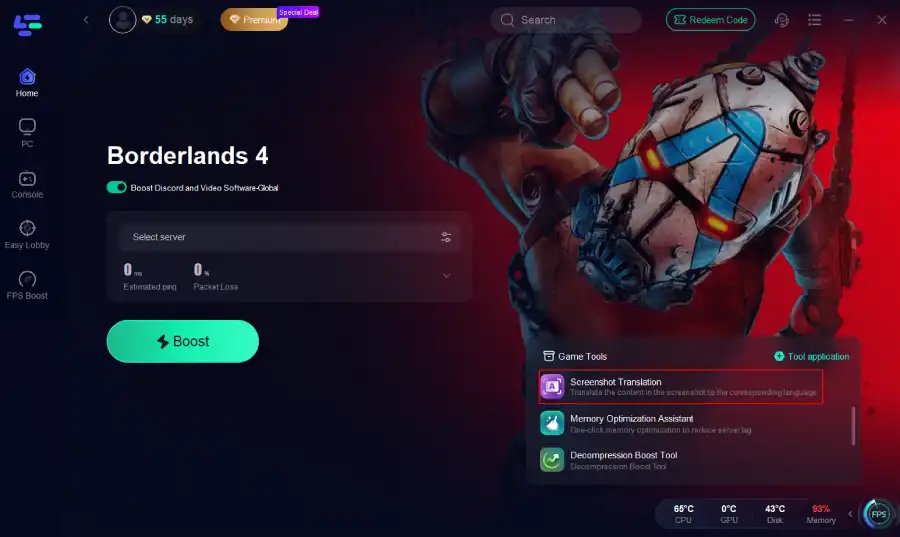
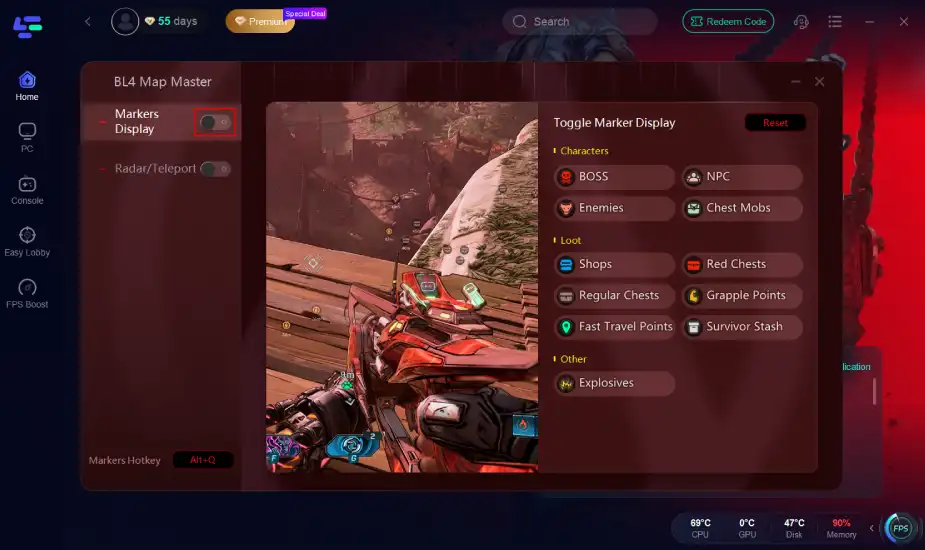
The Interactive Map Tool offers two key features: Markers Display, showing vendors, bosses, loot caches, fast travel points, and quests with toggle options; and Teleport, enabling instant jumps between points for efficient farming and smoother co-op coordination.
Step 1. Click the Map Master Tool on the right.
Step 2. Click the Button to enable the tool.
Part 4: FAQs
Q1: Will meeting minimum specs guarantee no crashes?
No. Crashes can still occur due to drivers, background apps, storage speed, or thermal issues.
Q2: Should I force DX11 instead of DX12/Vulkan?
Possibly. A more stable API may help depending on your GPU.
Q3: Do SSDs really matter that much?
Yes. SSDs improve loading, asset streaming, and reduce freezes. HDDs struggle heavily.
Q4: Is LagoFast useful if the crash is due to CPU or overheating?
Not directly. LagoFast fixes network and streaming stability, not hardware issues.
Q5: What about power settings and driver updates?
Use a High Performance power plan and keep GPU drivers updated for the latest optimizations.
Conclusion
Borderlands 4 is ambitious, visually rich, and demanding. Crashes and freezes are likely for players on borderline specs, HDDs, or outdated drivers. But there’s hope: upgrading hardware, using SSDs, disabling overlays, keeping systems updated, and relying on tools like LagoFast Game Booster for stable connectivity can dramatically improve performance. With the right setup, you can enjoy Borderlands 4’s chaotic co-op and endless loot without constant interruptions.

Boost Your Game with LagoFast for Epic Speed
Play harder, faster. LagoFast game booster eliminates stutter and lags on PC, mobile, or Mac—win every match!
Quickly Reduce Game Lag and Ping!
Boost FPS for Smoother Gameplay!