
Borderlands 4 is finally here, but many PC players are running into issues right from the start. Crashes, launch errors, stuttering, and unstable performance are causing frustration for early adopters. If you are seeing errors like “Multiple crashes detected!” or if the game refuses to launch, this guide will walk you through all the proven solutions to fix Borderlands 4 not working on PC and get you back to smooth gameplay.

- ✅ Reduce Lag and High Ping.
- ✅ Boost FPS at the Same Time.
- ✅ Support 2000+ Popular Online Games.
- ✅ Change Server without Latency.
- ✅ Boost Game Loading Speed.
- ✅ Fix Game Crashing Freezing Issues
Part 1: What’s Going Wrong with Borderlands 4 on PC
Part 2: Quick Fix – Stabilize Connection with LagoFast
Part 3: Step-by-Step Fix Guide for Borderlands 4 Errors
Part 4: Pro Tips for Stable Performance
Part 5: FAQ – Borderlands 4 Not Working on PC
Part 1: What’s Going Wrong with Borderlands 4 on PC
The PC version of Borderlands 4 has had a rough launch. Common causes include:
Unreal Engine Crash Heuristics
The engine detects repeated startup failures and stops further launch attempts, showing errors like “Multiple crashes detected!”.
Buggy Pre-release Builds or Day-One Bugs
Performance and stability issues are common in early patches due to unoptimized code and untested configurations.
Outdated or Improper GPU Drivers
Borderlands 4 requires the latest drivers with optimizations for features like DLSS 4 or RTX support.
Missing or Corrupted System Dependencies
DirectX, Visual C++ Redistributables, or .NET components may be missing or damaged.
Overlay or Hook Conflicts
Steam Overlay, Discord, or FPS counters often interfere with the game’s engine.
Hardware or Configuration Mismatches
Older CPUs, low RAM, or running the game on an HDD instead of an SSD can cause stuttering or crashes.
Related Article: Is Borderlands 4 on Game Pass?
Part 2: Quick Fix – Stabilize Connection with LagoFast
If Borderlands 4 is not working on PC due to unstable connections or lag, LagoFast provides the fastest solution.
- It reduces ping, lag, and packet loss in real time.
- Stabilizes network routes to prevent disconnects in co-op mode.
- Even improves FPS by optimizing system resources.
Set up LagoFast in minutes to fix unstable online sessions and get back into the game without interruptions.
Step 1: Click the “Free Trial” button below to download and install the LagoFast client on your PC.
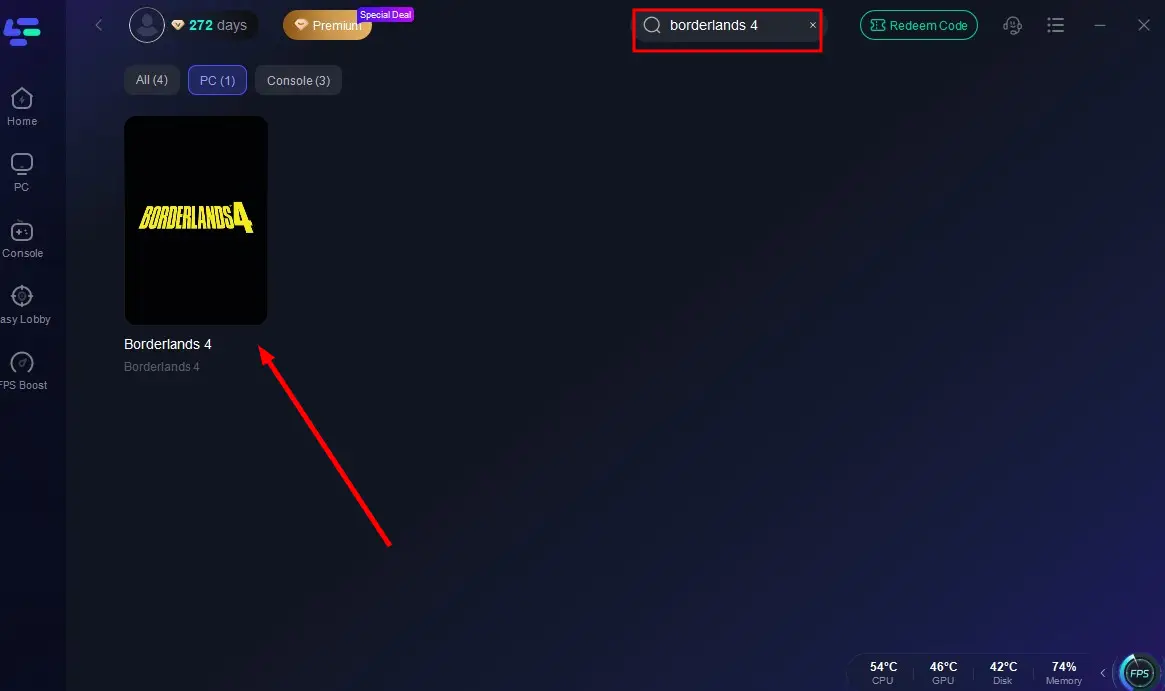
Step 2: Launch LagoFast, search for “Borderlands 4” in the client, and select the game.
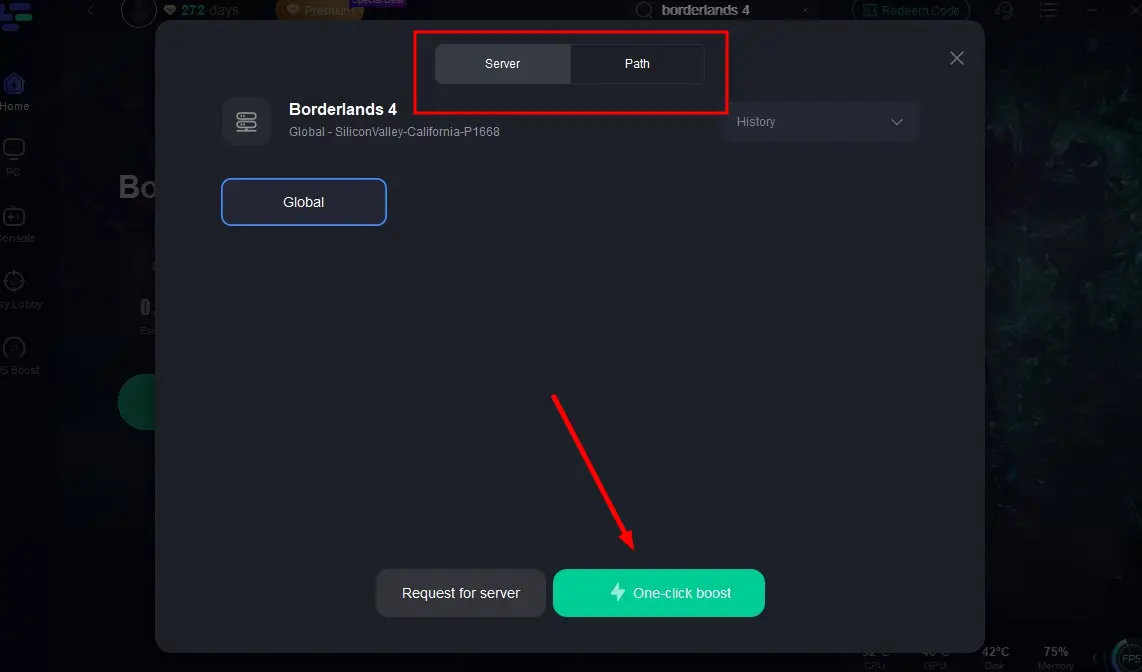
Step 3: Click the “Select Server” button to connect to an optimal server node based on your needs, then activate optimization via “Smart Boost”.
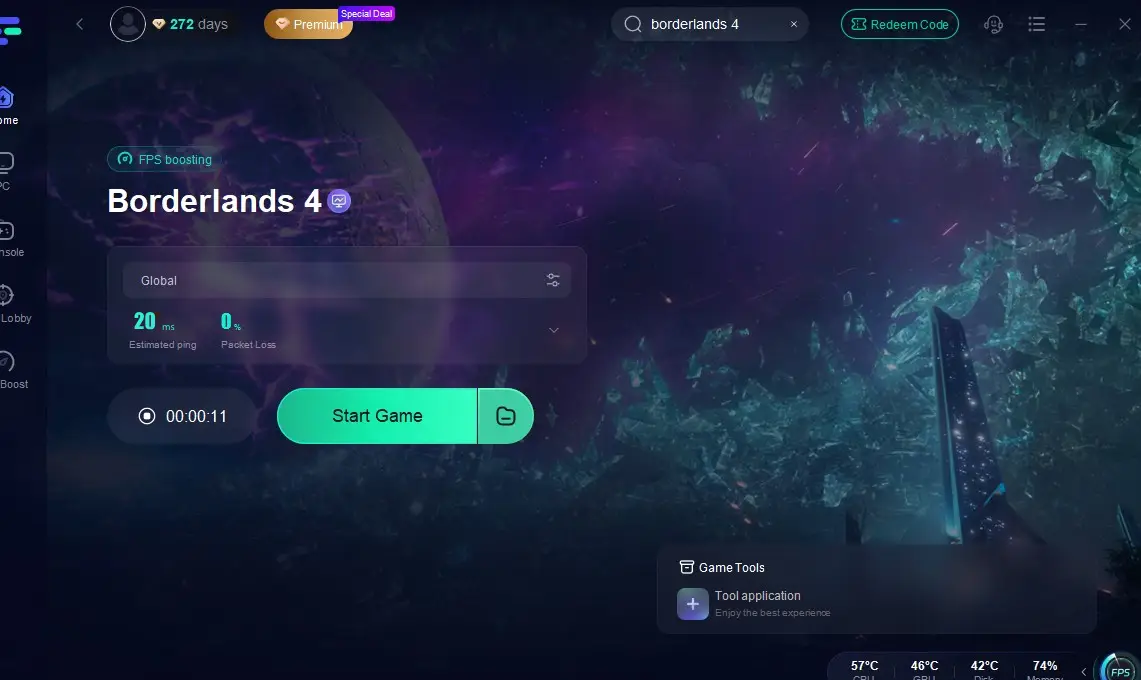
Step 4: After enabling real-time optimization, check the live ping and packet loss rates, then click “Start Game” to begin playing.
Related Article: Best Borderlands 4 Mods Tool
Part 3: Step-by-Step Fix Guide for Borderlands 4 Errors
Follow these steps in order to troubleshoot Borderlands 4:
Install Latest Game Updates & Patches
Always check for launcher updates and hotfixes before optimizing.
Update GPU Drivers
- NVIDIA: Install the latest Game Ready Driver.
- AMD: Update to the latest Adrenalin driver with Borderlands 4 support.
Restart after installation.
Verify Game Files
In Steam or Epic:
Library → Borderlands 4 → Properties → Installed Files → Verify integrity.
Install or Repair Redistributables
Run installers from the _CommonRedist folder:
- Visual C++ Redistributables (x64)
- DirectX End-User Runtime
Launch with Safe Settings (DX11 Mode)
In Steam: right-click → Properties → Launch Options → add
Disable All Overlays / Injectors
Turn off Steam Overlay, Discord, GeForce Experience, MSI Afterburner, etc.
Delete/Reset Config Files
Path:
Documents\My Games\Borderlands 4\Saved\Config\WindowsNoEditor
Backup and delete to rebuild fresh configs.
Add Antivirus/Firewall Exceptions
Whitelist the game folder and .exe. Temporarily disable AV to test.
Run Windows in Clean Boot
Disable non-Microsoft services and startup apps to isolate conflicts.
Check System Requirements / Use SSD
- CPU: Quad-core modern architecture
- GPU: At least GTX 1060 / RX 580 (ideally RTX 20-series or newer)
- RAM: 16 GB or higher
- Storage: SSD strongly preferred; install on SSD to improve stability and reduce disk-access bottlenecks.
Fallback: Rollback Drivers or Reset Windows
If recent updates broke compatibility, rollback GPU drivers.
As a last resort, reset Windows to restore clean drivers.
Hot Related: How to Get Borderlands 4 Twitch Drops Easily and Quickly
Part 4: Pro Tips for Stable Performance
- Monitor GPU/CPU temperatures to avoid thermal crashes.
- Run the game as Administrator to prevent blocked file writes.
- Disable Windows Game Bar to reduce interference.
- Lower sound sample rate to 48 kHz, 16-bit if audio fails.
You May Also Like: Can a 6-Core CPU Run Borderlands 4? Full System Requirements Guide
Part 5: FAQ – Borderlands 4 Not Working on PC
Q: Borderlands 4 won’t launch but shows no error. Why?
A: Likely a graphics API mismatch or missing runtime libraries.
Q: Why use DX11 mode?
A: It is more stable in early builds, while DX12/Vulkan may be buggy.
Q: What if the game crashes multiple times?
A: Delete crash logs and reset configs after fixes.
Q: Are overlays really a problem?
A: Yes, overlays like Discord and GeForce Experience often conflict with Unreal Engine.
Q: Does SSD installation make a difference?
A: Yes, it speeds up asset loading and prevents timing-based crashes.
Wrap-Up
If Borderlands 4 is not working on PC, don’t worry—most issues can be fixed with updates, driver tweaks, and a few system adjustments. Start with the basics like updating patches and drivers, then move on to advanced fixes like disabling overlays and resetting configs. With this workflow, you can restore smooth performance and fully enjoy the Borderlands 4 experience on PC.
Boost Your Game with LagoFast for Epic Speed
Play harder, faster. LagoFast game booster eliminates stutter and lags on PC, mobile, or Mac—win every match!
Quickly Reduce Game Lag and Ping!
Boost FPS for Smoother Gameplay!