
Call of Duty: Black Ops 7 is one of the most anticipated FPS titles of 2025, promising cutting-edge visuals, smooth gameplay mechanics, and intense multiplayer battles. However, to fully enjoy the experience, having the best settings for Call of Duty: Black Ops 7 is crucial. Whether you’re playing on PC, Xbox, or PlayStation, tweaking your display, graphics, and controller settings can drastically improve performance, frame rates, and reaction times. This guide covers everything you need to know, from CoD Black Ops 7 best graphic settings for PC and console to advanced optimizations, and even introduces an all-in-one tool to make your game run better instantly.

- ✅ Reduce Lag and High Ping.
- ✅ Boost FPS at the Same Time.
- ✅ Support 2000+ Popular Online Games.
- ✅ Change Server without Latency.
- ✅ Boost Game Loading Speed.
Part 1: Best Settings for Call of Duty: Black Ops 7 on PC
Part 2: Best Settings for Call of Duty: Black Ops 7 on Console
Part 3: Best Controller Settings for Competitive Play
Part 4: All-In-One Solution to Optimize All the Settings
Part 5: Call of Duty: Black Ops 7 FAQs
Part 1: Best Settings for Call of Duty: Black Ops 7 on PC
PC players have the advantage of flexible customization when it comes to graphics and performance. To get the best settings for Call of Duty: Black Ops 7 on PC, you’ll want to balance visuals and FPS.
Best Display Settings
- Display Mode: Fullscreen (reduces input lag)
- Resolution: Native monitor resolution (e.g., 1920x1080 or 2560x1440 for high-end GPUs)
- Refresh Rate: Match your monitor’s highest supported rate (120Hz, 144Hz, or 240Hz)
- V-Sync: Off (unless you experience screen tearing)
- Aspect Ratio: Automatic or Native (16:9 for most displays)
Fullscreen mode paired with a high refresh rate ensures the lowest latency and smoothest frame transitions, crucial for competitive play.
Best Graphics Settings
Here’s a breakdown of CoD Black Ops 7 best graphic settings for PC that balance visuals and frame rates:
- Texture Quality: High (medium if your GPU struggles)
- Shadow Quality: Medium (shadows are GPU-intensive and add little advantage)
- Anti-Aliasing: SMAA or T2X (balances sharp visuals with performance)
- Particle Quality: Low (minimizes visual clutter and saves FPS)
- Ambient Occlusion: Low or Off (performance-heavy and not critical)
- Field of View (FOV): 100–110 (higher FOV improves awareness, but keep within comfort range)
- Ray Tracing: Off (unless you have a high-end GPU like RTX 4080/4090)
This combination allows for smooth gameplay while still keeping visuals sharp, especially important in multiplayer matches.
Advanced Settings
- NVIDIA DLSS / AMD FSR: Enable if your GPU supports it (boosts FPS with minimal quality loss)
- Render Resolution: Keep at 100% for clarity (lower only if FPS drops significantly)
- Motion Blur: Off (blurs vision during movement, disadvantageous in competitive play)
- Depth of Field: Off (keeps everything sharp)
Advanced upscaling like DLSS or FSR is particularly useful for 1440p and 4K gamers, offering a huge boost in performance without sacrificing quality.
Audio Settings
Sound is just as important as visuals in Black Ops 7. Optimized audio helps detect footsteps and enemy actions earlier.
- Master Volume: 100%
- Music Volume: 30% (keeps focus on gameplay sounds)
- Dialogue Volume: 60–70%
- Effects Volume: 100%
- Audio Mix: Headphones or Boost Highs (best for competitive play)
Headphone-specific mixes enhance positional audio, making it easier to pinpoint enemy locations.
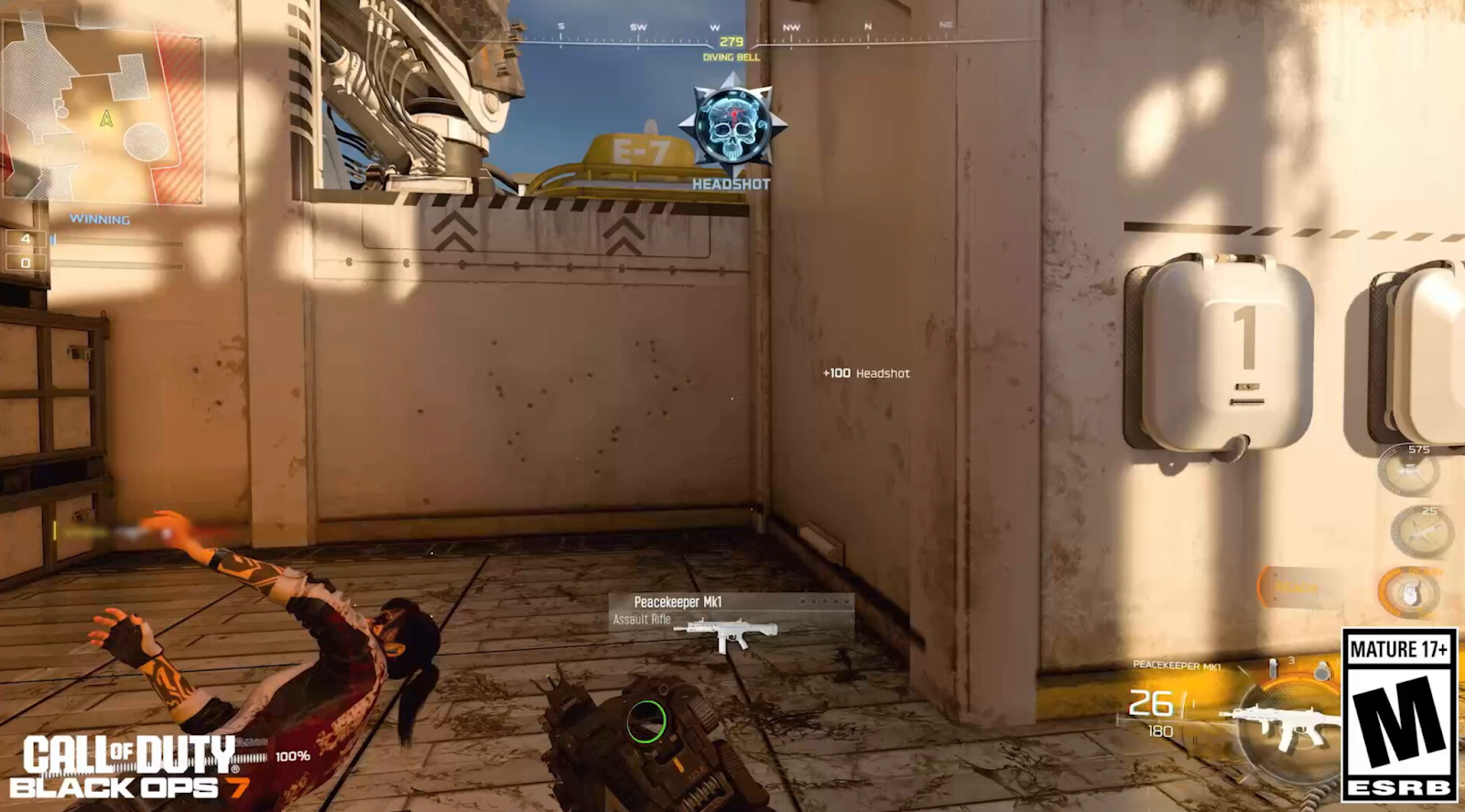
Part 2: Best Settings for Call of Duty: Black Ops 7 on Console
Consoles may not have the same level of customization as PCs, but adjusting the right settings ensures smoother gameplay on Xbox and PlayStation.
Best Settings for Call of Duty: Black Ops 7 on Xbox
- Display Mode: Performance Mode (prioritizes FPS over resolution)
- Field of View: 100–105 (higher FOV for awareness, but watch for frame drops)
- Motion Blur: Off
- Brightness: Adjust to your room’s lighting, usually around 50–55%
- Controller Sensitivity: 6–7 (fast but manageable for accuracy)
Xbox Series X can push higher resolutions, but competitive players should prioritize frame rate stability over visuals.
Best Settings for Call of Duty: Black Ops 7 on PlayStation
- Graphics Mode: Performance (favor FPS)
- FOV: 100–105 for balance between awareness and frame consistency
- Vibration: Off (reduces hand strain in long sessions)
- Trigger Effect (DualSense): Off (immersive but can delay response times)
- Sensitivity: 6–7, with custom ADS sensitivity if needed
PlayStation users can also adjust controller dead zones to improve aim precision, especially in competitive play.
Part 3: Best Controller Settings for Competitive Play
Regardless of platform, controller settings are critical in Call of Duty. The best settings for Call of Duty: Black Ops 7 emphasize precision and fast reactions:
- Horizontal Stick Sensitivity: 6–7
- Vertical Stick Sensitivity: 6–7
- ADS Sensitivity Multiplier: 0.8–0.9 (helps with precise aiming)
- Button Layout: Tactical (moves crouch/prone to the right stick for quicker dropshots)
- Deadzone: Adjust to lowest possible value without stick drift
- Aim Response Curve: Dynamic (most balanced for accuracy and speed)
These tweaks can give you a noticeable edge in firefights, particularly in competitive or ranked matches.
Part 4: All-In-One Solution to Optimize All the Settings
While manual tweaks help, optimizing every single setting can be time-consuming. That’s where LagoFast comes in. With its one-click optimization tool, LagoFast automatically configures Black Ops 7 settings for peak performance, ensuring you always run the game in the best condition. Once Black Ops 7 is officially released, LagoFast will update its optimization capabilities to cover even more in-game issues and enhance stability.
Other key features of LagoFast include:
- Game Booster: Reduces lag spikes and boosts FPS instantly.
- Ping Reducer: Routes your connection through the fastest servers to lower latency.
- Server Selection: Lets you choose the best region for smoother matches.
- Easy-to-Use Interface: Simple one-click setup for both casual and competitive players.
With LagoFast, you don’t just improve Black Ops 7’s performance—you also ensure a consistent and competitive edge.
Tutorial to use LagoFast to optimize game settings in Black Ops 7 on PC:
Step 1: Click the Free Trial button to download and install LagoFast.
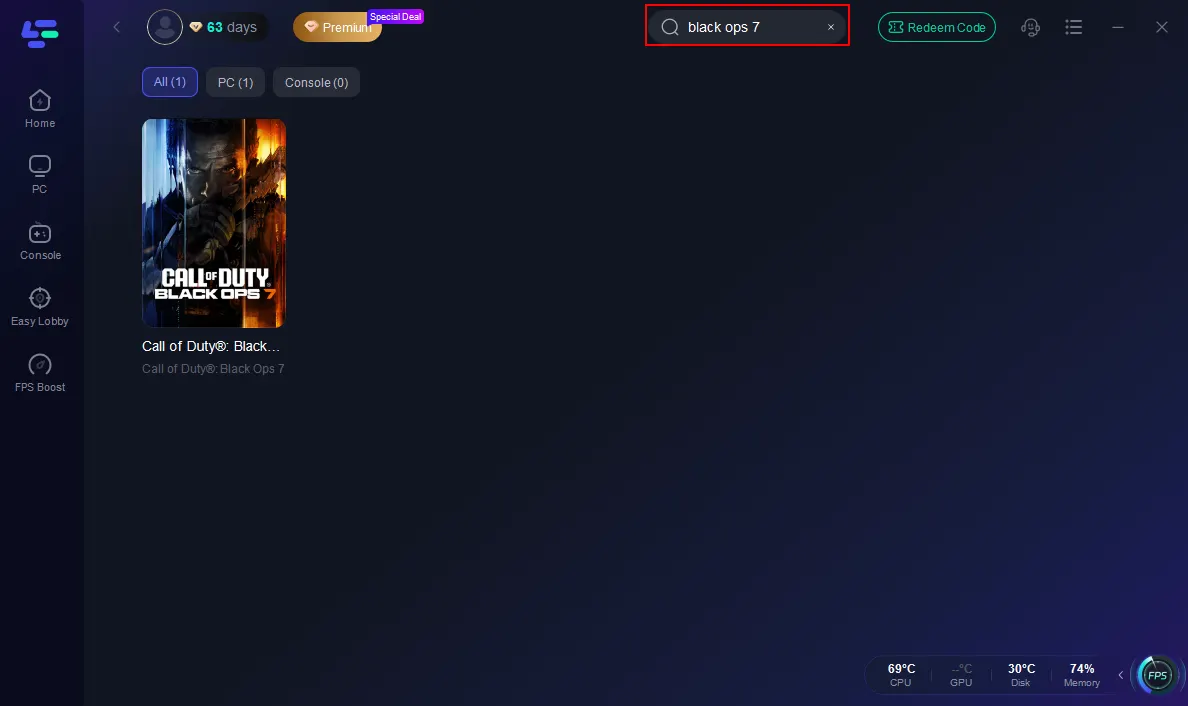
Step 2: Open LagoFast, then click the PC button on the left and search Black Ops 7 in the search bar, and click it after it appears.
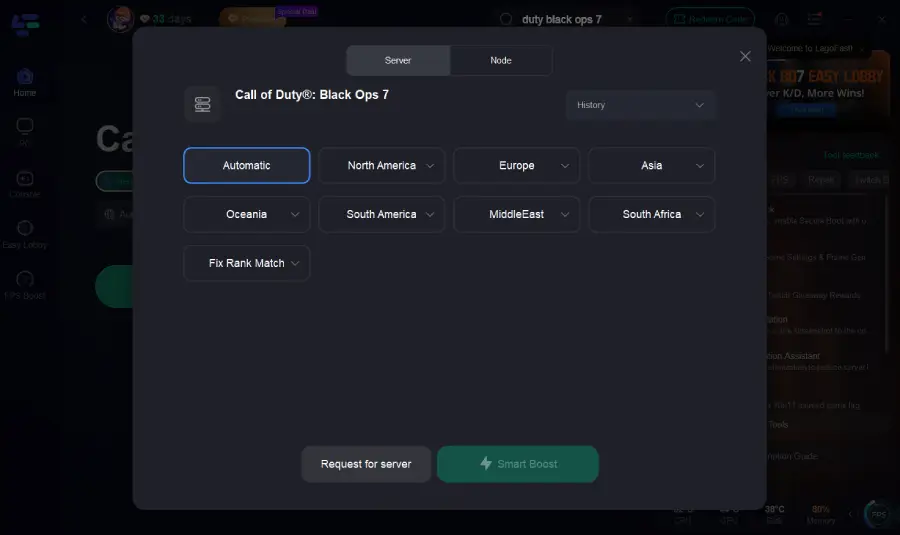
Step 3: Click on “Server” to change to a better server that fixes lag and ensures the Black Ops 7 gaming experience,
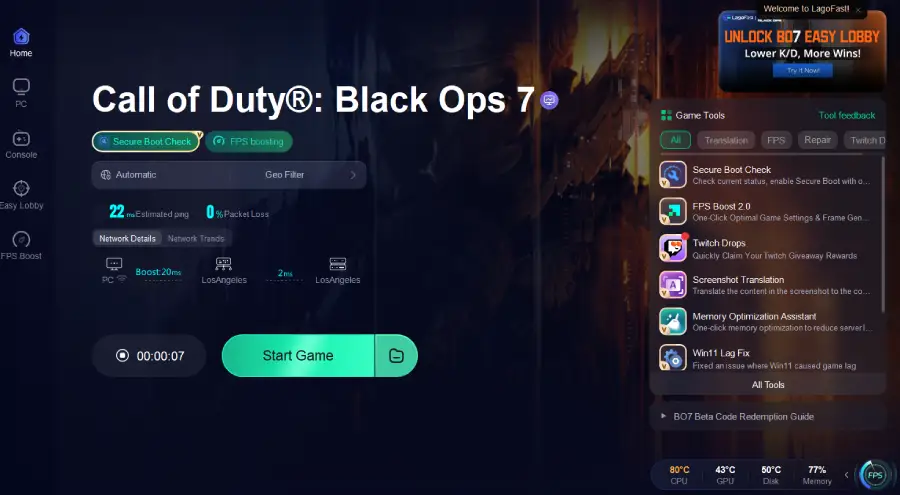
Step 4. Check the specific game ping, packet loss, and multiple path connections on the right side. Finally, click the“Start Game” to play the game.
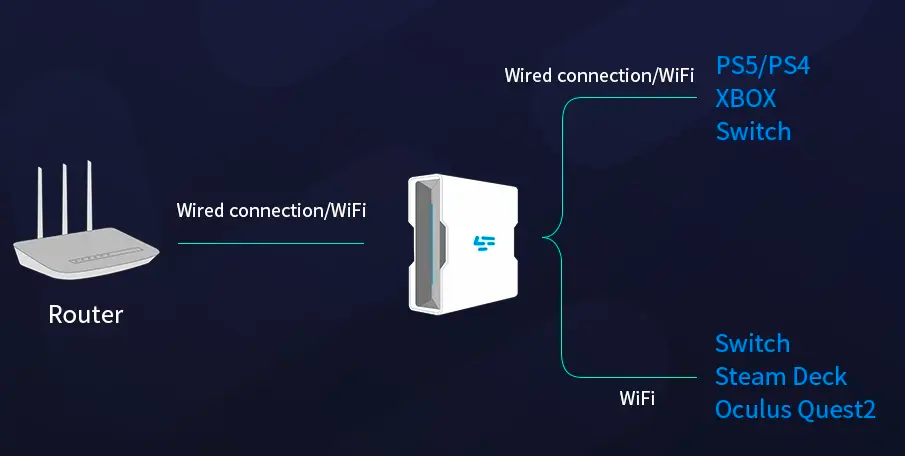
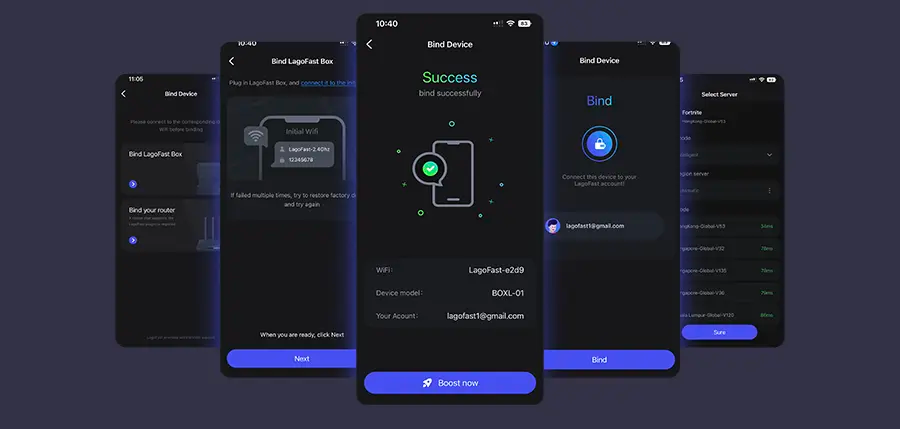
For players who prefer a plug-and-play solution, the LagoFast Box provides hardware-level acceleration to keep your connection stable. Just connect it between your router and console or PC, and it will automatically optimize routing, reduce ping, and minimize lag for smoother Black Ops 7 matches.
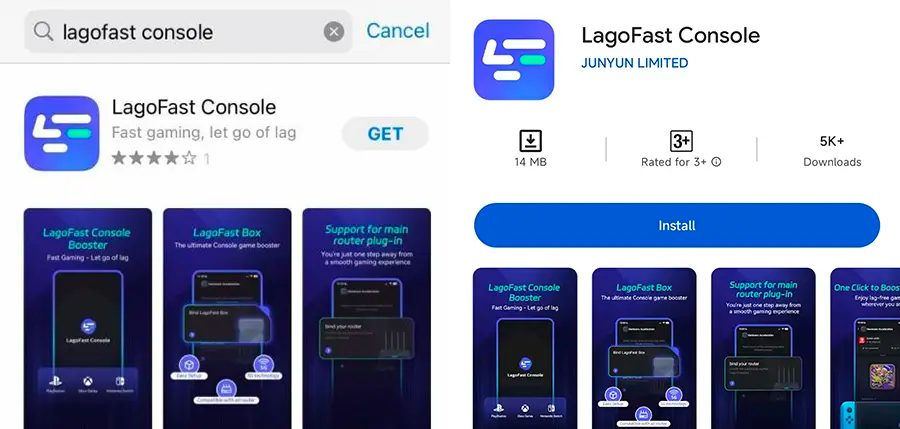
Step 1: Download the LagoFast Console App on your phone to control the LagoFast Box.
Step 2: Establish a connection between your LagoFast Box, router, and console, choosing between a wired or wireless connection.
Step 3: Launch the LagoFast Console App and boost Black Ops 7. Once you have completed the binding process with the LagoFast Box, proceed to boost this game within the LagoFast Console App.
Part 5: Call of Duty: Black Ops 7 FAQs
What is the best sensitivity setting for Black Ops 7?
The best sensitivity is typically 6–7 horizontal and vertical, with an ADS multiplier around 0.8–0.9 for precise aiming.
What are the best graphic settings for Black Ops 7?
On PC, the best mix is high textures, medium shadows, SMAA anti-aliasing, and FOV 100–110. On consoles, prioritize Performance Mode for higher FPS.
How to make Black Ops 7 run better on low-end PCs?
Lower textures and shadows, and disable ray tracing. Enable DLSS/FSR if available, and keep motion blur and depth of field off.
Should I use controller vibration in Black Ops 7?
No. Disabling vibration reduces hand fatigue and prevents minor delays in reaction time.
Is LagoFast worth using for Black Ops 7 optimization?
Yes. LagoFast offers one-click optimization, lag reduction, and FPS boosting, making it an ideal companion for smoother gameplay.
Conclusion
Getting the best settings for Call of Duty: Black Ops 7 is essential for a smoother, more competitive experience. Whether you’re on PC, Xbox, or PlayStation, the right display, graphics, audio, and controller adjustments can drastically improve your performance. For players who prefer a simpler solution, LagoFast provides an all-in-one tool to optimize your setup with a single click, ensuring you’re always gaming at your best. With these settings and tools, you’ll be ready to dominate every match in Black Ops 7.

Boost Your Game with LagoFast for Epic Speed
Play harder, faster. LagoFast game booster eliminates stutter and lags on PC, mobile, or Mac—win every match!
Quickly Reduce Game Lag and Ping!
Boost FPS for Smoother Gameplay!