
Are you ready to dive into the intense battles of Helldivers 2 but finding yourself struggling with laggy gameplay or poor visuals? You're not alone. Many players face similar challenges, especially when trying to balance graphical fidelity with smooth performance. Fortunately, by tweaking your graphics settings, you can significantly enhance your gaming experience. In this comprehensive guide, we'll explore the best graphics settings for Helldivers 2, ensuring you get the most out of your gaming sessions.

- ✅ Reduce Lag and High Ping.
- ✅ Boost FPS at the Same Time.
- ✅ End Stuck, Crashing Issues.
- ✅ Change Servers all over the World.
Part 1: Graphics Setting Factors in Helldivers 2
Part 2: Best Tool to Enhance Helldivers 2 FPS - LagoFast
Part 3: How to Manually Adjust The Graphics Settings in Helldivers 2
Part 4: How to Enhance Gaming Experience of Helldivers 2
Part 1: Graphics Setting Factors in Helldivers 2
Before diving into the specifics, let's take a moment to understand the key graphics settings that affect gameplay performance and visual quality in Helldivers 2.
- Resolution: The number of pixels displayed on your screen. Higher resolutions provide sharper images but require more powerful hardware.
- Texture Quality: Determines the detail level of textures in the game. Higher settings offer more detailed textures but can be demanding on your GPU.
- Shadow Quality: Controls the quality of shadows rendered in the game. Higher settings add depth and realism but can impact performance.
- Anti-Aliasing: Smooths out jagged edges in the game's visuals. TAA (Temporal Anti-Aliasing) is commonly used but can introduce blurriness.
- View Distance: Determines how far into the distance objects are rendered. Higher settings can reveal more of the environment but require more processing power.
- Post-Processing Effects: Includes bloom, motion blur, and other visual effects that enhance realism but can be resource-intensive.
Part 2: Best Tool to Enhance Helldivers 2 FPS - LagoFast
Instead of manually adjusting the graphics settings of Helldivers 2 one by one, I believe most players would prefer to use a tool like LagoFast that can help them boost the game's FPS with just one click. LagoFast comes with the HD2 Best Graphics Setting tool, which can automatically adjust the game's graphics settings based on the player's gaming environment and device status. This ensures a smooth gaming experience while delivering a visual feast for players.
How to enhance your Helldivers 2 FPS with LagoFast:
Click the "Free Trial" button to download LagoFast and complete the installation.
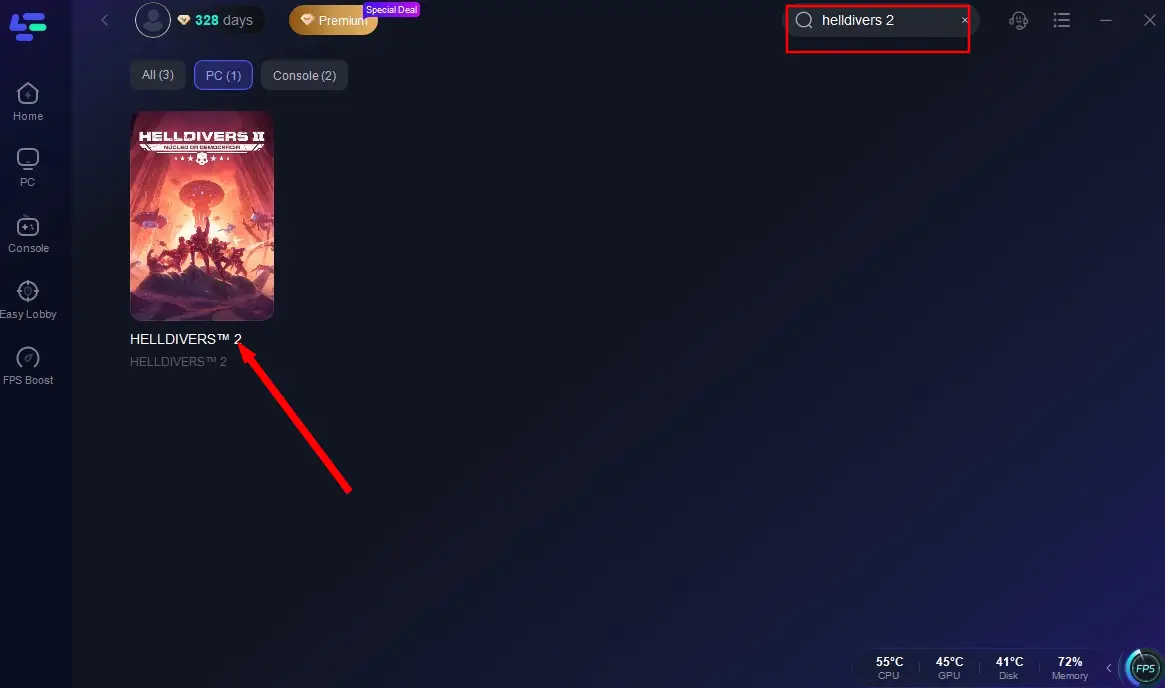
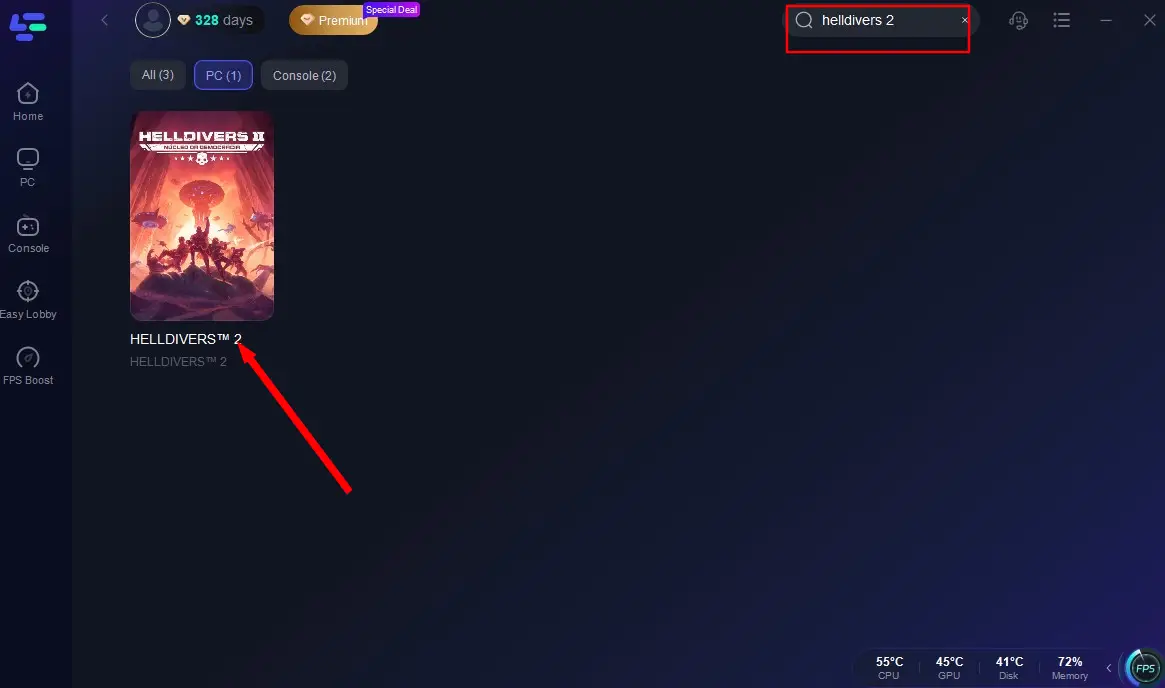
Launch LagoFast, enter "Helldivers 2" in the search box, and click on the result.
Click the HD2 Best Graphics Settings tool in the toolbar at the bottom right of the game's entry.
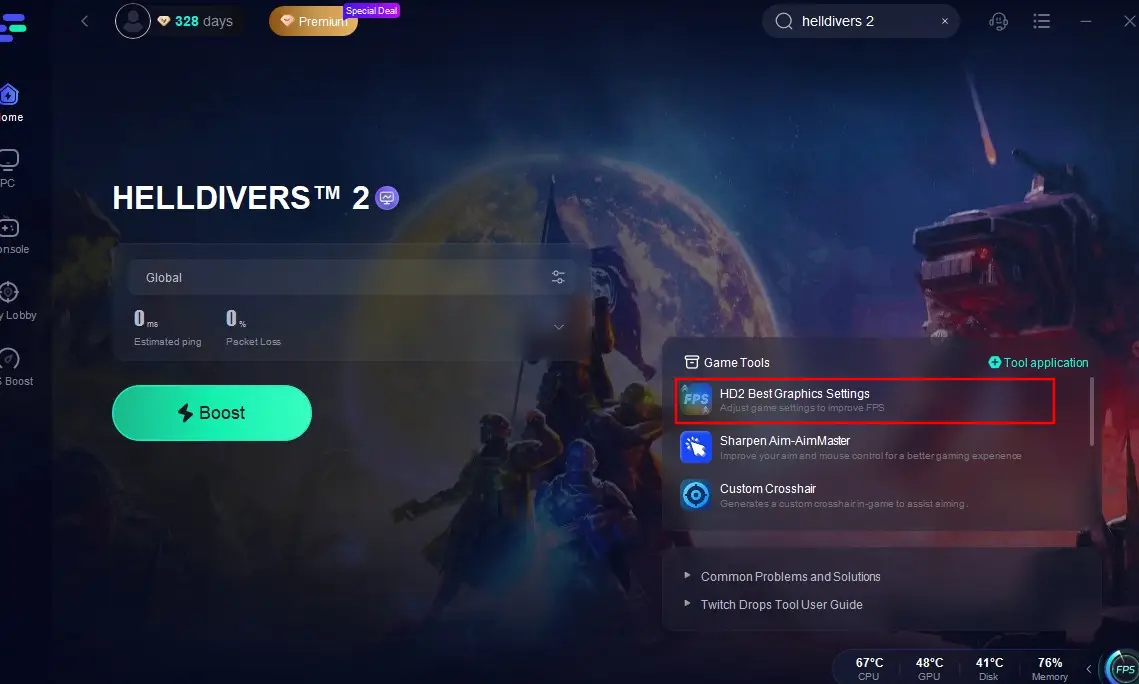
By using LagoFast's HD2 Best Graphics Settings tool, players can achieve the highest FPS graphics settings for Helldivers 2 in the shortest amount of time, enjoying a visual feast effortlessly and quickly.
Part 3: How to Manually Adjust The Graphics Settings in Helldivers 2
If you have plenty of time and patience, you can also manually adjust Helldivers 2's graphics settings by following the steps below:
- Depth of Field:
Tailor this setting to your personal taste: however, for a sharper and more concentrated view, especially if maintaining immersion isn't heavily reliant on it, you might opt to disable it.
- Texture Quality:
Ultra or High: This setting has a negligible effect on performance and hinges on your GPU's VRAM capacity. For the utmost visual fidelity, select Ultra if your GPU can manage it (a minimum of 10 GB VRAM is advised for 4K Ultra). Otherwise, High serves as a satisfactory compromise.
- Object Detail Quality:
High: This setting dictates the level of detail in in-game objects. Setting it to High strikes a harmonious balance between visual fidelity and performance.
- Render Distance:
Ultra: This setting primarily taxes your CPU. If you possess a mid-range to high-end CPU, retaining it at Ultra is recommended for the superior visual experience it offers.
- Shadow Quality:
Medium or High: For superior shadow quality without a substantial performance dip, it's advisable to keep it at medium or higher. High shadows deliver more lifelike shadows but might dent performance by 6-8%.
- Particle Quality:
Low: Helldivers 2 is brimming with particles during combat. Adjusting it to Low strikes a balance between visual effects and performance.
- Reflection Quality:
Medium or Low: High reflection quality can significantly impact performance. Opting for Medium or Low provides a equilibrium between reflections and framerates.
- Space Quality:
Low: This setting influences the quality of stars, planets, and other celestial objects. Lowering it to Low can provide a slight performance boost without significantly detracting from the visual experience during intense combat.
- Ambient Occlusion:
Enabled: Screen Space Ambient Occlusion (SSAO) has a marginal impact on performance (1-2%) and enriches the scene's depth. It's recommended to leave it enabled.
- Screen Space Global Illumination:
Base on Personal Preference: This setting computes the influence of ambient light on the environment. It can diminish framerates by up to 3%. Enable it if you prefer more authentic lighting, or disable it for marginally better performance.
- Vegetation and Rubble Density:
Highest: This setting regulates the draw distance of grass, tree roots, and other ground objects. Setting it to the highest quality minimizes sudden appearances of objects, though there might be a slight 4-5% performance impact.
- Terrain Quality:
Medium: This setting employs tessellation to enhance terrain detail. Adjusting it to Medium reduces performance by 4-5% and offers a satisfactory balance between detail and performance.
- Volumetric Fog Quality:
Low: This setting renders 3D fog in the game. Setting it to Low can alleviate the average framerate impact by up to 6%.
- Volumetric Cloud Quality:
Lowest: This setting modifies the resolution of volumetric clouds. Given that you're unlikely to be gazing at the sky during intense combat, setting it to the lowest quality can conserve some frames.
- Lighting Quality:
High: This setting governs how far light from artificial sources travels. Setting it to High enhances illumination but might reduce performance by up to 8%. Nevertheless, it also elevates the visual experience, so it's worthwhile to keep it at High if your system can support it.
- Anti-Aliasing:
Enabled: This setting smooths out jagged edges. Helldivers 2 appears to utilize temporal anti-aliasing (TAA). Disabling it can yield an 8% increase in frames, but it's advisable to keep it enabled to mitigate aliasing and shimmering.
After making sure your device and hardware meet the requirements for the corresponding image settings, adjust the settings according to the guidelines above to enhance the visual fidelity and immersion of Helldivers 2.
Part 4: How to Enhance Gaming Experience of Helldivers 2
In addition to assisting players in configuring the graphics settings for Helldivers 2, LagoFast offers a variety of other tools. One notable tool is the Sharpen Aim Aim-Master, designed to enhance shooting accuracy in Helldivers 2. This tool helps players maximize mouse performance, ensuring smoother mouse operations and enabling precise aiming to land critical hits on enemies. Here's a tutorial on how to use this tool:
Click the "Free Trial" button to obtain LagoFast and complete the installation.
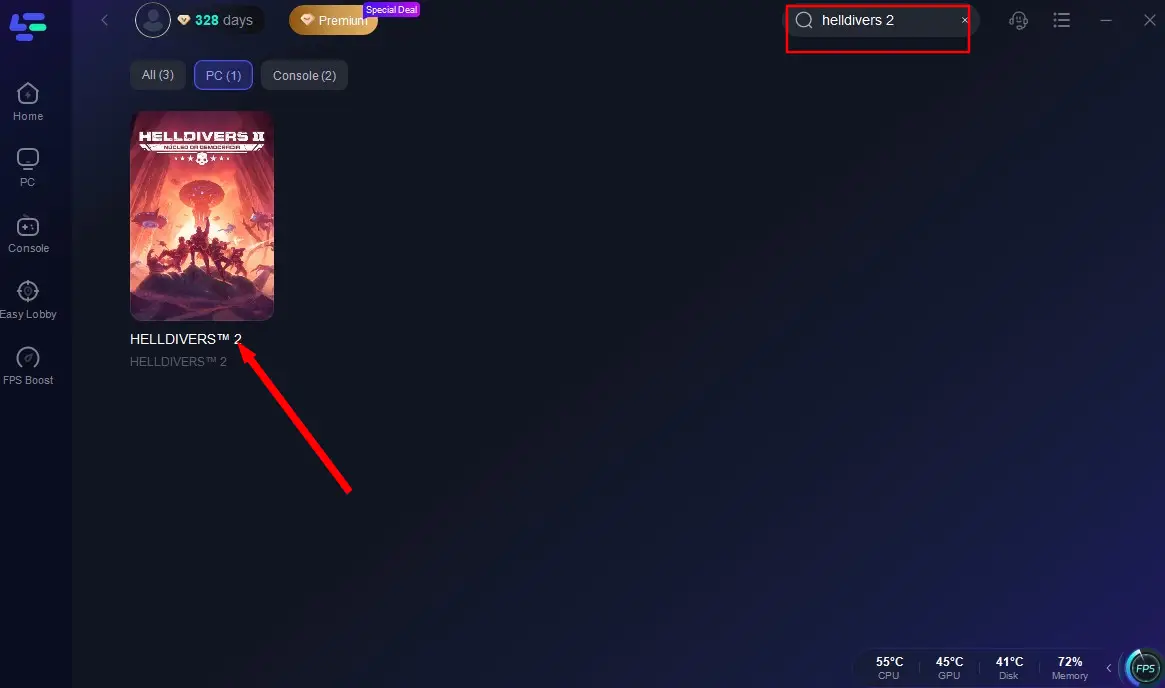
Search for Helldivers 2 and click on it.
Locate the Sharpen Aim Aim-Master tool at the bottom right of the screen and click on it.
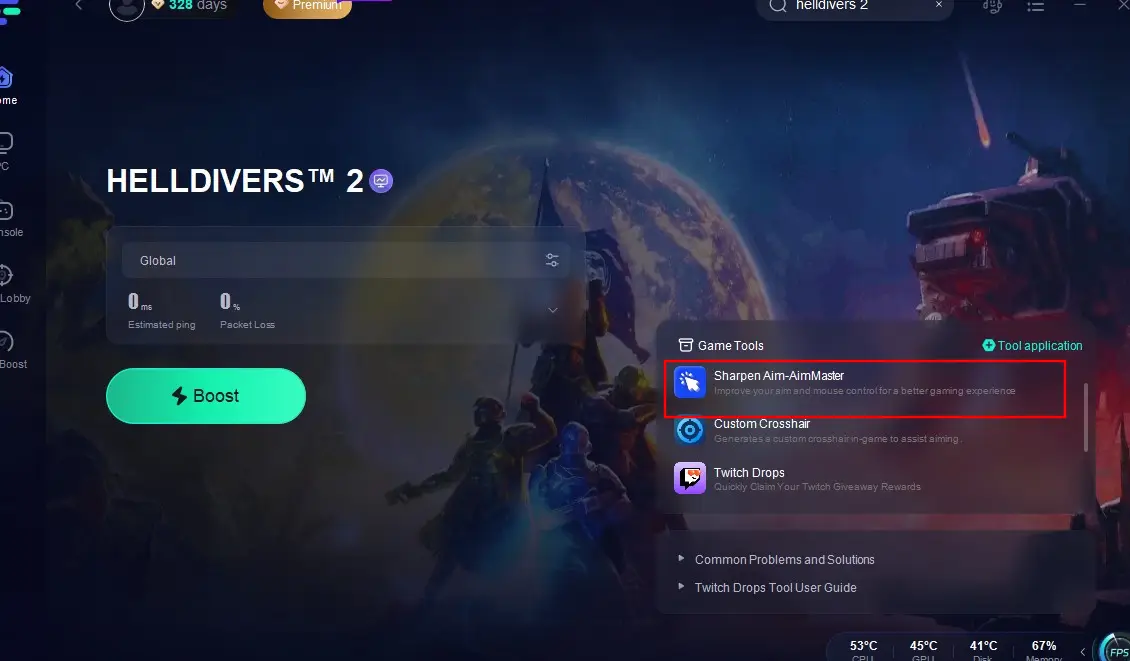
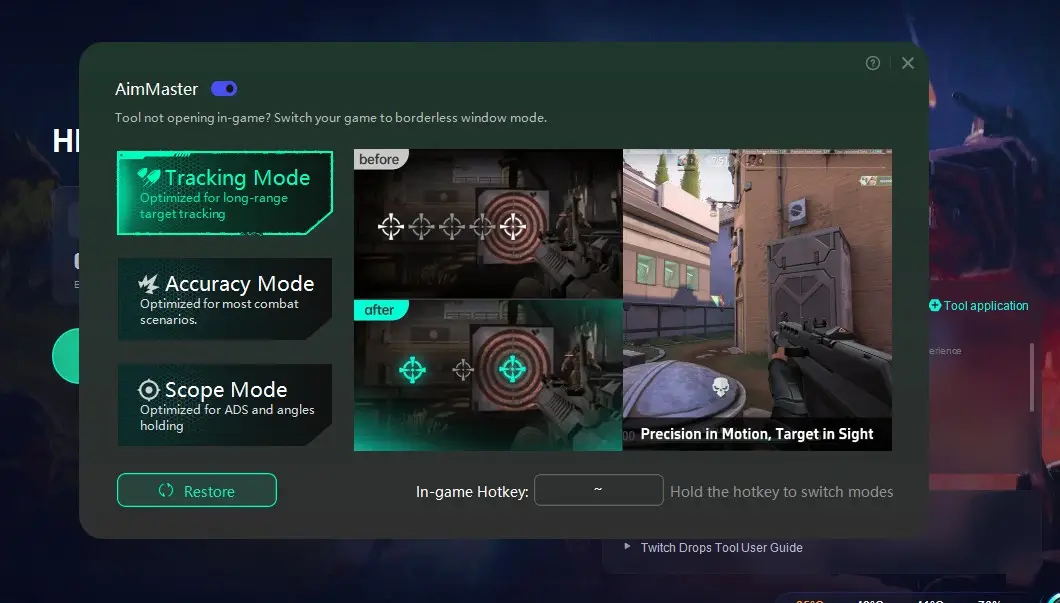
Choose one of the three modes that best suits your combat scenario, then configure the in-game hotkeys. Once done, return to the game, and your mouse will become your most potent weapon for attacking enemies!
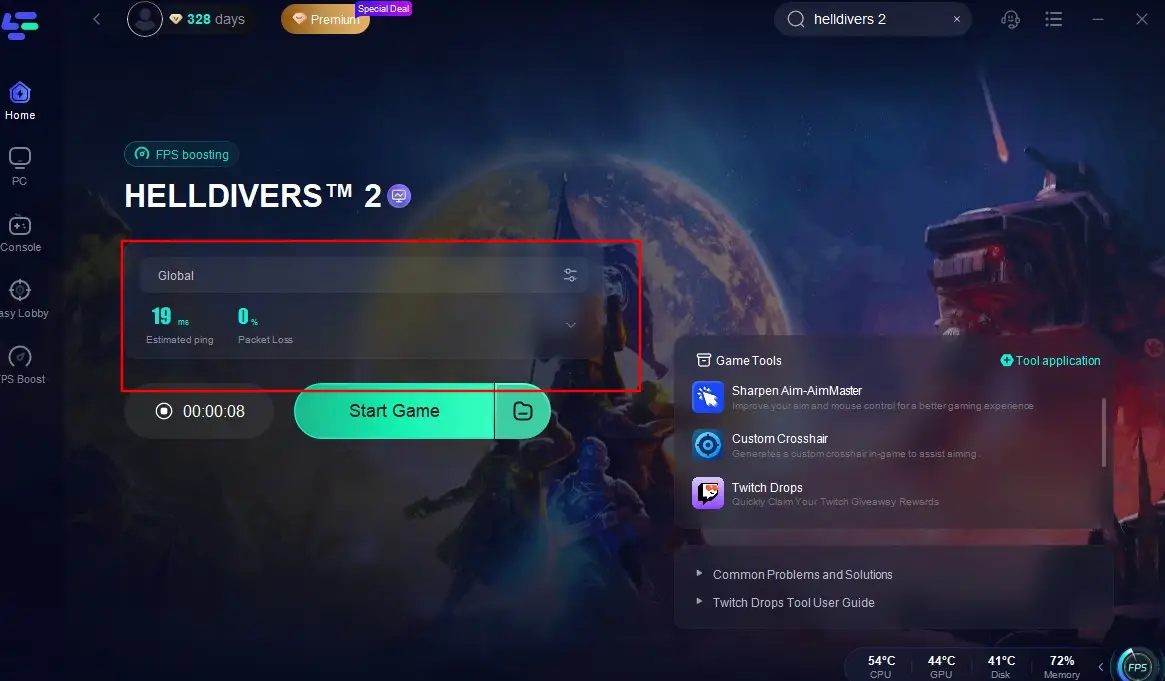
Moreover, don't forget LagoFast's primary function—enhancing your gaming experience. When playing Helldivers 2, activate LagoFast's acceleration feature to instantly bypass congested connection routes, maintain a stable connection, reduce in-game ping and latency, and even elevate your game's graphics quality. Here's how to use LagoFast for acceleration:
Search for Helldivers 2 in LagoFast and click on it.
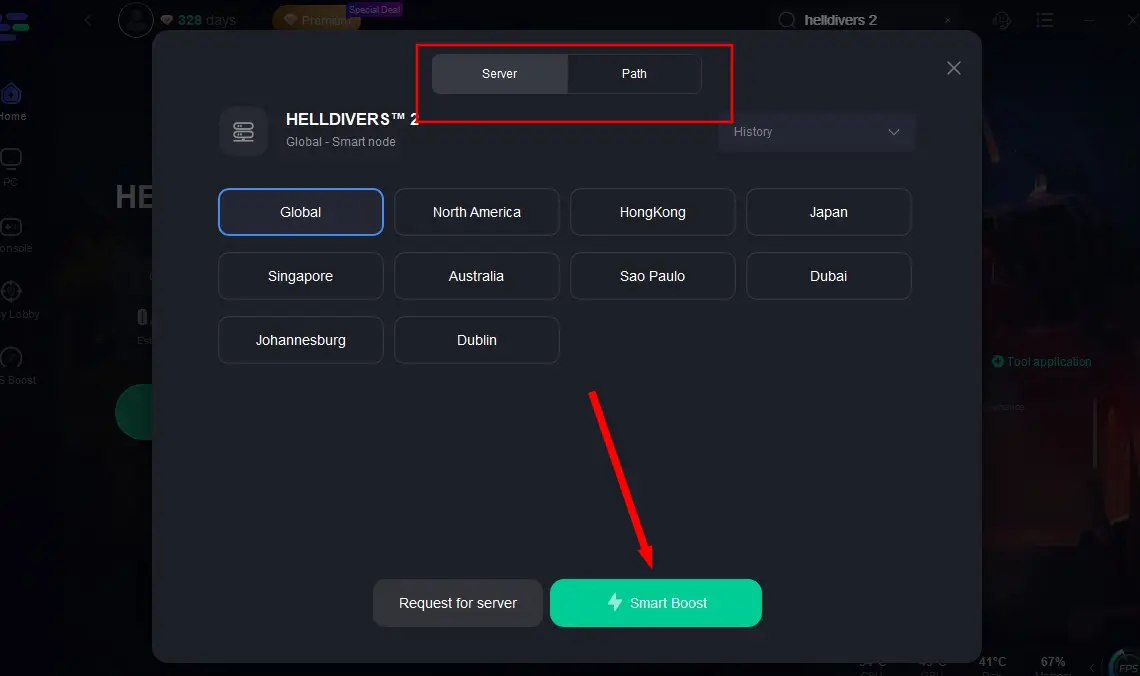
Click the "Select Server" option, choose the most stable game server, and initiate acceleration.
Check the real-time packet loss rate and ping for the game, then click "Start Game" to embark on your shooting spree!
Conclusion
By carefully adjusting your graphics settings and following the additional tips provided, you can significantly enhance your Helldivers 2 gaming experience. Remember, the goal is to find a balance between visual quality and performance that suits your preferences and hardware capabilities. Don't be afraid to experiment with different settings to find what works best for you. Of course, if you want to adjust Helldivers 2 graphics settings with just one click, choose LagoFast, don't hesitate!
Boost Your Game with LagoFast for Epic Speed
Play harder, faster. LagoFast game booster eliminates stutter and lags on PC, mobile, or Mac—win every match!
Quickly Reduce Game Lag and Ping!
Boost FPS for Smoother Gameplay!