
Quick Answer
If your steering feels too slow or too twitchy, it usually comes down to deadzones and sensitivity. Lowering deadzones and keeping sensitivity in the middle gives you cleaner input and more stable control, especially in drifting and mid-corner corrections.
Best FH6 Controller Settings (Pro Setup)
- Steering: Simulation
- Vibration: On (Low / 30–50%)
- Steering Sensitivity: 50–60
- Throttle Deadzone: 0–5
- Brake Deadzone: 0–5
- Steering Deadzone (Inside): 0
- Steering Deadzone (Outside): 100
- Traction Control: Off (Advanced) / On (Beginner)
- Stability Control: Off
- ABS: On
If Forza Horizon 6 doesn’t feel quite right—unstable steering, delayed inputs, or inconsistent cornering—your controller settings are usually the reason. Default settings aren’t designed for precision, and even small mismatches can affect how the car responds. Once tuned properly, the difference is immediate. This guide breaks down the settings that actually matter and how to fine-tune them for smoother control.

- ✅ Reduce Lag and High Ping.
✅ Boost FPS at the Same Time.
✅ Support 2000+ Popular Online Games.
✅ Change Server without Latency.
✅ Boost Game Loading Speed.
Part 1: Core Controller Settings That Actually Change Your Driving
Part 2: Recommended Settings for Different Types of Players
Part 3: Common Issues: Why Your Controller Feels “Off”
Part 4: How to Fix Controller Delay & FPS Drops
Part 5: Bonus Tips: Controller Calibration & Advanced Settings for FH6
Part 1: Core Controller Settings That Actually Change Your Driving
Steering Sensitivity
Steering sensitivity controls how quickly your car reacts to your stick input, and it has a huge impact on how stable the car feels in corners.
If it’s too high, the car becomes twitchy and hard to correct. If it’s too low, steering feels sluggish and delayed. Most players find the best balance in the 50–60 range, where the car responds quickly without losing stability.
Deadzone Settings
Deadzones determine how much you need to move the stick or trigger before the game registers input. This is one of the most overlooked settings, but it directly affects how “responsive” the game feels.
High deadzones can make steering feel heavy or delayed, especially when making small adjustments. Lowering them helps your inputs register earlier and more consistently.
- Throttle / Brake Deadzone: 0–5
- Steering Deadzone (Inside): 0
These values keep your controls responsive without making the car overly sensitive.
Vibration
Vibration isn’t just cosmetic—it gives you feedback when you’re losing grip. That said, too much vibration can become distracting and make it harder to focus on precise inputs.
Keeping it in the 30–50% range gives you useful feedback without overwhelming your control.
Trigger Settings (Throttle & Brake)
Your throttle and brake inputs should feel immediate and consistent. If there’s too much deadzone here, acceleration can feel uneven and braking becomes harder to control, especially in tight corners.
Keeping trigger deadzones low ensures smoother throttle control and more predictable braking.
Assists
Assists determine how much the game stabilizes your car for you. While they can help beginners, they also limit how much control you actually have.
- Traction Control: Off (advanced) / On (beginners)
- Stability Control: Off
- ABS: On
Turning off most assists gives you more direct control over the car, while ABS remains useful to prevent wheel lock under heavy braking.
Part 2: Recommended Settings for Different Types of Players
Not every player needs the same setup. The way you drive—whether you’re cruising, racing seriously, or drifting—should decide how you tune your controller.
Casual Players (Stability First)
If you’re mostly playing for fun or still getting used to the handling, stability matters more than raw speed. Keeping assists on helps smooth out mistakes and makes the car easier to control.
- Traction Control: On
- Stability Control: On
- Steering Sensitivity: 40–50
You’ll sacrifice a bit of pace, but the car will feel much more forgiving and easier to handle in corners.
Competitive Players (Full Control)
If you’re aiming for cleaner racing lines and faster lap times, you’ll want more direct control over the car. That means reducing assists and relying more on your own inputs.
- Assists: Off (except ABS)
- Steering Sensitivity: 55–60
- Deadzones: Low
This setup gives you sharper response and more precise control, which is key for consistent performance in races.
Drift Players (Precision Control)
Drifting requires a completely different feel. You need faster response and more freedom in the rear of the car to maintain long, controlled slides.
- Steering: Simulation
- Traction Control: Off
- Steering Sensitivity: 60+
With this setup, the car reacts more quickly to your inputs, making it easier to initiate and hold drifts without fighting the game.
Part 3: Common Issues: Why Your Controller Feels “Off”
If your settings look fine but the car still feels off, the issue is likely input lag, FPS drops, or network delay.
Input Lag
Input lag is when your inputs don’t translate into action right away—you turn or press the trigger, but the car reacts a split second later. That delay makes it much harder to correct mistakes or take clean corners, especially at higher speeds.
In most cases, it comes from a few common issues:
- High deadzones, which delay when input starts registering
- System latency, especially on lower or unstable performance setups
- Background performance issues, affecting responsiveness
When this happens, even well-tuned settings can start to feel slow and unresponsive.
FPS Drops
If your frame rate isn’t stable, your control won’t feel stable either. You might notice the car behaving inconsistently even when your inputs are correct, particularly in fast sections or busy environments.
This usually shows up as:
- Steering feeling uneven or “off timing”
- Sudden loss of smooth control during corners
- Inconsistent response at higher speeds
These issues come from performance dips, which interrupt the timing between your input and what you see on screen.
Network Delay
This is mostly noticeable in online races, where your inputs depend on server synchronization. Even if everything feels fine offline, online play can introduce subtle inconsistencies.
Typical signs include:
- The car reacting slightly differently than expected
- Inputs feeling less precise compared to offline
- Handling becoming less predictable in close racing situations
This is usually caused by latency, routing issues, or unstable connections.
Part 4: How to Fix Controller Delay & FPS Drops
If your controller still feels delayed or inconsistent, the problem often isn’t your settings—it’s your connection and performance stability.
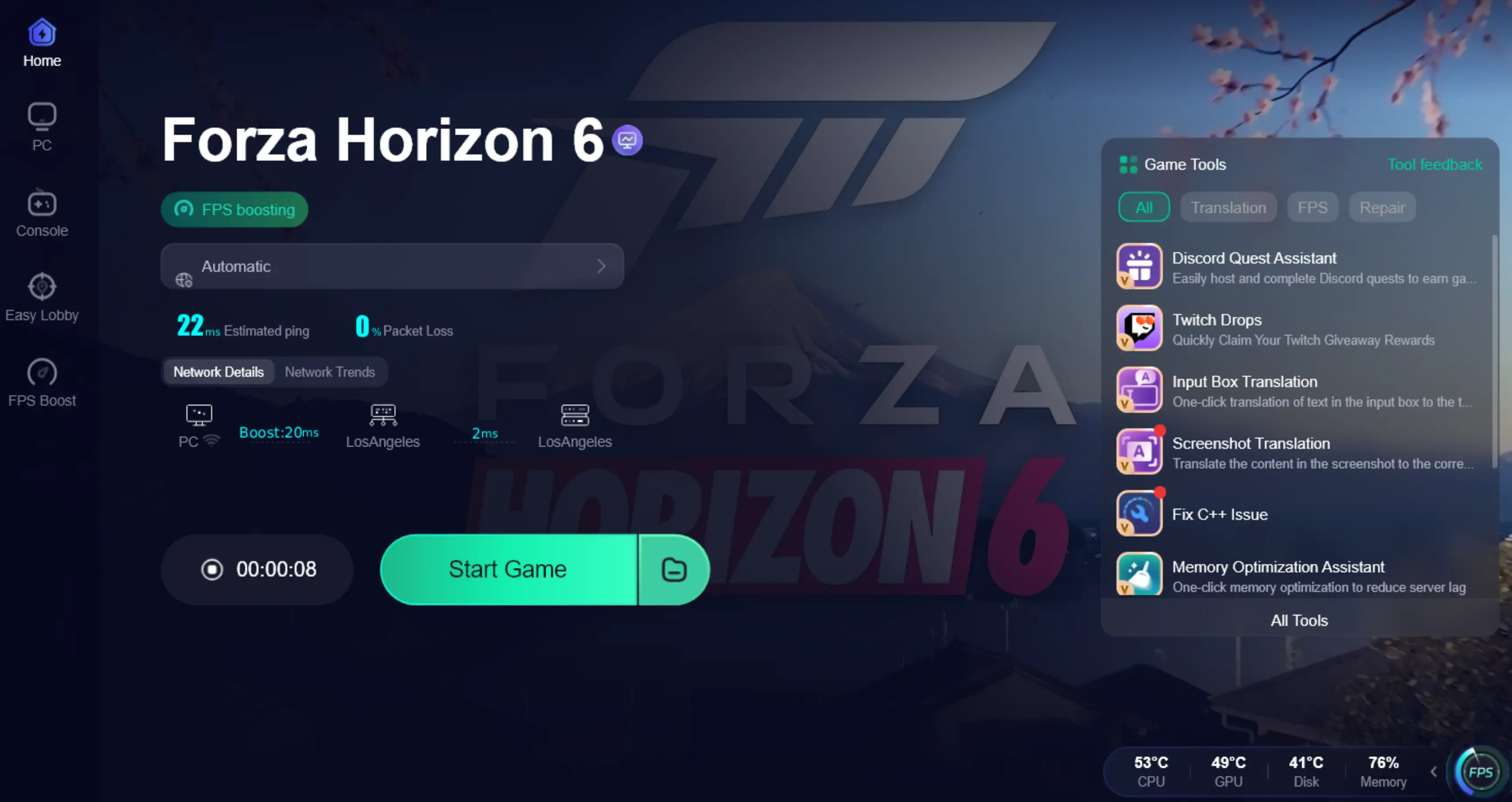
In cases like this, using a tool such as LagoFast Game Booster can help improve overall gameplay stability. It works by optimizing your network route, reducing ping, and fixing packet loss, which helps minimize lag and in-game stutter during online races.
By stabilizing your connection and improving data transmission, LagoFast can make controller response feel more immediate and consistent, especially in competitive or online matches.
Tutorial to Use LagoFast to Fix FH6 Controller Delay & FPS Drops:
Step 1: Click the Free Trial button to download and install LagoFast.
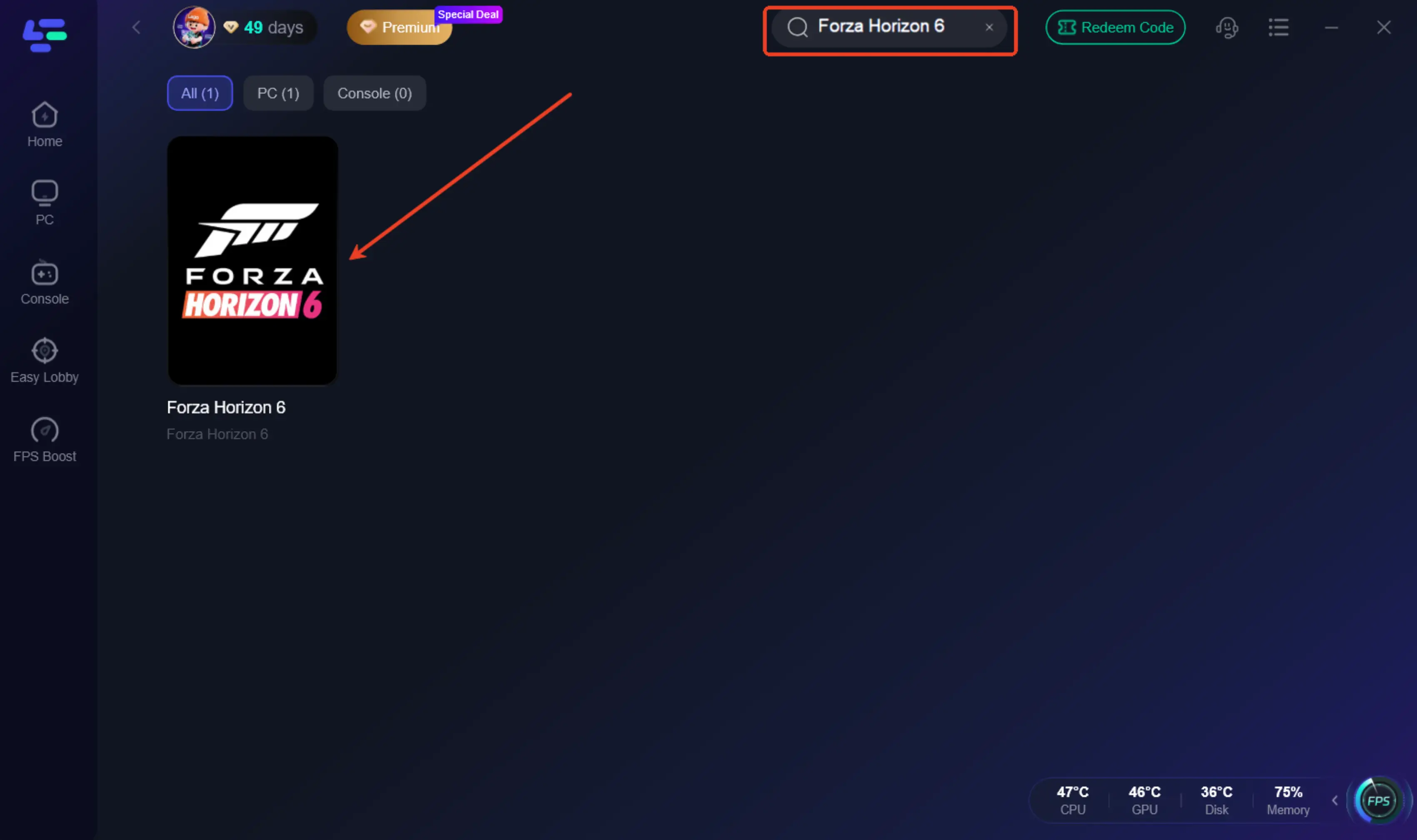
Step 2: After installation, search "Forza Horizon 6" in the search bar and select the game.
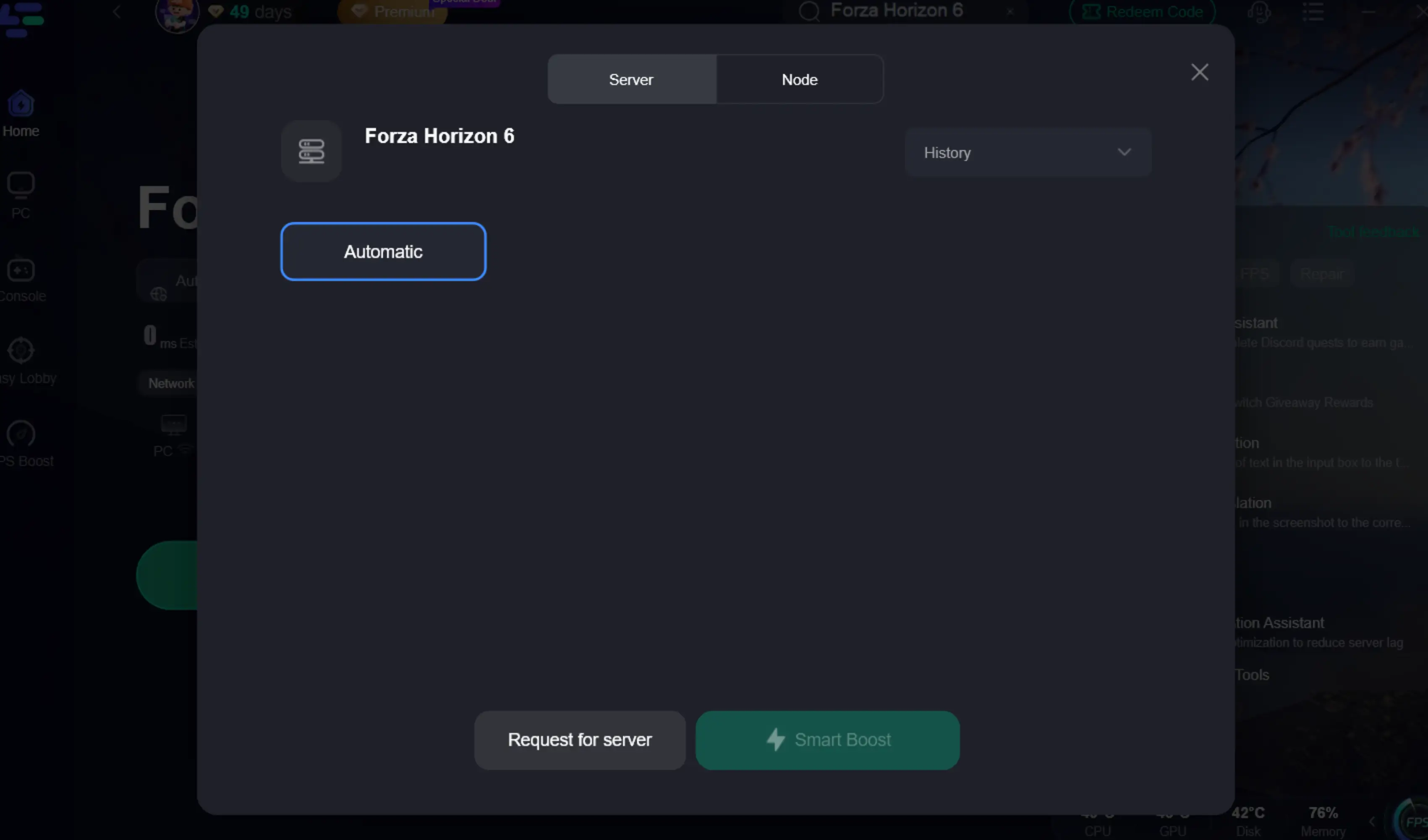
Step 3: Choose your preferred server node and click "Smart Boost" to start optimizing.
Step 4: Launch your game and enjoy smooth, optimized gameplay with lower ping and no stutter.
Part 5: Bonus Tips: Controller Calibration & Advanced Settings for FH6
Once your basic settings feel good, the real difference comes from small adjustments and proper calibration. These are the details that help you fine-tune control and avoid that “slightly off” feeling.
Controller Calibration Tips
If your steering feels off-center or inconsistent, it’s worth recalibrating your controller instead of forcing new settings. A quick recalibration can fix issues like drifting stick input or uneven response.
Before jumping into competitive races, it also helps to test your deadzones in free roam. This gives you a better sense of how the car reacts without pressure.
Advanced Settings for FH6
Once you’re comfortable with the basics, small refinements can make a noticeable difference in how the car feels:
- Adjust sensitivity in small steps (±5) instead of big changes
- Tweak vibration based on car type or driving style
- Use different setups for racing vs drifting, instead of one universal preset
These aren’t major changes, but they help you dial in consistency over time.
Part 6: FAQs
1. Why does my steering feel delayed?
Usually caused by high deadzones, FPS drops, or network lag.
2. Should I turn traction control off?
Yes, if you’re experienced. It gives better speed and control.
3. Is simulation steering better?
Yes, it provides more accurate input, especially for drifting and competitive racing.
4. Should I use ABS in FH6?
Yes. ABS helps prevent wheel lock during braking and keeps control more consistent, especially in high-speed races.
Conclusion
The best controller settings in Forza Horizon 6 come down to consistency, not complexity. Once sensitivity, deadzones, and assists are properly tuned, the car feels much more predictable and responsive. If issues still remain, they’re usually related to performance or connection rather than settings. The key is to keep things stable and make small adjustments based on your driving style.

Boost Your Game with LagoFast for Epic Speed
Play harder, faster. LagoFast game booster eliminates stutter and lags on PC, mobile, or Mac—win every match!
Quickly Reduce Game Lag and Ping!
Boost FPS for Smoother Gameplay!