
When you start Battlefield 6: REDSEC (the free F2P component) and Steam/EA throws “An error occurred when launching the game—no license,” it usually isn’t that you need to buy anything. It’s almost always an ownership/sync hiccup, a partial install flag, or a server handshake problem.
Below is a compact, field-tested guide pulled from real player reports.

- ✅ Reduce Lag and High Ping.
- ✅ Boost FPS at the Same Time.
- ✅ Support 2000+ Popular Online Games.
- ✅ Stop Stuck & Black Screen Issues.
- ✅ Ensure Stable Connections.
What it looks like
- Steam pops “no license” on launch, or a red “game not released” tag shows on the store page.
- Downloads show a stuck 512 KB update that never finishes.
- Anti-cheat opens, the green bar completes, and then the game window closes or never appears.
- You can launch the game once, then can’t get into lobbies or are kicked in 1–2 minutes with a connection code.
Community notes: players repeatedly say unchecking two multiplayer DLC flags in Steam fixes the stuck 512 KB + “not released.” Others confirm a brief offline trick during anti-cheat brings the game up, then they reconnect in the main menu. Several mention Zapret/GoodbyeDPI/VPN affecting the handshake. A few fixed launch crashes by tweaking Windows Exploit Protection for bf6.exe or by clean-reinstalling EA AntiCheat.
Why it happens
- License/entitlement sync lag (Steam ↔ EA). REDSEC is free, but the platform still checks flags; if they’re out of sync, you get a pseudo “no license.”
- Wrong/half-applied install flags. Steam’s “Additional Content” markers for multiplayer/HD can misreport installed content.
- Anti-cheat handshake stalls. Anti-cheat completes, the game tries to attach online services, then dies.
- Network path filters. Custom resolvers/filters (Zapret, GoodbyeDPI), ISP routing, or certain VPNs break the first connection.
- Local conflicts. Windows Exploit Protection (ASLR), overlays, or a shaky driver version can crash the client after anti-cheat.
Quick checks (60 seconds)
- Launch from Library, not the store page.
- Restart Steam, then clear Steam Download Cache (Settings → Downloads → Clear Download Cache).
- Make sure your EA account is linked to Steam (EA account → Connections → Steam). Sign out/in on EA web once.
If it still screams “no license,” go down the fixes in order.
Basic Troubleshooting (Launcher-Level Fixes)
Before diving into deep fixes, try these launcher-level resets—they often clear the “no license” or “not released” message instantly.
- Restart the launcher: Fully close and reopen Steam or the EA App.
- Verify game files: Use the client’s integrity check to ensure no missing or corrupted files.
- Clear temporary files: Delete all files in
C:\Users\<YourName>\AppData\Local\ Temp and restart your PC. - Check internet connection: Make sure you’re online during license validation.
- Disable VPN/antivirus temporarily: These can block EA’s license verification handshake.
How LagoFast Helps Fix the “No License” Error in Battlefield 6 REDSEC
The “no license” or “game not released” message happens when your game can’t verify ownership with EA’s servers. LagoFast fixes that by stabilizing the route between your PC, Steam, and EA.
How it helps:
- Restores EA handshake: LagoFast builds a clean route to EA/AWS servers so the license check doesn’t fail.
- No VPN risk: It optimizes routing without changing your IP, keeping your account safe.
- Prevents disconnects: Keeps your REDSEC sessions stable and stops the 1:8006 login errors.
How to use:
Step 1: Click Free Trial to download and install LagoFast.
Step 2: Search Battlefield 6.

Step 3: Enable Smart Boost and click Start Game.
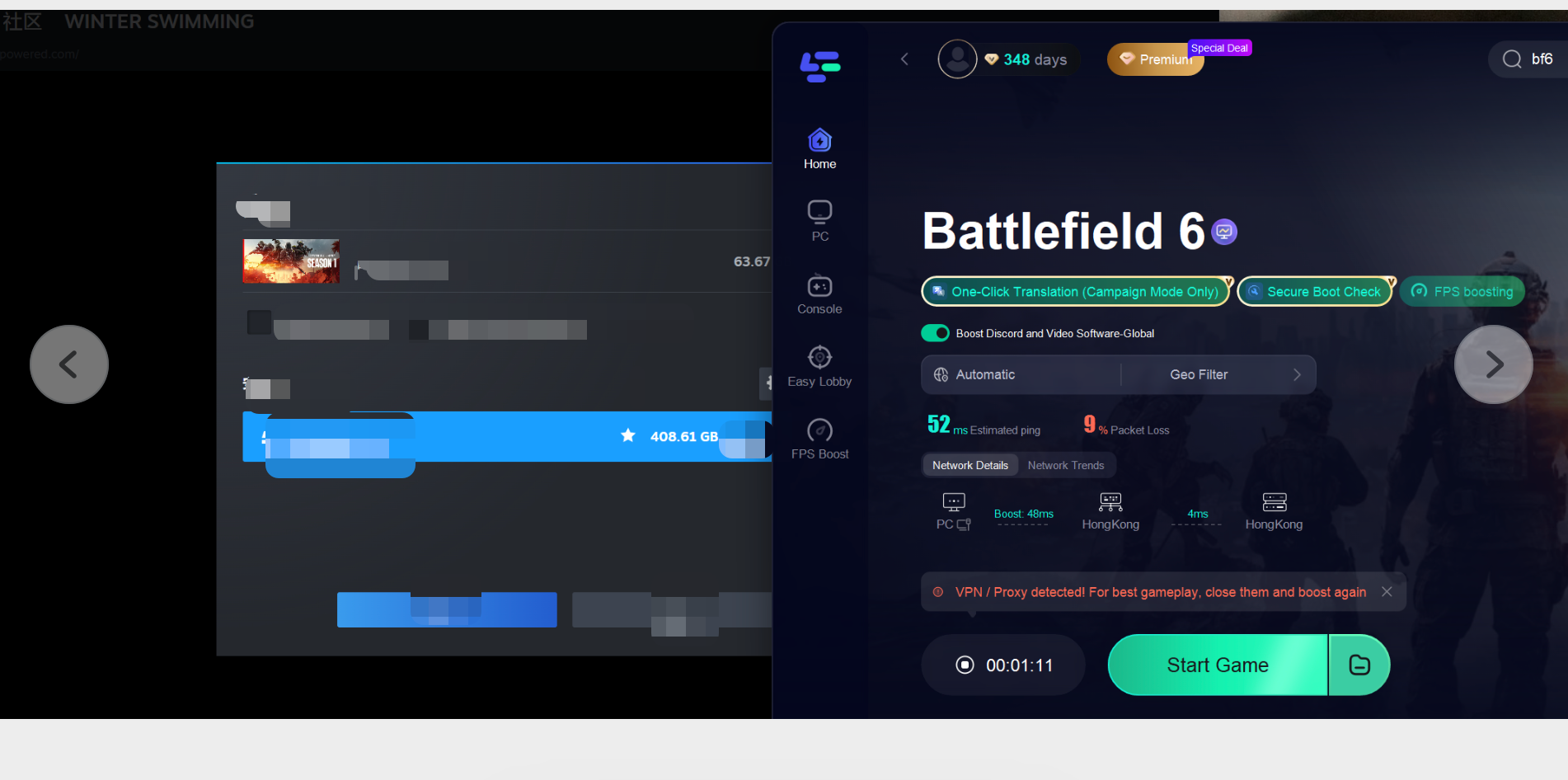
You’ll skip the “no license” launch error and stay connected smoothly.
Fixes that actually worked
1) Refresh the Steam “Additional Content” flags
This is the single most reported fix for the 512 KB phantom update + “not released.”
1. In Steam Library: Right-click Battlefield 6 → Properties → Additional Content.
2. Uncheck both:
- Battlefield Multiplayer Marker
- Battlefield Multiplayer HD Marker
3. Wait ~5–10 seconds.
4. Launch the game.
5. If it works, you can try turning those flags back on one at a time later. If it breaks again, leave them off and use in-game installation (see Step 3).
Variant that helped some: uncheck all “Marker” add-ons, then re-enable only the core multiplayer inside the game (next step).
2) “Offline” trick at anti-cheat (connection gate)
- Launch from Steam and wait for the anti-cheat green bar to complete.
- Disable internet (pull cable or toggle the adapter via Win+R → ncpa.cpl).
- When the black game window + logo appear, enable internet again.
- Proceed to the main menu and connect.
This is a workaround; once the first good session completes, many players report normal launches afterward.
3) Force the correct game install from inside BF6
If flags got messy:
- Launch → Settings → System → Edit Install → enable Multiplayer there and let it download/configure.
- This bypasses flaky Steam markers and pulls the right content set for REDSEC.
4) Reinstall EA AntiCheat properly
- Run: C:\Program Files\EA\AC\EAAntiCheat.Installer.exe
- Select Battlefield 6, Uninstall, then Install.
- If your installer is old, grab the newest from EA’s site, then repeat.
5) Windows Exploit Protection (ASLR) tuning for bf6.exe
Windows Security → App & browser control → Exploit protection → Program settings → Add program (bf6.exe), then set these Off for BF6:
- Force randomization for images (Mandatory ASLR) → Off
- Randomize memory allocations (Bottom-up ASLR) → Off
Apply and relaunch.
6) NVIDIA & overlays sanity check
- In NVIDIA App → Graphics → Battlefield 6, turn Smooth Motion = Off.
- Do a clean installation of the GPU driver (or temporarily roll back if you just updated and launches started failing).
- Close Discord/overlays for a test.
7) Steam client beta & DLL repair (Steam only)
If you’re using Steam, these adjustments have helped some players fix the “no license” launch crash:
- Change Steam client beta participation:
Steam → Settings → Interface → Client beta participation → choose Steam Beta Update, then restart Steam. - Repair DLLs:
If launch still fails, check for missing or corrupted steam_api.dll or steam_api64.dll.
- Right-click Battlefield 6 → Manage → Browse local files.
- Replace the DLLs with clean copies from a verified installation or reinstall Steam.
Avoid downloading “emulator” DLLs from untrusted sources.
8) Network path sanity (if you still can’t connect)
- Disable Zapret/GoodbyeDPI (several reports said they blocked the login handshake).
- Test with Cloudflare WARP or a reputable VPN (some regions needed this just once to get in).
Power-cycle your router to refresh the IP/route.
If the problem still persists after trying everything above:
- Contact EA or Steam Support—they can refresh your license flags directly.
- Check for updates: Sometimes this issue comes from a launcher-side bug that gets patched in later updates.
REDSEC-specific notes
- You do not need to buy the base game to play REDSEC on PC. The error text is misleading when the platform flags desync.
- If you tried to launch the standalone before servers went live in your region, you can see a “no license / not released” wall. After go-live and a Steam/EA refresh (Steps 1–3), it clears.
- If lobbies boot you in 1–2 minutes with a connection code, that’s almost always a network path or a half-installed multiplayer (use Step 3).
FAQ
Do I need Game Pass/EA Play?
No. REDSEC is free. Game Pass Ultimate just adds small perks inside BF6; it does not grant a “license” you’re missing.
I unchecked the markers; now I can play, but the 512 KB “update” still shows.
That’s cosmetic for some; it usually disappears after you force the in-game install in Edit Install or after a successful session + client restart.
Anti-cheat finishes, and then the window never appears.
Do Step 5 (Exploit Protection), Step 4 (EAC reinstall), and Step 6 (GPU/overlays). If nothing helps, do the offline trick (Step 2) once.
One last clean sequence (try in this order)
- Clear Steam download cache → restart Steam.
- Uncheck the two Multiplayer markers in Additional Content.
- Launch → Edit Install in game → ensure Multiplayer is installed.
- If launch stalls, do the offline trick once at anti-cheat.
- If it still fails, reinstall EA AntiCheat, add bf6.exe to Exploit Protection with ASLR options Off, and disable overlays.
- If you’re blocked from servers or dropped with codes, remove filters (Zapret/GoodbyeDPI) and test WARP or a fresh route.
If you want, I can turn this into a short Steam-guide template or a site article with screenshots (same steps, tighter copy).
Conclusion
Most Battlefield 6 REDSEC “No License” errors come from sync or routing issues between Steam and EA. By following the steps above and using tools like LagoFast to stabilize your connection, you can fix the problem and enjoy a smooth, error-free launch experience.
Boost Your Game with LagoFast for Epic Speed
Play harder, faster. LagoFast game booster eliminates stutter and lags on PC, mobile, or Mac—win every match!
Quickly Reduce Game Lag and Ping!
Boost FPS for Smoother Gameplay!