
Many Battlefield 6 players are facing a frustrating issue where the game shows “Multiplayer not installed” even after downloading the full version. It’s preventing players from accessing online matches, squad modes, and even crossplay features. Here’s a complete breakdown of what’s going on, why it happens, and exactly how to fix it.

- ✅ Reduce Lag and High Ping.
✅ Boost FPS at the Same Time.
✅ Support 2000+ Popular Online Games.
✅ Change Server without Latency.
✅ End Stuck & Black Screen Issues.
Part 1. What’s Happening Right Now
Part 3. How to Fix “Multiplayer Not Installed”
Part 4. Preventing the Issue in the Future
Part 5. Bonus Tip—Use LagoFast Game Booster
Part 1. What’s Happening Right Now
After the Battlefield 6 launch, thousands of players on Steam, EA App, Xbox, and PlayStation started reporting that the multiplayer mode appears as uninstalled—even though the full game is downloaded.
Common symptoms include:
- The “Multiplayer Not Installed” or “Add-On Missing” message on startup.
- The game is launching only in campaign mode, with multiplayer grayed out.
- EA App or Steam showing the game as “Installed,” but multiplayer is unavailable.
- No option to manually install multiplayer data.
This issue affects both PC and console players, but it’s most common on Steam → EA App linked accounts.
Part 2. Why It Happens
Several underlying causes can trigger the “Multiplayer not installed” message:
- EA App desync: The launcher fails to register that multiplayer data has been downloaded, especially when Battlefield 6 is installed via Steam.
- Corrupted installation files: Missing or damaged data chunks during installation or patching.
- Storage drive issues: If your drive was full or disconnected during install, multiplayer components may not have been copied.
- Account linking problems: EA account not syncing correctly with Steam or Xbox/PSN profile.
- Cache corruption: Old configuration or cache files prevent the game from recognizing new add-ons.
Part 3. How to Fix “Multiplayer Not Installed”
Fix 1: Restart EA App and Steam
This simple step solves the problem for many players.
- Close both EA App and Steam completely (use Task Manager to end all processes).
- Reopen EA App → go to My Library → Battlefield 6 → Manage Add-ons.
- Check if Multiplayer Pack or Core Data is listed as “Installed.”
- If it’s missing, click Download or Repair.
Fix 2: Repair Game Files
Corrupted or incomplete files often cause installation detection errors.
- Steam: Library → Right-click Battlefield 6 → Properties → Installed Files → Verify Integrity of Game Files.
- EA App: My Library → Battlefield 6 → three dots → Repair.
After verification, restart your PC and try again.
Fix 3: Clear EA App Cache
Sometimes the EA App keeps outdated data about your install.
Press Win + R, type:
- %ProgramData%/EA Desktop
- Delete everything inside except the Logs folder.
- Restart EA App and try launching Battlefield 6 again.
Fix 4: Check Storage and Installation Drive
If the installation drive ran out of space, some multiplayer files might not have been downloaded.
- Ensure you have at least 100 GB of free space.
- If the game is installed on an external or secondary drive, move it to your main SSD.
- Restart the download if needed.
Fix 5: Delete Config Folder
Old or corrupted game configurations can block multiplayer from appearing.
Go to:
- Documents/Battlefield/Battlefield6
- Delete the entire folder.
- Restart the game—it will generate fresh config files.
Fix 6: Run EA App as Administrator
Without admin privileges, the EA App may fail to register DLC content properly.
- Close EA App.
- Right-click EA App → Run as Administrator.
- Launch Battlefield 6 again.
Fix 7: Reinstall Battlefield 6 (Last Resort)
If all else fails:
- Uninstall Battlefield 6 from both Steam and EA App.
- Delete leftover folders from Documents/Battlefield and EA Games.
- Reinstall only via EA App for best results (don’t mix Steam + EA installs).
Part 4. Preventing the Issue in the Future
- Always keep EA App and Steam updated before launching the game.
- Avoid pausing or force-stopping downloads midway.
- Keep 100 GB+ of free space for updates and patches.
- Don’t delete the Core Data or Multiplayer Pack files manually.
Part 5. Bonus Tip—Use LagoFast Game Booster
If you’ve fixed the installation but still can’t connect to multiplayer servers, try using LagoFast Game Booster. It optimizes routing to EA servers, fixes authentication loops, and reduces packet loss—especially helpful for players outside primary server regions.
Steps:
1. Download and install LagoFast Game Booster.
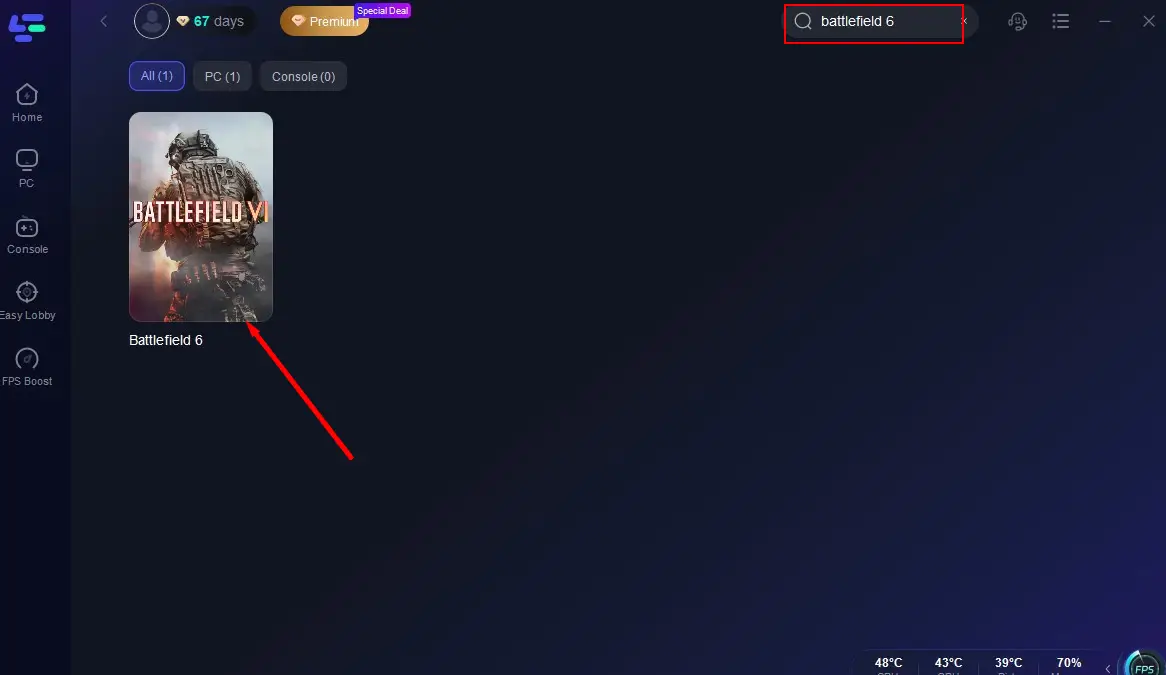
2. Search for Battlefield 6 and click Boost.
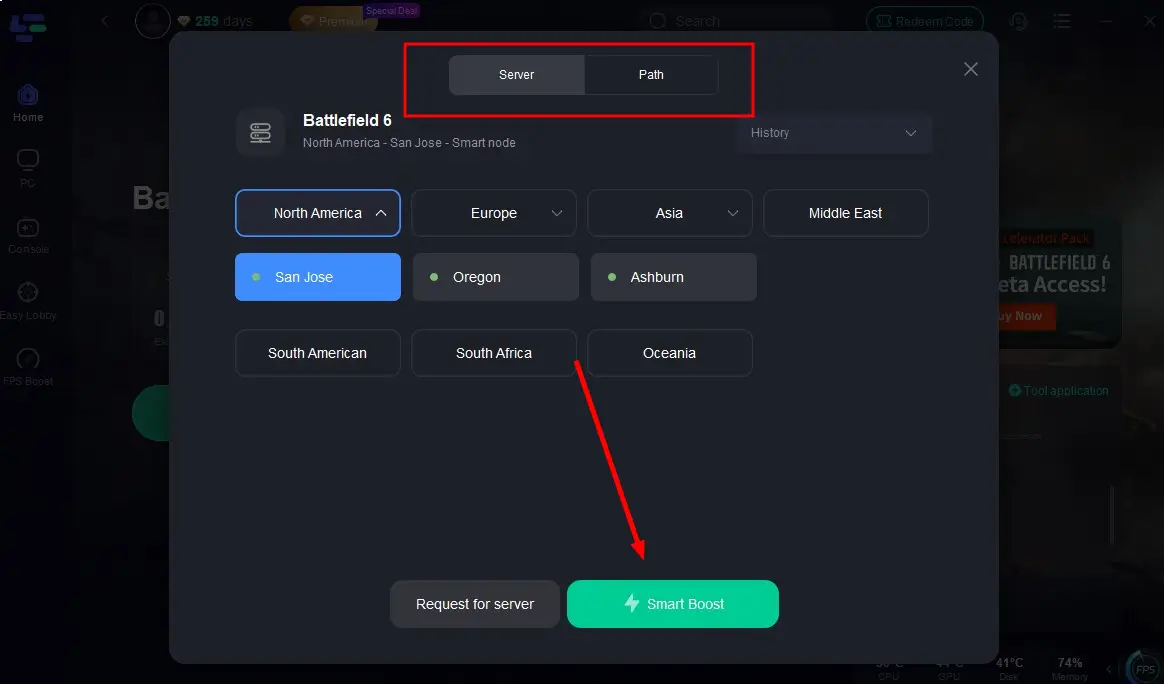
3. Select your nearest region (US/EU/Asia) and enable Smart Boost.
4. Launch Battlefield 6 through LagoFast for smoother multiplayer login and stable ping.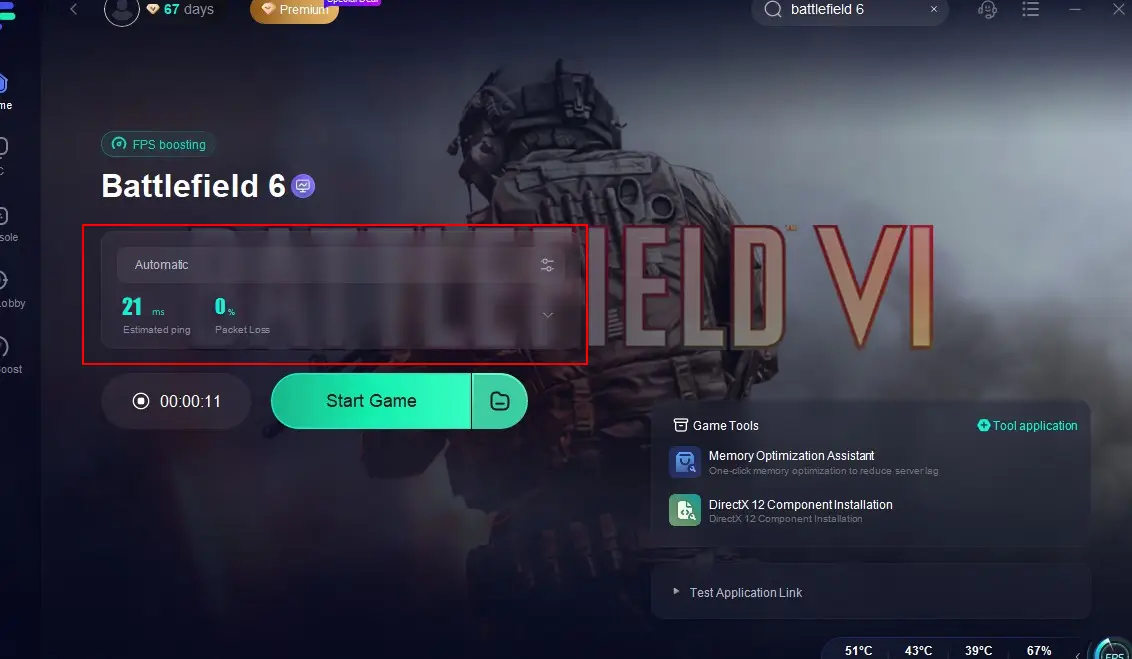
Final Thoughts
The “Multiplayer not installed” bug in Battlefield 6 is one of the most common post-launch issues—but it’s usually fixable without reinstalling the whole game. Most players resolve it by repairing the game, clearing the cache, or relaunching EA App as admin. If your problem persists, reinstalling through EA App directly or using LagoFast can almost always restore full multiplayer access.
Boost Your Game with LagoFast for Epic Speed
Play harder, faster. LagoFast game booster eliminates stutter and lags on PC, mobile, or Mac—win every match!
Quickly Reduce Game Lag and Ping!
Boost FPS for Smoother Gameplay!