
Battlefield 6 is built to deliver breathtaking visuals, massive battles, and immersive realism. But to get the most out of it, players often need to tweak certain in-game settings. From boosting performance with an FPS counter, enabling DLSS for better visuals, switching languages, or ensuring anti-cheat protection is active, knowing where these options are hidden can make a huge difference. This guide will walk you through Battlefield 6 on how to turn on important settings step by step, so your game not only looks great but runs smoothly. We’ll also highlight how tools like LagoFast can enhance the entire experience with FPS boosting, language translation, and other performance upgrades.

Part 1: Battlefield 6 How to Turn On
Part 2: How to Ensure Your Gaming Experience in Battlefield 6 with LagoFast
Part 1: Battlefield 6: How to Turn On Specific Features
When players say “Battlefield 6 how to turn on,” it usually means enabling specific features that aren’t always obvious from the default setup. Whether you want smoother frame rates, higher visual fidelity, or regional language options, it all starts in the in-game settings menu.
To access these options:
Step 1. Launch Battlefield 6 and wait for the main menu to load.
Step 2. Press Escape (PC) or the menu button (console) to bring up the settings.
Step 3. Navigate between the Graphics, Audio, Gameplay, and General tabs depending on what you’re adjusting.
From here, you can activate or tweak everything from performance overlays to anti-cheat settings. Let’s break down the most-requested features.
Battlefield 6: How to Turn On Maximum FPS
Many players want to know battlefield 6 how to turn on/enable FPS because high and stable frames per second directly impact competitive gameplay. In Battlefield 6, you can adjust settings for maximum FPS by:
Step 1. Go to Settings and select Graphics.
Step 2. Lowering options like Texture Quality, Ambient Occlusion, and Post-Processing.
Step 3. Disabling V-Sync if you have a high refresh rate monitor.
Using LagoFast for FPS Boost
While in-game tweaks help, software optimization tools like LagoFast can push performance even further. LagoFast offers:
- Real-time FPS boosting without sacrificing quality.
- Automatic system optimization to prioritize game processes.
- Stable connection routing to reduce frame stutters caused by network lag.
This combination of manual settings and LagoFast optimization ensures you’re running Battlefield 6 at the smoothest frame rates possible.
Click the "Free Trial" button to download LagoFast.
Use the search bar to find Battlefield 6 and click on the search result.

Choose the best server location based on your geographical area and desired gaming performance, then click "Smart Boost" to initiate real-time optimization.
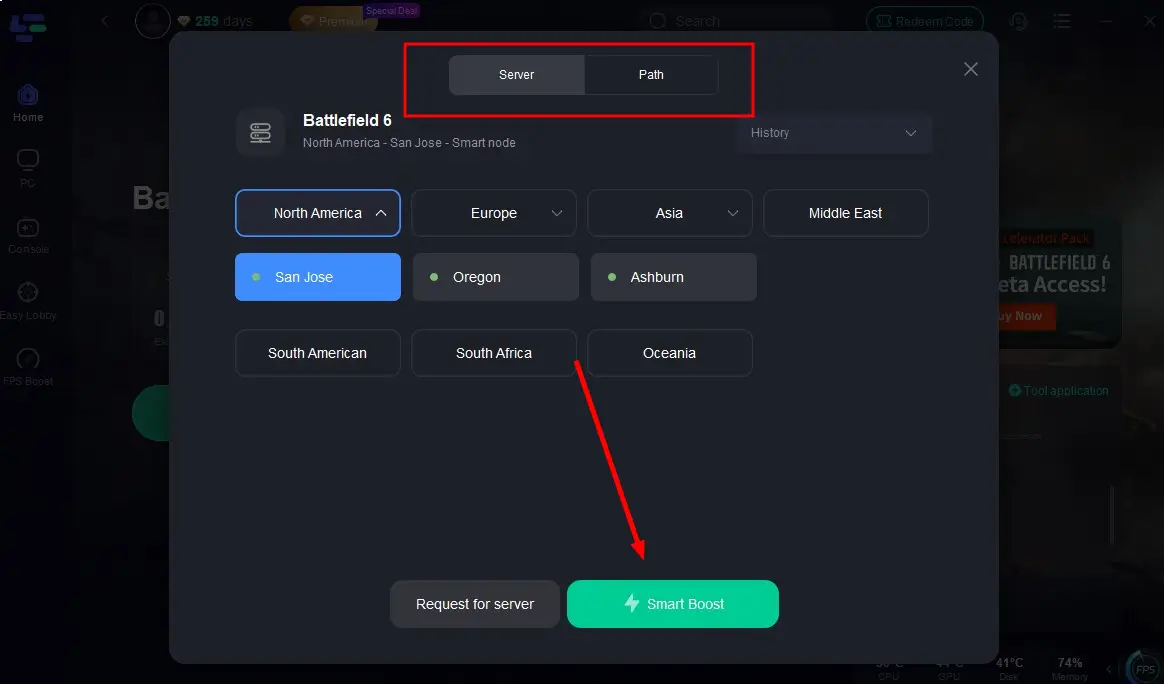
Verify your real-time ping and packet loss rates, then click "Start Game" to dive into the intense battles of Battlefield 6!

How to Turn On FPS Counter in Battlefield 6
The FPS counter helps you track performance live, letting you instantly see the impact of settings changes. To enable it in Battlefield 6:
Step 1. Press Escape while in-game.
Step 2. Click the gear icon at the top to open Settings.
Step 3. Go to the Graphics tab and scroll to Advanced Settings.
Step 4. Select Modify, then toggle Performance Overlay to “On.”
If you want more detailed stats than the built-in counter offers, LagoFast includes its own customizable FPS counter overlay. This lets you track frame rates, ping, CPU usage, and even GPU temperature while you play, all in a clean display.
How to Enable DLSS in Battlefield 6
DLSS (Deep Learning Super Sampling) is an NVIDIA technology that boosts FPS while maintaining sharp visuals by rendering at a lower resolution and using AI upscaling. To enable DLSS in Battlefield 6:
Step 1. Open Settings and select Graphics.
Step 2. Scroll down to DLSS or Upscaling.
Step 3. Choose from modes like Performance, Balanced, or Quality depending on your preference.
Performance mode delivers the biggest FPS boost, while Quality mode preserves the most visual detail. If your GPU supports it (RTX 20 series or newer), DLSS can give you a massive advantage in large multiplayer matches where every frame counts.

How to Enable Russian Language in Battlefield 6
Players sometimes want to experience the game in another language, such as Russian, for immersion or accessibility reasons. To enable Russian in Battlefield 6:
Step 1. Exit the game and go to your launcher’s settings (Steam, EA App, etc.).
Step 2. Select Game Properties.
Step 3. Change the Language setting to Russian.
Step 4. Save and relaunch the game — a language pack may need to download.
LagoFast’s Language Translation Feature
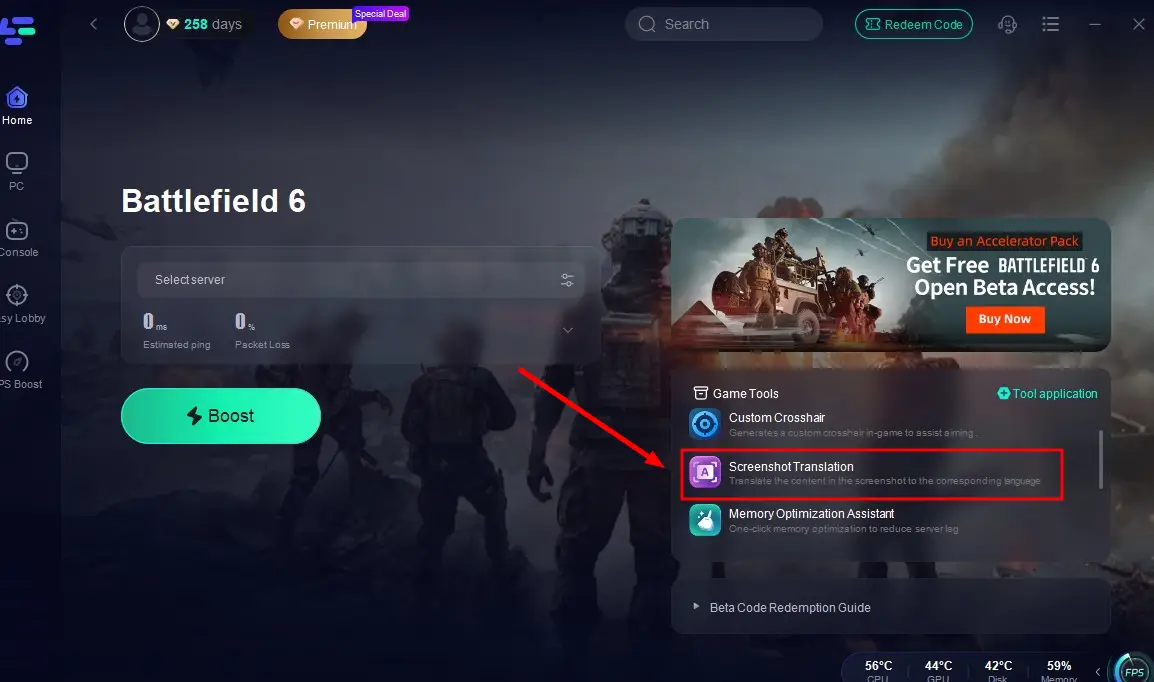
If you’re playing with international friends or on a server with different languages, LagoFast’s live translation tool can help. It can quickly translate chat messages, menu text, or even on-screen instructions, making multilingual gameplay much easier.
Step 1: Click the screenshot translation tool at the bottom right corner.
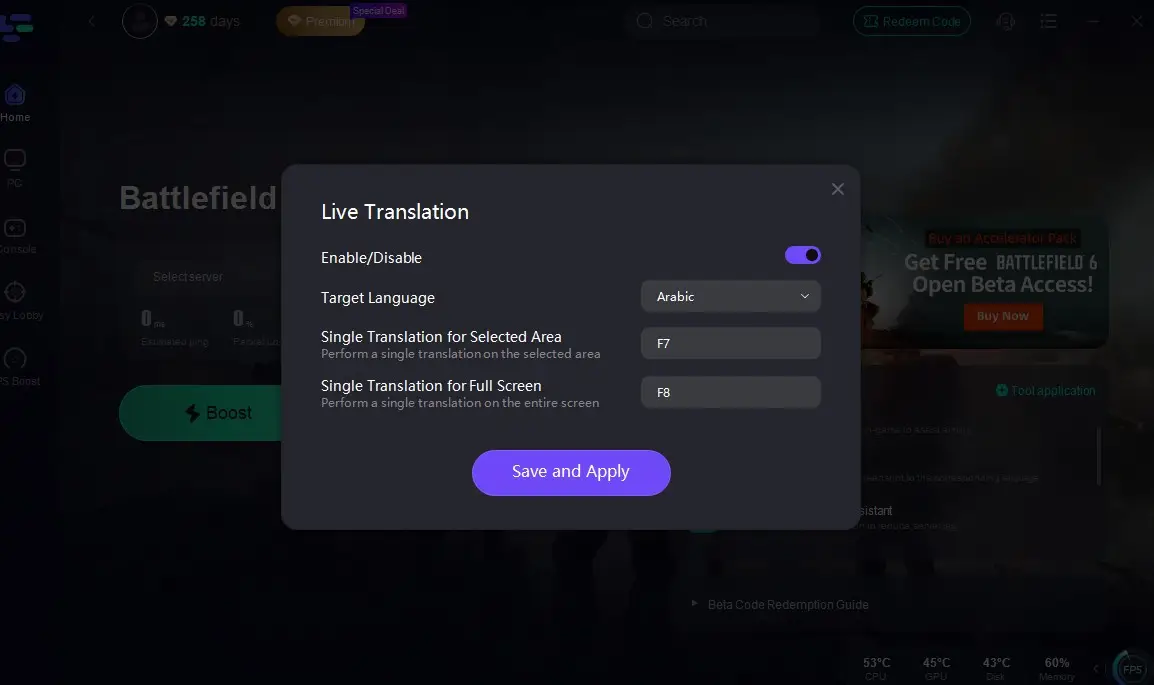
Step 2: Select your target language and set the in-game hotkey.
How to Turn On Anti-Cheat in Battlefield 6
The anti-cheat system is automatically included with Battlefield 6 to ensure a fair playing field. However, if you encounter issues like “anti-cheat not found,” you may need to manually repair it:
Step 1. In Steam or EA App, right-click Battlefield 6 and select Properties.
Step 2. Go to Installed Files (Steam) or Repair Game (EA App).
Step 3. This will verify and restore the EA anti-cheat files.
If that doesn’t work, manually reinstall the EA anti-cheat service from the Program Files folder. Enabling anti-cheat ensures you can join official servers without risk of being kicked or banned.
Part 2: How to Ensure Your Gaming Experience in Battlefield 6 with LagoFast
For players who want the best possible Battlefield 6 experience, LagoFast provides a complete performance optimization suite:
- FPS Counter & Booster – Track real-time FPS and push your system for maximum smoothness.
- Language Translation – Translate in-game chat and UI for global communication.
- Ping Stabilization – Reduce latency spikes and keep your connection stable during intense matches.
- Route Optimization – Choose the fastest network path to game servers.
- System Resource Management – Automatically allocate CPU/GPU to prioritize Battlefield 6.
- Lag Reduction – Smooth out frame drops caused by inconsistent network performance.
This all-in-one tool not only boosts FPS but also makes cross-language and cross-region play much easier, ensuring you’re ready for any challenge Battlefield 6 throws at you.
Tutorial to use LagoFast to Play Battlefield 6 Smoothly on PC:
Click the "Free Trial" button to download LagoFast.
Use the search bar to find Battlefield 6 and click on the search result.
Choose the best server location based on your geographical area and desired gaming performance, then click "Smart Boost" to initiate real-time optimization.
Verify your real-time ping and packet loss rates, then click "Start Game" to dive into the intense battles of Battlefield 6!
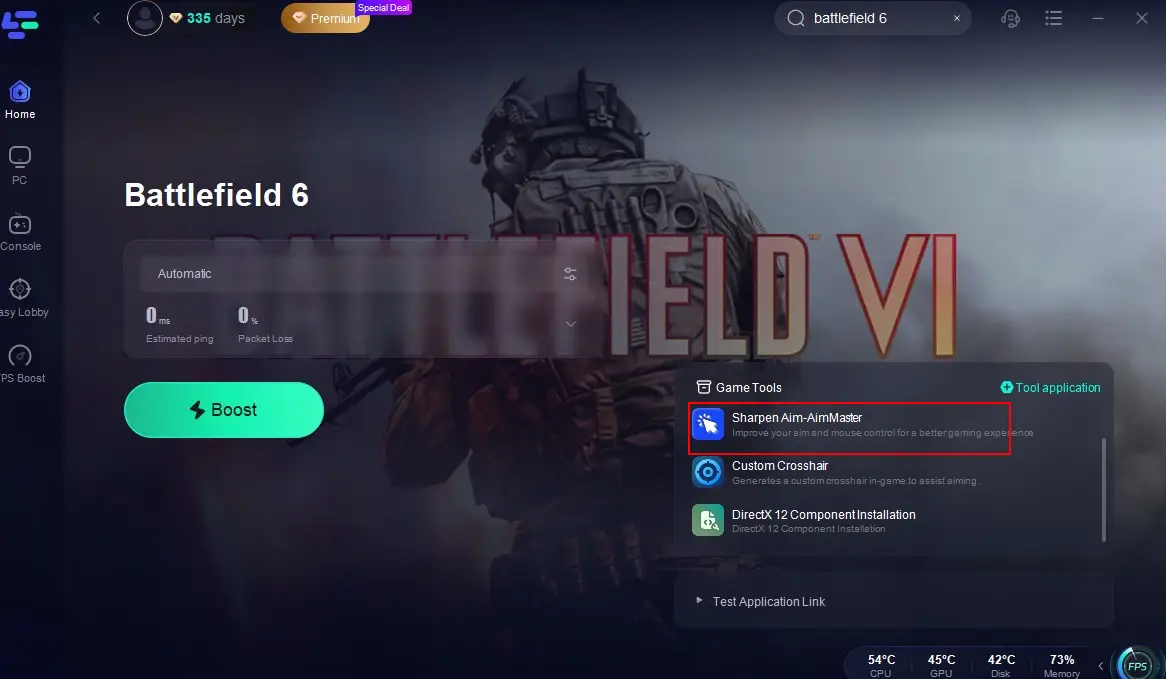
By the way, you can enhance the gameplay with the Sharpen Aim-Master tool provided by LagoFast:
Open LagoFast and find Battlefield 6, click the "Sharpen Aim-AimMaster" tool in the bottom-right corner of the screen.
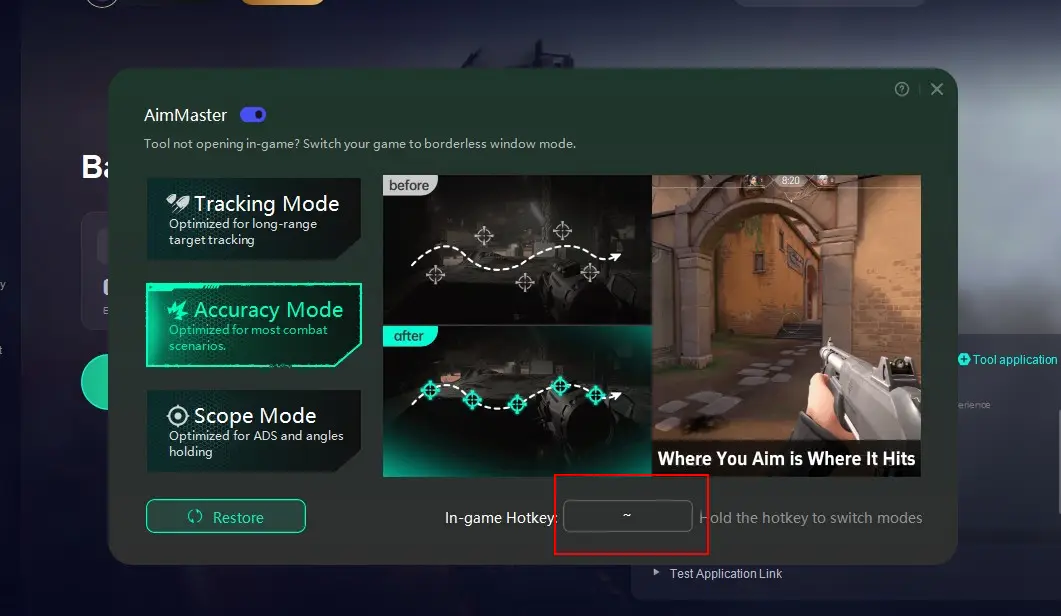
Select a mode that matches your combat scenario (Tracking, Accuracy, or Scope) and set an In-game Hotkey in the bottom-right corner.
Conclusion
From learning Battlefield 6 how to turn on the game and its advanced features, enabling the FPS counter and DLSS, switching to Russian language, or making sure anti-cheat is running, every adjustment helps you enjoy smoother, more immersive matches. And with tools like LagoFast, you can take performance, language accessibility, and stability to the next level. Whether you’re storming objectives or sniping from a distance, having the right settings and optimizations in place means you can focus on winning — not troubleshooting.

Boost Your Game with LagoFast for Epic Speed
Play harder, faster. LagoFast game booster eliminates stutter and lags on PC, mobile, or Mac—win every match!
Quickly Reduce Game Lag and Ping!
Boost FPS for Smoother Gameplay!