
Imagine eagerly launching the Battlefield 6 client, only to be met with the frustrating message, "Unable to connect to Battlefield servers"—or worse, a battlefield 6 connection failed error. It's disheartening, isn't it? But take heart—you're not alone in facing this issue. Many Battlefield 6 players have reported encountering the same problem. In this article, we'll explore the various causes behind the "unable to connect to Battlefield 6 servers" error (and the related battlefield 6 connection failed issue) and guide you through the best solutions to fix it. Let's dive in!
German Version: Battlefield 6 kann keine Verbindung zu den Servern herstellen: Ursachen und Lösungen
Korean Version: Battlefield 6 서버 접속 불가: 원인과 해결법

- ✅ Reduce Lag and High Ping.
- ✅ Boost FPS at the Same Time.
- ✅ Support 2000+ Popular Online Games.
- ✅ End Stuck, Crashes and Connection Issues.
- ✅ Enhance Gaming Experience.
Part 1: Common Causes about Battlefield 6 Can't Connect to Servers
Part 2: Best Way to Fix Battlefield 6 Can't Connect to Servers
Part 3: Other Fixes of Battlefield 6 Can't Connect to Servers
Part 1: Common Causes about Battlefield 6 Can't Connect to Servers
Just like connectivity issues with other game server issues, the causes behind Battlefield 6's inability to connect to EA servers are multifaceted. Here are some common causes to consider:
Server-Side Issues in Battlefield 6
- Maintenance Downtime: When EA performs scheduled maintenance on Battlefield 6 servers, they may temporarily shut them down, leading to connectivity disruptions.
- Server Overload: During peak hours or when many players log in simultaneously, the high volume of connection requests can overload the servers, causing connectivity issues.
- Unforeseen Technical Issues: Technical glitches, cyberattacks, or other unexpected problems can disrupt server functionality, resulting in server-side connectivity problems.
Network Connection Problems
If you're playing Battlefield 6 on a subpar or unstable network, fluctuations in your connection to EA servers can occur, leading to connection errors.
Outdated Network Drivers
If the device you're using to play Battlefield 6 has outdated or malfunctioning network drivers, you may encounter difficulties connecting to the game's servers.
Improper DNS Configuration
Incorrect or unreliable DNS settings can interfere with the communication between your device and EA's official servers, leading to connectivity problems.
Firewall or Security Software Blocking
Overly strict firewalls or antivirus programs may incorrectly flag your attempts to connect to Battlefield 6 servers as malicious, blocking the connection and preventing access to EA's official servers.
Corrupted Game Files or Cache Issues
If your Battlefield 6 game files become corrupted during installation or updates, or if there are issues with the game's cache, it can cause connectivity problems with the servers.
Network Connection Issues
If you're playing Battlefield 6 on a low-quality or unstable network, fluctuations in your connection to EA servers can occur, resulting in connection errors.
Part 2: Best Way to Fix Battlefield 6 Can't Connect to Servers
LagoFast can help bypass most connectivity issues preventing you from connecting to Battlefield 6 servers. As a professional gaming accelerator, LagoFast excels at stabilizing network connections and reducing game latency for players, thanks to the following advantages:
- Global Server Network: LagoFast has deployed game server nodes in over 60 countries and 150 cities worldwide, allowing players to switch seamlessly to high-performance servers.
- Latency Reduction and Ping Optimization:It stabilizes your network connection, enhancing the quality of game data transmission to reduce latency and lower ping.
- One-Click Optimization: LagoFast's optimization process is simple and hassle-free—just one click, and you'll instantly enjoy an optimized gaming experience.
- FPS Improvement: By reducing latency and stabilizing connections, LagoFast complements high-quality graphics settings in-game, helping boost your frame rates for smoother gameplay.
Steps to Fix Battlefield 6 Server Connection Issues with LagoFast
Click the "Free Trial" button to download LagoFast and complete the installation.
Use the search bar to find Battlefield 6 and click on the search result.

Choose the best server location based on your geographical area and desired gaming performance, then click "Smart Boost" to initiate real-time optimization.
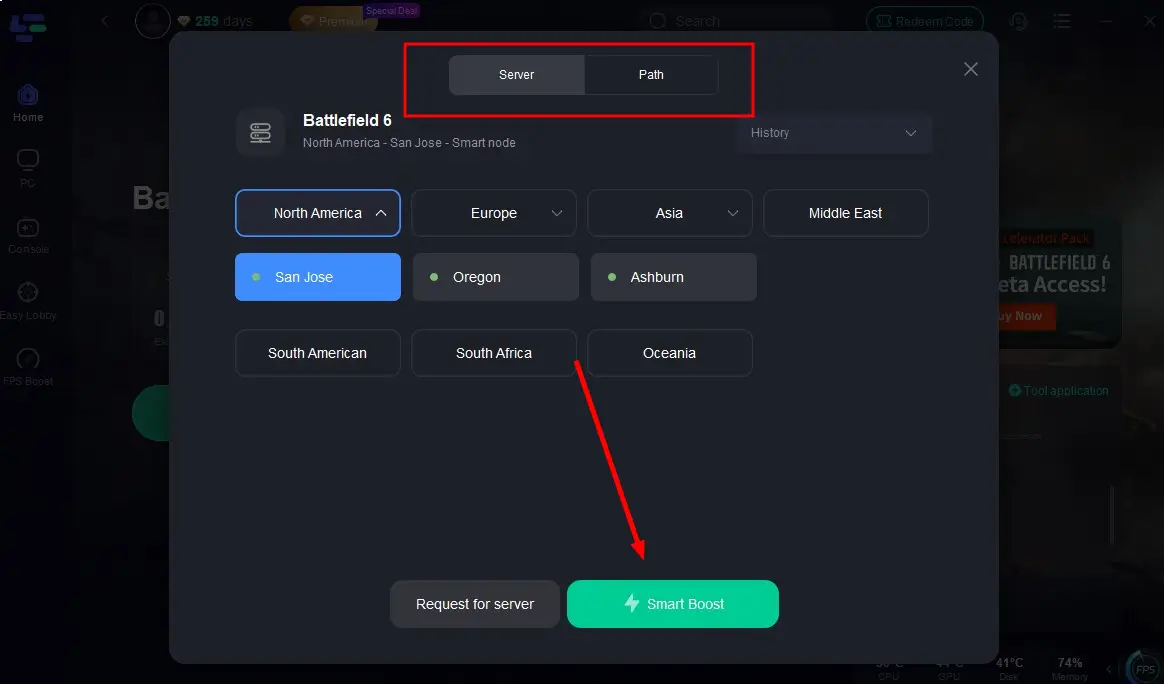
Verify your real-time ping and packet loss rates, then click "Start Game" to dive into the intense battles of Battlefield 6!

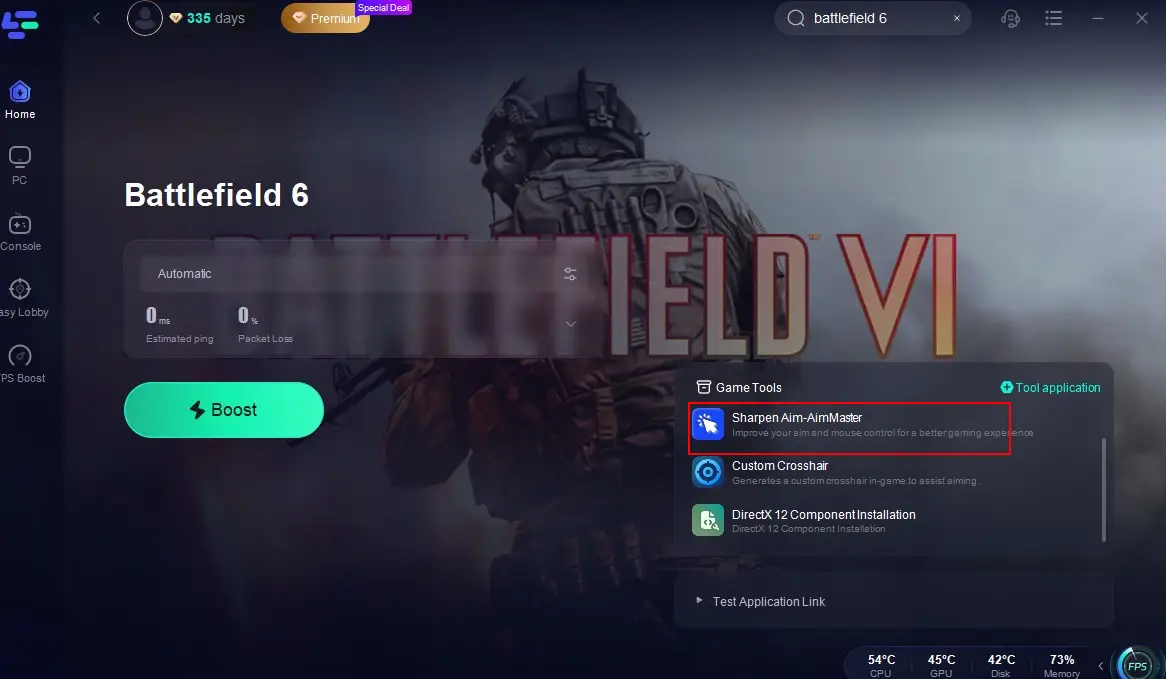
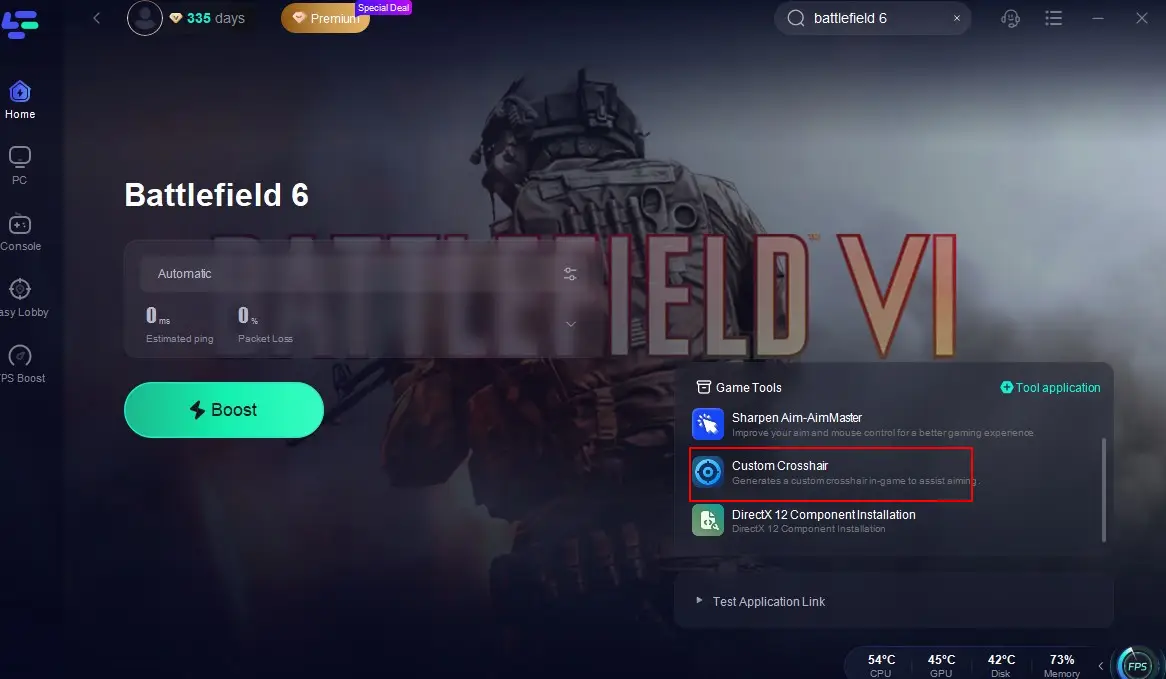
Beyond that, LagoFast also provides Sharpen Aim-AimMaster, a tool featuring three modes—Tracking Mode, Accuracy Mode, and Scope Mode—designed to optimize your mouse input efficiency, reduce click latency, and boost response speed. With these modes, you can land precise shots on enemies the moment you spot them. Here‘s how to use it:
Open LagoFast and find Battlefield 6, click the "Sharpen Aim-AimMaster" tool in the bottom-right corner of the screen.
Select a mode that matches your combat scenario (Tracking, Accuracy, or Scope) and set an In-game Hotkey in the bottom-right corner.
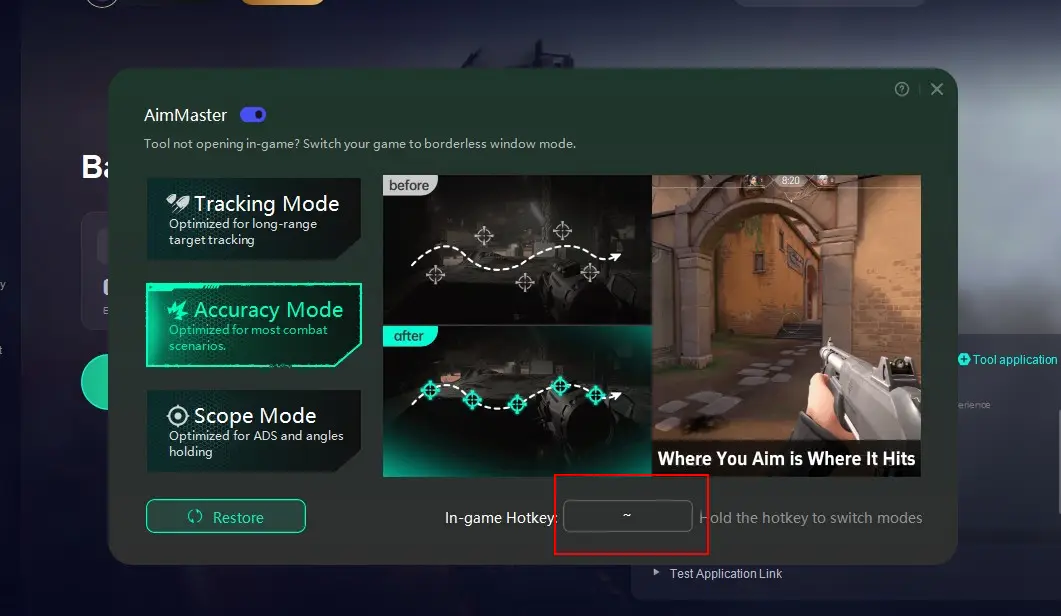
Return to the game, and you‘ll be ready to hit your targets with deadly accuracy!
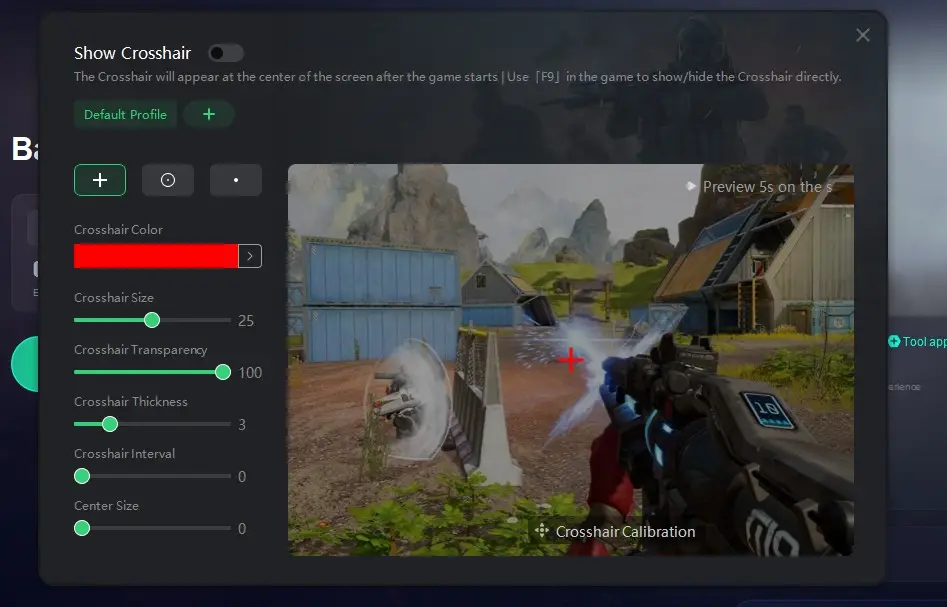
Plus, there's the Custom Crosshair tool, another game-changer for Battlefield 6 players! It helps improve your aiming accuracy, giving you the edge you need to dominate the battlefield.
Part 3: Other Fixes of Battlefield 6 Can't Connect to Servers
Of course, there are also some basic troubleshooting steps players can take to resolve the "Battlefield 6 can't connect to EA servers" error, as well as the battlefield 6 connection failed issue:
1. Check Battlefield 6 Official Server Status
Visit Battlefield 6's official accounts (e.g., on X/Twitter) to see if EA is performing maintenance or if there's an emergency server outage announcement. Server outages are a common culprit behind both "unable to connect" and battlefield 6 connection failed errors. If so, simply wait for the official servers to be restored.
2. Verify Network Connection
- Restart your router or Wi-Fi modem to fix connection issues.
- Switch networks (e.g., from wired to wireless or vice versa) or try connecting via Ethernet for a faster, more stable connection.
3. Update Network Drivers
Check for Windows updates:
- Click the Windows "Start" button, select "Device Manager," expand "Network Adapters," then right-click and select "Update Driver."
- Choose "Search automatically for updated driver software" and follow the system prompts.
4. Optimize DNS Settings
- Switch to Google DNS for stable connectivity:
- Press Windows + R, type ncpa.cpl, and press Enter.
- Right-click your network adapter, select Properties, double-click Internet Protocol Version 4 (TCP/IPv4), and enter the server addresses 8.8.8.8 or 8.8.4.4.
Using Google DNS can help ensure a stable connection to Battlefield 6 servers.
5. Reconfigure Firewall or Security Software
- Adjust your firewall settings to allow Battlefield 6 to connect to official servers.
- Temporarily disable security software or add Battlefield 6 to its trusted list.
6. Clear Game Cache
(Note: This step was listed but not elaborated. If needed, you could add: "Clear the game's cache files to resolve potential conflicts.")
7. Check for Software Conflicts
Pause background applications to free up system resources for Battlefield 6.
Conclusion
Whether the issue stems from EA's official servers or your own device, unable to connect to Battlefield 6 servers can severely degrade your gaming experience. Knowing the root causes and applying the right fixes to resolve connectivity errors—so you can connect effortlessly—is an essential skill for Battlefield 6 players. Of course, if you want to eliminate the risk of connection issues once and for all, using LagoFast to optimize your server connection quality is the way to go. It ensures the smoothest, most secure gameplay experience possible.
Boost Your Game with LagoFast for Epic Speed
Play harder, faster. LagoFast game booster eliminates stutter and lags on PC, mobile, or Mac—win every match!
Quickly Reduce Game Lag and Ping!
Boost FPS for Smoother Gameplay!