
For many players, the excitement of launching Battlefield 6 quickly turns into frustration when the game suddenly freezes or displays a black screen. This issue has been widely reported across PC gaming forums and Reddit, with users describing crashes during startup, mid-match freezes, or complete system lockups that require a hard reboot.
If you’ve found yourself staring at a black screen instead of the battlefield, you’re not alone. In this guide, we’ll go through why this problem happens, what players are saying online, and, most importantly, how to fix it with reliable solutions that actually work.
Part 1: Why Battlefield 6 Black Screen Issues Happen
Part 2: How to Fix Battlefield 6 Black Screen – 100% Work
Part 1: Why Battlefield 6 Black Screen Issues Happen
Reports from Reddit and PC forums highlight several common scenarios. For some, the issue occurs right after enabling Secure Boot, a requirement for the Battlefield 6 Beta, which in certain cases led to a black screen and even prevented Windows from booting. Others encounter crashes during matches, where the display goes dark but background audio still plays, forcing a restart.
These problems are often tied to:
- Secure Boot or TPM 2.0 compatibility issues
- Outdated or unstable GPU drivers
- Display connection or cable type conflicts (HDMI vs. DisplayPort)
- Overlays and background applications are interfering with the game
- Faulty overclock settings or unstable voltages after a BIOS update
- Game bugs tied to certain maps or in-game events
The good news? In almost every case, the Battlefield 6 black screen issue can be fixed by following the right steps.
Part 2: How to Fix Battlefield 6 Black Screen – 100% Work
Best Solution – LagoFast
When it comes to eliminating black screen problems and improving game stability, LagoFast stands out as the most effective tool. Designed specifically for gamers, LagoFast is more than just a ping reducer — it optimizes your entire gaming connection and system performance to prevent crashes, stutters, and freezes.
Why LagoFast Works Best for Battlefield 6:
- Intelligent Route Optimization – Ensures your data takes the fastest, most stable path to EA servers.
- System Resource Management – Frees up CPU and GPU resources to prevent overloads that cause black screens.
- One-Click Game Boost – Automatically applies performance tweaks tailored for Battlefield 6.
- Global Server Network – Reduces latency and packet loss, especially for players far from official servers.
- Easy to Use – No complex BIOS or Secure Boot settings; just install, select Battlefield 6, and click Boost.
By reducing system strain and stabilizing your network, LagoFast addresses many of the root causes behind Battlefield 6 black screen issues — without risky hardware tweaks.
Tutorial to use LagoFast to fix the Battlefield 6 black screen and enjoy a smooth gaming experience on PC:
Click the "Free Trial" button to download LagoFast.
Use the search bar to find Battlefield 6 and click on the search result.

Choose the best server location based on your geographical area and desired gaming performance, then click "Smart Boost" to initiate real-time optimization.
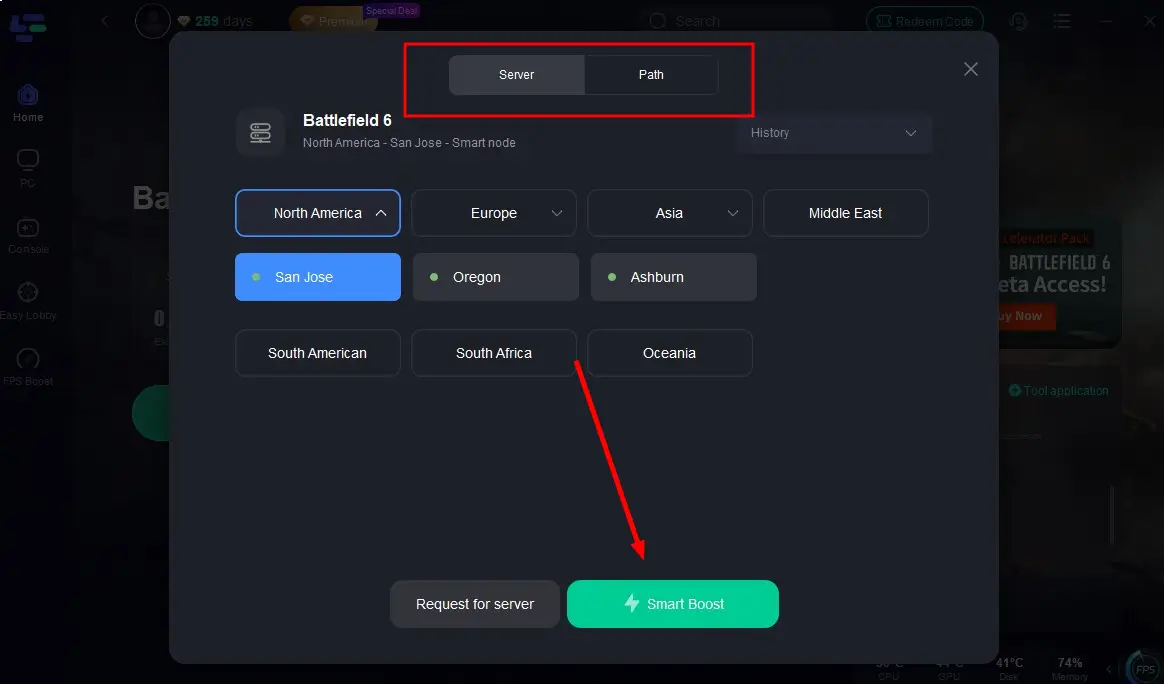
Verify your real-time ping and packet loss rates, then click "Start Game" to dive into the intense battles of Battlefield 6!

Update UEFI/BIOS (For Secure Boot Issues)
If Battlefield 6 prompts you to enable Secure Boot but your PC black screens afterward, updating your motherboard firmware may be necessary.
Steps:
- Identify your motherboard model (use CPU-Z or check system info).
- Visit your motherboard manufacturer’s support page.
- Download the latest UEFI/BIOS update file.
- Format a USB drive as FAT32 and copy the update file onto it.
- Restart your PC and enter BIOS (usually DEL, F2, or F12).
- Use your board’s flashing utility (Q-Flash, EZ Flash, etc.) to update.
- Reboot and re-enable Secure Boot.
Warning: A failed BIOS update can brick your motherboard—do this only if comfortable with firmware updates.

Adjust Secure Boot & CSM Settings
Improper CSM (Compatibility Support Module) settings can cause BF6 to black screen when Secure Boot is on.
Steps:
- Restart and enter BIOS.
- Disable CSM completely.
- Set storage and PCI ROM options to UEFI Only.
- Enable Secure Boot and set mode to Standard.
- Save changes and restart.
Clean Install GPU Drivers
Corrupt or conflicting drivers are a frequent cause of black screens.
Steps:
- Download Display Driver Uninstaller (DDU).
- Boot into Windows Safe Mode.
- Run DDU to completely remove NVIDIA/AMD drivers.
- Reboot normally and install the latest drivers from the official NVIDIA/AMD site.
- Restart your PC and test BF6.
Lower In-Game Graphics Settings
Some maps seem to overload certain GPUs.
Steps:
- Launch Battlefield 6 and go to Settings, then select Video.
- Set Texture Quality and Effects Quality to Medium.
- Disable Ray Tracing and Ambient Occlusion.
- Lower Resolution Scale to 90% or less.
- Apply changes and restart the game.
Disable Overlays
Overlays from Discord, GeForce Experience, or Steam can conflict with BF6.
Steps:
- Disable Discord Overlay in User Settings.
- Turn off GeForce Experience In-Game Overlay in settings.
- Disable Steam Overlay in Properties.
- Relaunch the game without overlays running.

Verify Game Files
Corrupt files can cause random black screen crashes.
For Steam:
Steps:
- Right-click Battlefield 6 and select Properties.
- Go to Installed Files and click Verify integrity of game files.
For EA App:
Steps:
- Click the BF6 game tile.
- Choose Repair from the options menu.
Check Hardware Temperatures
Overheating can trigger GPU shutoffs and black screens.
Steps:
- Install MSI Afterburner or HWMonitor.
- Monitor GPU/CPU temps while playing.
- If temps exceed 85°C, improve cooling or reduce graphics settings.
Conclusion
The Battlefield 6 black screen issue is frustrating, but not unbeatable. From Secure Boot complications to GPU driver problems, the root cause varies between players—meaning the best fix for one system may not work for another. That’s why starting with a reliable performance booster like LagoFast can save hours of trial and error. If manual fixes are needed, follow the step-by-step solutions carefully, especially when adjusting BIOS settings. With the right tweaks, you can get back to enjoying Battlefield 6 without staring at a frozen black screen mid-battle.
Boost Your Game with LagoFast for Epic Speed
Play harder, faster. LagoFast game booster eliminates stutter and lags on PC, mobile, or Mac—win every match!
Quickly Reduce Game Lag and Ping!
Boost FPS for Smoother Gameplay!