

Early Access can be bumpy, and Ashes of Creation is no exception. Players frequently encounter launcher errors, crashes, performance drops, EAC issues, and network problems. This guide cuts out the fluff and focuses on reliable fixes that actually work, so you can spend less time troubleshooting and more time adventuring.

- ✅ Reduce Lag and High Ping.
- ✅ Boost FPS at the Same Time.
- ✅ Support 2000+ Popular Online Games.
- ✅ End Stuck & Crashing Issues.
- ✅ Change Server without Latency.
Part 1: Launcher & Startup Issues
Part 3: Performance & FPS Issues
Part 4: EAC (Easy Anti-Cheat) Issues
Part 5: Network & Server Issues
Part 1: Launcher & Startup Issues
The Ashes of Creation launcher loves acting up—refusing to open, flashing once, or simply pretending your click never happened. Most of the time it’s caused by a corrupted cache, stuck background processes, or Steam/EAC conflicts.
How to Fix Launcher Not Opening / Game Not Starting
Here’s the fastest way to get the launcher to behave:
Quick Fixes
- Restart Steam and your PC (sounds dumb, works surprisingly often)
- Run Steam as Administrator
- Turn off Steam Overlay, Discord Overlay, Nvidia Overlay
Advanced Fixes
- Delete launcher cache:
- Win + R → %AppData%/AOC/Launcher → delete folder
- Steam → Library → right-click Ashes of Creation → Verify game files
If the game still won’t launch, it’s almost always a cache or permission issue—don’t skip these steps.
Part 2: Crash & Freeze Issues
Crashes during loading, freezes in the character screen, or spontaneous desktop exits are extremely common. These usually come from unfinished optimization, unstable graphics pipelines, or driver conflicts.
How to Fix Crashes, Freezes & Black Screens
Try these in order—from fastest to most effective:
Quick Fixes
- Update your GPU drivers (Nvidia/AMD)
- Switch display mode to fullscreen
- Lower demanding settings: Shadows, Post-Processing, Anti-Aliasing
Advanced Fixes
- Disable MSI Afterburner, RGB software (Armoury Crate/Razer Chroma), recording tools
- Increase virtual memory: set it to 1.5–2× your RAM
- Verify game files through Steam
If you’re stuck on an infinite loading screen, disabling overlays and verifying files usually fixes it.
Part 3: Performance & FPS Issues
If cities feel like a slideshow or your FPS drops randomly, welcome to the current reality of Early Access. AOC is extremely demanding and not yet well-optimized for large crowds or heavy world events.
How to Fix Low FPS, Stutters & Micro-Freezes
These settings make the biggest difference:
Solutions
- Set Shadows to Low (the #1 FPS booster)
- Lower View Distance to Medium
- Turn off V-Sync
- Cap FPS to 60–90 to avoid GPU spikes
- Enable DLSS/FSR if your GPU supports it
Additional Tips
- Close background Chrome tabs, Discord streams, and other memory hogs
- Ensure the game is installed on an SSD
- Use LagoFast Game Booster for optimized routing and reduced ping
Step 1: Click the Free Trial button to download and install LagoFast.
Step 2: Open LagoFast, and use the search bar to find Ashes of Creation
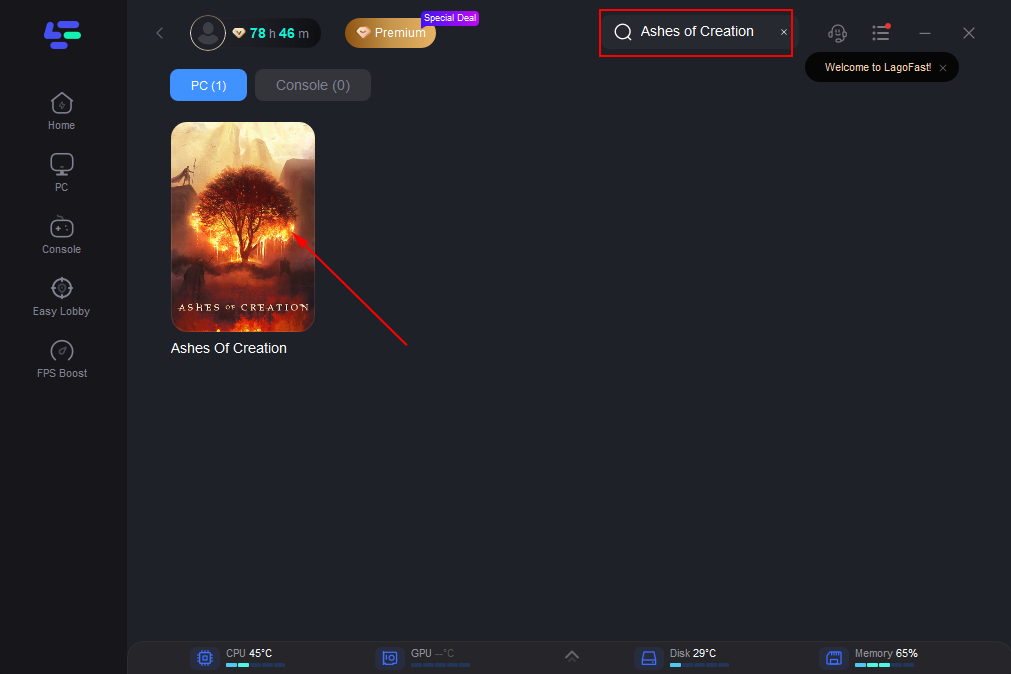
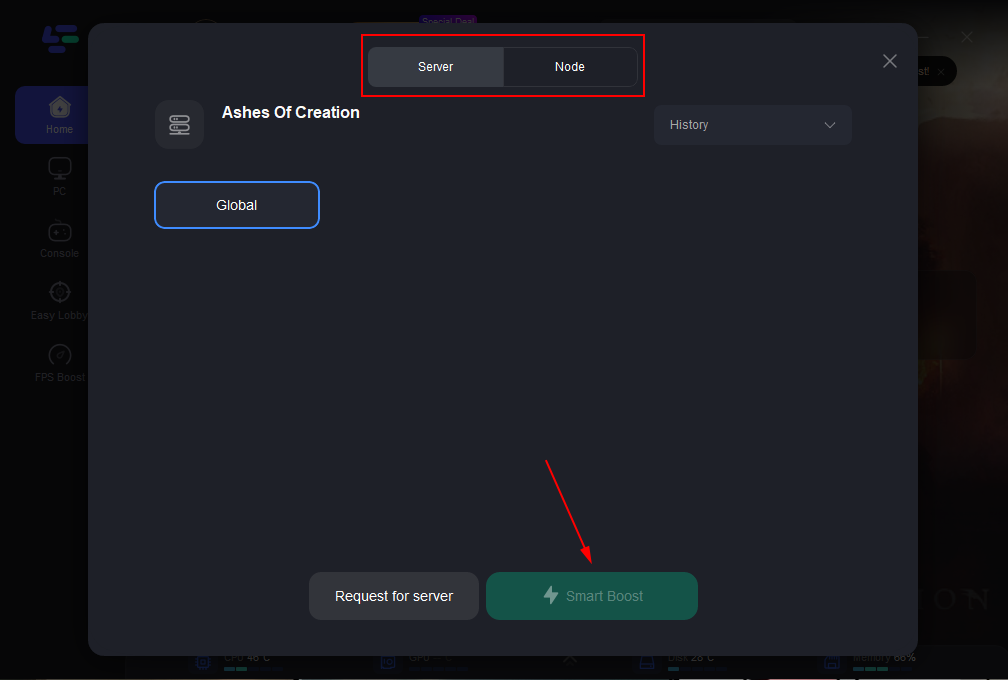
Step 3: Select the best server or route for your region to ensure optimal stability.
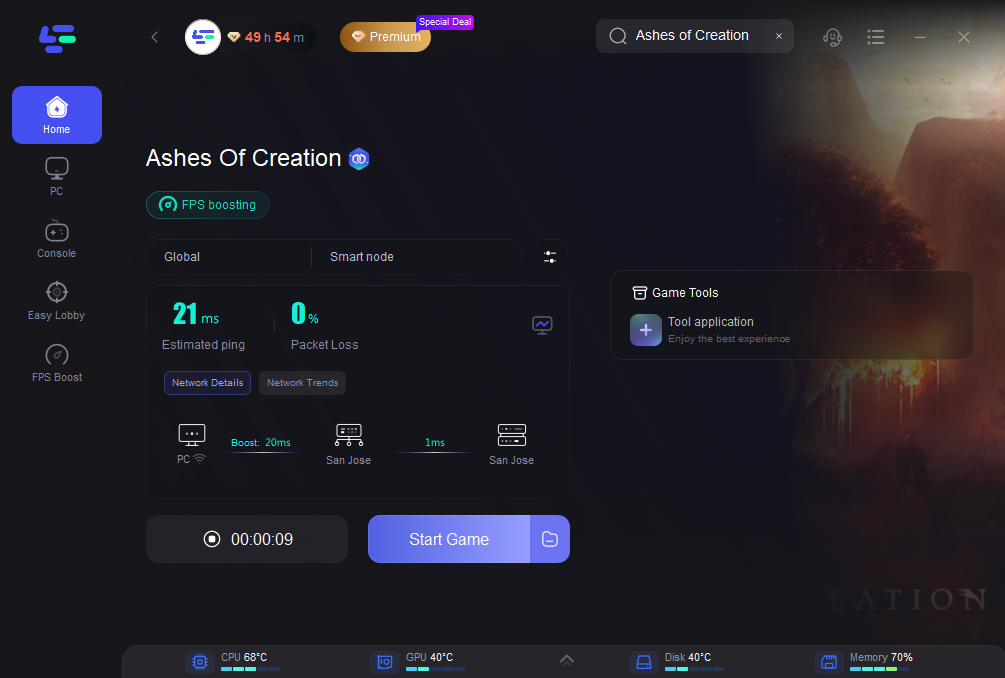
Step 4: Launch the Game: Start Ashes of Creation through LagoFast to enjoy improved performance and stability.
If you experience micro-stutters every few seconds, increasing virtual memory usually helps.
Part 4: EAC (Easy Anti-Cheat) Issues
EAC is currently responsible for half of the pain players are experiencing. “Failed to Initialize,” “Corrupted File,” and “Security Violation” are the big ones.
How to Fix EAC Errors & Failed Initialization
Follow these steps—EAC is picky, so don’t skip:
Quick Fixes
- Verify game files through Steam (this alone fixes most EAC issues)
- Run Steam as Administrator
- Turn off overlays before launching
Advanced Fixes
- Reinstall EAC manually:
- Game folder → EasyAntiCheat → EAC_Setup.exe
- Add both the game and EAC to your antivirus allowed list
- Close RGB software (Armoury Crate, iCUE, Mystic Light) and monitoring tools
Game Security Violation” almost always comes from background apps—close them and restart the game.
Part 5: Network & Server Issues
Queues freezing, “Cannot Connect,” random disconnects, and unstable server routing are all major problems right now—especially during peak hours or for players connecting from other regions.
How to Fix Connection Problems & Queue Bugs
Try these practical fixes:
Network Fixes
- Cancel → rejoin the queue (yes, it actually works)
- Enter another server → return to your target server
- Restart router + PC
- Close heavy network apps (YouTube, downloads, cloud sync)
- Switch DNS to 1.1.1.1 or 8.8.8.8
Cross-Region Fixes
- Use a game accelerator or stable routing tool if you’re playing from another region
If the login queue number doesn’t move for 10 minutes, restart the queue—you’re stuck in an infinite hold.
Final Thoughts
Ashes of Creation is shaping up to be an exciting MMO, but Early Access comes with bugs, unpolished systems, and occasional server issues. The fixes above are the most reliable solutions to help you enjoy the game with fewer interruptions. With the right settings, tools like LagoFast, and system optimizations, your experience can be much smoother.

Boost Your Game with LagoFast for Epic Speed
Play harder, faster. LagoFast game booster eliminates stutter and lags on PC, mobile, or Mac—win every match!
Quickly Reduce Game Lag and Ping!
Boost FPS for Smoother Gameplay!