
Arknights: Endfield is Hypergryph’s next major project set in the Arknights universe, shifting the series into a full 3D real-time strategy RPG. With large maps, squad-based combat, and long-term progression systems, the game places much higher demands on network stability than traditional mobile or offline RPGs.
As more players join test phases and early builds, one issue appears frequently: server connection failures. Some players cannot log in at all, while others experience disconnects shortly after entering the game. These problems can feel random, but in most cases they follow clear patterns.
This article explains what causes Arknights: Endfield connection errors and what you can realistically do to fix them.

Part 2: Common Server Connection Issues in Arknights: Endfield
Part 3: Why Do I Keep Getting Unable to Connect to the Server?
Part 4: How to Fix Unable to Connect to Server in Arknights: Endfield
Part 5: Other Way to Fix Arknights: Endfield Connection Issues
Part 1: Introduction
Arknights: Endfield lets players step into the role of an “Endministrator,” commanding squads across large-scale environments where tactical combat and story progression are closely linked. The global open beta for Arknights: Endfield is scheduled for January 22, 2026, with a simultaneous worldwide launch on PC (Windows), PlayStation 5, iOS, and Android.
Because the game relies on persistent online systems to synchronize progression and the shared world, a stable server connection is required at all times. Unstable connections can lead to login failures or unexpected disconnects, interrupting gameplay and progress.
Part 2: Common Server Connection Issues in Arknights: Endfield
Most connection problems in Arknights: Endfield have multiple causes. Based on player feedback, the most common are:
- Server Overload or Maintenance—During updates or peak hours, servers may temporarily reject connections.
- High Latency or Poor Routing – Connecting to servers outside your region can cause high ping or unstable authentication.
- Unstable Local Network—Weak Wi-Fi, ISP congestion, DNS issues, or brief packet loss can interrupt the required persistent connection.
- Firewall or Security Restrictions—Firewalls or antivirus software may block game traffic during login or server verification.
Part 3: Why Do I Keep Getting Unable to Connect to the Server?
The “Unable to connect to server” error does not always mean the servers are offline. Often, the connection fails somewhere between your device and the server. Even brief interruptions—like routing instability, packet loss, or login-time drops—can trigger this error, making it appear repeatedly even when your internet seems normal.
Most issues stem from network stability, routing quality, temporary server load, or system-level restrictions rather than a single cause.
Part 4: How to Fix Unable to Connect to Server in Arknights: Endfield
One of the most effective ways to resolve persistent connection issues—especially those caused by high latency or inefficient routing—is to use LagoFast. This game booster helps lower ping, stabilize your network, optimize routing, reduce packet loss, and improve FPS for smoother gameplay. In addition, it provides useful tools such as instant translation, download tool, and repair tool, making it easier to keep your connection stable and enjoy Arknights: Endfield without interruptions, whether you’re playing on PC or mobile.
How to enhance gaming experience in Arknights: Endfield on PC:
Step 1: Click the Free Trial button to download and install LagoFast.
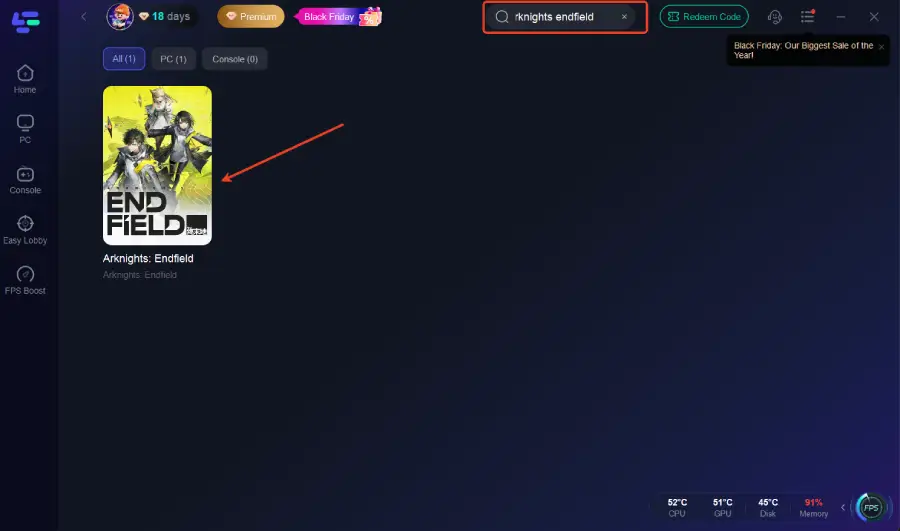
Step 2: After installation, search "Arknights: Endfield" in the search bar and select the game.
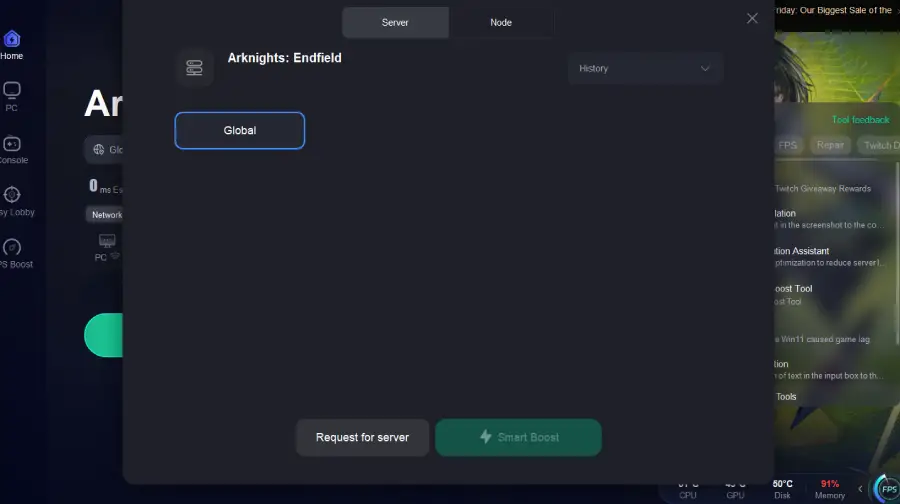
Step 3: Choose your preferred server node and click "Smart Boost" to start optimizing.
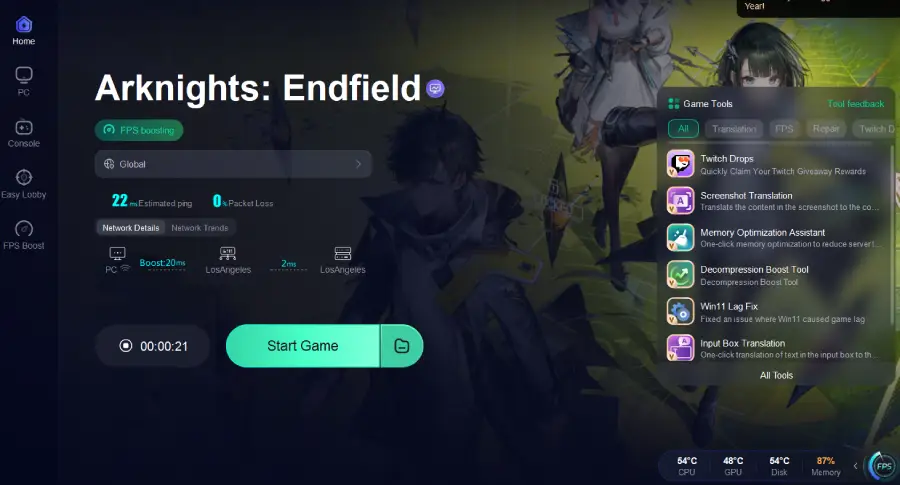
Step 4: Launch your game and enjoy smooth, optimized gameplay with lower ping and no stutter.
How to enhance gaming experience in Arknights: Endfield on Mobile:
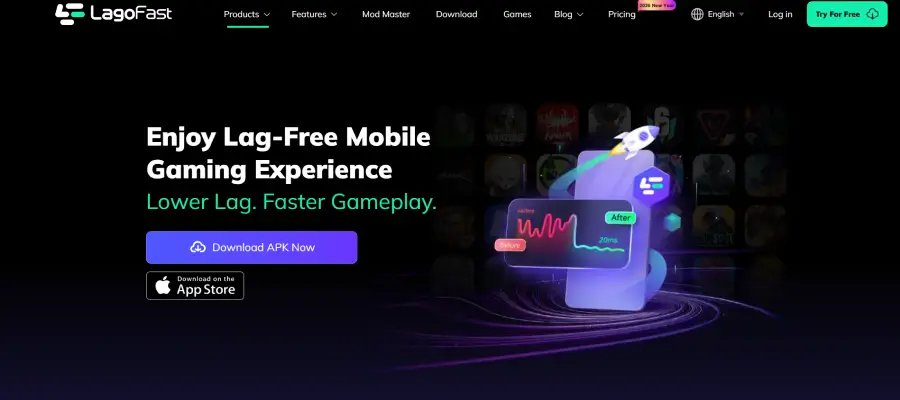
Step 1: Search “LagoFast Mobile booster” in the Google App Store or Apple App Store. Alternatively, click here to download the APK File.
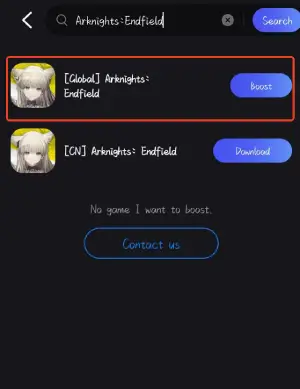
Step 2: Launch LagoFast Mobile APP and search Arknights: Endfield and click it.
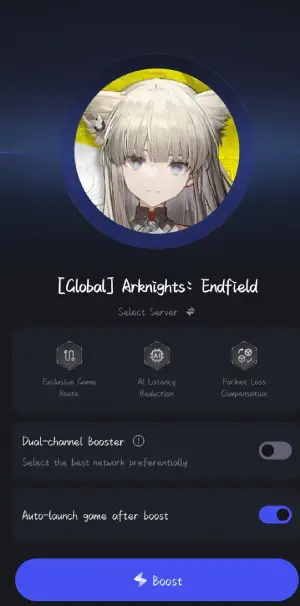
Step 3: Choose a better server and click "Boost."
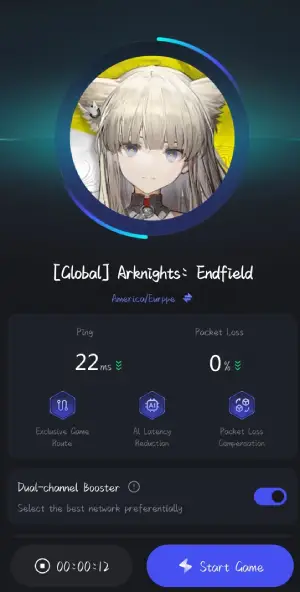
Step 4: Check the game data before you jump into the game!
Part 5: Other Way to Fix Arknights: Endfield Connection Issues
Even after general network optimization, some connection issues in Arknights: Endfield may persist. The following platform-specific solutions can help resolve them on PC and mobile.
PC: Fixing Connection Issues on Windows
Even on PC, connection problems often come from system or network constraints. Try these steps:
1. Verify Your Network & Reset Router
A quick router or modem reset can resolve temporary packet loss or routing errors:
- Turn off your modem/router.
- Wait about 60 seconds, then turn it back on.
- Reconnect your PC and try launching the game.
2. Check Firewall and Antivirus Settings
Security software can block the game if not configured properly:
- Open Windows Security → Firewall & network protection.
- Click Allow an app through firewall.
- Add Arknights: Endfield to the list and enable both Private and Public network options.
3. Use a Wired Ethernet Connection
Wi-Fi interference or weak signals can increase latency. A wired connection is more stable, reduces packet loss, and ensures smoother gameplay.
4. Close Bandwidth-Heavy Background Programs
Applications like streaming software, downloads, cloud sync clients, or large updates can compete for bandwidth. Close them before starting the game to avoid interruptions.
5. Check Server Status & Game Updates
Sometimes the issue is not on your side:
- Visit the official Endfield site or launcher for maintenance notices.
- Check social media accounts for real-time updates.
- Use third-party outage trackers like DownDetector to see community reports.
Mobile: Fixing Connection Issues on Android and iOS
Mobile devices have additional quirks, including network switching and stricter system-level restrictions. Here’s how to address common mobile connection problems:
1. Toggle Network Type
Switching between Wi-Fi and mobile data can help clear network conflicts:
- Turn off Wi-Fi and try mobile data.
- If it works, switch back to Wi-Fi.
- If issues continue, consider resetting network settings.
2. Reset Network Settings / Reconnect Wi-Fi
Mobile network stacks can occasionally get stuck or misconfigured:
- iOS: Settings → General → Reset → Reset Network Settings
- Android: Settings → System → Reset → Reset Wi-Fi, mobile & Bluetooth
After resetting, reconnect to your preferred Wi-Fi and try launching the game again.
3. Clear App Cache / Reinstall the Game
Corrupted cache or outdated resources can cause repeated login errors:
- Go to your device’s App Info → Storage → Clear Cache.
- Relaunch the game.
- If the issue persists, uninstall and reinstall the latest version from your app store.
4. Disable Generic VPN or Proxy Services
Unless specifically optimized for gaming, VPNs and proxies can increase latency and cause unstable routing. Disable them when playing Endfield.
5. Check Account Login Method
On mobile, login issues may be related to Play Store or Apple Game Center credentials. Re-logging in, or removing and re-adding your cloud account, can resolve authentication errors.
6. Ensure Background Data Access
For Android users, make sure Background Data and Unrestricted Data Usage are enabled so Endfield can maintain a persistent connection even when the screen is off.
Part 6: FAQs
Q: Does “Unable to connect to server” mean Arknights: Endfield servers are down?
A: Not always. The error can also be caused by local network instability, routing issues, or firewall restrictions.
Q: Why does Arknights: Endfield require a constant internet connection?
A: The game uses persistent online connectivity for data synchronization, progression tracking, and shared world systems.
Q: Will faster internet speed fix connection issues?
A: Stability and routing quality matter more than raw download speed for online games.
Q: What should I do if none of the fixes work?
A: Check official server announcements and contact Endfield support through the in-game help system.
Conclusion
Connection issues in Arknights: Endfield often come from network instability, routing problems, or server load, but most can be fixed with proper steps. Check server status, adjust local settings like firewalls or bandwidth, and consider tools like LagoFast to reduce ping and stabilize your connection. With a reliable network, you can focus on commanding your squad and enjoying the game’s full strategic experience.
Boost Your Game with LagoFast for Epic Speed
Play harder, faster. LagoFast game booster eliminates stutter and lags on PC, mobile, or Mac—win every match!
Quickly Reduce Game Lag and Ping!
Boost FPS for Smoother Gameplay!