

Apex Legends is one of the most popular free-to-play battle royale games, but even top-tier titles can suffer from performance issues. One of the most common problems players face is low FPS (frames per second), which can make the game feel sluggish and impact competitive play. If you’re experiencing FPS drops or poor performance, this guide will help you identify the causes and show you how to fix them.

- ✅ Reduce Lag and High Ping.
- ✅ Boost FPS at the Same Time.
- ✅ Support 2000+ Popular Online Games.
- ✅ Fix Game not Working Issues.
- What Causes Low FPS in Apex Legends?
- How to Fix Low FPS in Apex Legends
- Best In-Game Settings to Fix Low FPS
- Fix Apex Legends Low FPS with LagoFast
Part 1. What Causes Low FPS in Apex Legends?
Before diving into solutions, it’s important to understand the most common reasons behind low FPS in Apex Legends:
- Outdated Graphics Drivers
- Background Applications Consuming Resources
- Incorrect In-Game Settings
- Overheating Components
- Hardware Below Recommended Specs
- Lack of GPU or CPU Optimization
Even a powerful PC can experience FPS issues if something in the system isn’t properly configured or maintained.
Part 2. How to Fix Low FPS in Apex Legends
Here are some proven ways to boost FPS and get Apex Legends running smoothly:
1. Update Your Graphics Drivers
Outdated GPU drivers can dramatically reduce performance. Always keep your NVIDIA or AMD drivers up to date.
- NVIDIA: Use GeForce Experience
- AMD: Use AMD Adrenalin Software
2. Optimize In-Game Settings
Tweaking your settings is one of the fastest ways to increase FPS:
- Display Mode: Fullscreen
- Texture Streaming Budget: Medium or Low
- Anti-Aliasing: TSAA or Disabled
- Ambient Occlusion: Disabled
- Shadow Detail: Low
- Volumetric Lighting: Disabled
- V-Sync: Off
These adjustments can provide a big boost without drastically reducing visual quality.
3. Close Unnecessary Background Apps
Apps like Chrome, Discord overlays, or other launchers can hog CPU and memory. Close any software that’s not essential to your game session.
4. Adjust Windows Performance Settings
- Set your Windows power plan to “High Performance”
- Disable unnecessary startup programs
- Turn off Xbox Game Bar and Game Mode if they cause performance issues
5. Check Your Hardware
Make sure your PC meets at least the recommended system requirements for Apex Legends:
- CPU: Intel i5 3570K / Ryzen 5 or better
- GPU: NVIDIA GTX 970 / AMD R9 290 or better
- RAM: 8 GB
- OS: Windows 10 64-bit
- Storage: SSD strongly recommended
If your system is running below these specs, FPS drops are likely unavoidable without a hardware upgrade.
Part 3. Best In-Game Settings to Fix Low FPS in Apex
Adjusting your Apex Legends settings can significantly boost FPS without ruining visual quality:
- Display Mode: Fullscreen
- V-Sync: Disabled
- Adaptive Resolution FPS Target: 0
- Anti-Aliasing: TSAA or None
- Texture Streaming Budget: Medium or Low
- Shadow Detail: Low
- Ambient Occlusion Quality: Disabled
- Model Detail: Low or Medium
- Effects Detail: Low
- Impact Marks: Disabled
- Ragdolls: Low
Apply these settings and restart the game to notice the difference.
Part 4. Fix Apex Legends Low FPS with LagoFast
If you’ve already optimized your settings and updated drivers but still suffer from stuttering or lag in Apex Legends, the issue might be deeper—such as unstable routing or resource overload. LagoFast is a lightweight, real-time game accelerator built to solve exactly that. It reduces ping, minimizes packet loss, and helps maintain a stable frame rate by optimizing your network and system performance.
How to Use LagoFast
Getting started is quick and easy:
Step 1: Click the Free Trial button to download and install LagoFast.
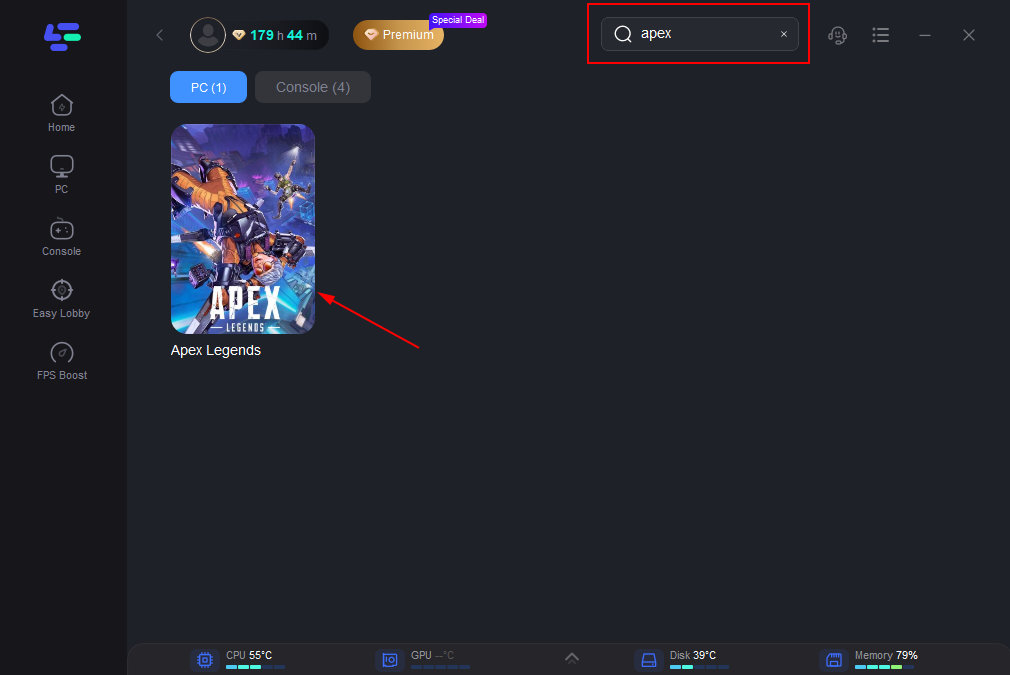
Step 2: Open LagoFast, click the PC icon on the left, and type Apex Legends in the search bar. Click on the game when it appears.
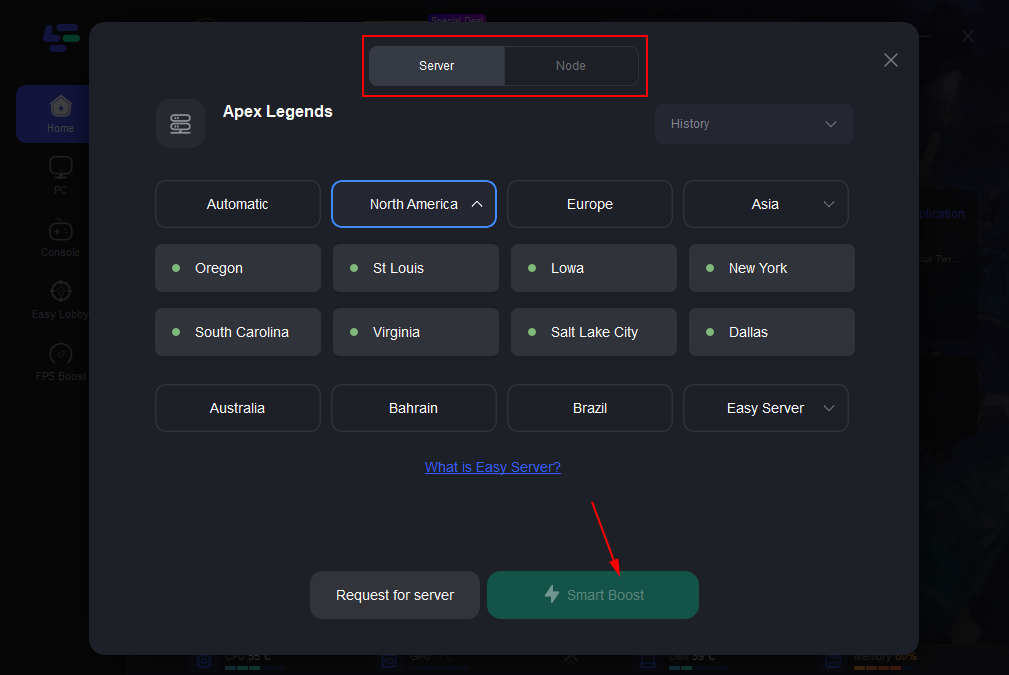
Step 3: Click “Server” to select the best server for a stable game, then click “Smart Boost”.
Step 4: On the right, check your ping, packet loss, and multi-path metrics. Then click “Start Game” to launch the game.
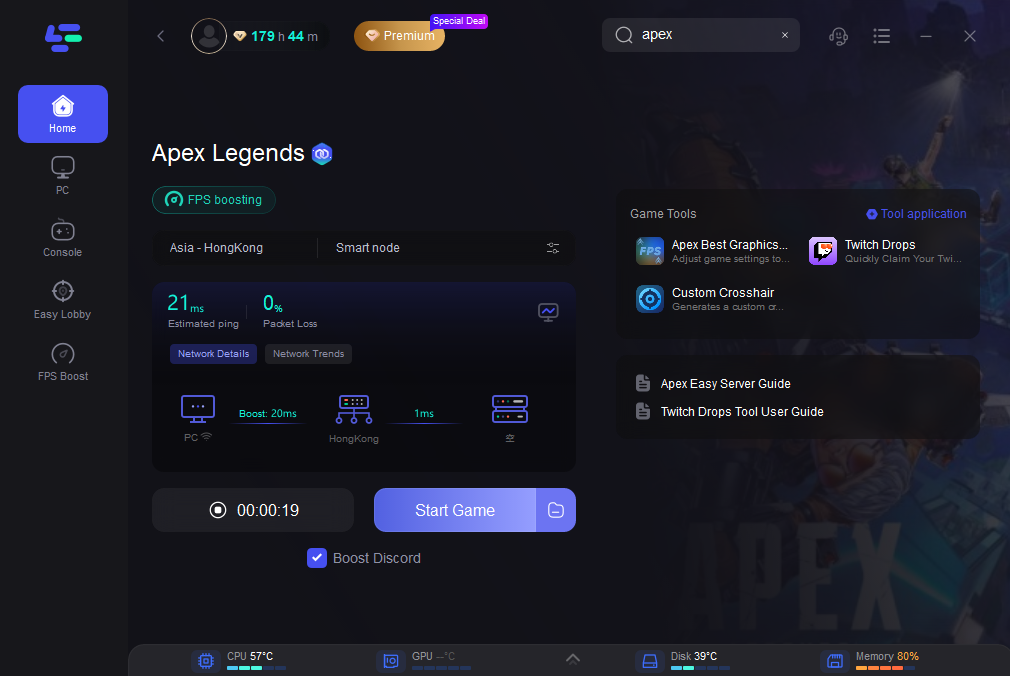
By using LagoFast, you take the guesswork out of fixing FPS issues tied to network inconsistencies. Instead of manually tweaking obscure settings or guessing which background process is dragging your system down, LagoFast automatically optimizes your connection routes, reduces latency, and stabilizes frame delivery—giving your game a smoother, more consistent feel.
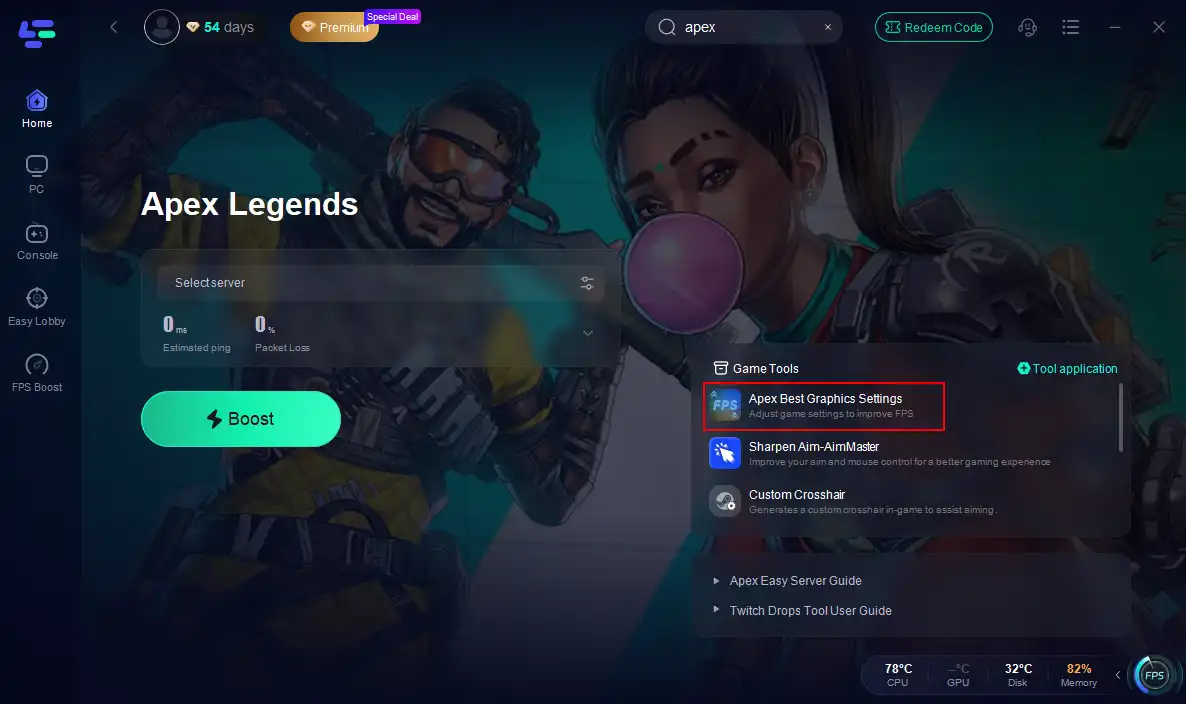
Moreover, you can use LagoFast to adjust Apex settings with a few clicks.

Key Benefits of LagoFast
- Lower ping and smoother gameplay
- Reduced lag spikes and frame drops
- Real-time monitoring of ping, packet loss, and network type
- Easy setup with intelligent routing and system boost
This is especially critical in high-stakes scenarios like ranked matches or final circles in Apex Legends, where even a slight frame hitch or ping spike can mean the difference between victory and elimination. With real-time performance monitoring and intelligent boost algorithms, LagoFast not only improves your gameplay experience but also gives you the confidence that your system is running at its best, every time you drop in.
Conclusion
Low FPS in Apex Legends can be frustrating, but it’s often fixable with the right settings and maintenance. From updating drivers to lowering in-game graphics and optimizing your system, there are several ways to boost performance. Whether you’re grinding ranked or just playing for fun, a smooth frame rate can make all the difference. Keep your system in check and enjoy Apex Legends at its best.

Boost Your Game with LagoFast for Epic Speed
Play harder, faster. LagoFast game booster eliminates stutter and lags on PC, mobile, or Mac—win every match!
Quickly Reduce Game Lag and Ping!
Boost FPS for Smoother Gameplay!