
Millions of Apex Legends players in Russia—including those in Siberia, the Ural Mountains, and the southern regions—have faced frustrating connectivity problems since early June 2025. From black screens after loading to sudden "Connection Timed Out" errors, the culprit isn’t your hardware—it’s a network routing issue tied to Cloudflare. In this guide, we’ll walk through exactly why these issues occur, and give you proven, step-by-step solutions to fix them on PC and console.

Part 1: Introduction to Apex Legends Connection Issues
Part 2: Apex Legends Attempting Connection
Part 3: How to Fix the Apex Legends Black Screen Problem
Part 4: How to solve Connection to Server Timed Out in Apex Legends
Part 5: Why Is My Apex Connection So Bad?
Part 6: Additional Troubleshooting Tips
Part 7: How to Enhance Game Experience With LagoFast Game Booster
Part 1: Introduction to Apex Legends Connection Issues
In early June 2025, thousands of Apex Legends players across Russia—particularly in regions like Siberia, the Ural Mountains, and southern areas—began encountering widespread connectivity issues. Users on PlayStation, Xbox, and PC reported that “Apex won’t connect,” and shared on VK and social media that changing DNS or using VPNs had no effect. This disruption wasn’t isolated; players of Valorant, Dota, Warzone, and others noticed the same phenomenon, including services like Twitch failing to connect.
The root cause? A disruption of Cloudflare’s global DNS/CDN infrastructure used by EA for authentication, matchmaking, and game data flow—rendering Apex Legends unable to complete its network handshake and leading to black screens or silent timeout failures. This guide breaks down why this is happening, how it affects players in those Russian regions, and offers solutions to fix everything from login failures to black-screen hangs.
Part 2: Apex Legends Attempting Connection
When launching Apex Legends, the game first shows a loading screen—then begins synchronizing with EA's matchmaking and authentication servers via Cloudflare CDN paths. For players in Siberia, Ural, and southern Russia, this connection routinely times out or silently fails due to regional ISP routing issues toward international internet backbones like RETN and Twelve99 (Arelion).
Since Apex lacks built-in error handling for failed network calls, players are left staring at a black screen with no message—assuming it's a graphics or hardware crash when it’s purely a network handshaking failure.
Part 3: How to Fix the Apex Legends Black Screen Problem
Players in Siberia, the Ural region, and southern Russia are among those most heavily affected by the black screen, caused by failed handshakes after the loading screen.
Solution: Bypass ISP routing issues with alternative network paths
- Use a mobile hotspot: Switch to your phone’s mobile data to bypass your ISP’s restricted routing. Connect your PC or console via hotspot, then launch Apex—it should connect normally.
- Use Cloudflare WARP + Zapret: WARP alone often fails if Cloudflare itself is blocked, so combine it with the “Zapret” routing script. Install Zapret, then WARP, and after it establishes a Secure connection, launch Apex to avoid the timing-out black screen.
Part 4: How to solve Connection to Server Timed Out in Apex Legends
Another common error is “Connection to server timed out”, often happening mid-lobby or match end—a symptom of unstable routing or packet loss.
Update network adapter drivers
Reddit users report that updating NIC drivers resolved these mid-match disconnections:
“if you're on PC try checking your network adapter drivers, mine had needed an update and now apex works” .
Enable port forwarding on your router
Opening Apex Legends TCP/UDP ports can stabilize connections mid-game.
Run EA Origin/EA App and Discord as Administrator
Ensures consistent network access and avoids permission-related drops .
Clear network cache and switch DNS
Reset DNS settings on PC: switch between Google (8.8.8.8) or Cloudflare DNS (1.1.1.1) as needed.
Part 5: Why Is My Apex Connection So Bad?
Your Apex Legends connection may be poor due to multiple overlapping factors:
- ISP-level filtering or routing blocks: Russian ISPs may block or poorly route toward Cloudflare CDN nodes, causing timeouts.
- Deep packet inspection or encrypted-DNS interference: Even manually setting DNS may not help if your ISP blocks TLS-encrypted DNS.
- Lack of auto-fallover: Apex cannot fallback to a different route and doesn't indicate when connection attempts fail, causing a black screen.
This explains why players in Siberia, Ural, and southern Russia—where ISP routing suffers frequent outages—are more affected.
Part 6: Additional Troubleshooting Tips
- Clear Steam/EA App cache: Fix corrupted downloads by clearing cache and reselecting download regions.
- Free up disk space: Ensure at least 30–40 GB free and avoid installing Apex in protected folders (e.g., C:\Program Files).
- Temporarily disable antivirus/firewall: Or add exceptions for Apex, Steam, EA App, and EA's servers (especially port 443).
- Monitor real-time network using mobile hotspot: If Apex works over mobile internet but not home Wi-Fi, the ISP likely imposes the block.
Part 7: How to Enhance Game Experience With LagoFast Game Booster
For players affected by routing disruptions in Siberia, Ural, or southern Russia, the LagoFast game booster provides an optimized routing alternative:
LagoFast intelligently reroutes through gaming-optimized servers, reducing ping and packet loss, even with ISP restrictions. Works well for Apex Legends on PC—and can be setup on routers for console play.
- Easy setup: Download LagoFast, select your game (Apex Legends), choose an optimal server node, and click “Smart Boost” to launch the game. A dashboard will display ping and packet loss metrics.
- Router-level setup: For console players, import LagoFast’s OpenVPN/L2TP/WireGuard config into the router to route all home traffic through the booster—ideal for PS5/Xbox.
- Free trial available: Most users report restored connectivity where DNS tweaks and WARP alone failed.
How to Use LagoFast
Step 1: Click the Free Trial button to download and install LagoFast.
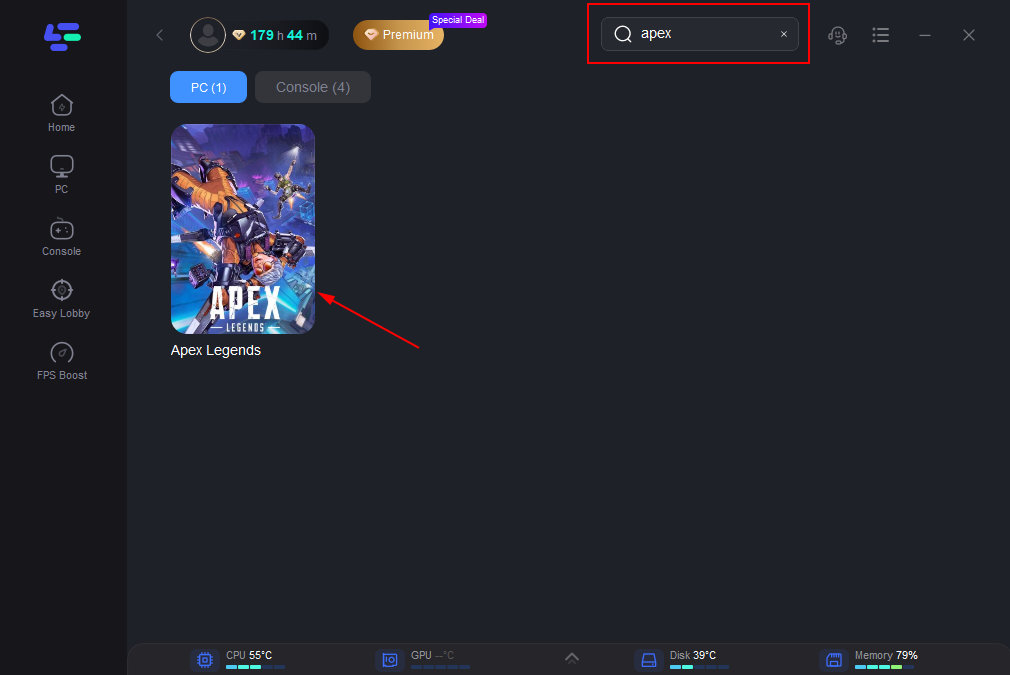
Step 2: Open LagoFast, click the PC icon on the left, and type Apex Legends in the search bar. Click on the game when it appears.
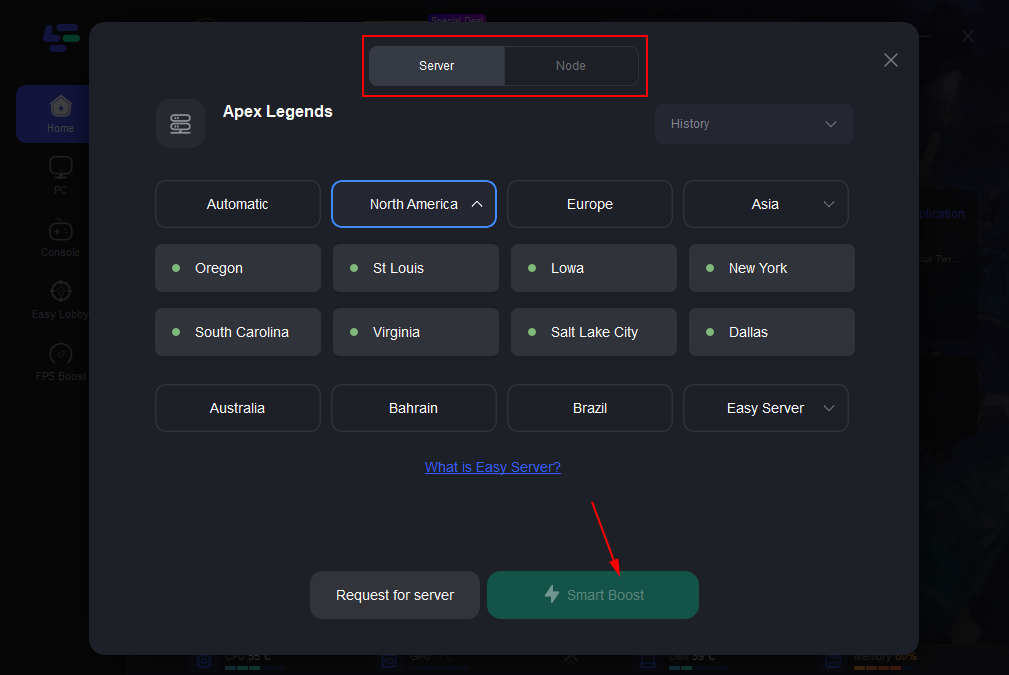
Step 3: Click “Server” to select the best server for a stable game, then click “Smart Boost”.
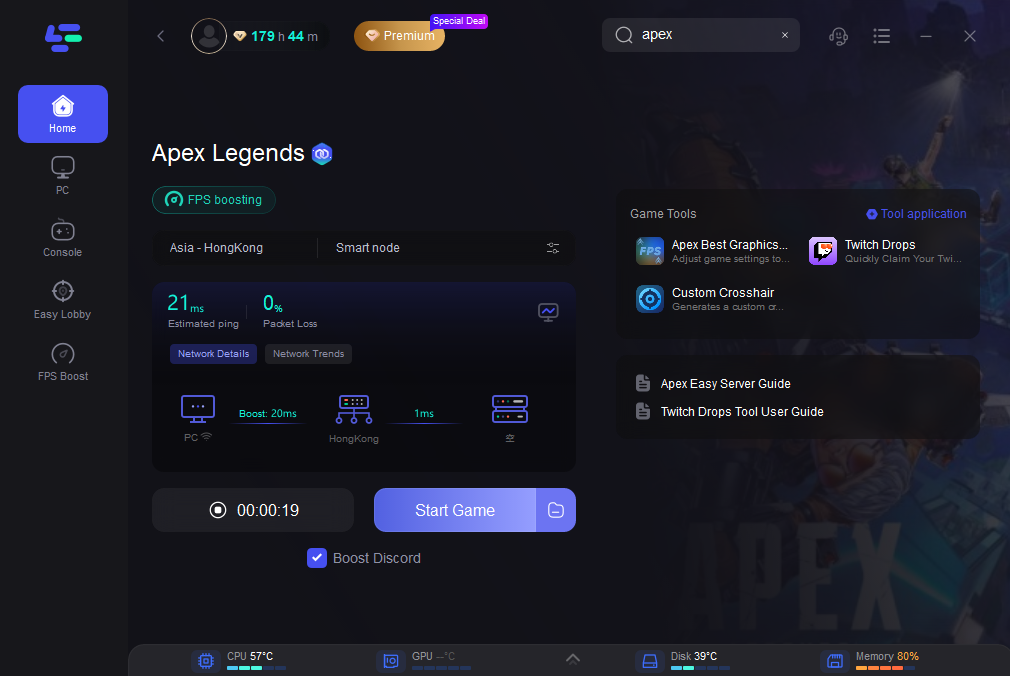
Step 4: On the right, check your ping, packet loss, and multi-path metrics. Then click “Start Game” to launch the game.
Conclusion
Players in Russia—especially in Siberia, Ural, and southern regions—are seeing value drops, black screens, and Mid-game timeouts in Apex Legends due to ISP-level blocks on Cloudflare infrastructure. Manual fixes like DNS resetting, driver updates, port forwarding, and mobile hot-spotting help in some cases—but the most resilient solution is using a game booster like LagoFast, which circumvents broken routing and restores stable connection.
By following the step-by-step methods outlined above, you can restore full access to Apex Legends even in traditionally blocked regions.

Boost Your Game with LagoFast for Epic Speed
Play harder, faster. LagoFast game booster eliminates stutter and lags on PC, mobile, or Mac—win every match!
Quickly Reduce Game Lag and Ping!
Boost FPS for Smoother Gameplay!