
If you're diving into Aion 2, you’ve likely noticed how stunning and fluid the game feels — when your frame rate allows it. However, many players report that Aion 2 appears to be capped around 60 FPS, even on high-performance hardware. This limitation feels restrictive, especially if you're running a high refresh rate monitor or aiming for the smoothest possible gameplay.
In this guide, you’ll learn what the current FPS ceiling in Aion 2 is, how to push beyond it, and how LagoFast Game Booster helps you unlock higher frame rates safely and efficiently while boosting network stability and overall performance.

- ✅Less ping and crashes.
- ✅ Higher FPS and better PC performance.
- ✅ Support for 2000+ games.
- ✅ Stable connection and region switching.
Part 1: What is the maximum FPS for Aion 2
Part 2: Best Graphics Settings for Aion 2
Part 3: How to Get Aion 2 FPS Unlocker
Part 4: How to get better performance in Aion 2 with LagoFast
Part 1: What Is the Maximum FPS for Aion 2
For many players, 60 FPS feels like the default ceiling in Aion 2. While NCSoft has not yet published a clear official cap for the sequel, performance discussions and third-party tool usage strongly suggest that the game is restricted or effectively limited around this mark under normal conditions.
This mirrors behavior from the original Aion, where older clients were known to cap at 60 FPS unless modified or boosted using external tools.
Players on forums frequently report that even with V-Sync disabled and their GPU fully utilized, the game refuses to climb past 60 FPS. This perceived cap affects players with 144 Hz or higher monitors who want smoother motion and lower input lag.
Why the FPS Cap Matters
- Higher FPS improves responsiveness, especially during combat.
- Increased FPS reduces perceived input lag, important for competitive or fast-paced encounters.
- If your monitor supports 120 Hz, 144 Hz, or higher refresh rates, matching those rates gives you a more fluid experience.
Unless addressed, this FPS ceiling limits how smooth Aion 2 can truly feel — but there is a workaround.
Part 2: Best Graphics Settings for Aion 2
Before unlocking higher FPS, optimizing your graphics settings ensures your hardware can drive the additional frames smoothly. Below are recommended settings for different hardware tiers.
Entry-Level PCs
For integrated graphics or older low-power GPUs, prioritize performance over visuals.
- Resolution at 1920×1080 or lower
- Overall Quality: Low or Medium
- Shadow Quality: Low or Off
- Texture Quality: Medium
- Rendering Distance: 50%–70%
- Post-Processing: Disable effects such as bloom, depth of field, motion blur
- Anti-Aliasing: Off or use lightweight FXAA
- V-Sync: Off
- Effects Quality: Low
- FPS Limit: 60 FPS for stability
Mid-Range PCs
For GPUs like GTX 1660 or RX 5600 XT:
- Resolution: 1080p
- Overall Quality: Medium to High
- Shadows: Medium
- Texture Quality: High
- Rendering Distance: 70%–85%
- Post-Processing: Selected effects enabled; disable motion blur
- Anti-Aliasing: TAA or FXAA
- V-Sync: Off; use G-Sync or FreeSync if available
- FPS Limit: 120 FPS or Unlimited
- Effects Quality: Medium–High
High-End PCs
For powerful GPUs such as RTX 3070 or RX 6800 XT:
- Resolution: 1080p or 1440p
- Overall Quality: Ultra
- Shadow Quality: High or Ultra
- Texture Quality: Ultra
- Rendering Distance: 90%–100%
- Post-Processing: High-quality effects; disable motion blur
- Anti-Aliasing: TAA or MSAA 2×
- V-Sync: Off (use variable refresh technologies)
- FPS Limit: Unlimited or 144+ FPS
- Effects Quality: Ultra
Why These Settings Matter
- Shadows: Among the most GPU-intensive settings; lowering them boosts FPS significantly.
- Rendering Distance: Affects CPU and GPU load; higher distance = more objects processed.
- Texture Quality: Higher settings use more VRAM; insufficient VRAM causes stutters.
- Post-Processing: Adds visual polish but reduces performance.
- Anti-Aliasing: Heavier AA options cost more performance.
- Effects Quality: Impacts GPU load in combat-heavy scenes.
Optimizing these ensures smoother gameplay with fewer stutters or frame drops across all system tiers.
Part 3: How to Get Aion 2 FPS Unlocker
To break past the 60 FPS limit, some players consider mods or risky tools. LagoFast Game Booster offers a safe alternative through its built-in FPS Unlocker Tool — without modifying game files.
How to Use It
Step 1: Begin by clicking the Free Trial button to download and install the LagoFast Free Trial.
Step 2: Search for Aion2: Open LagoFast and use the search bar to find Aion2.
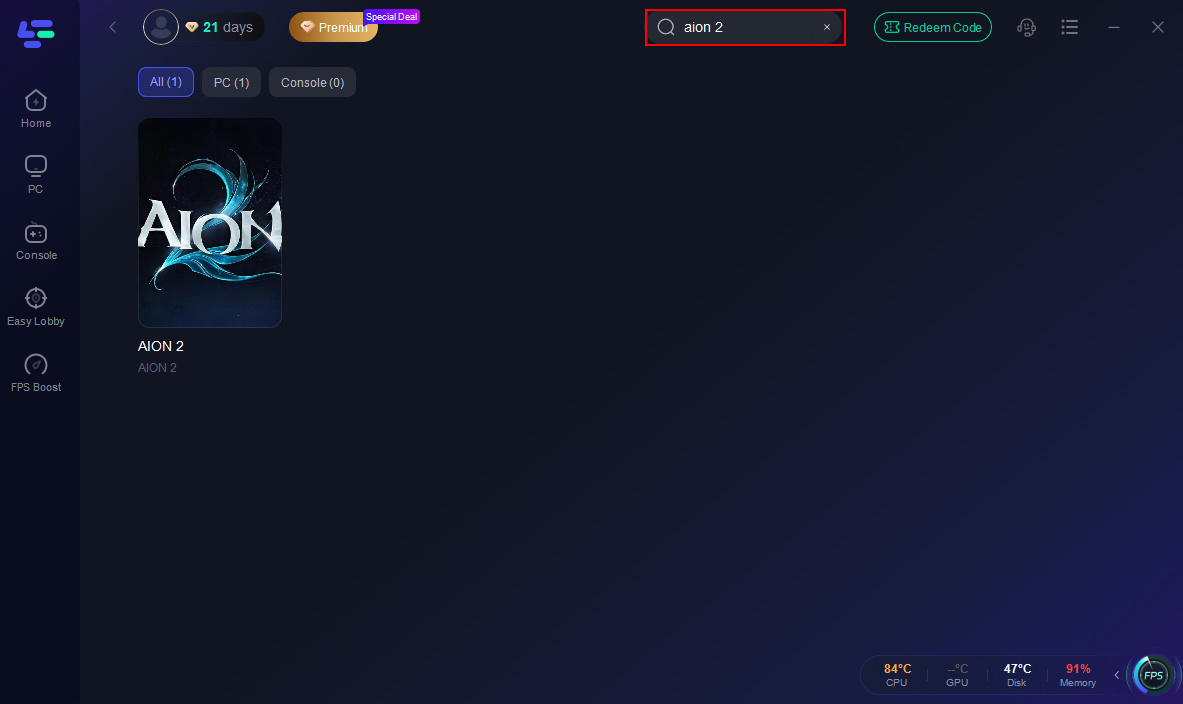
Step 3. Enable the FPS Unlocker tool.
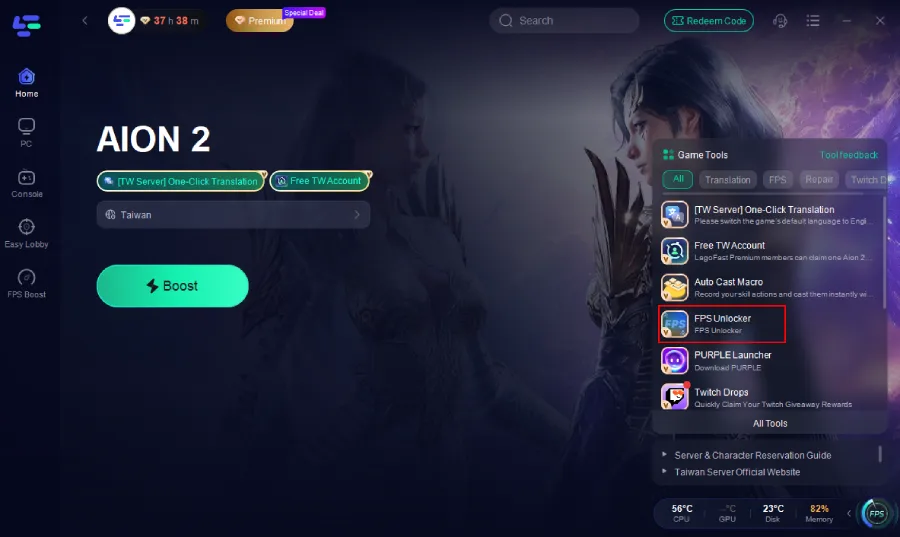
Step 4. Apply the settings and launch Aion 2 through LagoFast. Verify your FPS using the in-game counter or MSI Afterburner.
Why This Method Is Better
- Non-invasive: No modification to core game data.
- Safe: Rarely conflicts with anti-cheat systems.
- Easy: One-click activation.
LagoFast ensures stability while unlocking higher frame rates.
Part 4: How to Get Better Performance in Aion 2 with LagoFast
Unlocking FPS is only one part of optimization. LagoFast enhances network and system performance to give you a smoother overall experience.
Network Optimization
LagoFast selects the most efficient game route to reduce packet loss, latency spikes, and jitter. This is especially important for an MMO where timing and responsiveness matter.
Stability & Frame Pacing
Even with high FPS, uneven frame pacing causes stutter. LagoFast improves frame delivery consistency, resulting in smoother gameplay flow.
How to Use LagoFast on PC
Step 1: Search for Aion2: Open LagoFast and use the search bar to find Aion2.
Step 2: Optimize Network Settings: LagoFast will automatically select the optimal server and settings to reduce latency and packet loss
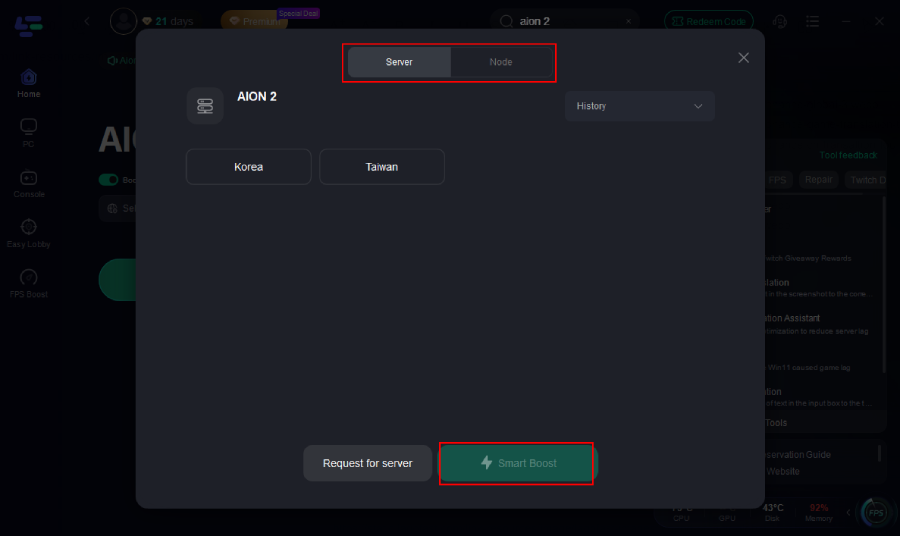
Step 3: Launch the Game: Start Aion2 through LagoFast to enjoy improved performance and stability.
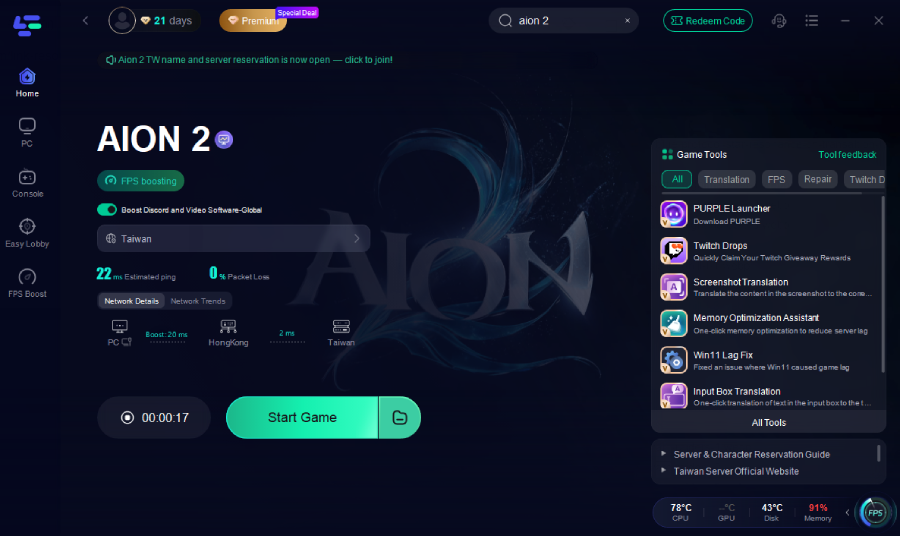
Launching Aion 2 through LagoFast ensures all optimizations — FPS unlock and network boost — apply instantly without manual adjustment.
Part 5: FAQs
Q1: Is unlocking FPS with LagoFast safe?
Yes. The FPS unlocker does not patch or modify game executables. It functions through LagoFast’s booster framework, making it safe and unlikely to trigger anti-cheat detection.
Q2: Will unlocking FPS over 60 cause instability?
Usually no. However, poorly optimized settings or weak hardware may struggle at higher frame rates. Follow the recommended settings above to ensure stability.
Q3: Do I need a 144 Hz or higher monitor?
Not required, but beneficial. High-refresh displays fully utilize unlocked FPS. On a 60 Hz monitor, visual improvements are limited, but input responsiveness still improves.
Q4: Can I revert to 60 FPS later?
Yes. Disable the FPS unlocker in LagoFast and relaunch the game.
Q5: Does higher FPS consume more GPU power?
Yes. Rendering more frames increases GPU load, heat, and power consumption. If concerned, set a custom FPS limit (for example, 120).
Conclusion
If Aion 2 feels held back by a 60 FPS ceiling, LagoFast Game Booster provides a safe and effective way to break through it. With its built-in FPS Unlocker and network optimization tools, you can enjoy smoother motion, lower latency, and more responsive gameplay.
By combining smart graphics settings, hardware optimization, and LagoFast’s performance features, you can experience Aion 2 the way it was meant to be played — fluid, fast, and visually impressive.
Boost Your Game with LagoFast for Epic Speed
Play harder, faster. LagoFast game booster eliminates stutter and lags on PC, mobile, or Mac—win every match!
Quickly Reduce Game Lag and Ping!
Boost FPS for Smoother Gameplay!