
The 0x87dd000f Xbox error usually appears when Xbox cannot properly connect to Xbox Live services, preventing players from signing in, accessing Game Pass, or connecting to online services. In most cases, the problem is related to temporary Xbox service outages, unstable internet connections, or account syncing issues. This guide explains the common causes behind the error and the practical fixes that can help you get back online quickly.

- ✅ Reduce Lag and High Ping.
✅ Boost FPS at the Same Time.
✅ Support 2000+ Popular Online Games.
✅ Change Server without Latency.
✅ Boost Game Loading Speed.
Part 1: What is 0x87dd000f Xbox error?
Part 2: Why Does the 0x87dd000f Xbox Error Happen?
Part 3: Step-by-Step Solutions to Fix 0x87dd000f Xbox error
Part 4: How to Use LagoFast to Enhance and Stabilize Your Xbox Connection
Part 5: Bonus Tips: Difference Between UPnP Not Successful Xbox and Xbox 0x87DD000F
Part 1: What is 0x87dd000f Xbox error?
The 0x87dd000f Xbox error is usually related to Xbox Live sign-in or account authentication problems. When this error appears, Xbox may fail to connect properly to Microsoft’s online services, preventing players from accessing features like multiplayer, Game Pass, cloud saves, or party chat.
Most players see the error while signing into their Xbox account or launching online services. Common symptoms include sign-in failures, “Try again later” messages, Xbox Live connection errors, or profiles getting stuck while loading.
In many cases, the problem is temporary and related to Xbox Live outages, unstable internet connections, or account syncing issues.
Related Article: How to Fix Xbox Error Code 0x80832003: Temporary Network Problem
Part 2: Why Does the 0x87dd000f Xbox Error Happen?
The 0x87dd000f Xbox error is usually caused by communication problems between your console and Xbox Live services. In most cases, the issue is related to server outages, unstable networks, or local account conflicts.
Common causes include:
- Xbox Live service outages — Temporary Xbox server maintenance or outages can prevent sign-ins and account verification.
- Network or router issues — Weak Wi-Fi, strict NAT types, router cache conflicts, or unstable connections may interrupt Xbox Live communication.
- System cache or firmware glitches — Temporary console bugs after updates or failed sign-ins can block proper server communication.
- Alternate MAC address conflicts — Incorrect network configurations on Xbox may interfere with online services and account authentication.
- Account sync conflicts — If your Xbox account is signed in across multiple devices or local account data becomes corrupted, sign-in errors may appear repeatedly.
Part 3: Step-by-Step Solutions to Fix 0x87dd000f Xbox error
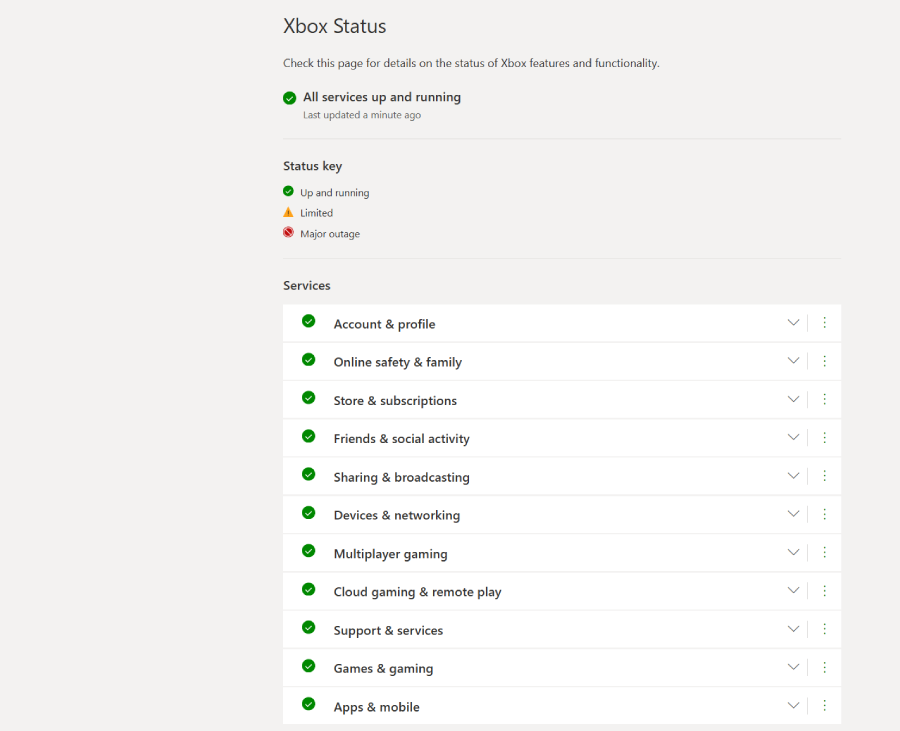
Check Xbox Live Service Status
Before changing any settings, first check whether Xbox Live services are currently down. Temporary server outages or maintenance are one of the most common causes of the 0x87dd000f Xbox error.
If Xbox services are experiencing issues, there’s usually nothing wrong with your console. In that case, you’ll simply need to wait until Microsoft restores the service.
Perform a Full Power Cycle
A full restart can clear temporary system and network glitches that may prevent Xbox from signing in properly.
Follow these steps:
- Press and hold the Xbox power button for about 10 seconds until the console shuts down completely.
- Unplug the power cable for 30–60 seconds.
- Restart your router or modem.
- Plug the Xbox back in and turn it on.
- Try signing in again.
This often fixes temporary Xbox Live connection problems.
Test Your Network Connection
Unstable internet connections can interrupt Xbox Live authentication and trigger sign-in errors.
To test your connection:
- Open Settings on Xbox.
- Go to General > Network settings.
- Select Test network connection.
- Wait for Xbox to complete the test.
If the connection is unstable, try restarting your router or switching to a wired Ethernet connection.
Clear the Alternate MAC Address
Corrupted network cache settings can sometimes interfere with Xbox Live communication.
To clear the alternate MAC address:
- Open Settings.
- Go to General > Network settings.
- Select Advanced settings.
- Open Alternate MAC address.
- Select Clear.
- Restart your Xbox console.
Remove and Re-Add Your Xbox Account
If the issue is related to account sync problems, refreshing your Xbox profile may help.
Steps:
- Open Settings.
- Go to Account.
- Select Remove accounts.
- Remove your Xbox profile.
- Restart the console.
- Sign back into your account.
This refreshes local account data and can resolve repeated sign-in failures.
Part 4: How to Use LagoFast to Enhance and Stabilize Your Xbox Connection
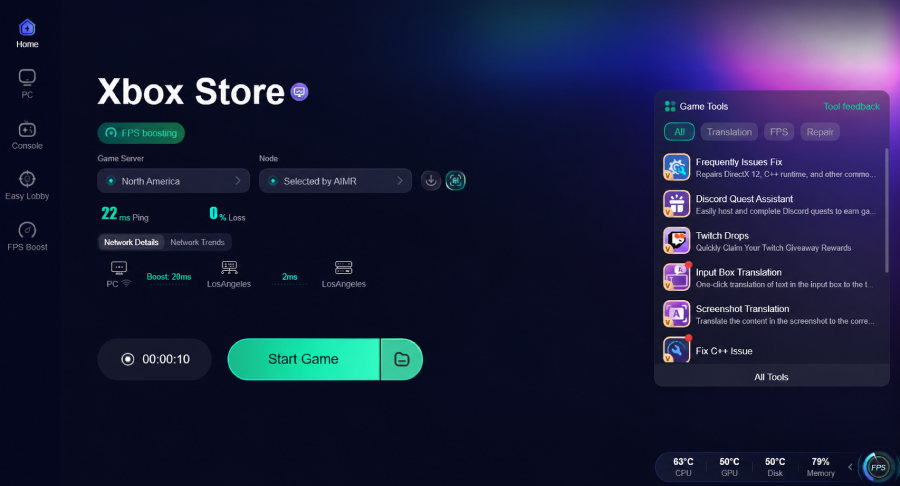
If you frequently experience Xbox sign-in issues, lag spikes, or unstable Xbox Live connections, using a network optimization tool may help improve overall connection stability. LagoFast is a powerful network optimizer that helps improve routing between your network and Xbox servers, reducing packet loss and connection instability for a smoother online gaming experience.
How to Use LagoFast to Stabilize Xbox
Download and install LagoFast.
Search for “Xbox” in the search bar.
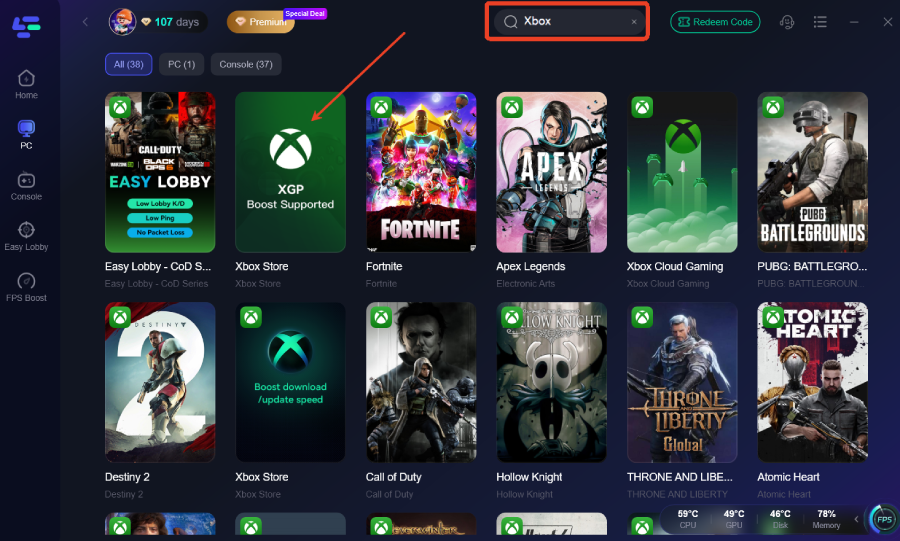
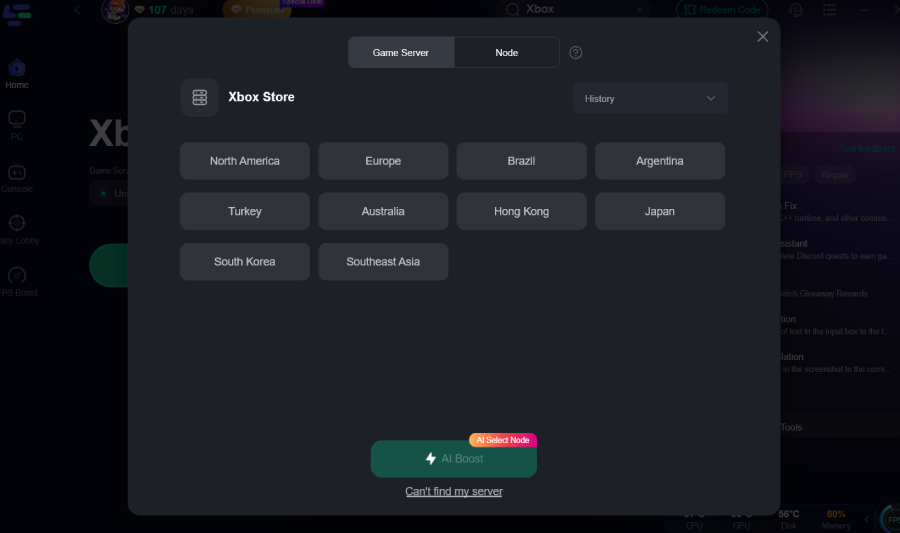
Select a server node and click “Smart Boost.”
Launch Xbox and start gaming with a more stable connection.
Part 5: Bonus Tips: Difference Between UPnP Not Successful Xbox and Xbox 0x87DD000F
Many players confuse “UPnP Not Successful” with the 0x87dd000f Xbox error, but the two issues are actually very different.
|
Problem |
Main Cause |
Common Impact |
|
UPnP Not Successful Xbox |
Router, NAT, or port mapping issue |
Multiplayer issues, party chat problems, strict NAT type |
|
Xbox 0x87DD000F |
Xbox Live sign-in or authentication failure |
Unable to sign into Xbox account or access Xbox Live |
In simple terms, “UPnP Not Successful” is mainly a router or network configuration problem that affects multiplayer connectivity. The 0x87dd000f error, on the other hand, is more related to Xbox Live sign-in services and account authentication issues.
That’s why players with the 0x87dd000f error may not even be able to log into their Xbox account or access Game Pass and other online services.
Conclusion
The 0x87dd000f Xbox error is usually related to Xbox Live sign-in issues, unstable connections, or temporary account conflicts. In most cases, simple fixes like checking Xbox server status, restarting your console, or refreshing network settings can solve the problem quickly. If the error keeps coming back, checking your network setup and improving connection stability may help prevent future sign-in issues.
Boost Your Game with LagoFast for Epic Speed
Play harder, faster. LagoFast game booster eliminates stutter and lags on PC, mobile, or Mac—win every match!
Quickly Reduce Game Lag and Ping!
Boost FPS for Smoother Gameplay!