
Quick Answer: The Fastest Way to Fix 007 First Light Connection Issues
If you want to skip tedious manual troubleshooting and get straight back into James Bond's origin story, the most reliable solution for 007 First Light connection issues is using a dedicated gaming network optimizer like LagoFast. LagoFast uses intelligent multi-path routing to bypass congested internet pathways, instantly lowering your ping, eliminating packet loss, and stabilizing your connection to the game’s servers across PC, PlayStation 5, and Xbox Series X/S.
Introduction
The long-awaited launch of 007 First Light has finally arrived, allowing players to step into the boots of a young, reckless James Bond as he navigates his early MI6 training. However, because the game utilizes a synchronized global launch, millions of players are flooding the login servers simultaneously. This massive spike in traffic is causing widespread 007 First Light connection issues, leaving many agents stuck on loading screens, experiencing severe rubberbanding, or completely unable to connect to the game servers. If you are struggling to get past the main menu, you are not alone, and fortunately, these issues can be fixed.
- ✅ Lower ping and fewer disconnects.
- ✅ More FPS and better PC performance.
- ✅ Support for 2000+ games.
- ✅ Stable connections and region switching.
- ✅ Fix Game Crashing and Freezing
Part 1: 007 First Light Connection Issues Overview
Part 2: Common Fixes for 007 First Light Connection Issues
Part 3: Why Are Common Fixes Always Not Working?
Part 4: How to Fix First Light Connection Issues - 100% Working
Part 5: 007 First Light System Requirements
Part 1: 007 First Light Connection Issues Overview
When the game fails to establish a stable link with the server, the symptoms can vary depending on your platform and local network environment. The table below breaks down exactly what these issues look like, why they happen, and how to address them quickly.
|
Symptom |
Root Cause |
Quick Fix |
|
"Failed to Connect to Server" Error |
Server overload, regional routing failures, or localized firewall blocks. |
Restart the game, check server status, or activate a gaming Booster. |
|
High Ping & Severe Rubberbanding |
Suboptimal ISP routing, distance from regional servers, or wireless interference. |
Switch from Wi-Fi to a wired Ethernet cable or use LagoFast multi-path routing. |
|
Stuck on "Connecting..." Screen |
Corrupted game cache, pending day-one patch download, or DNS resolution errors. |
Verify the integrity of game files and flush your computer or console DNS. |
|
Infinite Matchmaking Queue |
NAT type restrictions (Strict/Type 3) preventing peer-to-peer or server pairing. |
Enable UPnP on your router settings or set up a static IP with Port Forwarding. |
Part 2: Common Fixes for 007 First Light Connection Issues
If you prefer to manually tweak your hardware and software settings before utilizing external software, try these platform-specific troubleshooting methods.
PC Fix 1: Flush Your DNS and Renew Your IP Address
Over time, your computer’s DNS cache stores outdated location data for web servers, which can prevent your system from connecting to the newly deployed 007 First Light server clusters.
Step 1: Press the Windows Key + R to open the Run dialog box.
Step 2: Type cmd and hit Ctrl + Shift + Enter to launch the Command Prompt as an administrator.
Step 3: In the terminal window, type ipconfig /flushdns and press Enter.
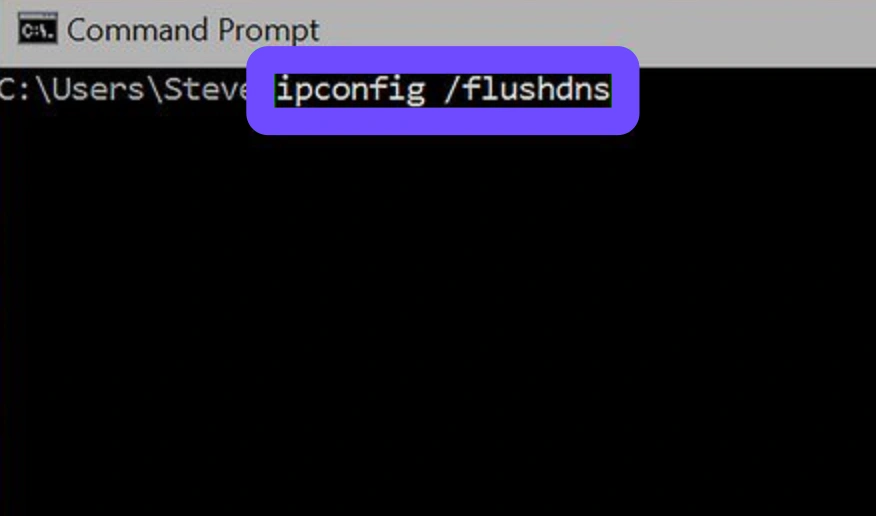
Step 4: Next, type ipconfig /registerdns and press Enter.
Step 5: Type ipconfig /release followed by ipconfig /renew, then close the window and restart your game launcher.
PC Fix 2: Allow the Game Through Windows Defender Firewall
Windows Defender can occasionally misidentify the network traffic from a newly released game executable as a security threat, completely blocking its ability to connect to the server.
Step 1: Open the Windows Start menu, type "Firewall" into the search bar, and select Windows Defender Firewall.
Step 2: Click on Allow an app or feature through Windows Defender Firewall on the left panel.
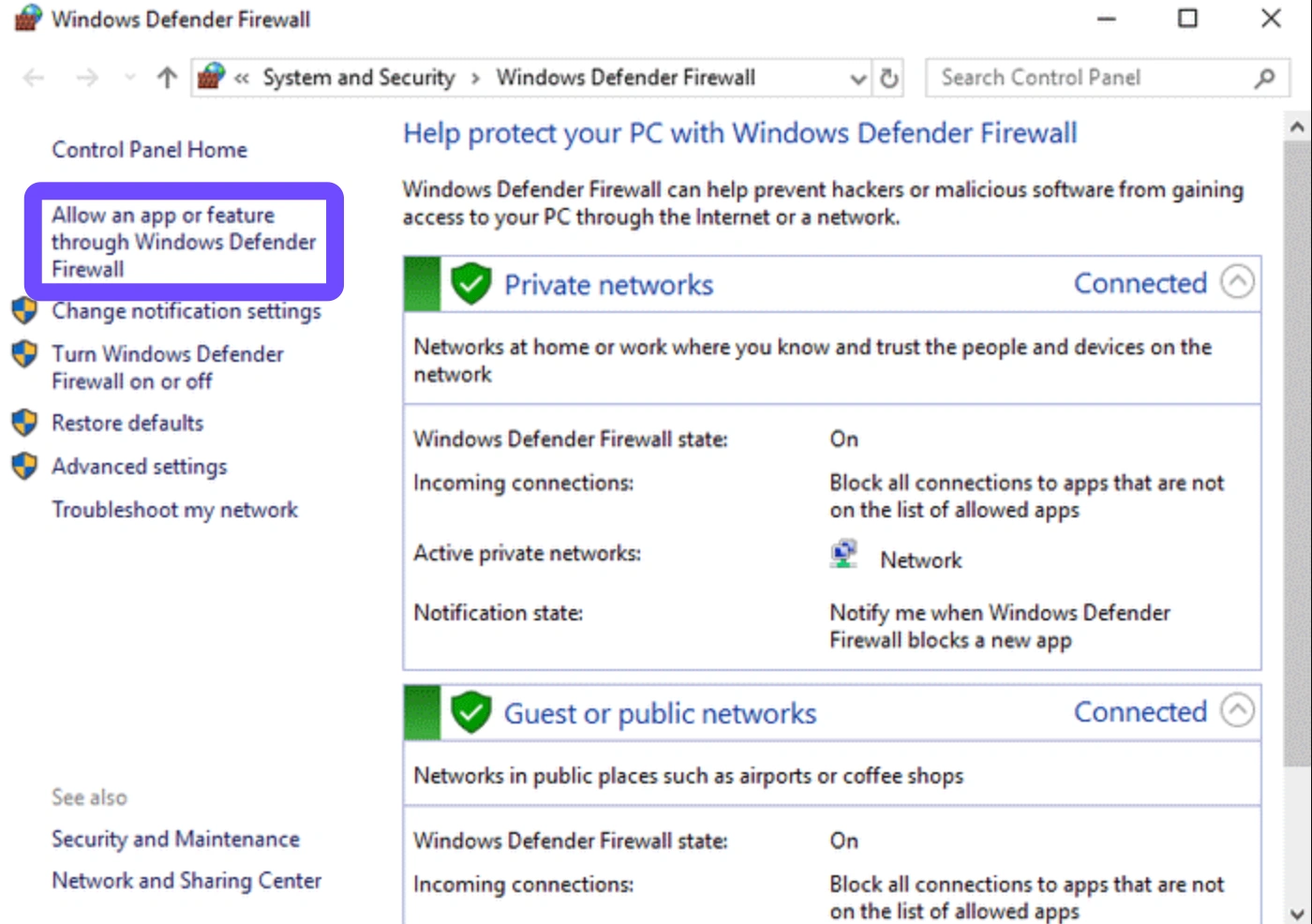
Step 3: Click the Change settings button at the top right (administrator privileges required).
Step 4: Scroll down the list to find 007 First Light. If it isn’t there, click Allow another app... and browse to the game's installation folder to select the .exe file.
Step 5: Check both the Private and Public checkboxes for the game, click OK, and relaunch the game.
PS5 Fix 1: Change Your Console DNS Settings manually
The default DNS servers provided by your local internet service provider (ISP) can be slow or unstable during major global gaming launches. Switching to public, high-speed DNS servers often remedies the 007 first light can't connect to the server error.
Step 1: Navigate to the PlayStation 5 home screen and click on the Settings gear icon in the top right corner.
Step 2: Go to Network, select Settings, and click Set Up Internet Connection.
Step 3: Highlight your current network connection and press the Options button on your DualSense controller, then choose Advanced Settings.
Step 4: Change the DNS Settings from Automatic to Manual.
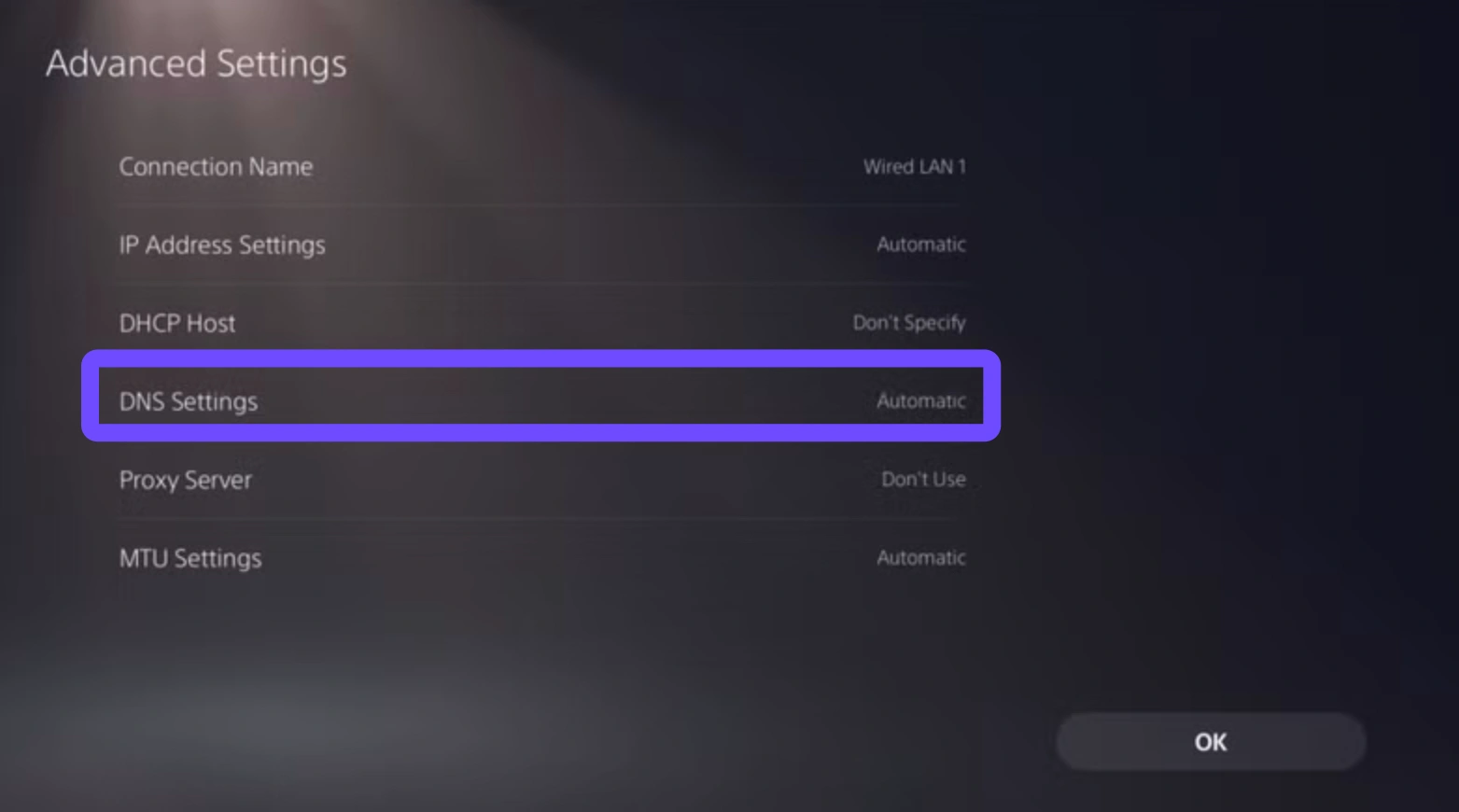
Step 5: Enter 8.8.8.8 for the Primary DNS and 8.8.4.4 for the Secondary DNS (Google's Public DNS), then click OK to test the connection.
PS5 Fix 2: Restore Licenses on Your PSN Account
Sometimes, connection barriers are not technical network failures, but rather digital rights management errors where the server cannot verify your early access pre-order license.
Step 1: Go to the PS5 Settings menu.
Step 2: Select Users and Accounts, then scroll down to the Other submenu.
Step 3: Click on the Restore Licenses option.
Step 4: Confirm by selecting Restore and wait for the progress bar to complete.
Step 5: Power cycle your PS5 by holding down the power button until it beeps, unplugging it for 30 seconds, and restarting.
Xbox Fix 1: Clear Your Xbox Alternative MAC Address
A cluttered network cache on your Xbox Series X or Series S can cause severe packet loss and prevent the console from maintaining a continuous handshake with the online multiplayer servers.
Step 1: Press the Xbox button on your controller to open the guide, then navigate to Profile & system and select Settings.
Step 2: Select General and open the Network settings menu.
Step 3: Click on Advanced settings from the list of options.
Step 4: Select the alternative MAC address and then choose Clear.
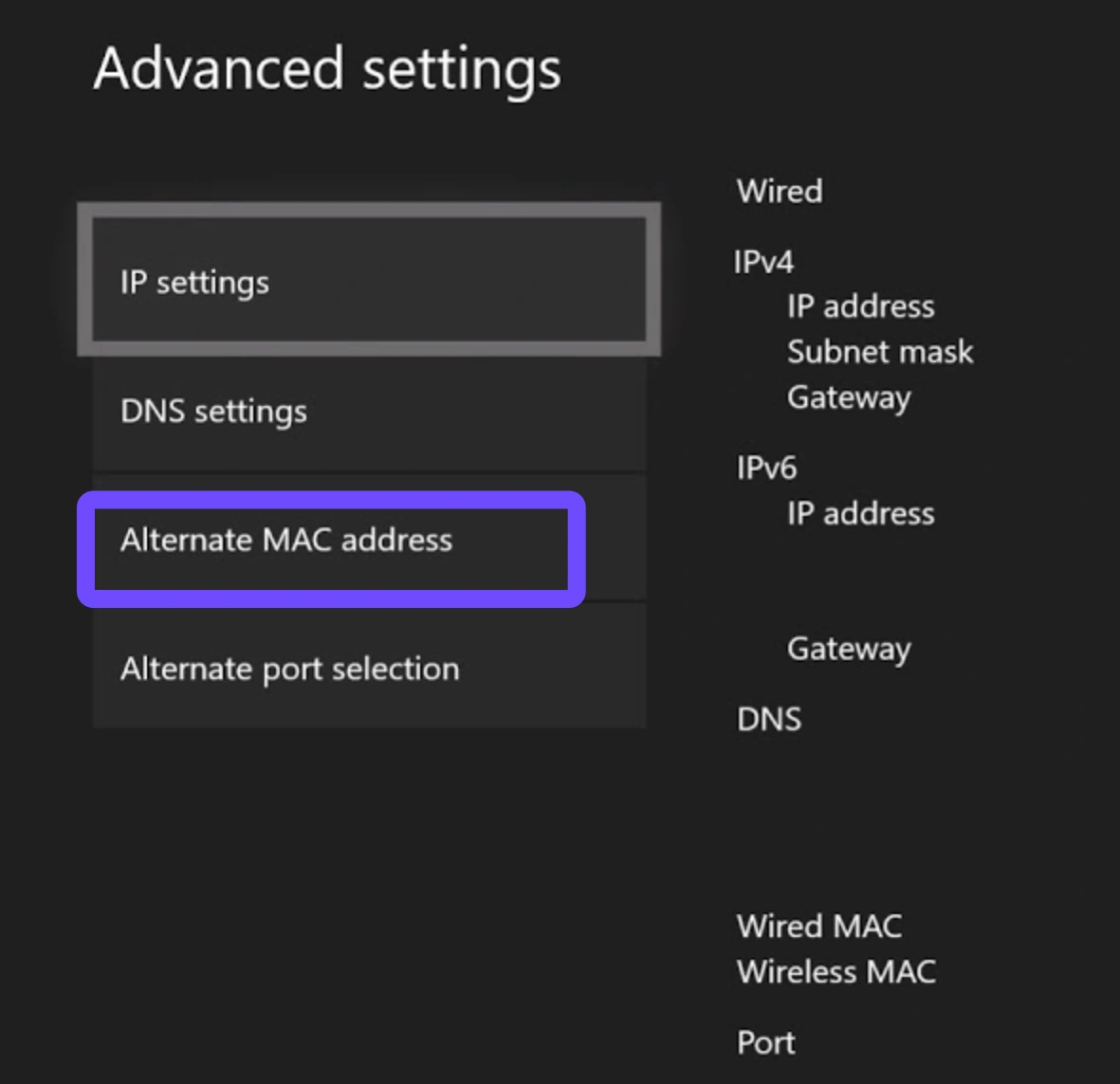
Step 5: Click Restart when prompted; your console will reboot with a clean network cache.
Xbox Fix 2: Change Energy Modes to Force a Full Network Cold Boot
The "Sleep" energy option keeps the console in a low-power state where network cards can accumulate background glitches over time, leading to persistent connection drops.
Step 1: Open the Xbox Settings menu and navigate to General.
Step 2: Select Power options.
Step 3: Switch your active profile from Sleep to Shutdown (energy saving).
Step 4: Turn off your console completely via the controller.
Step 5: Unplug the power brick from the wall socket for two full minutes to clear the hardware cache, plug it back in, and test the game.
Part 3: Why Are Common Fixes Always Not Working?
It can be incredibly frustrating when you spend an hour flushing your DNS, changing router settings, and restarting your hardware, only to find that Why is my game not connecting to the server remains an unanswered mystery. The truth is, standard troubleshooting guides assume the problem lies entirely within your home setup.
However, standard fixes cannot resolve issues situated between your local neighborhood and the game’s host servers. During massive worldwide launches like 007 First Light, traditional internet service providers prioritize standard web browsing traffic over high-bandwidth gaming data. Your connection gets lumped into crowded public data highways, leading to artificial bottlenecks, severe data packet loss, and terrible routing decisions that force your data to travel thousands of miles out of the way before hitting the server. When the problem is ISP routing congestion, localized hardware tricks simply won't work.
Part 4: How to Fix 007 First Light Connection Issues - 100% Working
When standard configurations fail to clear server traffic congestion, LagoFast offers a professional, automated solution to 100% fix your game connection issues. Engineered specifically to eliminate real-time network friction, it routes your PC or console traffic through exclusive, high-speed lanes directly to the game servers. By optimizing data flow without the latency, it instantly stabilizes your gameplay, fixes high ping, and prevents disruptive connection drops.
Key Features:
- Smart Multi-Path Routing: Automatically locates the fastest global server routes to reduce high ping and packet loss.
- One-Click FPS Boost: Optimizes Windows background processes and frees up system RAM to eliminate in-game stuttering.
- Game Crash Fix Tool: Automatically diagnoses and resolves sudden game crashes caused by severe connection timeouts.
- Cross-Platform Support: Provides seamless network optimization across different platforms like PC and mobile, and more.
- Fixed Load Failed and Stuttering Tool: Switches the specified game program into High Performance Mode to help fix launch issues, loading errors, severe stuttering, and game startup problems.
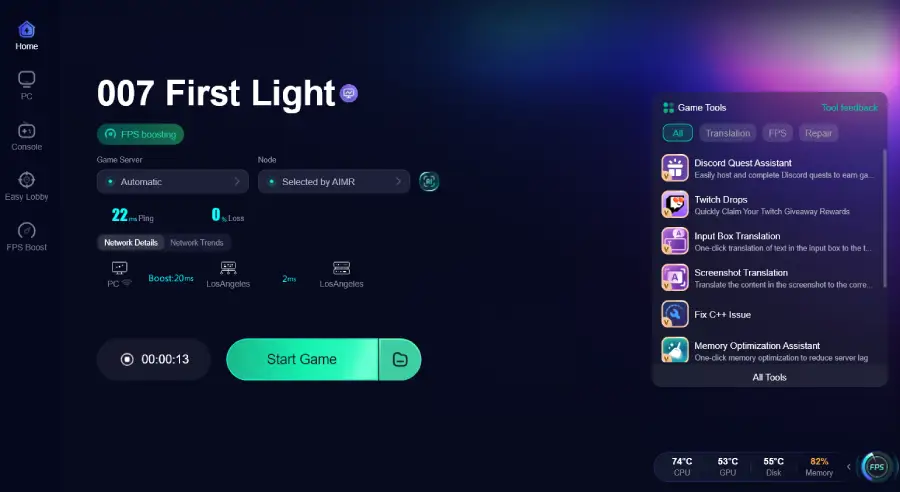
Tutorial to Optimize Your 007 First Light Gaming Experience with LagoFast:
Step 1: Click the Free Trial button to download and install LagoFast Free Trial.
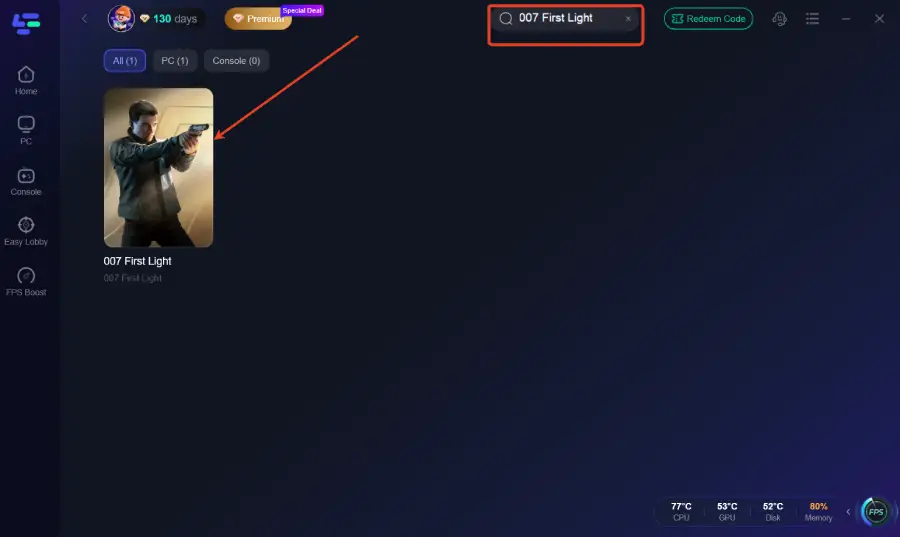
Step 2: Search for the Game: Open the app and type "007 First Light" into the search bar.
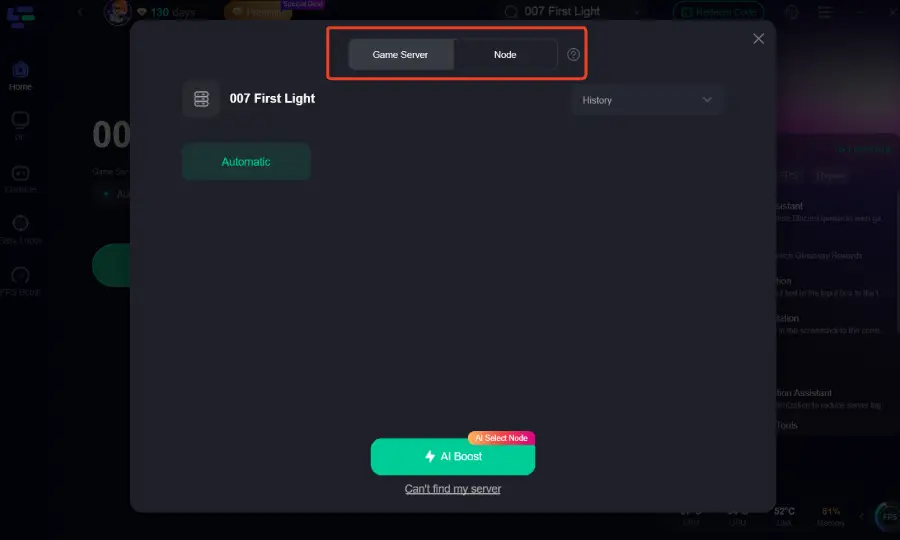
Step 3: Select Your Region: Choose the server node closest to you to ensure the lowest possible ping for any online features or leaderboards.
Step 4: Boost and Launch: Hit the "Boost" button and launch the game directly from the LagoFast interface. You'll notice a significant improvement in frame stability and overall responsiveness.
Part 5: 007 First Light System Requirements
Before jumping into complex network configurations, double-check that your PC hardware actually meets the baseline structural requirements to run the game efficiently. An over-burdened CPU or out-of-memory error can look exactly like a connection drop if the game engine freezes up during network handshakes.
Minimum System Requirements
- OS: Windows 10 (64-bit version)
- Processor: Intel Core i5-8400 or AMD Ryzen 5 2600
- Memory: 12 GB RAM
- Graphics: NVIDIA GeForce GTX 1060 (6GB) or AMD Radeon RX 580
- DirectX: Version 12
- Storage: 80 GB available space (SSD strongly recommended)
Recommended System Requirements
- OS: Windows 11 (64-bit version)
- Processor: Intel Core i7-10700K or AMD Ryzen 7 5800X
- Memory: 16 GB RAM
- Graphics: NVIDIA GeForce RTX 3070 or AMD Radeon RX 6800 XT
- DirectX: Version 12
- Storage: 80 GB available NVMe SSD space
Part 6: FAQs
Why am I experiencing high ping in 007 First Light despite having fast fiber internet?
High internet download speeds do not equate to low latency. Your fiber connection might be capable of downloading files incredibly fast, but if your ISP routes your gaming data packets through crowded or physically distant regional nodes, your ping will remain high. Using a route optimizer fixes this specific structural issue.
Does 007 First Light require an active internet connection for single-player campaign modes?
Yes, the modern launch architecture of 007 First Light requires a persistent online connection to authenticate game licenses, track real-time achievements, and load dynamic mission assets, meaning server disruptions can impact single-player progress.
What is the ideal NAT Type for playing 007 First Light without matchmaking errors?
You should aim for NAT Type 1 (Open) on PlayStation or an "Open NAT" status on PC and Xbox. A NAT Type 3 (Strict) setup will severely restrict your ability to connect to other players and host multiplayer lobbies.
Can a Wi-Fi connection cause the game to constantly disconnect from the server?
Wireless networks are highly susceptible to electromagnetic interference from household appliances, walls, and other local networks. This causes micro-packets of data to drop, resulting in immediate disconnections from sensitive game servers. A wired connection is always recommended.
How do I check if the 007 First Light servers are down for maintenance?
You can monitor the official IO Interactive social media channels, check the dedicated game community hubs on Steam, or visit third-party status Aggregators to verify if widespread outages are impacting the global network.
Why does my game crash immediately after a "Connection Timed Out" message?
When a critical server-side data packet is lost during a transition screen or loading phase, the game engine can experience an unhandled asset exception, forcing the executable to crash straight back to your desktop or console dashboard.
Conclusion
Dealing with connection failures right at launch can completely ruin the excitement of a major new release. By working through our checklist of platform-specific manual fixes, optimizing your hardware settings, or deploying LagoFast to bypass problematic regional network pathways entirely, you can easily conquer these early server bottlenecks. Secure your connection, lower your ping, and dive into the high-stakes world of MI6 without missing a single frame.
Boost Your Game with LagoFast for Epic Speed
Play harder, faster. LagoFast game booster eliminates stutter and lags on PC, mobile, or Mac—win every match!
Quickly Reduce Game Lag and Ping!
Boost FPS for Smoother Gameplay!