Struggling with Google Authenticate when logging into Odin: Valhalla Rising?
Follow these steps to enable the authenticator securely!
1. Optimize Your Connection with LagoFast
- Open the LagoFast Game Booster app and boost Odin: Valhalla Rising.
- Select the optimal server (Asia or America) to ensure stable access to the game.
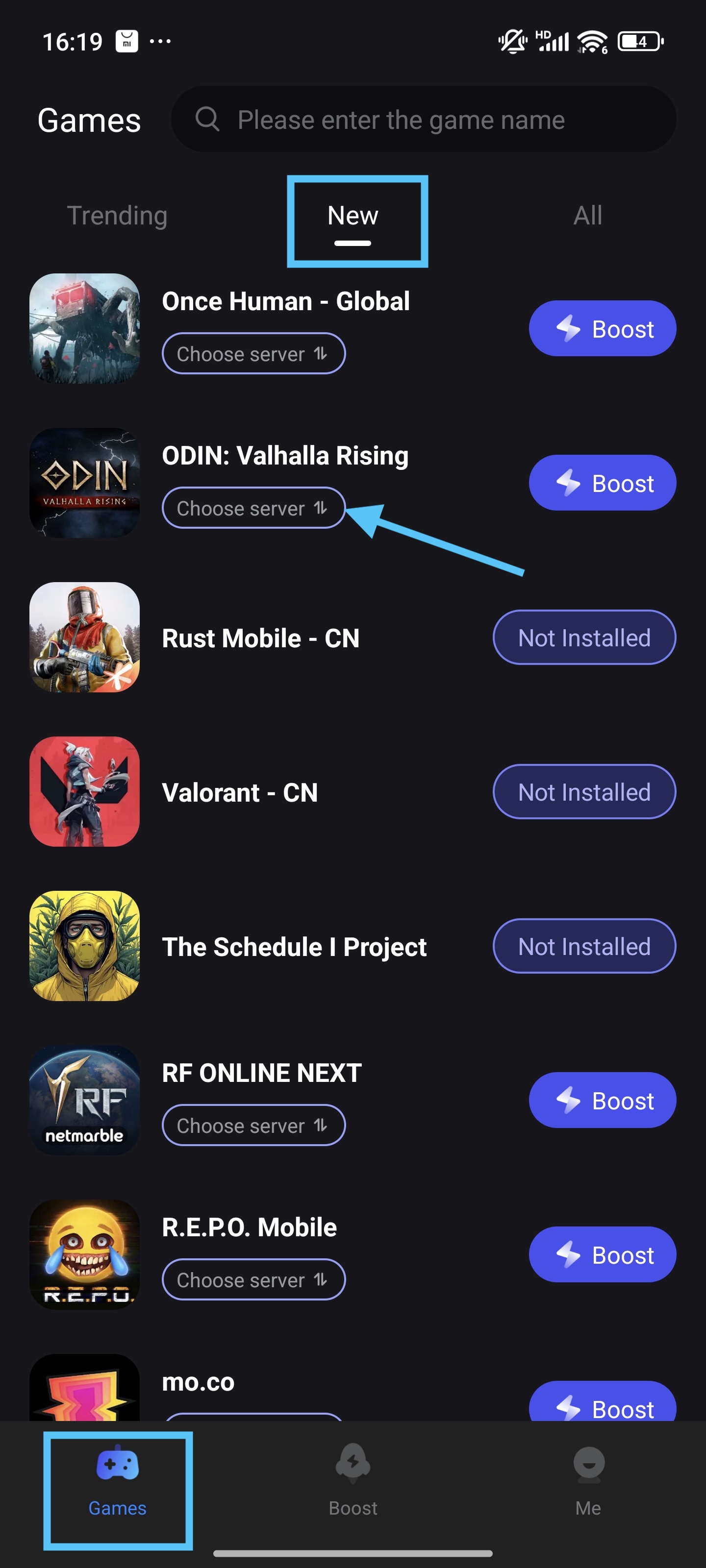
2. Trigger Google OTP Verification
- Launch Odin: Valhalla Rising and select log in using your Google account.
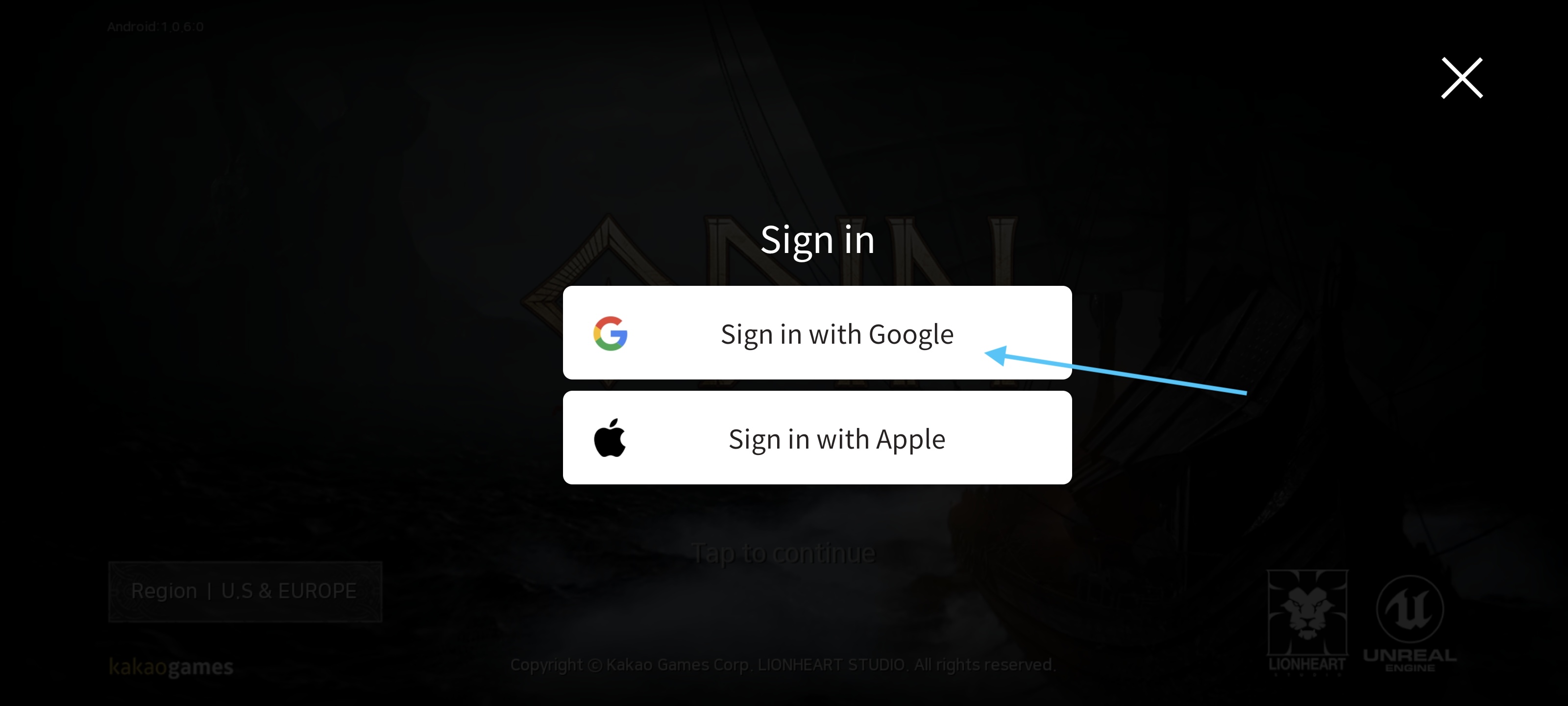
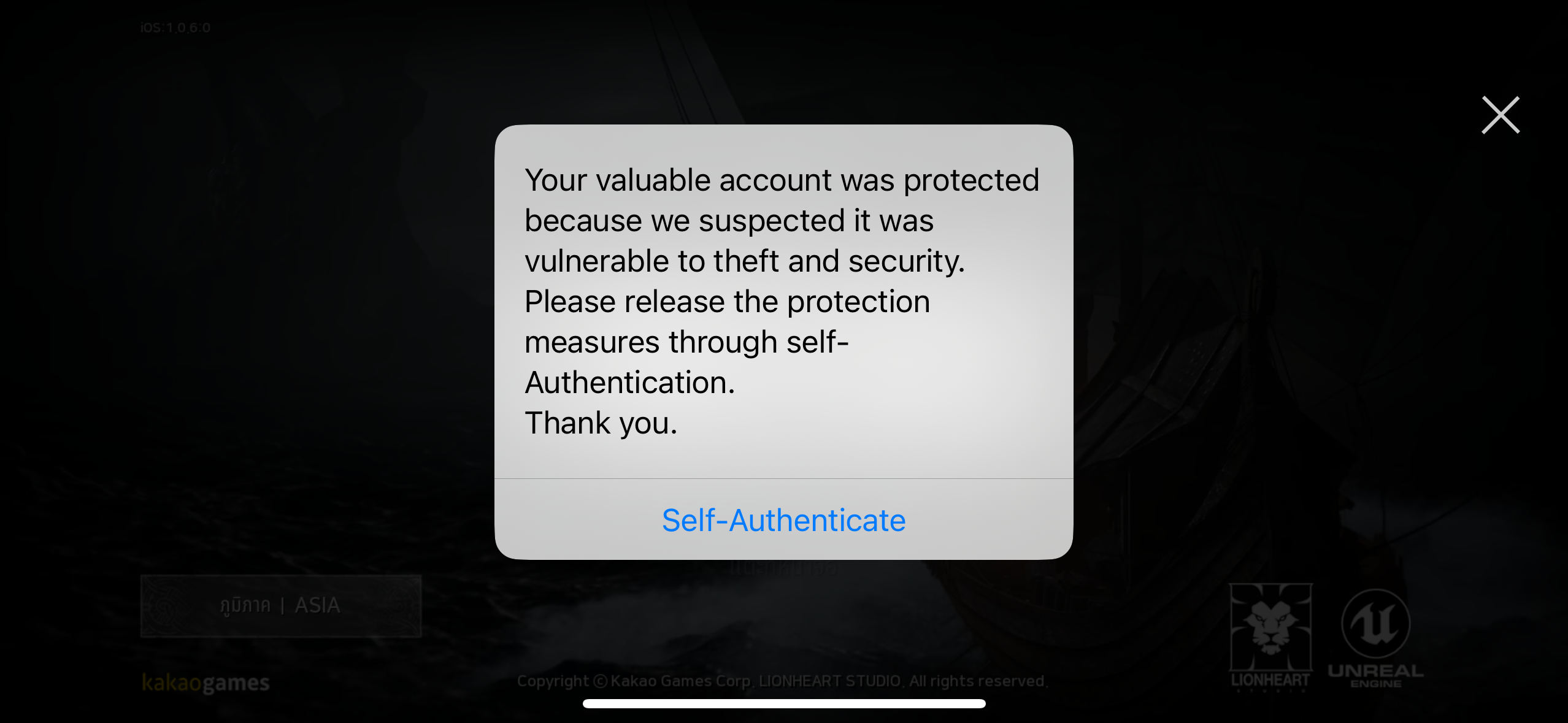
- If prompted for self-authentication, proceed to the verification page.
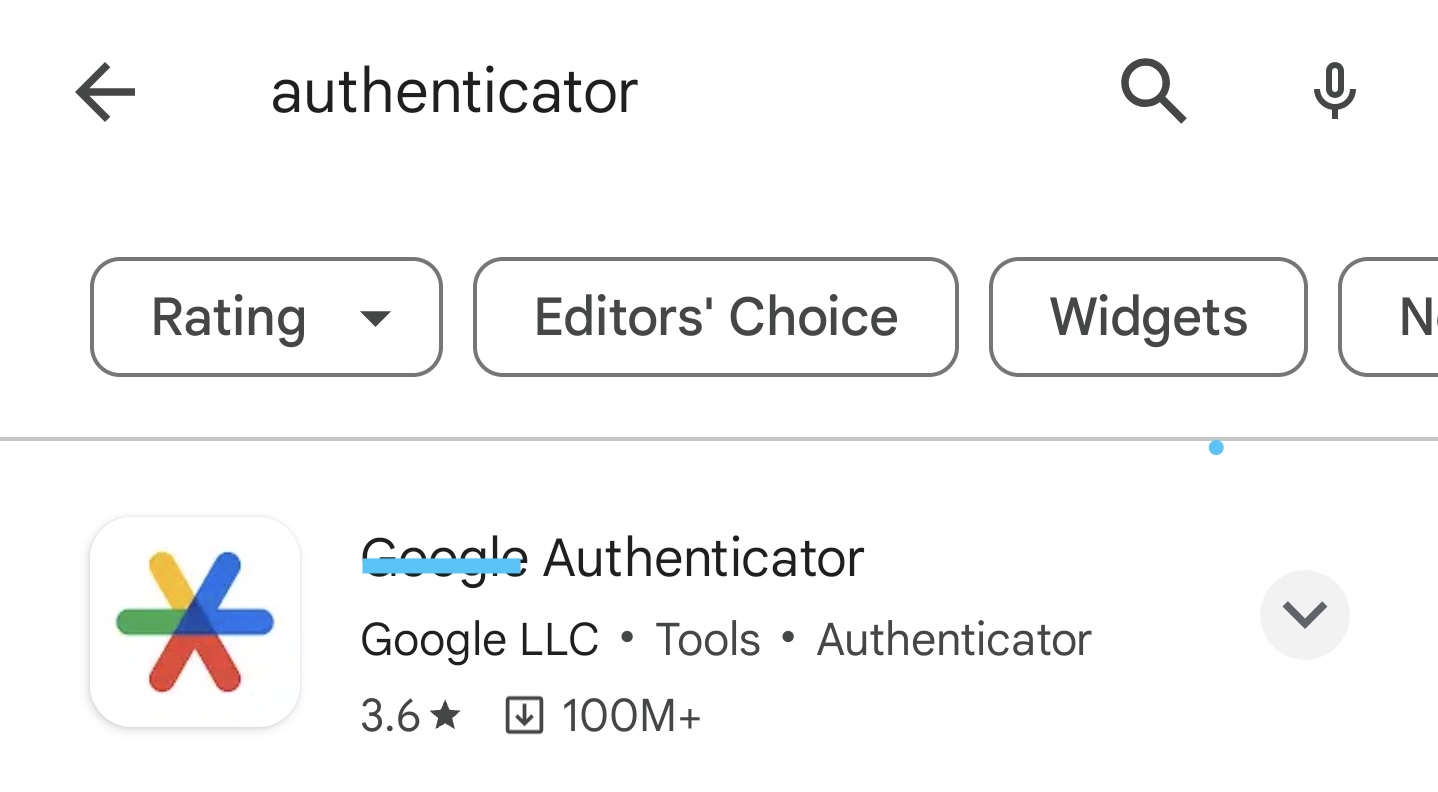
3. Download an Authenticator App
- Install Google Authenticator from your device’s app store (iOS/Android).
4. Link the Authenticator to Your Account
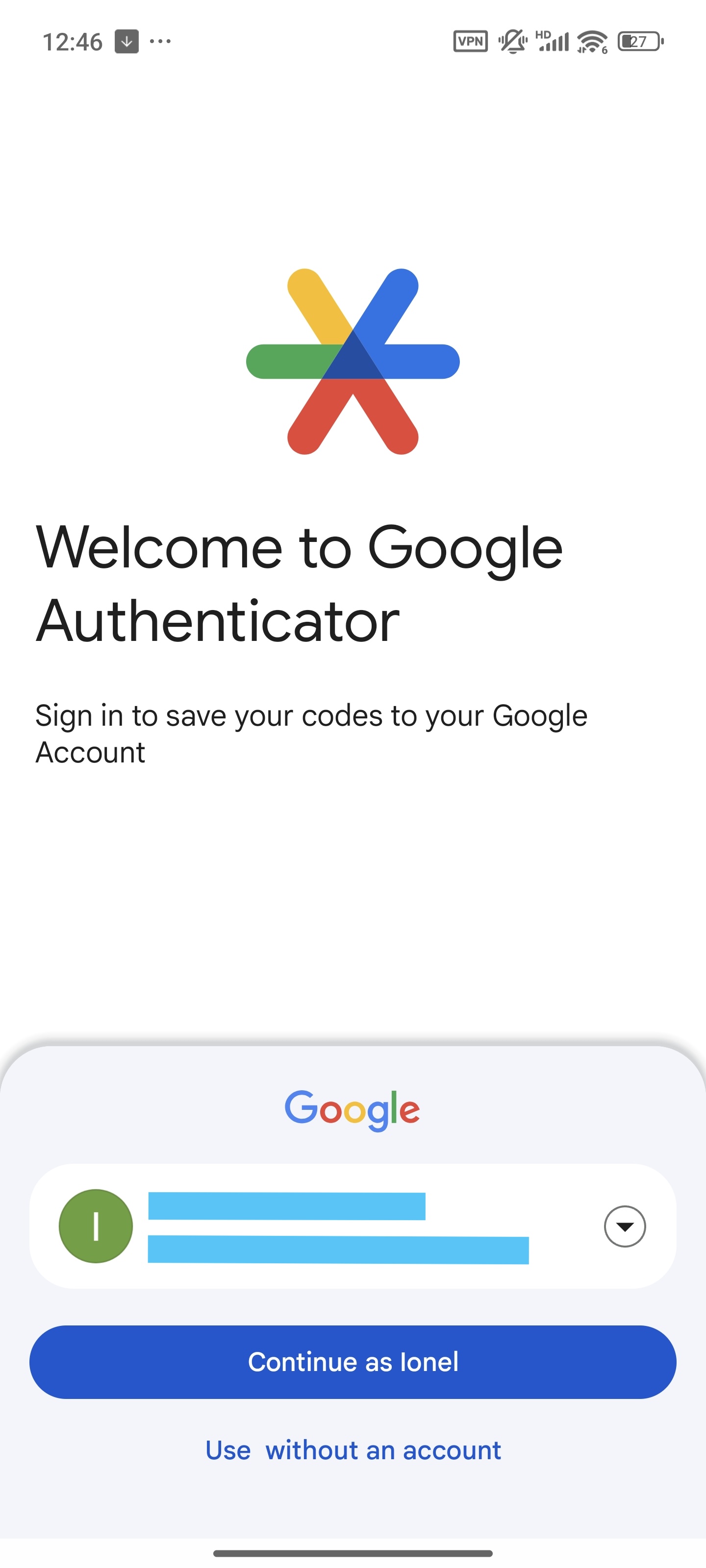
- Open the Authenticator, log in to your Google account if this is the first time you install the Authenticator.
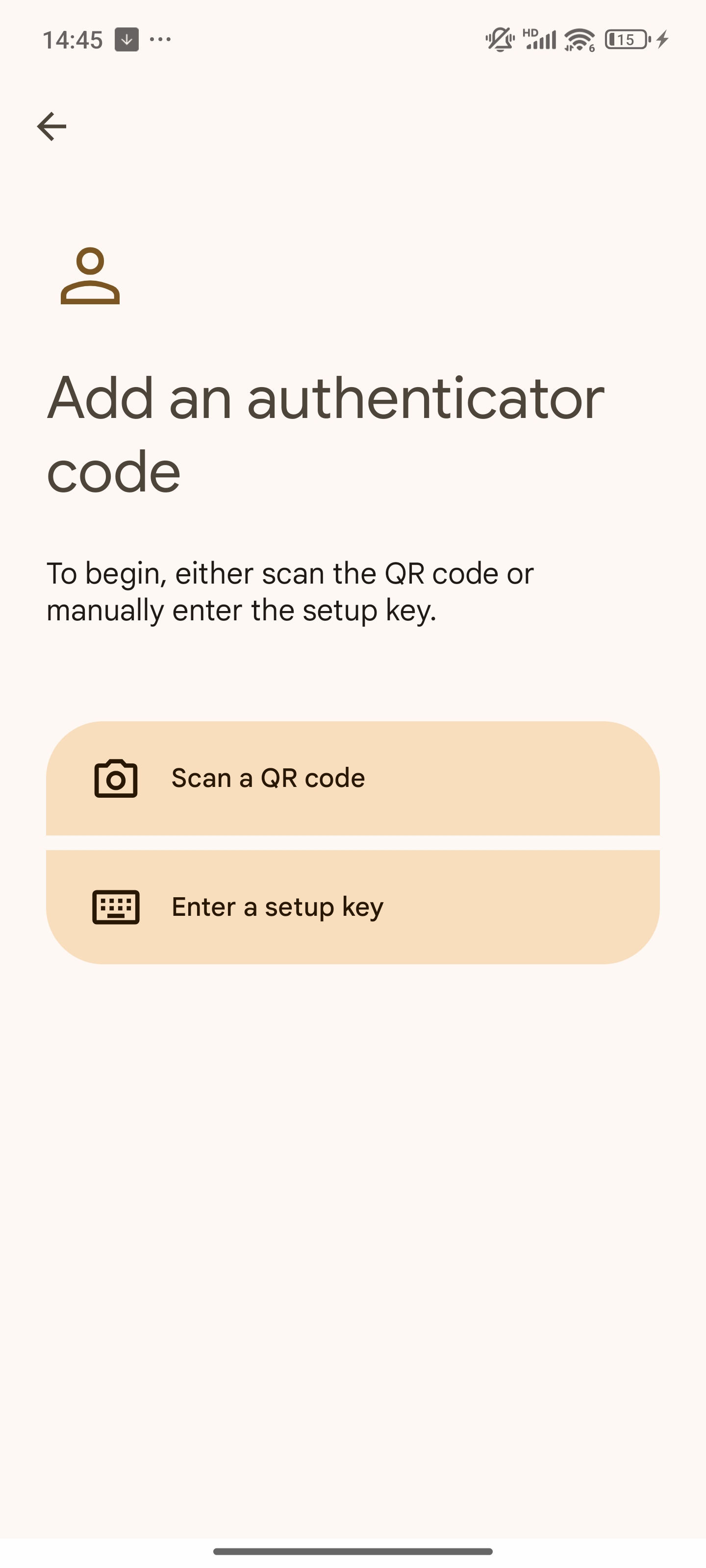
- Tap “Add a Code”, then you can select scan QR code or enter the setup key
- Then you can scan the game's QR code or input the secret key from the game.
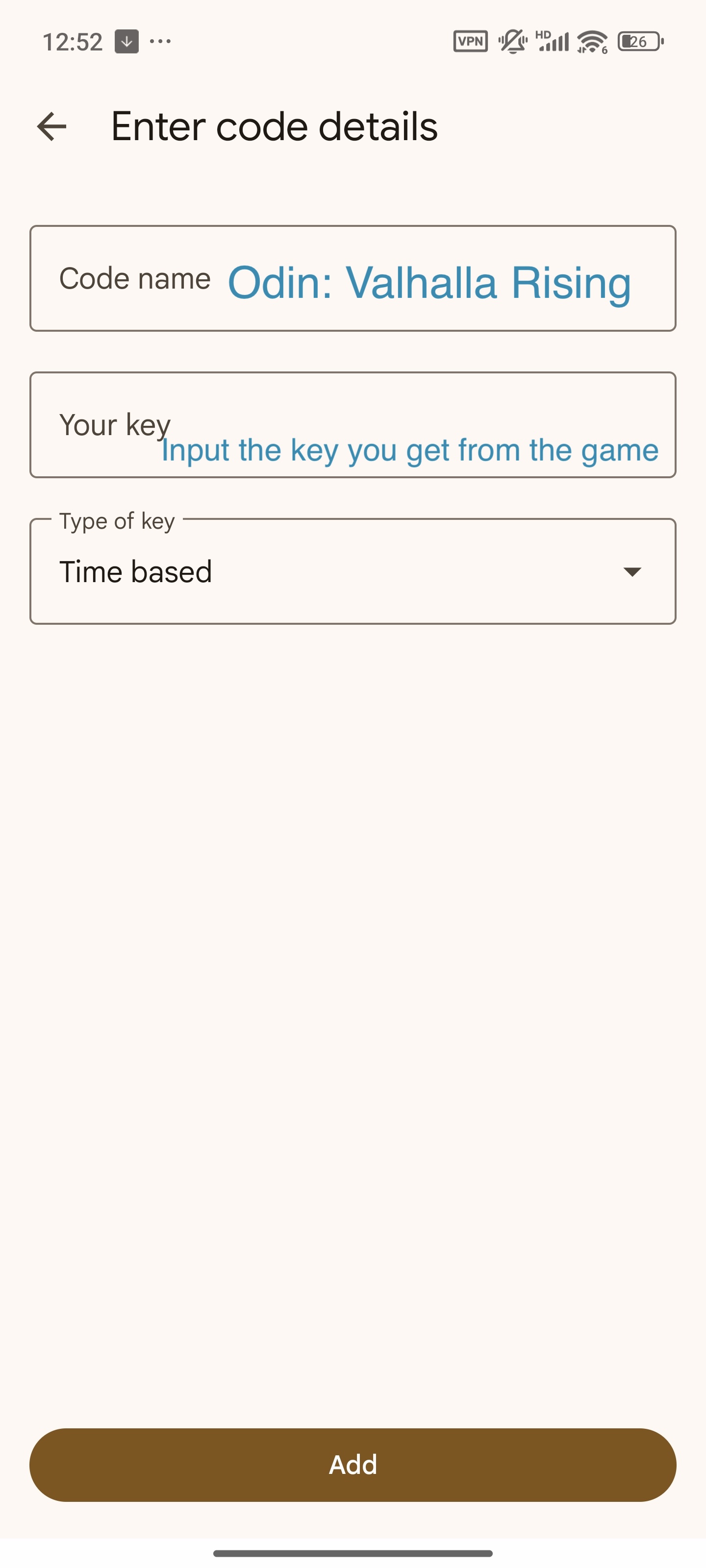
- Tap "Add". You have a new verification added to the authenticator now.
5. Log In Securely
- Return to Odin: Valhalla Rising and log in with your Google account.
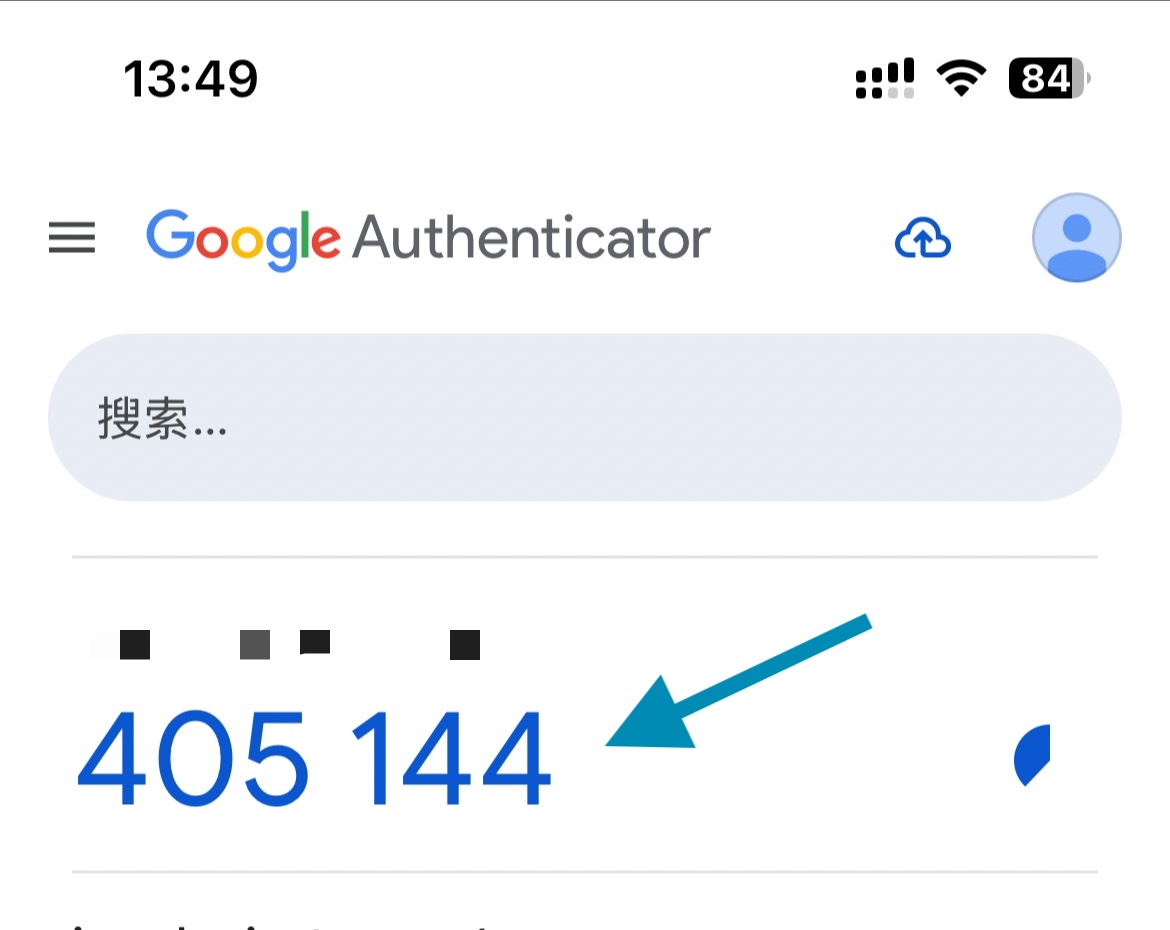
- When you are asked, open the Authenticator app and enter the latest 6-digit code.
Pro Tips:
- Save your secret key in a secure place (e.g., notes app) for backup.
Now enjoy Odin: Valhalla Rising with enhanced account security!

