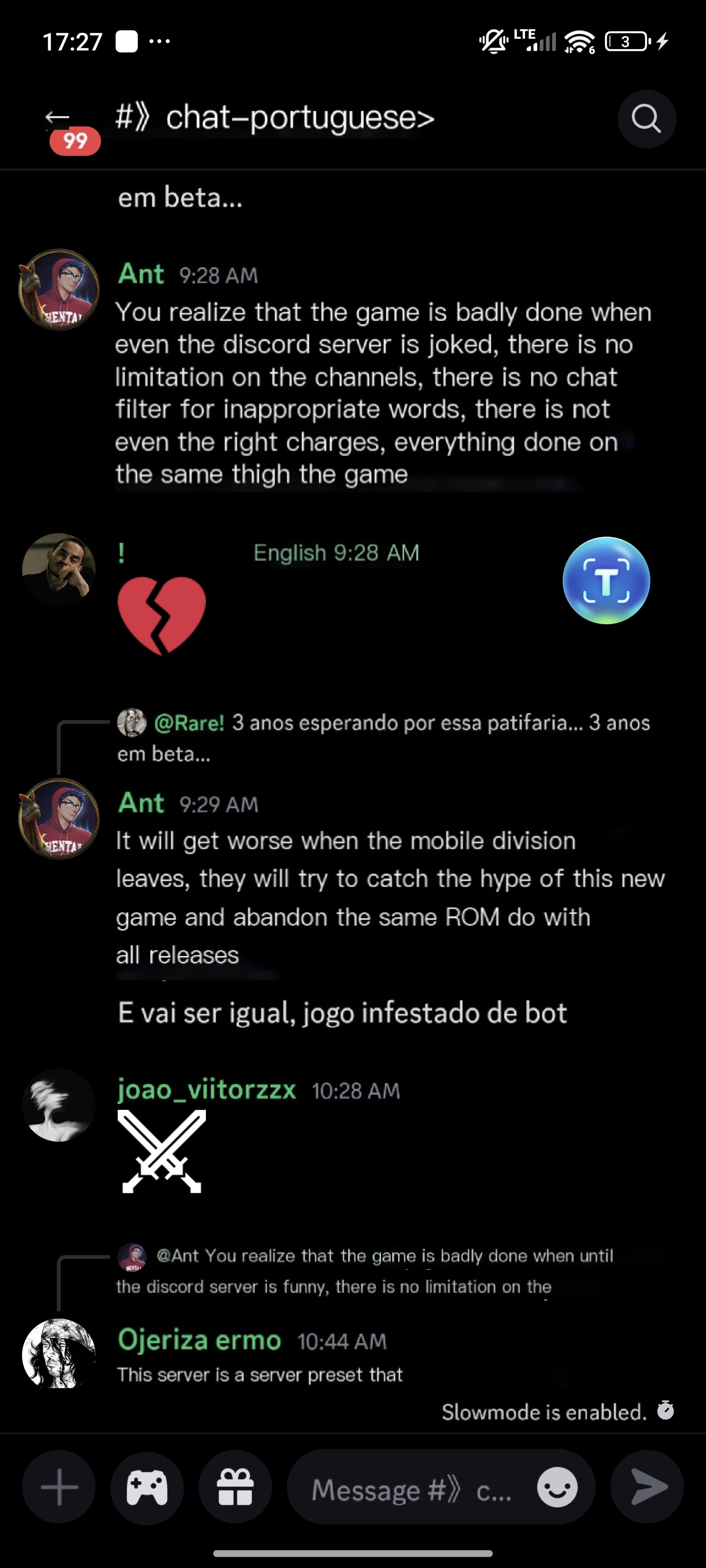
Discord doesn’t have a built-in translation feature. If you often join foreign servers and can’t understand the chat, LagoFast’s Quick Translate tool (also called the floating translate ball) is the perfect solution! It lets you scan and translate any text on Discord instantly — chats, menus, even text in images.
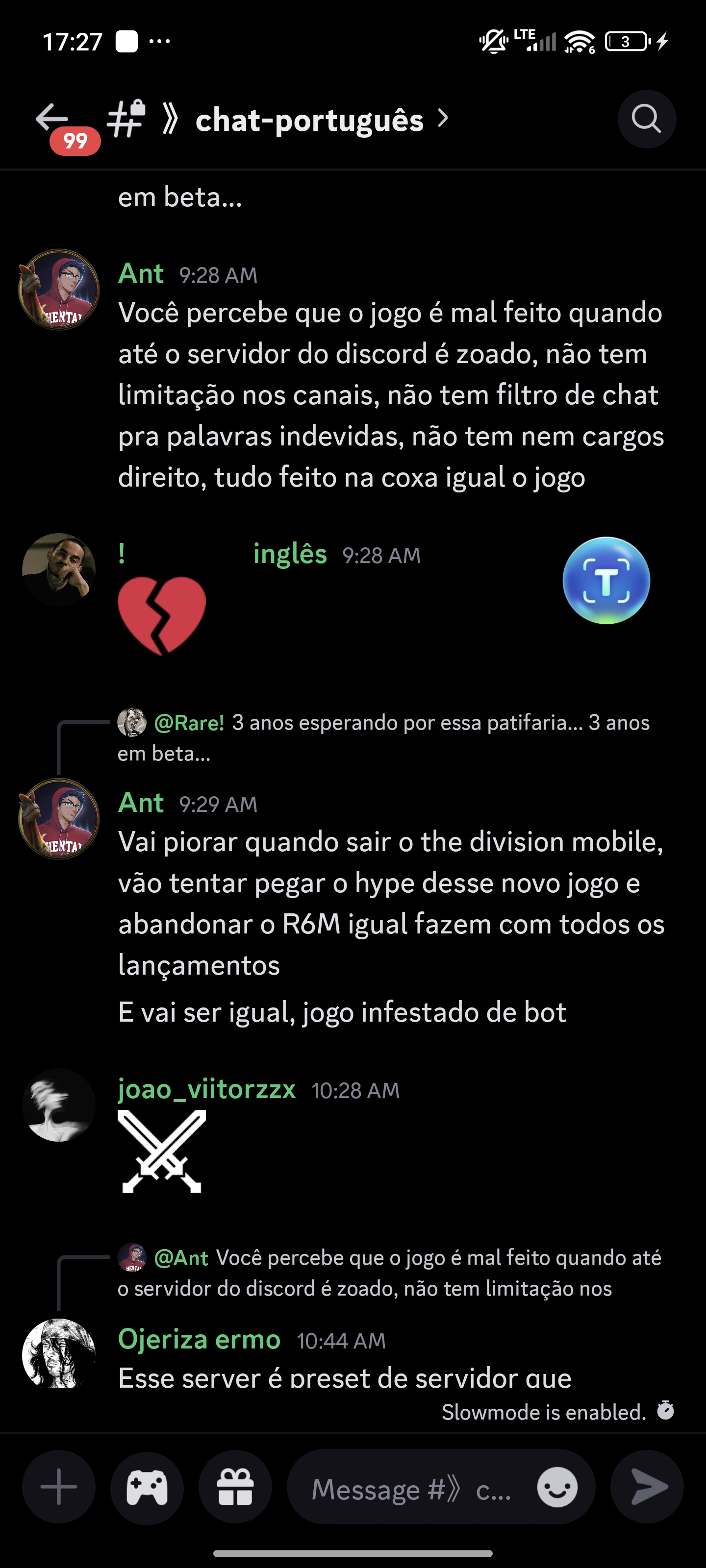
From this:
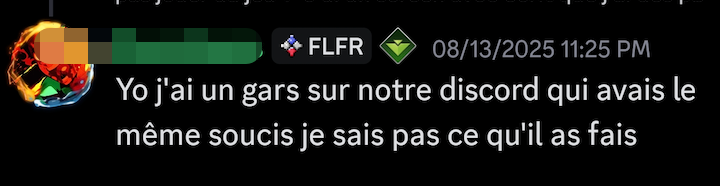
To this:
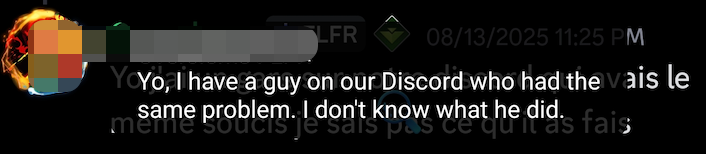
⚠ Note: “Quick Translate” is currently available only for Android users.
Before You Start
- Make sure the language in the LagoFast app is set to your preferred target language (e.g. Thai / Arabic / Spanish).
✅ Step-by-Step: Enable Quick Translate for Discord
1. Select Discord in LagoFast
a. Open the LagoFast app
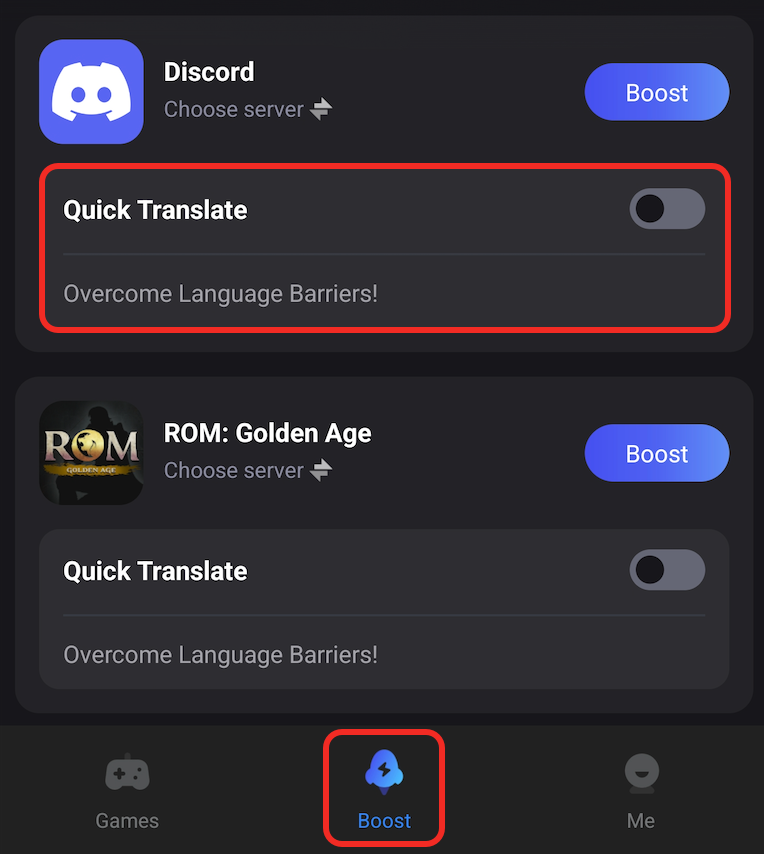
b. Go to the Boost tab
c. Find Discord from the list
2. Turn On Quick Translate
a. In the tools section, tap on Quick Translate
b. Enable the tool (turn on the switch)
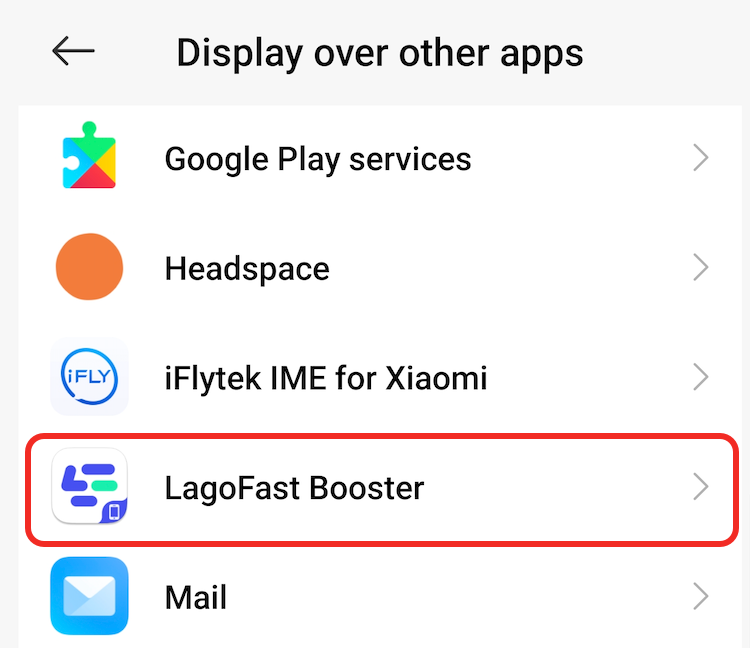
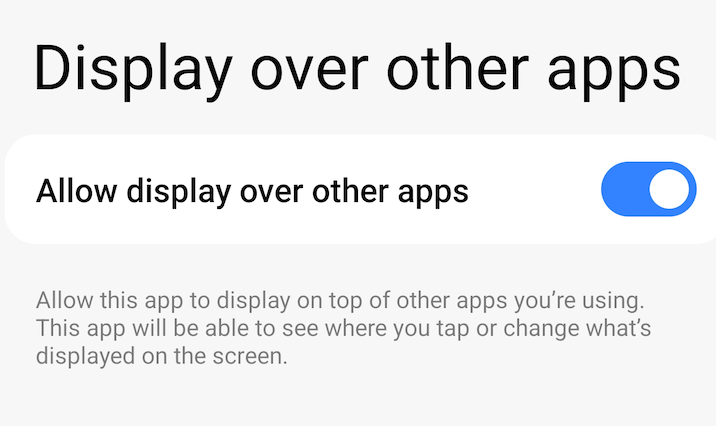
3. Allow Overlay Permission
a. Set overlay permission when asked
b. Follow the Android system guide to set the permission
4. Allow Screen Capture Permission
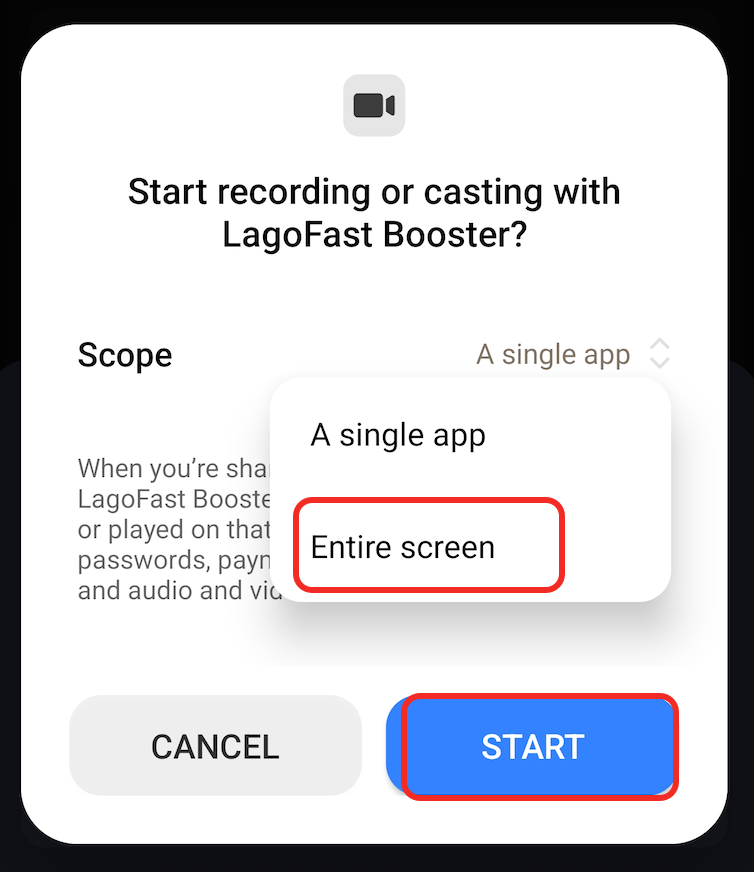
a. Tap Set again to allow screen recording permission
b. Allow LagoFast to record the whole screen (This is only used to recognize text on screen for translation. LagoFast does not record or store your content.)
c. Tap Start to turn on the Quick Translate ball
5. Use the Floating Translate Ball
a. Open Discord normally
b. You’ll see a small floating ball on screen — that’s Quick Translate
c. You can tap it to translate the whole screen
d. Or you can drag the ball over any message or text, and it will instantly translate it into your chosen language!
Before:
After: