1. How to Download Wuthering Waves
a. Download from Official Stores
- Android Users: Install Wuthering Waves from Google Play.
- iOS Users: Download the game from the App Store.
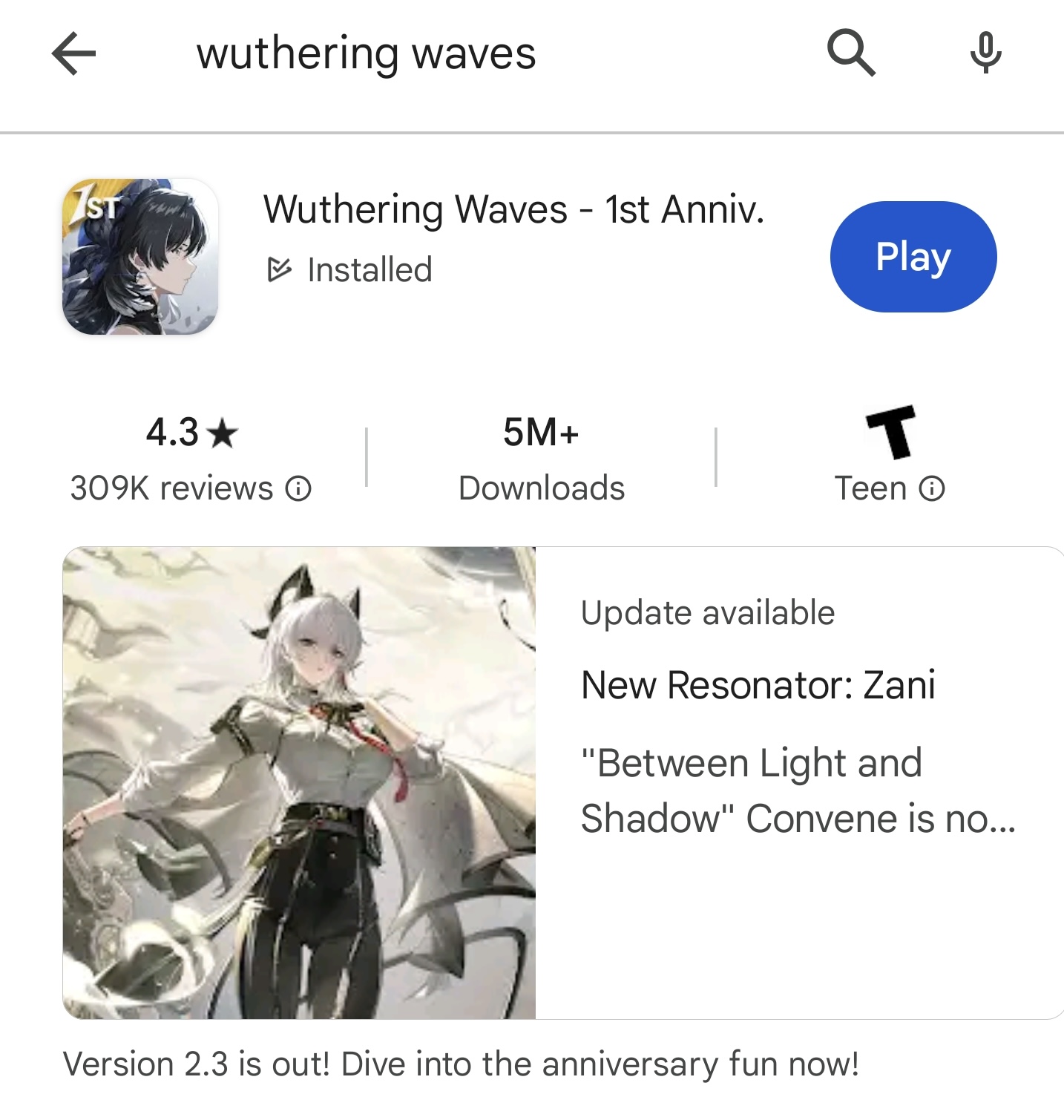
b. Regional Availability Issues
If the game is unavailable in your region:
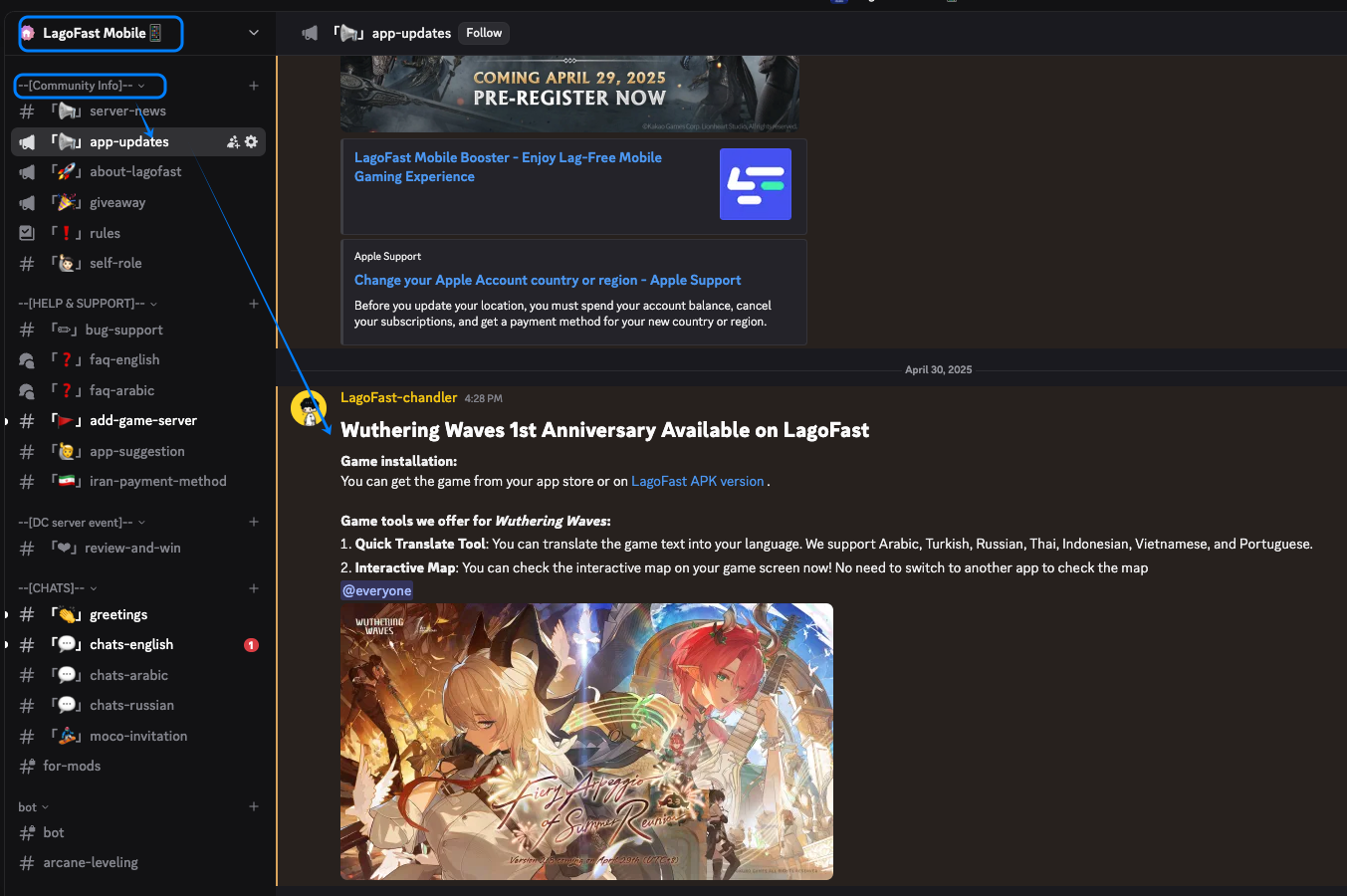
- Join the LagoFast Discord Server
- Check the #app-update channel for step-by-step guides to bypass regional restrictions.
2. How to Boost Wuthering Waves for Zero Lag
a. Locate the Game in LagoFast
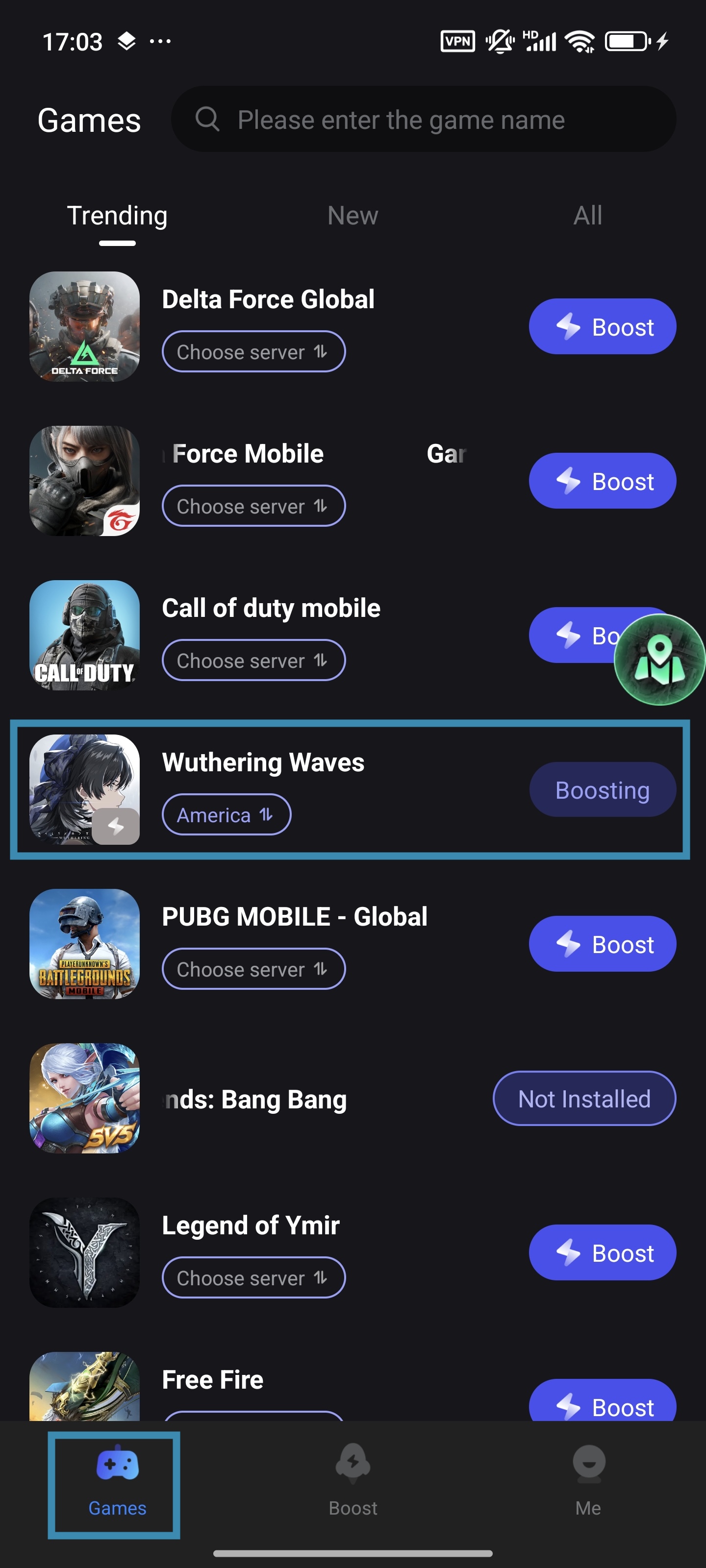
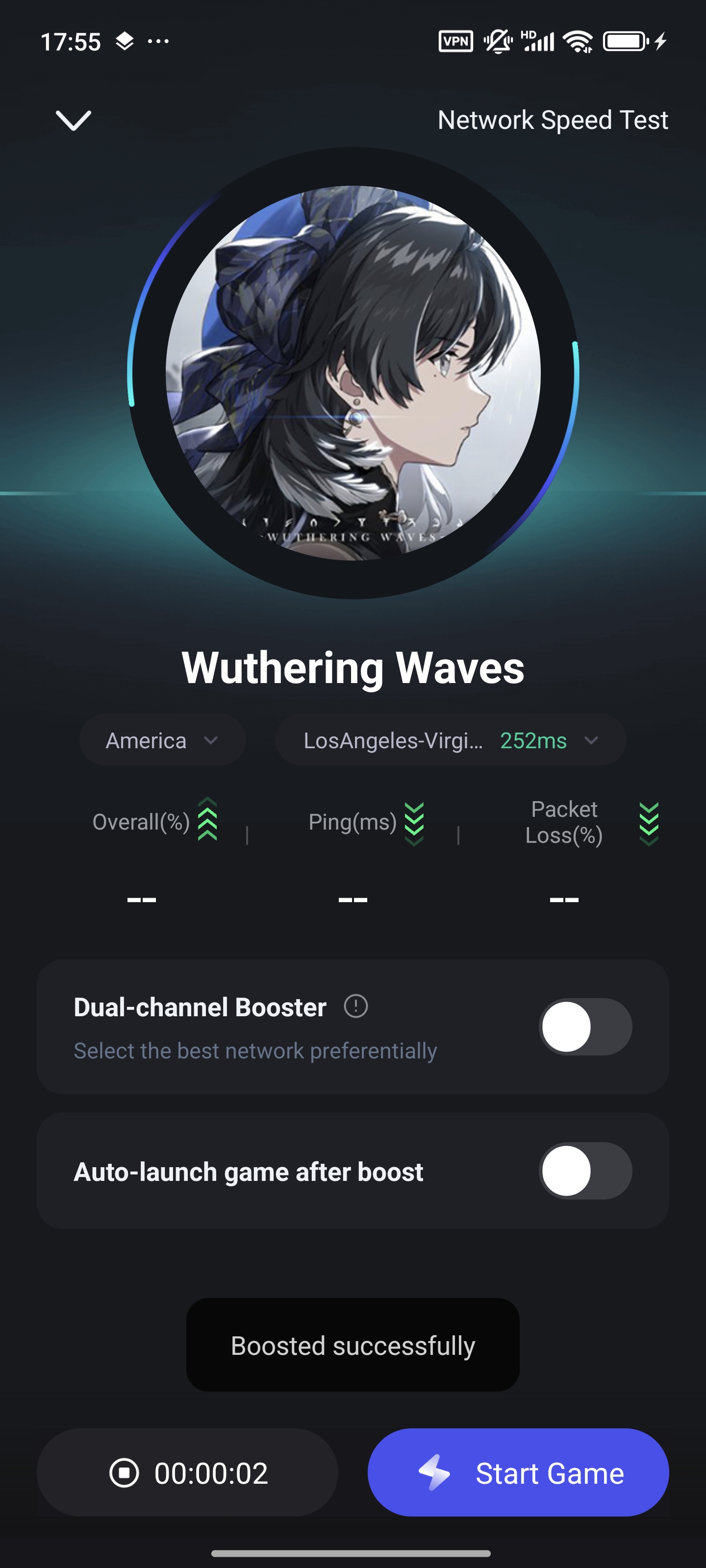
- Open the LagoFast app.
- Go to Game Library → Trending.
- Find Wuthering Waves and select it
b. Optimize Server & Node
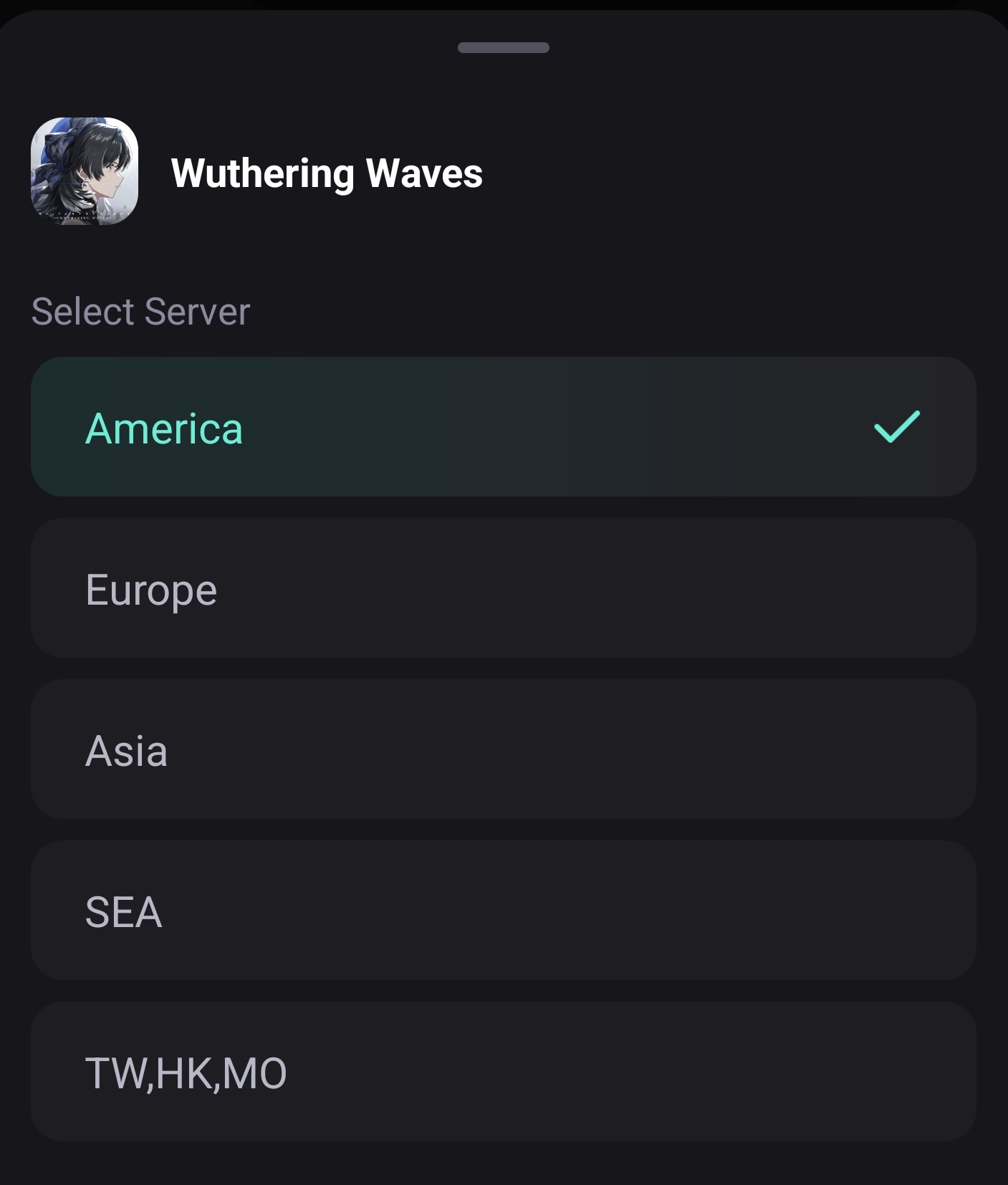
- Tap Choose Server.
- Select a server closest to your location for minimal latency.
c. Start Boosting
- Tap Boost to activate the optimized connection. Launch Wuthering Waves and enjoy a smooth, lag-free experience!
3. How to Use the Interactive Map
a. Enable the Interactive Map
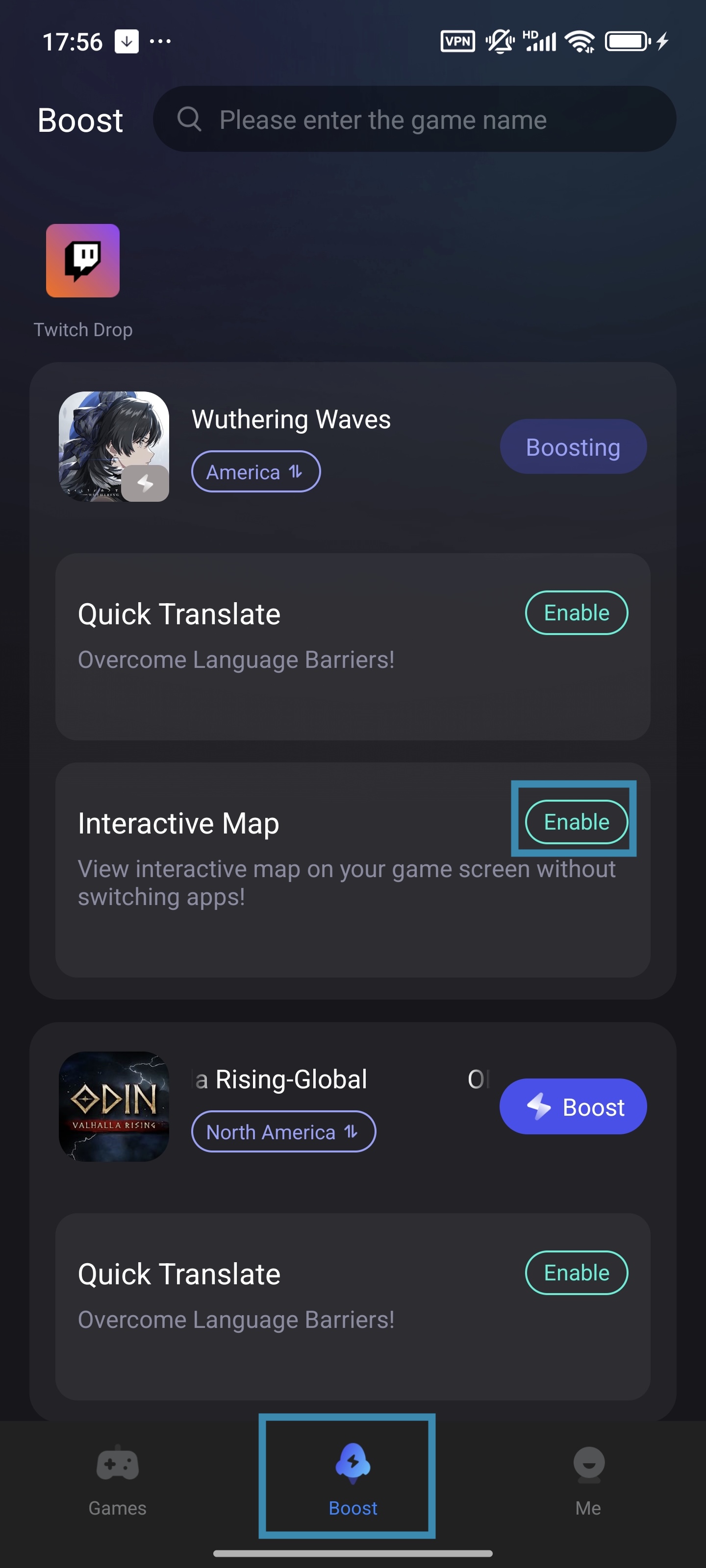
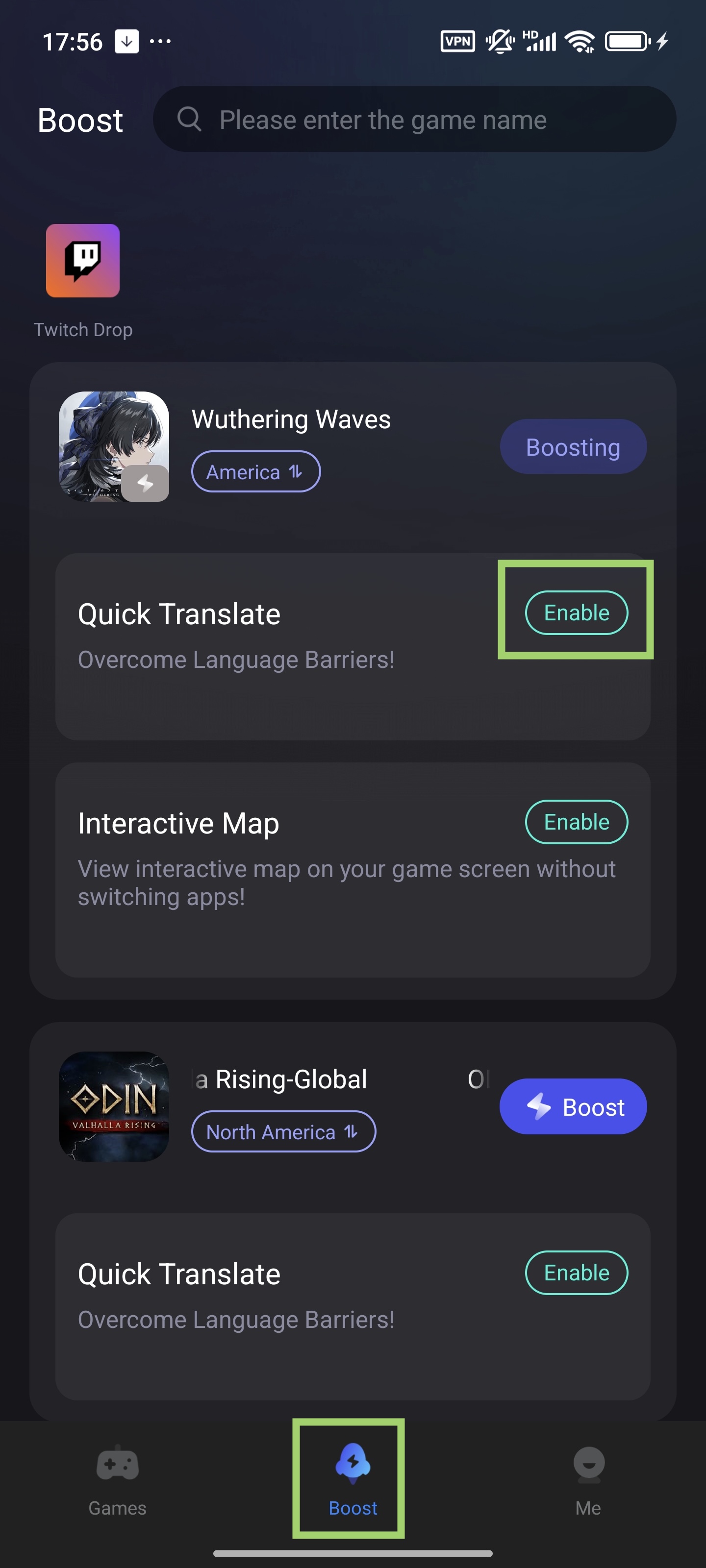
- In the LagoFast app, navigate to the Boost tab. Find Wuthering Waves and toggle the Enable button next to Interactive Map.
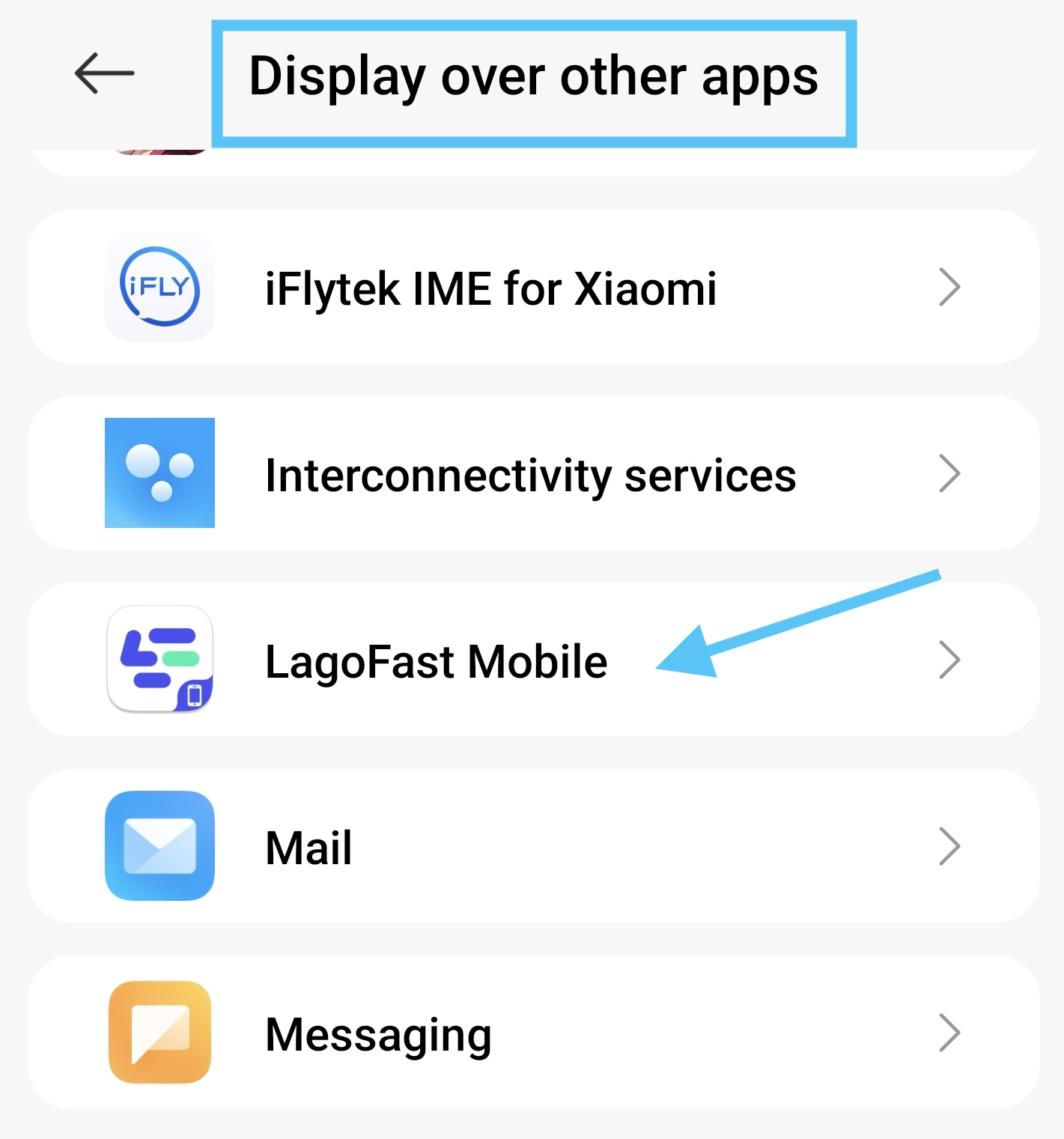
- First-time users: Grant LagoFast screen overlay permissions when prompted.
b. Access the Map In-Game
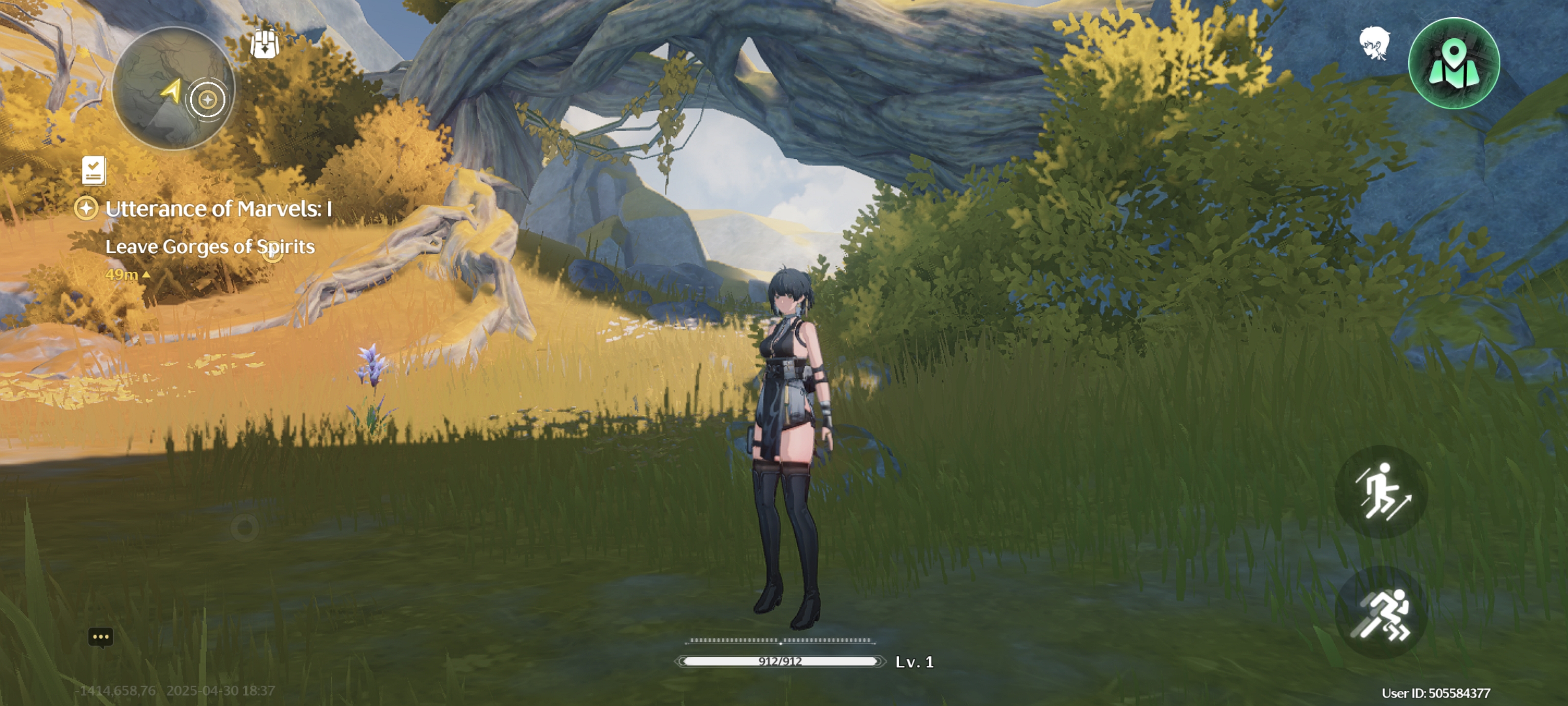
- Rotate your device to landscape mode for optimal viewing. Then tap the Map icon to open the interactive map.
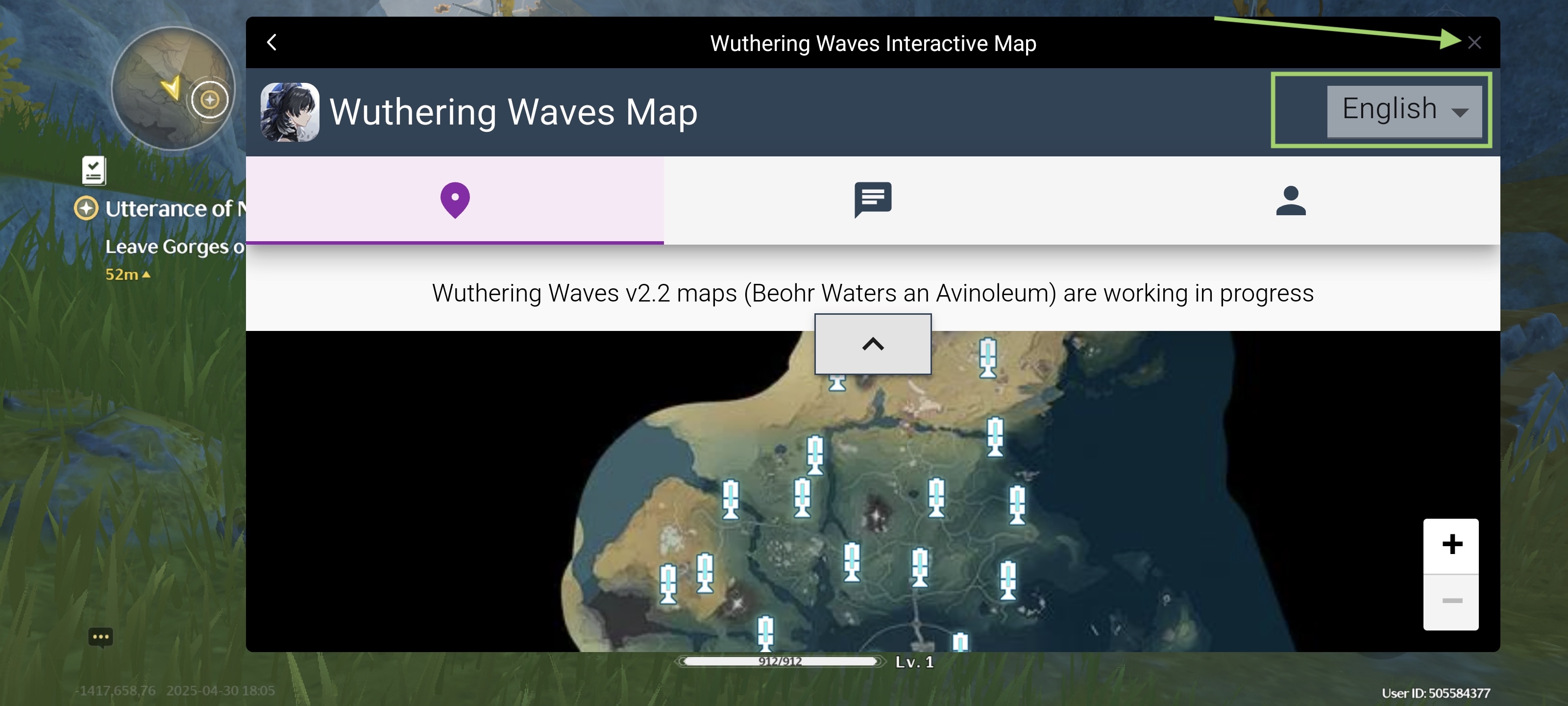
- Use it to locate loot, bosses, and hidden quests in real time—even mid-battle! You can switch the language here. And tap the "x" to close the map overlay.
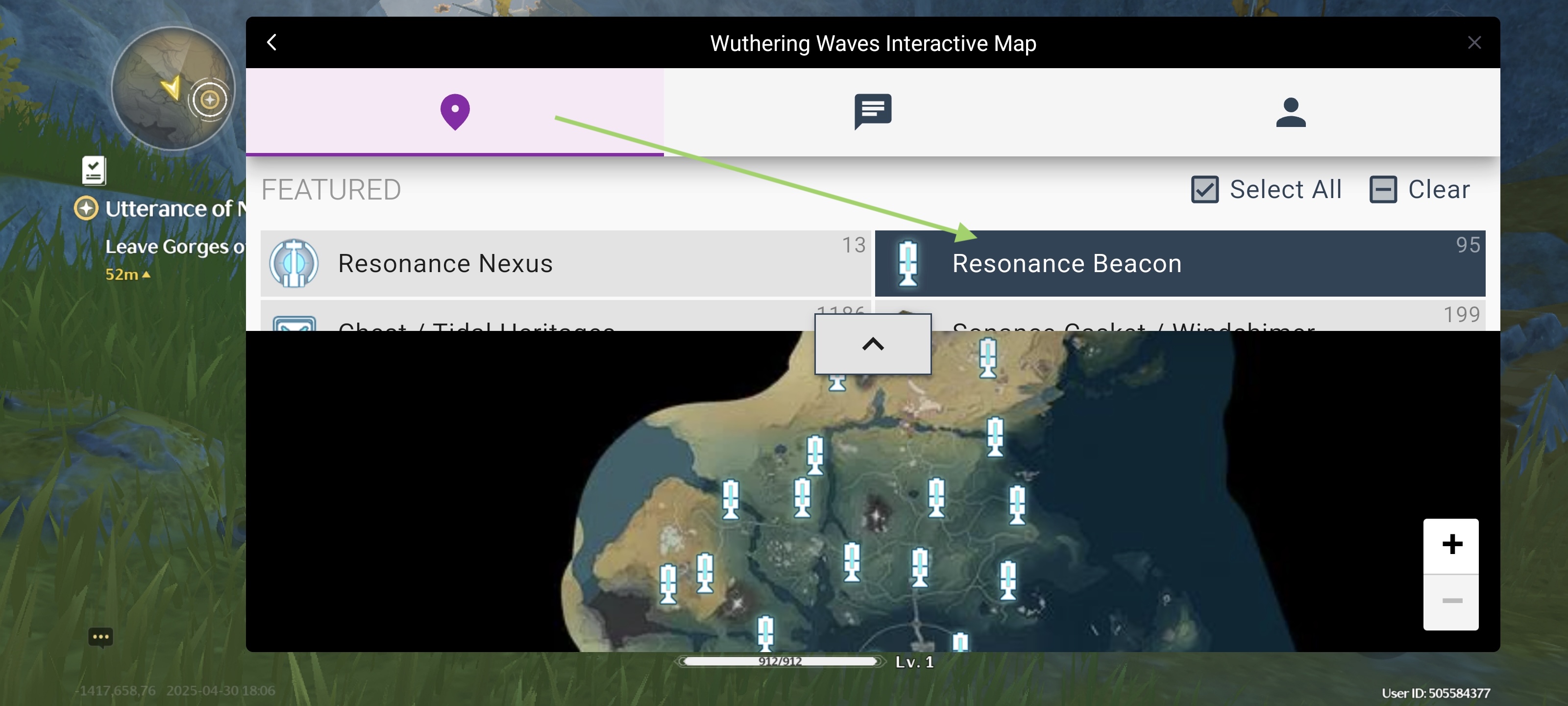
- Here you can select the specific loot you wanna track.
4. How to Use the In-Game Translation Tool
a. Activate Real-Time Translation
- Go to Boost tab, find Wuthering Waves and tap the enable button to activate the translation tool.
b. Customize Translation Language
- Select your preferred language (e.g., English, Spanish) in the LagoFast app. The tool will translate the language in-game to the language you used on LagoFast.
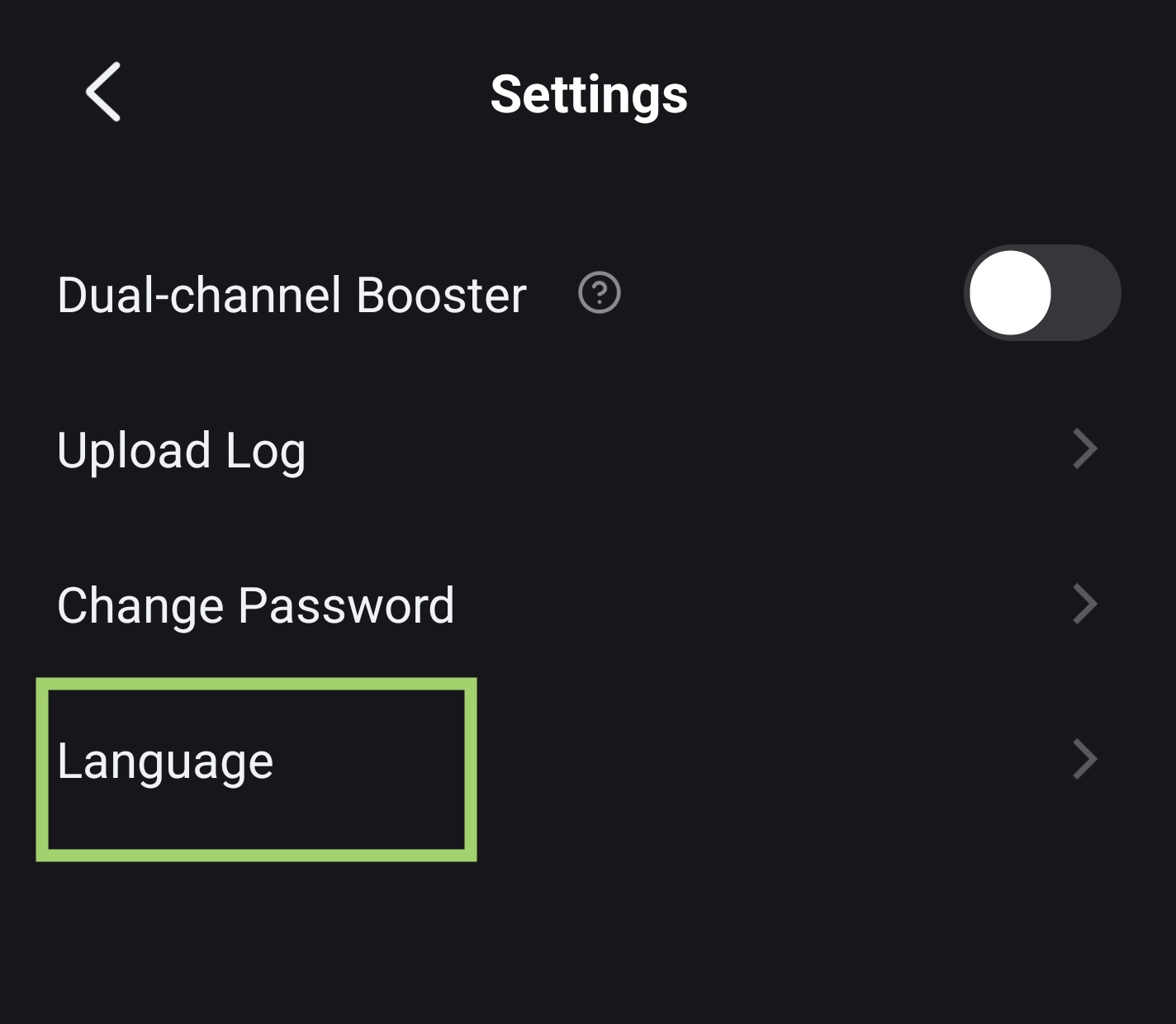
- You can adjust the language of LagoFast in LagoFast > Me > Settings > Language.
c. Translate in Game
- Tap the translation tool icon in-game when you need to translate the language. It will grab the text and show the translation version on your screen
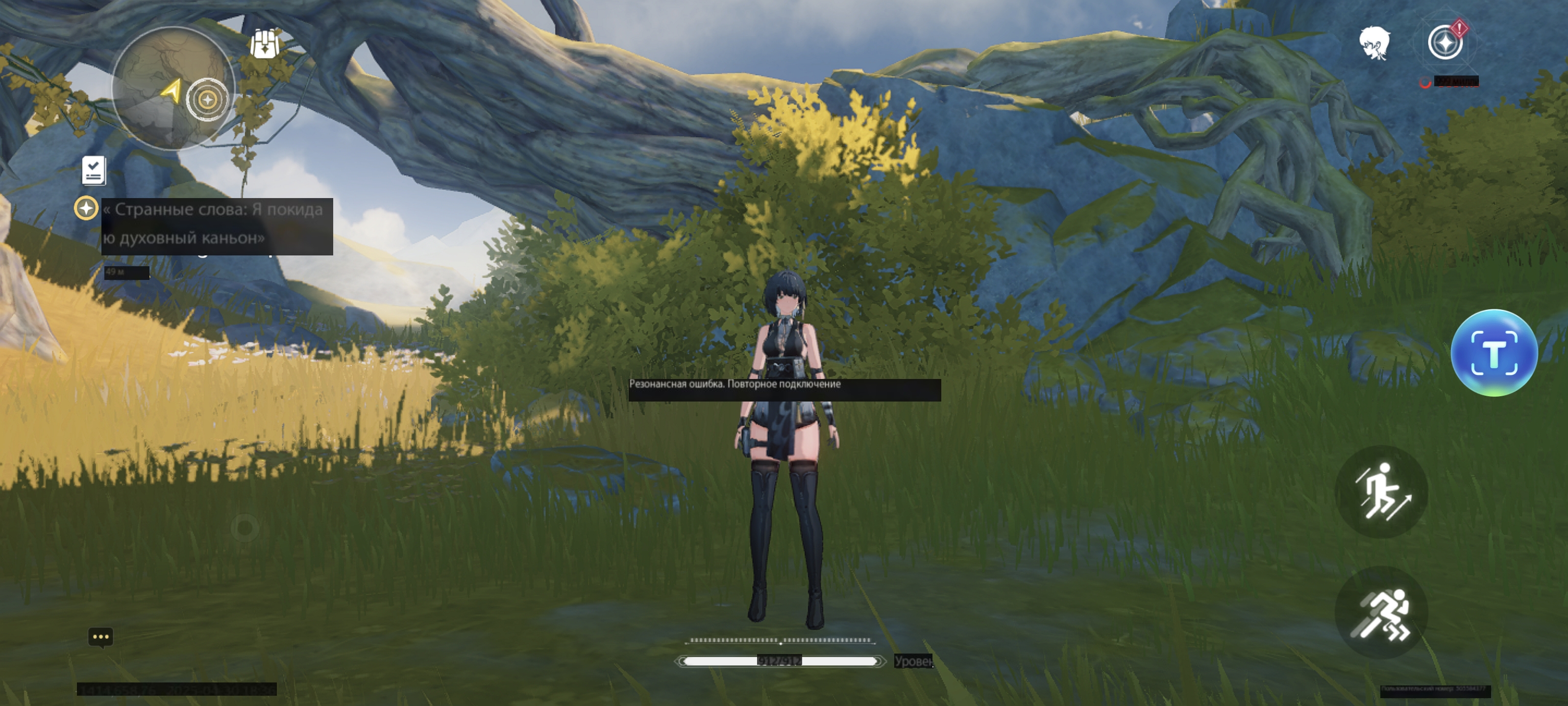
Enjoy the game!

