How to Use Mortar Range Calculator
1. Launch Order & Resolution Detection
It is recommended to launch PUBG first, then open the Mortar Range Calculator. After opening the tool, it will automatically detect your current screen resolution and display it on the interface.
2. Confirm the Tool Is Running Properly
If the tool indicates that your current resolution is supported, and after using the shortcut key (Alt + X by default) you see a four-color frame displayed on the right side of the game screen, this means the Mortar Range Calculator is running correctly.
3. Real-Time Distance Measurement
The tool measures the distance in real time between your current position, your teammates’ map markers, and your own placed markers.
Important: To ensure accurate distance calculation, you must expand the in-game mini-map (default key: N). Distance accuracy depends on the mini-map being fully displayed.
4. Precise Mortar Strikes
First, mark the enemy position in game using a map marker.
Next, check the distance shown by the Mortar Range Calculator.
Then, adjust the mortar firing distance based on the measured value to achieve precise strikes.
5. Distance Limitation
The measurement range is limited to the area displayed on the mini-map. The maximum measurable distance is 495 meters.
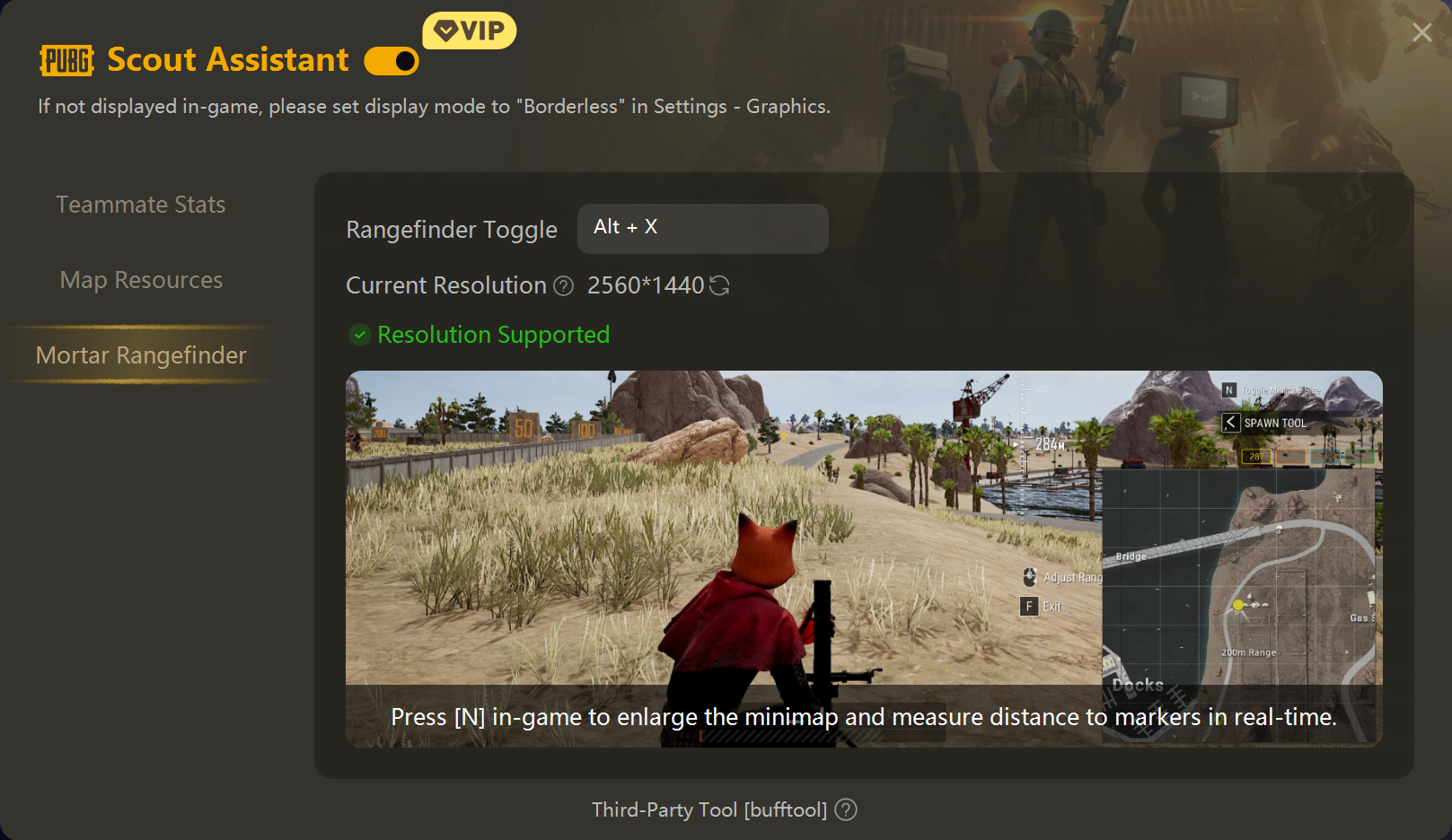
Resolution & Display Settings Guide
To ensure proper functionality, set the game to Borderless Windowed Mode (recommended) or Windowed Mode.
Supported Aspect Ratios & Resolutions
This tool supports all common resolutions under the following aspect ratios.
- 16:9 resolutions include 3840×2160 (4K), 2560×1440 (2K), 1920×1080 (1080p), 1600×900, and 1280×720.
- 16:10 resolutions include 2560×1600, 1920×1200, 1680×1050, and 1440×900.
- 4:3 resolutions include 1600×1200, 1280×960, 1024×768, and 800×600.
If Your Resolution Is Not Supported
Method 1
Set the game to Borderless Windowed Mode and change your system screen resolution to one of the supported resolutions listed above.
Method 2
Set the game to Windowed Mode and change the in-game resolution to one of the supported resolutions listed above.
After changing the resolution, click the Refresh button next to Current Resolution in the tool. If the tool shows that the resolution is supported, the Mortar Range Calculator will function normally.

