
Quick Answer
If Hell Let Loose: Vietnam is stuck on a loading screen, black screen, or taking too long to load, immediately try verifying game files (PC) or clearing your console's cache (Xbox). Ensure your graphics drivers are updated (PC) and that your network connection is stable. For persistent issues, especially those related to Unreal Engine 5 shader compilation or network timeouts, consider clearing shader caches and using a game optimization tool like LagoFast to stabilize your connection and reduce loading times.
Introduction
Hell Let Loose: Vietnam can sometimes fail to move past the loading screen on both PC and Xbox, leaving players stuck before they even reach the battlefield. This usually happens due to a mix of performance-heavy Unreal Engine 5 asset loading, shader compilation delays, or network synchronization issues when connecting to large multiplayer servers.
Because the game streams large amounts of data during map loading and server joining, even small issues like corrupted cache files, slow storage, or unstable internet routing can cause infinite loading, black screens, or extremely long wait times. This guide breaks down the most effective fixes for both PC and Xbox so you can get back into the fight quickly

- ✅ Reduce Lag and High Ping.
✅ Boost FPS at the Same Time.
✅ Support 2000+ Popular Online Games.
✅ Change Server without Latency.
✅ Boost Game Loading Speed.
Part 1: Hell Let Loose: Vietnam Not Loading on PC (Steam)
Part 2: Hell Let Loose: Vietnam Stuck on Black Loading Screen
Part 3: Hell Let Loose: Vietnam Stuck on Map Loading Screen / Infinite Loop
Part 4: Hell Let Loose: Vietnam Not Loading on Xbox Series X|S
Part 5: Hell Let Loose: Vietnam Taking Forever to Join Server / Connection Issues
Part 6: How to Enhance Your Game Experience with LagoFast Game Booster
Part 7: Frequently Asked Questions (FAQs)
Part 1: Hell Let Loose: Vietnam Not Loading on PC (Steam)
For PC players, encountering a loading screen freeze or an inability to load into Hell Let Loose: Vietnam can be a frustrating roadblock to joining the intense jungle warfare. These issues often stem from corrupted game files, outdated system components, or conflicts with other software.
Verify Game Files Integrity (Steam)
Corrupted or missing game files are a primary suspect when a game fails to load. Steam provides a built-in tool to check and repair your game installation. To use it, open your Steam Library, right-click on Hell Let Loose: Vietnam, select Properties, navigate to the Installed Files tab, and click Verify integrity of game files. This process will scan your game directory and automatically download any necessary repairs, often resolving a multitude of loading issues.
Update Graphics Drivers
Outdated or corrupted graphics drivers are a common cause of loading screen problems, especially with new titles built on demanding engines like Unreal Engine 5. Ensure your NVIDIA, AMD, or Intel graphics drivers are up to date. Visit your GPU manufacturer's official website, download the latest drivers for your specific card, and perform a clean installation. This ensures optimal compatibility and performance, which is crucial for smooth asset loading.
Clear Download Cache (Steam)
Sometimes, Steam's download cache can become corrupted, leading to issues with game updates or loading. Clearing this cache can resolve unexpected behavior. In Steam, go to Settings > Downloads, and click CLEAR DOWNLOAD CACHE. You will need to log back into Steam after this process.
Run Game as Administrator
Insufficient permissions can prevent the game or its anti-cheat from accessing necessary system resources, leading to loading failures. Right-click on the Hell Let Loose: Vietnam executable (or its desktop shortcut) and select Run as administrator. For a permanent solution, go to Properties > Compatibility and check the "Run this program as an administrator" box.
Part 2: Hell Let Loose: Vietnam Stuck on Black Loading Screen
A black screen during loading is a particularly unsettling issue, often indicating a deeper problem with graphics rendering, display settings, or shader compilation. Given Hell Let Loose: Vietnam's use of Unreal Engine 5, these issues can be more pronounced.
Clear Shader Caches
Unreal Engine 5 games heavily rely on shader caches for efficient rendering. A corrupted or outdated shader cache can cause the game to hang on a black screen indefinitely while it attempts to process graphical data. To clear it on Windows, search for Disk Cleanup, select your C: drive, and ensure DirectX Shader Cache is checked before clicking OK. For NVIDIA users, you can also clear the shader Cache through the NVIDIA Control Panel under Manage 3D settings > Shader Cache Size > Clear. After clearing, the game will rebuild shaders, which might take a moment on the first launch but should resolve the black screen issue.
Update Windows and DirectX
An outdated Windows operating system or DirectX version can lead to compatibility issues with modern game engines. Ensure your Windows is fully updated via Windows Update. Additionally, verify that your DirectX installation is current. You can often force a DirectX update by running the DirectX End-User Runtime Web Installer from Microsoft's official website. This ensures your system has the necessary components to render the game correctly.
Adjust Display Settings / Launch Options
Sometimes, the game might be attempting to launch in a resolution or refresh rate unsupported by your monitor, resulting in a black screen. You can try forcing the game into a windowed mode or a specific resolution via Steam launch options. Right-click on the game in Steam, go to Properties > General, and in the Launch Options field, try adding -windowed or -w 1920 -h 1080 (adjust resolution as needed). You can also try -dx11 to force DirectX 11, which can sometimes be more stable than DirectX 12 for certain hardware.
Disable Fullscreen Optimizations
Windows' Fullscreen Optimizations feature, while intended to improve performance, can sometimes interfere with games and cause black screens or crashes. Right-click on the Hell Let Loose: Vietnam executable, go to Properties > Compatibility, and check the box for "Disable fullscreen optimizations." This can sometimes resolve unexpected display issues during loading.
Part 3: Hell Let Loose: Vietnam Stuck on Map Loading Screen / Infinite Loop
Getting stuck on the map loading screen, or an infinite loading loop, often points to issues with asset streaming, disk I/O, or network communication with the game server. This is particularly common in large-scale multiplayer titles like Hell Let Loose: Vietnam, where vast amounts of data need to be loaded quickly.
Move Game to SSD
If Hell Let Loose: Vietnam is installed on a traditional Hard Disk Drive (HDD), long loading times and infinite loading screens are almost guaranteed. Modern games, especially those built on Unreal Engine 5 with high-resolution textures and complex environments, are designed for Solid State Drives (SSDs). Moving the game to an SSD (preferably an NVMe SSD) will drastically reduce loading times and eliminate many loading-related freezes by significantly improving data read speeds.
Increase Virtual Memory (Page File)
If your system has limited physical RAM, the game might struggle to load all necessary map assets, leading to freezes or infinite loading. Increasing your virtual memory (page file) can provide a temporary solution. Go to System Properties > Advanced > Performance Settings > Advanced > Virtual Memory > Change. Uncheck "Automatically manage paging file size" and set a custom size, typically 1.5 to 2 times your physical RAM. This gives your system more memory resources for demanding games.
Check Network Stability and Latency
An unstable or high-latency network connection can cause the game to time out while trying to load map data from the server. Even if your internet seems fine for browsing, packet loss or inconsistent ping can disrupt the loading process. Ensure your internet connection is stable, ideally using a wired Ethernet connection. You can test your ping and packet loss using online tools or command prompt (ping google.com -t).
Temporarily Disable Antivirus/Firewall
Your antivirus software or Windows Firewall might be mistakenly blocking the game's connection to the server during map loading. Temporarily disable them to see if the issue resolves. If it does, you'll need to add exceptions for HLL_Vietnam.exe and EasyAntiCheat.exe to your security software.
Part 4: Hell Let Loose: Vietnam Not Loading on Xbox Series X|S
Console players are not immune to loading issues. While the closed ecosystem of Xbox Series X|S often means fewer software conflicts, problems can still arise from corrupted game data, console cache issues, or network configuration. The solutions here are tailored for the Xbox platform.
Power Cycle Your Xbox Console
A simple yet effective fix for many console glitches is a full power cycle. Hold down the Xbox button on your console for 10 seconds until it completely shuts down. Unplug the power brick from the console and the wall for 30 seconds. Plug everything back in and restart your Xbox. This clears the system cache and can resolve temporary loading issues.
Clear Persistent Storage (Blu-ray Cache)
Xbox consoles have a persistent storage cache for Blu-ray content that can sometimes interfere with game loading. To clear it, go to Settings > Devices & connections > Blu-ray > Persistent storage, and select Clear persistent storage. This won't delete any game data but can help resolve loading problems.
Check for Game Updates and Corrupted Data
Ensure Hell Let Loose: Vietnam is fully updated. If an update was interrupted, game files might be corrupted. On your Xbox, go to My games & apps, highlight Hell Let Loose: Vietnam, press the Menu button (three lines), and select Manage game and add-ons. Check for updates and ensure there are no corrupted data files. If suspicious, you might need to reinstall the game.
Reset MAC Address
Resetting your console's MAC address can sometimes resolve network-related loading issues by forcing a fresh connection to your router. Go to Settings > General > Network settings > Advanced settings > Alternate MAC address, and select Clear. Restart your Xbox afterwards.
Part 5: Hell Let Loose: Vietnam Taking Forever to Join Server / Connection Issues
Even if the game loads, a slow or failed server join indicates underlying network problems. Hell Let Loose: Vietnam's large-scale battles require a robust and low-latency connection. Long server join times or inability to connect often point to routing inefficiencies, firewall blocks, or general internet instability.
Restart Router and Modem
As with any network issue, a quick power cycle of your router and modem can often resolve temporary congestion or IP conflicts. Unplug them for about 30 seconds, then plug them back in and wait for them to fully restart.
Use a Wired Ethernet Connection
For any competitive online game, a wired Ethernet connection is vastly superior to Wi-Fi. Wi-Fi is prone to interference, signal drops, and higher latency, all of which can contribute to long server join times and disconnections. Connect your PC or Xbox directly to your router with an Ethernet cable for the most stable experience.
Check Firewall and Antivirus Settings
Ensure your Windows Firewall (PC) or router's firewall is not blocking Hell Let Loose: Vietnam's connection to game servers. Add exceptions for the game executable and Easy Anti-Cheat. For Xbox, ensure your router's NAT type is Open or Moderate; a Strict NAT type can severely limit your ability to connect to other players and servers.
5.4 Change DNS Servers
Your Internet Service Provider's (ISP) default DNS servers might not be the most efficient for gaming. Switching to public DNS servers like Google DNS (8.8.8.8 and 8.8.4.4) or Cloudflare DNS (1.1.1.1 and 1.0.0.1) can sometimes improve routing and reduce server join times. This is configured in your network adapter settings (PC) or console network settings (Xbox).
Part 6: How to Enhance Your Game Experience with LagoFast Game Booster
Even after diligently applying all the manual fixes, network performance can remain a critical bottleneck, especially in a fast-paced, large-scale multiplayer game like Hell Let Loose: Vietnam. High ping, packet loss, and unstable connections can turn a tactical advantage into a frustrating defeat. This is where LagoFast becomes an invaluable tool for any serious PC gamer.
LagoFast is a specialized network optimization tool designed to provide a stable, low-latency connection by intelligently routing your game traffic through optimized pathways. It bypasses congested public internet nodes, which are often the root cause of lag spikes and disconnections. For Hell Let Loose: Vietnam, where every shot and every callout matters, a reliable connection is not just a luxury—it's a necessity.
How to Use LagoFast Game Booster
Step 1: Click the Free Trial button to download and install LagoFast.
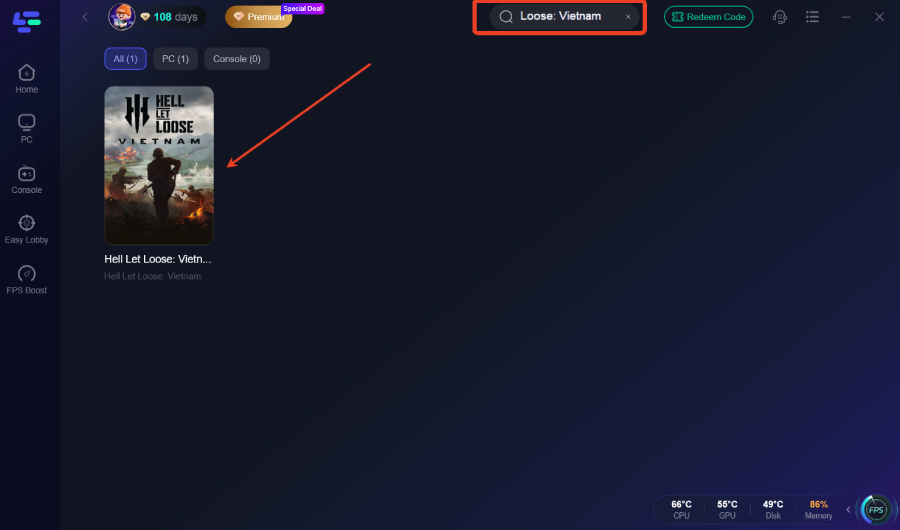
Step 2: After installation, search "Hell Let Loose: Vietnam" in the search bar and select the game.
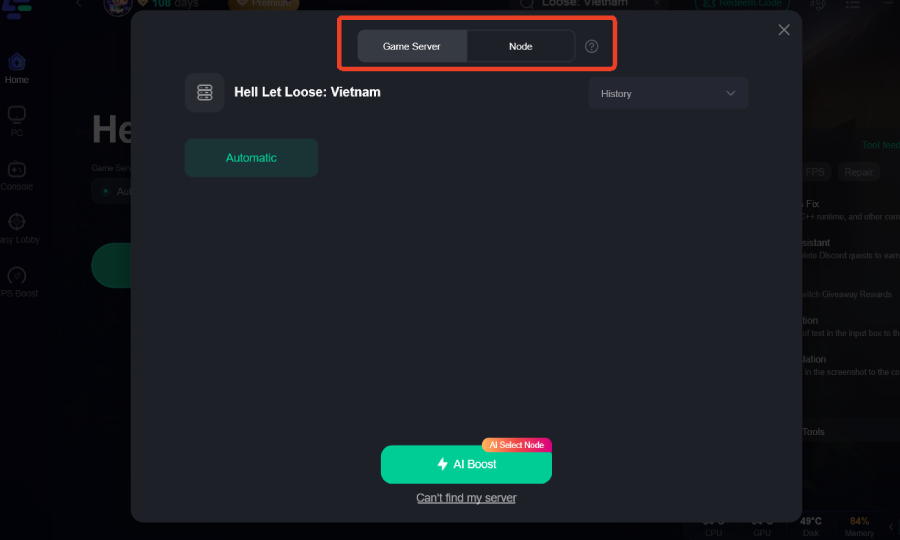
Step 3: Choose your preferred server node and click "Smart Boost" to start optimizing.
Step 4: Launch your game and enjoy smooth, optimized gameplay with lower ping and no stutter.
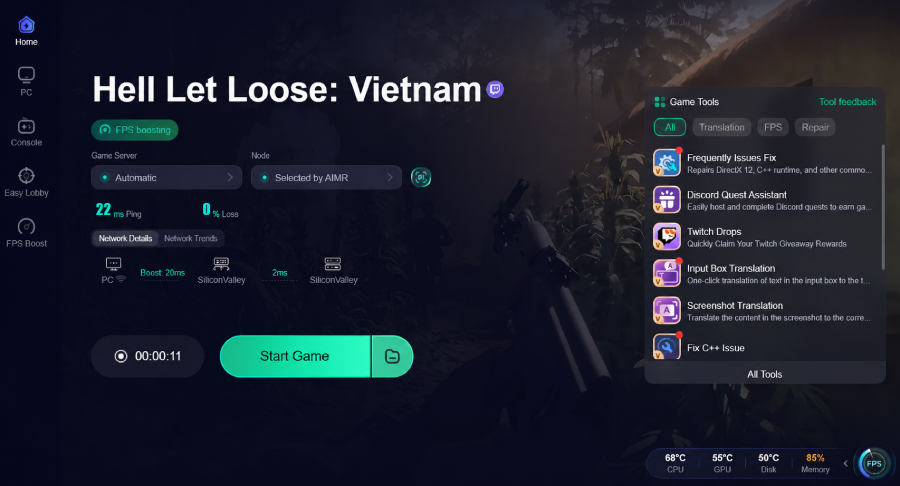
By integrating LagoFast into your gaming routine, you effectively eliminate network instability as a variable, allowing you to perform at your peak without being held back by technical limitations.
Part 7: FAQs
Q1: Why is Hell Let Loose: Vietnam so demanding on my PC?
A1: Hell Let Loose: Vietnam is built on Unreal Engine 5, which utilizes advanced graphics technologies like Nanite and Lumen. These technologies, combined with large-scale 50v50 battles and highly detailed environments, make the game very resource-intensive, especially on the CPU and GPU.
Q2: Is Hell Let Loose: Vietnam a standalone game or DLC?
A2: Hell Let Loose: Vietnam is a standalone title, the first new game in the Hell Let Loose franchise. It is not a DLC for the original Hell Let Loose.
Q3: What is Easy Anti-Cheat (EAC) and why is it important?
A3: Easy Anti-Cheat (EAC) is a third-party anti-cheat service used by many online games, including Hell Let Loose: Vietnam. It's crucial for detecting and preventing cheating, ensuring a fair gameplay environment for all players. The game will not launch without EAC running correctly.
Q4: Can I play Hell Let Loose: Vietnam offline?
A4: No, Hell Let Loose: Vietnam is an online-only multiplayer game. It requires a persistent internet connection to play, as all game modes are designed for large-scale player versus player combat.
Q5: My game crashes when I try to change settings. What should I do?
A5: If the game crashes when changing settings, try deleting your game's configuration files. These are usually located in Documents\My Games\HellLetLooseVietnam\Saved\Config\WindowsNoEditor. Delete the files in this folder, then verify your game files through Steam. The game will regenerate default config files on next launch, allowing you to adjust settings more carefully.
Q6: Why do I get a "Lost Connection to Host" error even with good internet?
A6: This error, especially in a game like Hell Let Loose: Vietnam, can often be caused by server-side issues, temporary network routing problems, or strict firewall settings. Even with good internet, if the path to the game server is congested, you might get disconnected. Using a game booster like LagoFast can often resolve these routing issues.
Key Takeaways
Experiencing issues with Hell Let Loose: Vietnam can be incredibly frustrating, pulling you away from the intense, tactical combat that defines the game. While many problems can be resolved through diligent troubleshooting—from verifying game files and updating drivers to optimizing system settings—the underlying cause is often a complex interplay of hardware, software, and network factors. For PC gamers seeking a truly seamless and optimized experience, especially when dealing with connection-related woes, LagoFast Game Booster stands out as a powerful solution. By providing a stable, low-latency connection, it ensures you spend less time troubleshooting and more time dominating the battlefields of Vietnam. Don't let technical glitches dictate your combat effectiveness; equip yourself with the right solutions and dive back into the fight. Download LagoFast today and ensure your deployment is always smooth.

Boost Your Game with LagoFast for Epic Speed
Play harder, faster. LagoFast game booster eliminates stutter and lags on PC, mobile, or Mac—win every match!
Quickly Reduce Game Lag and Ping!
Boost FPS for Smoother Gameplay!