
Quick Answer: How to Fix Hell Let Loose: Vietnam Connection to Host Lost
When your game abruptly boots you back to the main menu with a "lost connection to host" error, the culprit is almost always severe packet loss, unstable routing between your ISP and the game servers, or localized network congestion. The most reliable, zero-hassle way to permanently bypass this problem is by using LagoFast. As a dedicated gaming booster, LagoFast routes your game data through exclusive, high-speed global pathways, stabilizing your ping, eliminating packet loss, and ensuring you never lose connection to the host during a high-stakes match.
Introduction
The brutal, 50v50 tactical combat of Hell Let Loose: Vietnam demands flawless communication and perfectly synchronized positioning. Unfortunately, thousands of soldiers are finding themselves kicked out of the jungle due to persistent network drops. If you are tired of losing your hard-earned match progress, this comprehensive troubleshooting guide will help you fix your network errors and stay firmly connected to the server.

- ✅ Reduce Lag and High Ping.
✅ Boost FPS at the Same Time.
✅ Support 2000+ Popular Online Games.
✅ Change Server without Latency.
✅ Boost Game Loading Speed.
Part 1: Hell Let Loose: Vietnam Host Connection Issue Overview
Part 2: Manual Fixes to Solve Hell Let Loose: Vietnam Connection to Host Lost
Part 3: Why Do Manual Fixes Always Fail?
Part 4: 100% Working Fix for Hell Let Loose: Vietnam Lost Connection Error - LagoFast
Part 5: What’s New in Hell Let Loose: Vietnam?
Part 1: Hell Let Loose: Vietnam Host Connection Issue Overview
Before diving into the fixes, it helps to understand what this error actually means and how it impacts your system.
|
Error Message Variant |
Primary Root Cause |
Impact on Gameplay |
|
Lost connection to host |
High server side congestion or sudden local packet drop. |
Instant kick to the main menu; loss of match XP. |
|
Connection timed out |
High latency or severe ISP routing inefficiencies. |
Infinite loading screen followed by a network failure prompt. |
|
Network error occurred |
Local firewall blockage or corrupted DNS cache settings. |
Inability to browse or join server matchmaking queues. |
Part 2: Manual Fixes to Solve Hell Let Loose: Vietnam Connection to Host Lost
If you want to try to resolve the network instability on your own, several native system configurations can stabilize your internet connection. Work your way through these four methods step by step.
Method 1: Change Your DNS Servers to Google or Cloudflare
Your Internet Service Provider’s default DNS servers can often be slow or poorly routed, leading to server timeouts when launching into a map.
Step 1: Press the Windows Key + R to open the Run dialog box. Type ncpa.cpl and hit Enter to open your Network Connections window.
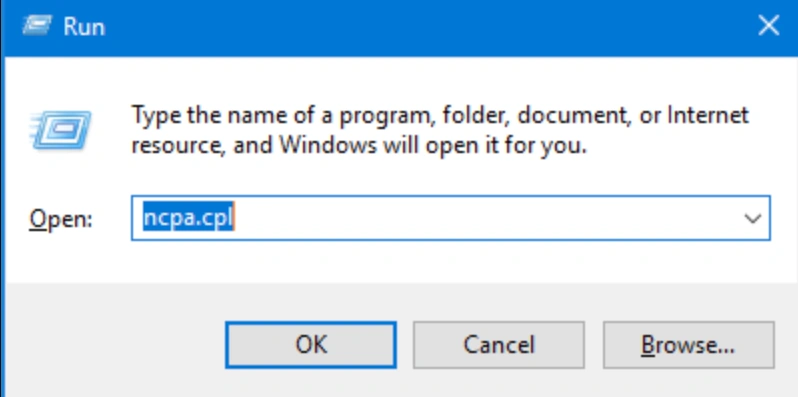
Step 2: Right-click on your active internet connection (Ethernet or Wi-Fi) and select Properties.
Step 3: Double-click on Internet Protocol Version 4 (TCP/IPv4) from the list.
Step 4: Select the bubble that says Use the following DNS server addresses.
Step 5: Enter 8.8.8.8 for the Preferred DNS server and 8.8.4.4 for the Alternate DNS server (or use 1.1.1.1 and 1.0.0.1 for Cloudflare). Click OK to save.
Method 2: Perform a Complete Network Flush
Lingering network cache and IP conflicts can drop your connection when the game sends a massive burst of data during map loads.
Step 1: Type cmd into your Windows search bar, right-click on Command Prompt, and choose Run as administrator.
Step 2: Type ipconfig /release and press Enter to drop your current IP assignment.
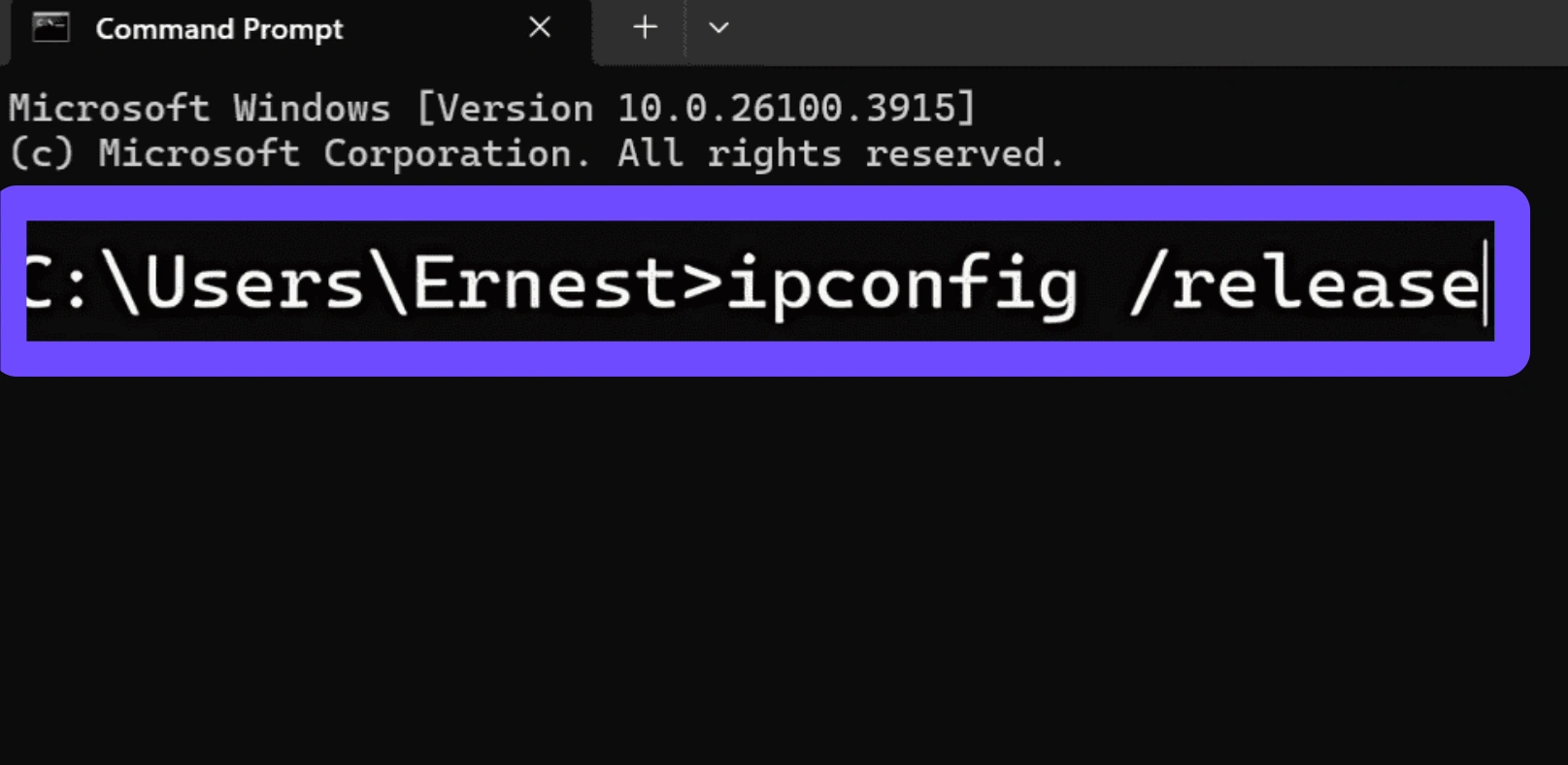
Step 3: Type ipconfig /renew and press Enter to request a fresh IP address from your router.
Step 4: Type ipconfig /flushdns and press Enter to completely clear out corrupted web and server caches.
Step 5: Type netsh winsock reset and press Enter to restore your base network socket API, then restart your PC.
Method 3: Configure Windows Defender Firewall Restrictions
Sometimes, Windows incorrectly flags the heavy incoming UDP traffic from the game's 100-player servers as a security threat, resulting in a sudden disconnect.
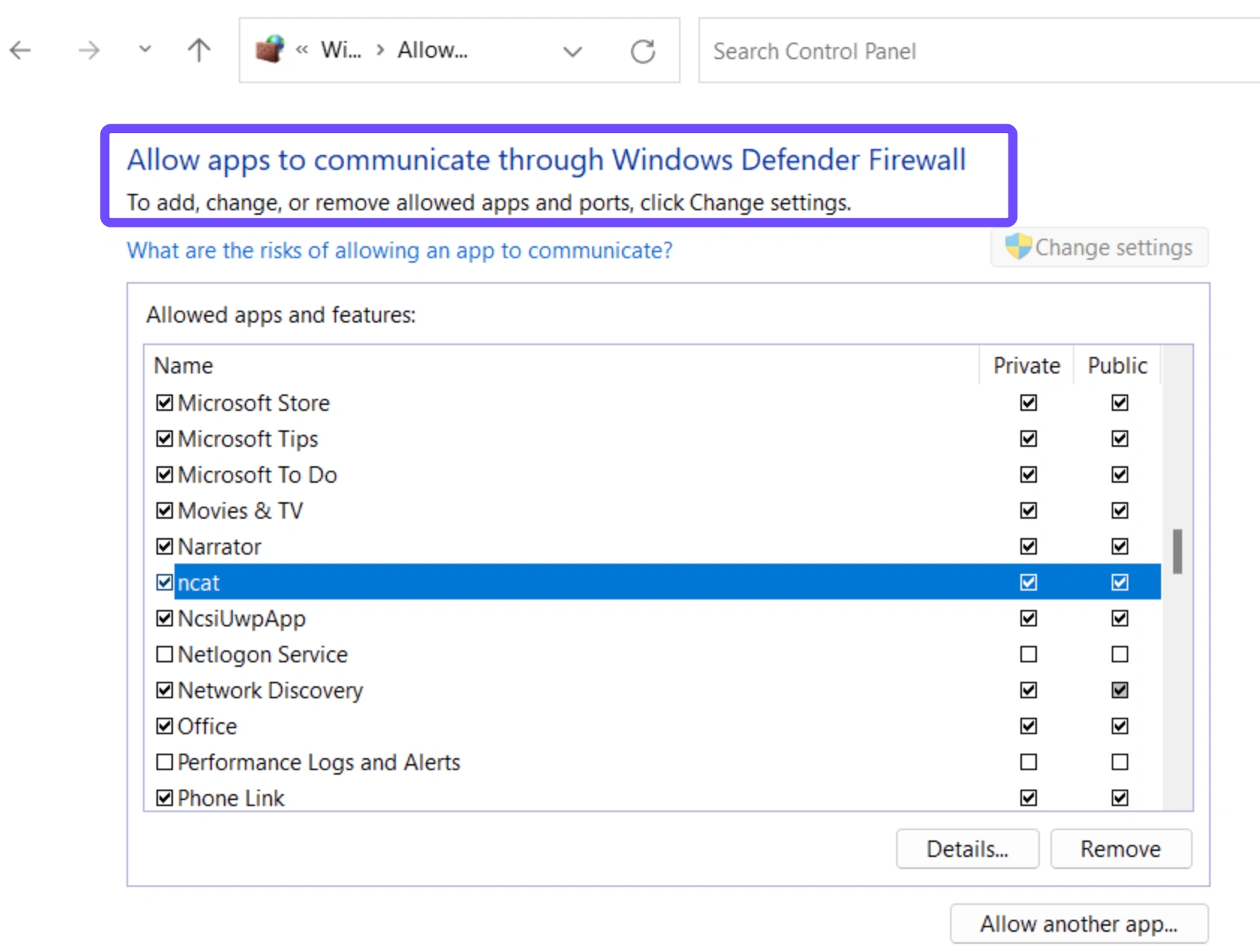
Step 1: Press the Windows Key, type Windows Defender Firewall, and select it from the menu.
Step 2: Click on Allow an app or feature through Windows Defender Firewall on the left side of the screen.
Step 3: Click the Change settings button at the top right (administrator privileges required).
Step 4: Scroll down until you locate Hell Let Loose or Hell Let Loose: Vietnam. Ensure both the Private and Public checkboxes are ticked.
Step 5: If the game isn't listed, click Allow another app..., browse to your game's installation directory, select the primary executable file, add it, and hit OK.
Method 4: Verify Game File Integrity on Steam or Epic Games
Corrupted game assets or missing network modules from a recent update patch can cause a desynchronization between your client and the host.
Step 1: Open your Steam Library and right-click on Hell Let Loose: Vietnam.
Step 2: Select Properties from the dropdown menu and navigate to the Installed Files tab.
Step 3: Click on the Verify integrity of beta/game files button.
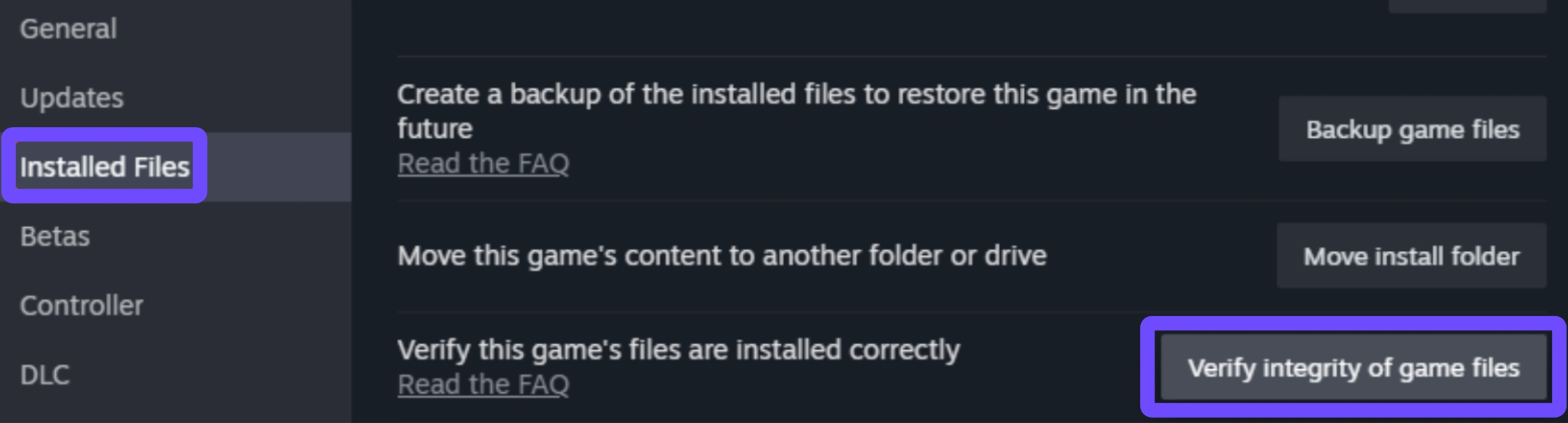
Step 4: Wait for Steam to scan your game folder. If any broken files are identified, the launcher will automatically redownload them.
Step 5: If you are on the Epic Games Store, click the three dots beneath the game tile, navigate to Manage, and click Verify.
Part 3: Why Do Manual Fixes Always Fail?
While flushing your DNS or adjusting your firewall is great network hygiene, these actions rarely fix the fundamental problem causing your disconnections. Manual fixes only address your local PC environment. They cannot fix ISP throttling, congested public routing nodes, or cross-border data packet loss. If your local internet provider decides to route your connection to the game server through an inefficient sequence of crowded nodes halfway across the country, your data packets will lag behind, causing the host server to assume your client is unresponsive and drop you from the match. That’s why you need a game booster that can ensure a smooth gaming experience.
Part 4: 100% Working Fix for Hell Let Loose: Vietnam Lost Connection Error - LagoFast
To completely eliminate connection errors and server timeouts, you need a network tool built specifically for high-performance multiplayer gaming. LagoFast is a premium game booster designed to stabilize your connection to game servers around the world. It bypasses regular internet congestion, creating a secure, uninterrupted data path directly from your system to the game's hosting environment.
Key Features of LagoFast:
- Multipath Connection Paths: Simultaneously transmits game data across multiple high-speed pathways to protect against sudden packet loss and connection drops.
- Intelligent FPS Booster: Instantly cleans up background RAM, optimizes your Windows power plan, and fine-tunes your GPU/CPU resource allocation to eliminate micro-stutters and maximize your frames per second during heavy firefights.
- Real-Time Ping Reduction: Dynamically targets and connects you to the fastest, least congested network nodes near the game servers.
- Server Status Monitoring: Identifies whether high ping is coming from your home hardware or a server-side crash.
- Unreal Engine 5 Optimization: Smooths out network spikes during massive map loads and intense combat drops.
- Simple One-Click Boosting: Instantly configures your network settings for maximum gaming performance with a single click.
Tutorial to Fix Hell Let Loose: Vietnam Lost Connection Error with LagoFast:
Step 1: Click the Free Trial button to download and install LagoFast.
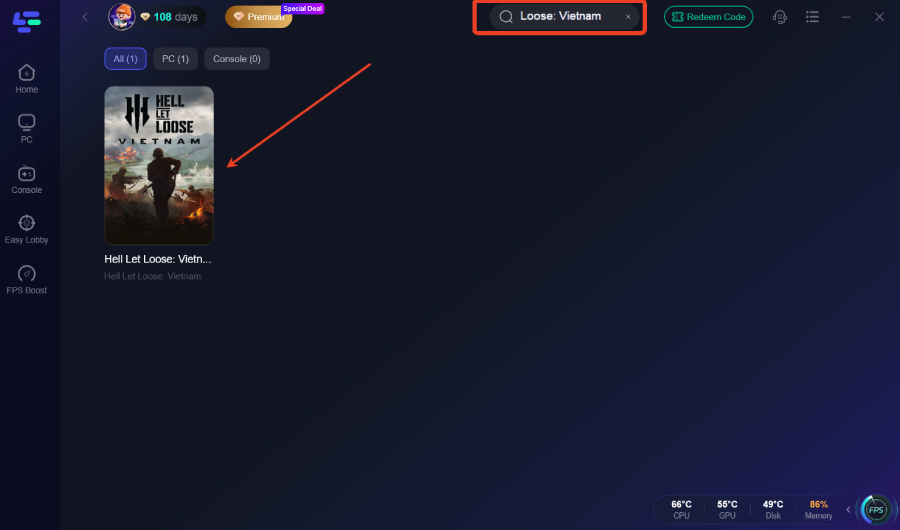
Step 2: After installation, search "Hell Let Loose: Vietnam" in the search bar and select the game.
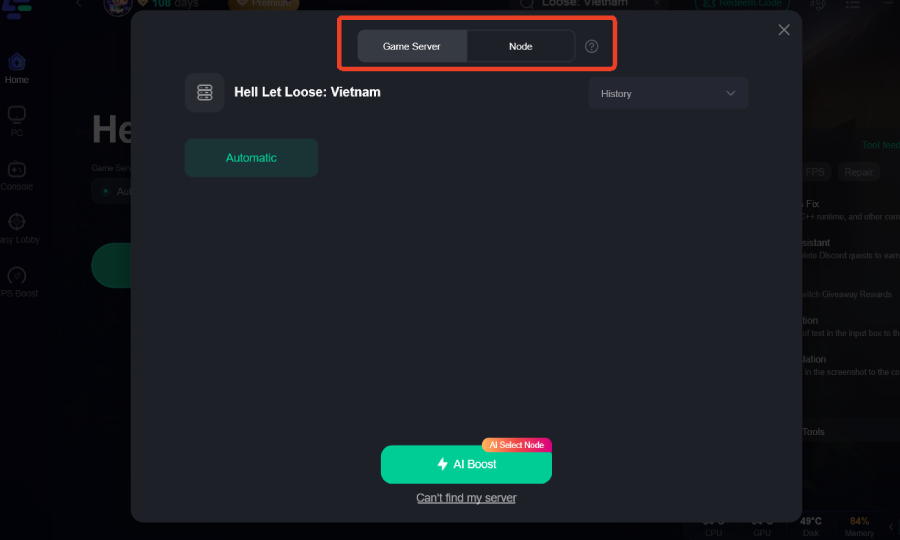
Step 3: Choose your preferred server node and click "Smart Boost" to start optimizing.
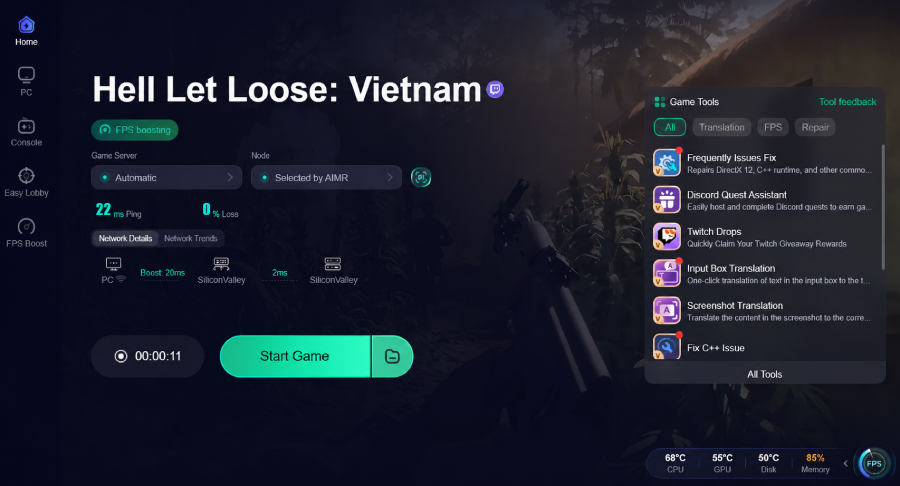
Step 4: Launch your game and enjoy smooth, optimized gameplay with lower ping and no stutter.
Part 5: What’s New in Hell Let Loose: Vietnam?
The transition to the jungle shifts the tactical meta significantly. Keeping an eye on these updates will help you stay competitive.
|
New Feature Category |
Detailed Enhancement Summary |
Tactical Impact |
|
Unreal Engine 5 Upgrade |
Advanced foliage rendering and dynamic lighting modules. |
Hiding and camouflage become highly viable survival strategies. |
|
New Vehicles |
Introduction of fully operational combat helicopters and river patrol boats. |
Drastically increases squad mobility across swampy maps. |
|
Authentic Maps |
Massive 50v50 historical war zones including the iconic Thanh Hóa Bridge. |
Requires tighter squad coordination to defend open choke points. |
Part 6: FAQs
Why do I keep getting the lost connection to host error in Hell Let Loose: Vietnam?
This error triggers when the connection between your game client and the multiplayer match host drops for too long. Common culprits include a sudden spike in network packet loss, high local ping, server overload, or restrictive local firewall rules.
How do I fix the network error during peak hours?
Peak hours see heavy server congestion. Using a dedicated game booster like LagoFast helps bypass crowded ISP pathways, keeping your packets flowing along an optimized line even when public internet traffic spikes.
Can a Wi-Fi connection cause the server connection to time out?
Yes. Wireless connections are highly prone to radio interference and brief signal drops. Tactical shooters require a constant stream of information; a single second of Wi-Fi jitter can easily cause the host server to time out your session. Always prefer a wired Ethernet connection when possible.
Does changing DNS help with the Hell Let Loose network error on PC?
Switching to stable, public DNS hosts like Google (8.8.8.8) or Cloudflare (1.1.1.1) improves domain resolution speeds. While it won't magically lower your in-game ping, it reduces handshaking errors when connecting to server matchmaking browsers.
What should I do if my server connection times out while loading into a match?
First, verify your game files to ensure no textures or maps are corrupted. If the files are healthy, the timeout means your PC is taking too long to reply to the server during the initial handshake. Optimizing your network route via LagoFast will fix this loading lag.
Is the connection to host lost issue always a problem on my end?
Not always. If the game’s official multiplayer servers experience a crash or severe backend issues, everyone in the match will get kicked simultaneously. Check official community forums or developer social media pages to see if server maintenance is underway.
Conclusion
Losing connection to your host right in the middle of an intense tactical push is incredibly frustrating. While basic household troubleshooting, like flushing your DNS and updating firewall exceptions, can help stabilize your local system, they can't fix fundamental ISP routing problems or crowded public nodes. To ensure a smooth, lag-free experience beneath the jungle canopy, let LagoFast handle your connection paths automatically so you can focus entirely on leading your squad to victory.
Boost Your Game with LagoFast for Epic Speed
Play harder, faster. LagoFast game booster eliminates stutter and lags on PC, mobile, or Mac—win every match!
Quickly Reduce Game Lag and Ping!
Boost FPS for Smoother Gameplay!